
How to Get Server Inventory across Your Network
Netwrix Auditor for Windows Server
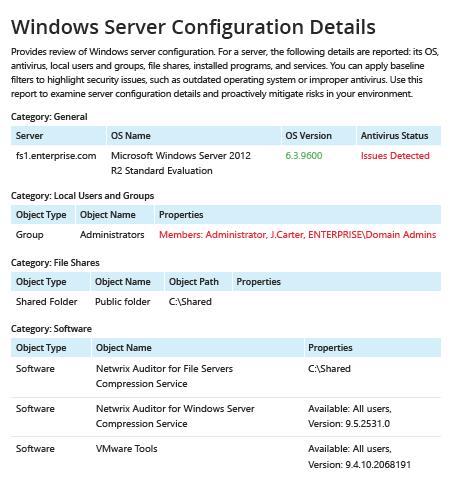
- Run Netwrix Auditor → Navigate to "Reports" → Expand the "Windows Server" section → Go to "Windows Server – State-in-Time" → Select "Windows Server Configuration Details" → Click "View".
- To save the report, click the "Export" button → Choose a format from the dropdown menu → Click "Save".
Learn more about Netwrix Auditor for Windows Server
Native Auditing
- Create a file containing the computer list → Open the Powershell ISE → Run the following script, adjusting the path for the export:
      #Start PSRemoting.
Invoke-Command -ComputerName (Get-Content C:\data\computers.txt) -scriptblock {

#Run the commands concurrently for each server in the list
$CPUInfo = Get-WmiObject Win32_Processor #Get CPU Information
$OSInfo = Get-WmiObject Win32_OperatingSystem #Get OS Information

#Get Memory Information. The data will be shown in a table as GB, rounded to the nearest second decimal.
$PhysicalMemory = Get-WmiObject CIM_PhysicalMemory | Measure-Object -Property capacity -Sum | % {[math]::round(($_.sum / 1GB),2)}

#Get Network Configuration
$Network = Get-WmiObject Win32_NetworkAdapterConfiguration -Filter 'ipenabled = "true"'

#Get local admins.
$localadmins = Get-CimInstance -ClassName win32_group -Filter "name = 'administrators'" | Get-CimAssociatedInstance -Association win32_groupuser

#Get list of shares
$Shares = Get-WmiObject Win32_share | Where {$_.name -NotLike "*$"}
$infoObject = New-Object PSObject

#Add data to the infoObjects.
Add-Member -inputObject $infoObject -memberType NoteProperty -name "ServerName" -value $CPUInfo.SystemName

Add-Member -inputObject $infoObject -memberType NoteProperty -name "CPU_Name" -value $CPUInfo.Name

Add-Member -inputObject $infoObject -memberType NoteProperty -name "TotalMemory_GB" -value $PhysicalMemory

Add-Member -inputObject $infoObject -memberType NoteProperty -name "OS_Name" -value $OSInfo.Caption

Add-Member -inputObject $infoObject -memberType NoteProperty -name "OS_Version" -value $OSInfo.Version

Add-Member -inputObject $infoObject -memberType NoteProperty -name "IP Address" -value $Network.IPAddress

Add-Member -inputObject $infoObject -memberType NoteProperty -name "LocalAdmins" -value $localadmins.Caption

Add-Member -inputObject $infoObject -memberType NoteProperty -name "SharesName" -value $Shares.Name

Add-Member -inputObject $infoObject -memberType NoteProperty -name "SharesPath" -value $Shares.Path

$infoObject
} | Select-Object * -ExcludeProperty PSComputerName, RunspaceId, PSShowComputerName | Export-Csv -path C:\data\Server_Inventory_$((Get-Date).ToString('MM-dd-yyyy')).csv -NoTypeInformation
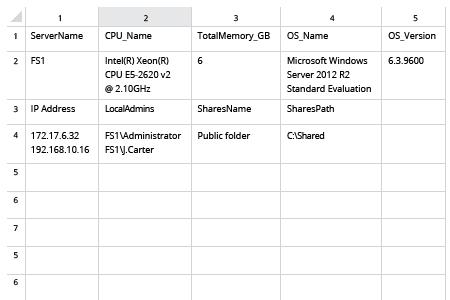
- Open the file produced by the script in MS Excel.
Collect Server Inventory to Detect Deviations from a Known Good Baseline
To ensure you have an accurate understanding of your critical assets, you need a complete, up-to-date hardware inventory and a thorough software inventory that includes what Windows Servers you have in your domain, what version of the OS runs on them (such as Windows Server 2012 or Windows Server 2008) and whether they are well-protected from external attacks. A PowerShell script to collect server inventory can help you get a list of servers. However, gathering all the important details and producing a useful report requires time, effort and a solid knowledge of PowerShell.
Netwrix Auditor for Windows Server delivers all the details you need about all the servers across your organization in one comprehensive, easy-to-read report, which you can easily export to a CSV file and use in Excel, or to a PFD file. The report is rich with info such as the name and version of the OS installed on each server and the antivirus status. Simply apply filters to the report to detect any deviations from your proper baseline, so you can immediately take action to harden the security of your computers and data.
Share on