
How to Detect SharePoint Permission Changes
Native Auditing
- Navigate to "Site Settings" → Click "Site Collection Administration" → Go to "Site collection features" → Choose "Reporting" → Click "Activate".
- Navigate to "Site Settings" → Click "Site Collection Administration" → Go to "Site collection audit settings" → Tick the "Editing Users and Permissions" events to audit under the "List Libraries and Sites" settings.
- Navigate to "Site Settings" → Click "Site Collection Administration" → Go to "Site collection audit settings" → Set "Automatically trim the audit log for this site?" to "Yes" → Set the trimming range time (the default value is 30 days) → Set the location you want to save the log to before it’s trimmed → Click "OK".
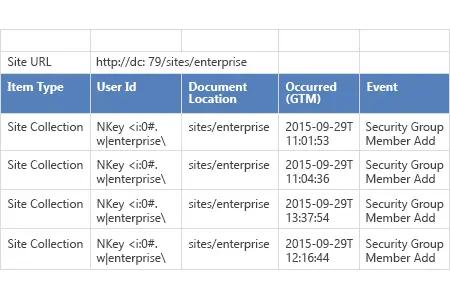
- Navigate to "Site Settings" → Click "Site Collection Administration" → Go to "Audit log reports" → Select the "Security Settings" report to view all permission changes made in your SharePoint environment.
Netwrix Auditor for SharePoint
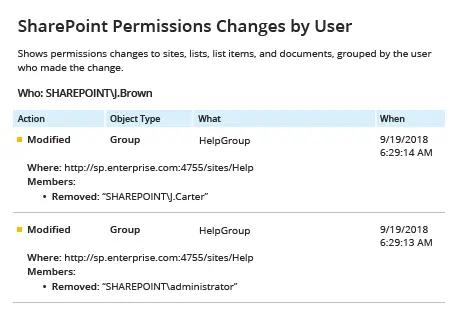
- Run Netwrix Auditor → Navigate to "Reports" → Expand the "SharePoint" section → Select "SharePoint Permissions Changes by User" → Click "View".
- To save the report, click the "Export" button → Choose a format from the dropdown menu → Click “Save”.
Share on