
Resource centerHow-to-Guide
How to Find Inactive Users in Active Directory using PowerShell or Netwrix Auditor
How to Find Inactive Users in Active Directory using PowerShell or Netwrix Auditor
Native Solution
Prerequisite: Before you can run any of the following scripts, you need to import Active DirectoryPowerShell module with the following command:
Import-Module ActiveDirectory
- Open the Windows PowerShell ISE on your domain controller.
- To get users inactive for 90 days or longer, run one of the following PowerShell scripts:
With the Search-ADAccount cmdlet:
Search-ADAccount –AccountInActive -UsersOnly –TimeSpan 90:00:00:00 –ResultPageSize 2000 –ResultSetSize $null |?{$_.Enabled –eq $True} | Select-Object Name, SamAccountName, DistinguishedName| Export-CSV “C:\Temp\InactiveUsers.CSV” –NoTypeInformation
With the Get-ADUser cmdlet:
      $date= (get-date).AddDays(-90)

Get-ADUser-Filter {LastLogonDate-lt $date} -Property Enabled|Where-Object {$_.Enabled -like “true”} |SelectName,SamAccountName,DistinguishedName|Export-CSV “C:\Temp\InactiveUsers.CSV” -NoTypeInformation
If necessary, you can generate a report with extensive user information by dropping the “Select-Object Name” pipeline portion from the scripts above.
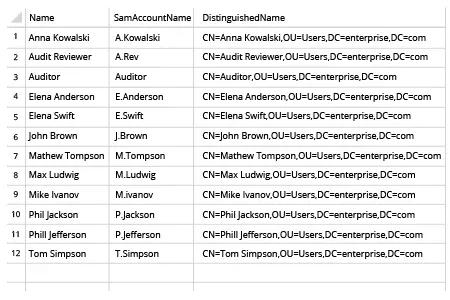
- Open the CSV file produced by the script in MS Excel:
Netwrix Auditor for Active Directory
- Run Netwrix Auditor → Navigate to "Reports" → Expand the "Active Directory" section → Go to "Active Directory – State-in-Time" → Select "User Accounts" → Click "View".
- Set the "Days Inactive" parameter to the required timeframe (such as 90 days) → Click "View Report".
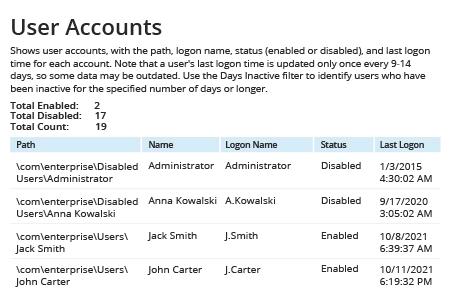
- To save the report, click the "Export" button → Choose a format from the dropdown menu → Click "Save".
Share on