
Resource centerHow-to-Guide
How to Get Exchange Online Mailbox Permissions Report Using PowerShell or Netwrix Auditor
How to Get Exchange Online Mailbox Permissions Report Using PowerShell or Netwrix Auditor
Netwrix Auditor for Exchange
Run Netwrix Auditor → Click "Reports" → choose Exchange Online → State-in-Time Reports → Choose " Mailbox Non-Owner Permission Details" → click "View".
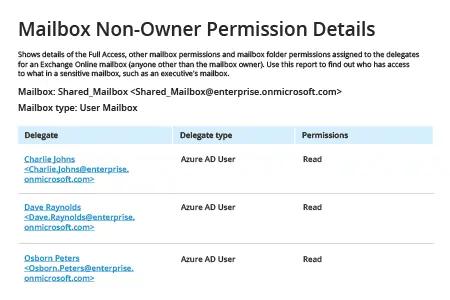
Native Solution
1. Connect to Office 365 PowerShell by running the PowerShell ISE as Administrator and executing the following command:
Set-ExecutionPolicy RemoteSigned
2. Request Windows PowerShell credentials by running the following command:
$Cred = Get-Credential
Enter your account and passwordand then click OK.
3. Create a session using the following command, modifying the –ConnectionUri parameter based on your Exchange Online location:
$Session = New-PSSession -ConfigurationName Microsoft.Exchange -ConnectionUri https://outlook.office365.com/PowerShell-liveid/ -Credential$Cred -Authentication Basic –AllowRedirection
4. Connect to Exchange Online:
Import-PSSession$Session -DisableNameChecking
5. Generate user permissions report, do one of the following:
- To get a full summary of users’ permissions, use the following Get-Mailbox command:
Get-Mailbox -resultsize unlimited | Get-MailboxPermission | Select Identity, User, Deny, AccessRights, IsInherited| Export-Csv -Path "c:\temp\mailboxpermissions.csv" –NoTypeInformation
- If you need a report on a specific user, use the -identity parameter instead of -resultsize unlimited.
- To filter users having full access, use the parameter where {($_.accessrights -contains "FullAccess")}:
Get-Mailbox -resultsize unlimited | Get-MailboxPermission| where {($_.accessrights -contains "Fullaccess")} | Select AccessRights,Deny,InheritanceType,User,Identity,IsInherited | Export-Csv -Path "c:\temp\fullaccess.csv" -NoTypeInformation
- By default, you will get a full list of users, including non-owner access. To get information about direct user permissions only, use either {($_.user -ne "NT AUTHORITY\SELF")} or {($_.user -like '*@*')}:
Get-Mailbox -resultsize unlimited | Get-MailboxPermission | Select Identity, User, Deny, AccessRights, IsInherited| Where {($_.user -ne "NT AUTHORITY\SELF")}| Export-Csv -Path "c:\temp\NonOwnerPermissions.csv" -NoTypeInformation
- To view information about “Send As” permissions, use the Get-RecipientPermission cmdlet:
Get-Mailbox -resultsize unlimited | Get-RecipientPermission| where {($_.trustee -ne "NT AUTHORITY\SELF")}|select Identity,Trustee,AccessControlType,AccessRights,IsInherited | Export-Csv -Path "c:\temp\sendaspermissions.csv" –NoTypeInformation
- To report on mailboxes with the “Send on Behalf” permission, use the following script:
      $GrantSendOn= Get-Mailbox-resultsize unlimited| where {($_.GrantSendOnBehalfTo -ne "")}

$Out=foreach ($user in $GrantSendOn.GrantSendOnBehalfTo) {

$obj= New-Object System.Object

$obj|Add-MemberNoteProperty eMail$GrantSendOn.WindowsEmailAddress

$obj|Add-Member NoteProperty DisplayName $GrantSendOn.DisplayName

$obj|Add-Member NoteProperty User $user

$obj }

$Out| Export-Csv -Path "c:\temp\sendonbehalfpermissions.csv" –NoTypeInformation
6. Review report:
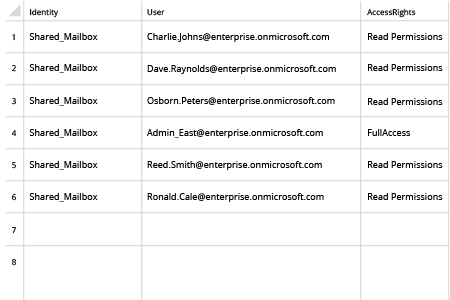
7. Terminate your session by using the following command:
Remove-PSSession$Session
Share on