
Comment obtenir un rapport des autorisations NTFS
Audit Natif
- Ouvrez l'ISE Powershell.
- Exécutez le script suivant, en ajustant les champs “OutFile” et “RootPath” :
      $OutFile = "C:\Temp\Permissions.csv" # Insert folder path where you want to save your file and its name
$RootPath = "\\Pdc\Shared" # Insert your share directory path
$Header = "Folder Path,IdentityReference,AccessControlType,IsInherited,InheritanceFlags,PropagationFlags"
# $Header = "Folder Path,IdentityReference,AccessControlType,IsInherited,InheritanceFlags,PropagationFlags,FilesystemRights"
$FileExist = Test-Path $OutFile
If ($FileExist -eq $True) {Del $OutFile}
Add-Content -Value $Header -Path $OutFile
$Folders = dir $RootPath -recurse | where {$_.psiscontainer -eq $True}
foreach ($Folder in $Folders){
$ACLs = get-acl $Folder.fullname | ForEach-Object { $_.Access }
Foreach ($ACL in $ACLs){
$OutInfo = $Folder.Fullname + "," + $ACL.IdentityReference + "," + $ACL.AccessControlType + "," + $ACL.IsInherited + "," + $ACL.InheritanceFlags + "," + $ACL.PropagationFlags
# If you need detailed file system rights in your report, add the following at the end of previous line:
# + "," + ($ACL.FileSystemRights -replace ',','/' )
Add-Content -Value $OutInfo -Path $OutFile
}}
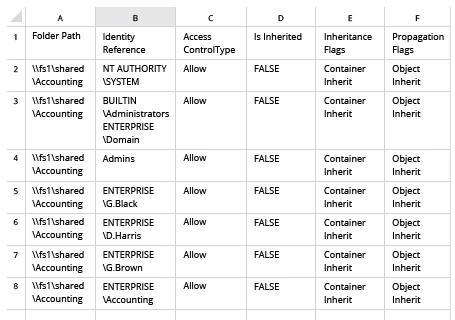
- Ouvrez le fichier produit par le script dans Microsoft Excel :
Netwrix Auditor pour Windows File Servers
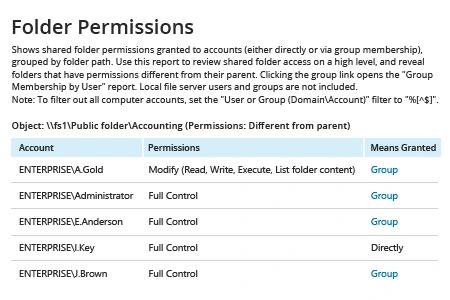
- Exécutez Netwrix Auditor → Allez dans « Rapports » → Ouvrez « Serveurs de fichiers » → Rendez-vous dans « Serveurs de fichiers – État à un moment donné » → Sélectionnez le rapport « Permissions des dossiers ».
- Dans le filtre « Object UNC Path », spécifiez le chemin d'accès à votre partage de fichiers (par exemple, « \\Myserver\Myshare »).
- Cliquez sur « Afficher le rapport ».
Pour recevoir le rapport par e-mail régulièrement, cliquez simplement sur l'option "S'abonner" et spécifiez le calendrier et les destinataires.
Partager sur