
How to Count Files in a Folder or a Directory
Netwrix Auditor for Windows File Servers
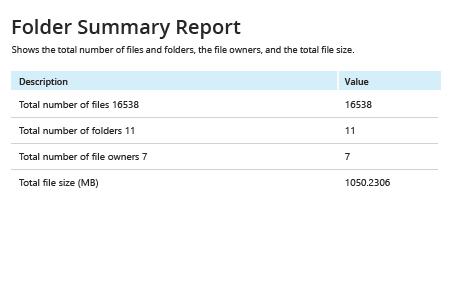
- Run Netwrix Auditor → Navigate to "Reports" → Choose "File Servers" → Click "File Servers - State-in-Time" → Select "Folder Summary Report" → Click "View".
- Add the appropriate path to the "Object UNC Path" filter.
- Click "View Report".
To save the report, click the "Export" button → Select a format, such as PDF → Click "Save as" → Choose a location to save it.
Learn more about Netwrix Auditor for Windows File Servers
Native Auditing
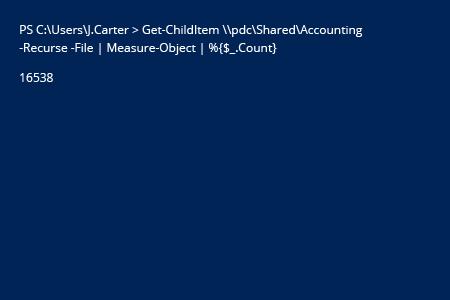
- Open the PowerShell ISE → Run the following script, adjusting the directory path:
Get-ChildItem \\pdc\Shared\Accounting -Recurse -File | Measure-Object | %{$_.Count}
- Review the results:
Learn a Quick and Easy Way to Count Files in a Folder with PowerShell or Netwrix Auditor
During your day-to-day tasks, you may need to count the files in a folder on a Windows server or provide full statistics on how many files a folder or contains. This information helps you get better insight into your file structure and facilitates other file management tasks. Instead of checking the number of files and directories manually, you can simply run the PowerShell command provided above and then search through the results to find the particular data you need.
Alternatively, you may want to use Netwrix Auditor for Windows File Servers. It not only lists the number of files in a directory or multiple directories, but also provides extended details such as the total file size and the file and folder owners. As a result, you can satisfy report requests faster and manage users’ data more efficiently.
Share on