
How to Detect Failed Logon Attempts to VMware®
Netwrix Auditor for VMware
Run Netwrix Auditor → Click Reports→ Choose VMware→ Choose All ESXi and vCenter Logon Activity→ Click View.
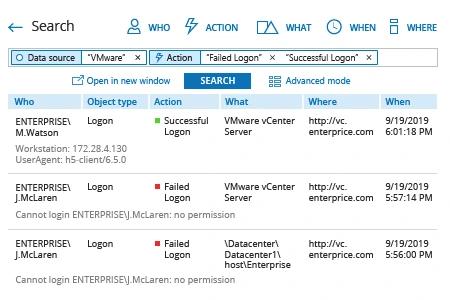
Learn more about Netwrix Auditor for VMware
Native Solution
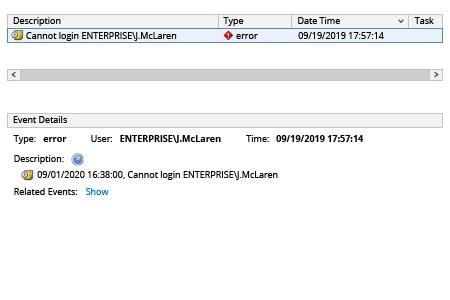
To list all failed logon attempts
- In the VMware® vSphere® client, while connected to VMware® vCenter Server®, click Events in the Management section.
- In the Description, Type or Target contains field, type
cannot login
A list of recent failed logon attempts will be displayed with the following details:
- The Description field lists the username and IP address from which the connection was attempted.
- If the failed login attempt was made to an VMware® ESX®/VMware® ESXi™host, the Target field lists the ESX/ESXi hostname or IP address. The Target field will be blank if the failed login attempt was to vCenter Server.
To report on events within a specific date range
Note: This method does not distinguish between failed logins to ESX/ESXi hosts and failed logins to the vCenter Server.
- In the vSphere Client, while connected to vCenter Server, click File > Export > Export Events.
- Enter a file name and location.
- Deselect the Warning and Information Severity options.
- Select a date/time range.
- Click OK.
Note: This process may take some time in large environments. A progress indicator is shown at the bottom of the Export Events screen. - Open the resulting file in a text editor and search for cannot login to find failed login attempts.
Using VMware® Power CLI
This sample script generates a list of failed logins to ESX/ESXi hosts managed by vCenter Server between 10/11/2019 and 13/11/2019:
      connect-viserver -server vCenter Server hostname

$hostevents = Get-VIEvent -start 10/11/2019 -finish 13/11/2019 -maxsamples 100000 | where-object {$_.Host.Name -notlike ""}

foreach ($event in $hostevents) {if ($event.fullFormattedMessage -match "Cannot login (.*)@(.*)") {Write-Host ("User " + $matches[1] + " failed to login to " + $event.Host.Name + " from " + $matches[2] + " at: " + $event.createdTime)} }
Sample output:
      User root failed to login vm01.enterprise.com from 192.168.1.66 at: 12/11/2019 15:51:25
User jmclaren failed to login vm01.enterprise.com from 192.168.1.66 at: 12/11/2019 17:02:51
Note that:
- In large environments, processing may take some time.
- If you suspect that not all results are being returned, set the -maxsamples parameter higher.
- Available events depend upon your retention policy. If your retention policy is set for 10 days, data about failed logons from 20 days ago won’t be available.
- You need to have sufficient permissions to export the events.
Share on