
How to Detect Who Has Access to What Data on Windows File Servers
Netwrix Auditor for Windows File Servers
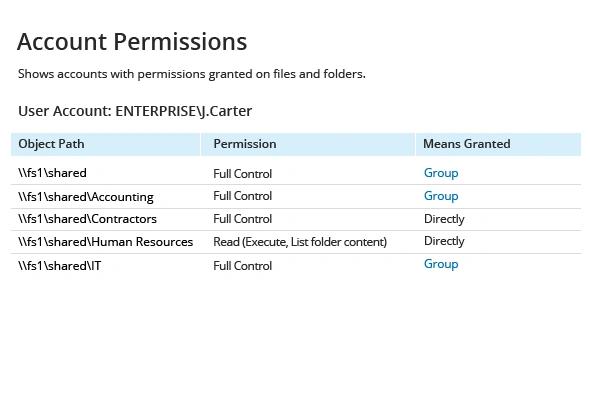
- Run Netwrix Audor → Click "Reports" → Navigate to File Servers → Choose "File Servers State-in-Time" → Select "Account Permissions"→ Click "View".
- To save the file, click the "Export" button → Select PDF format → Save as → Choose a location to save it.
Native Auditing
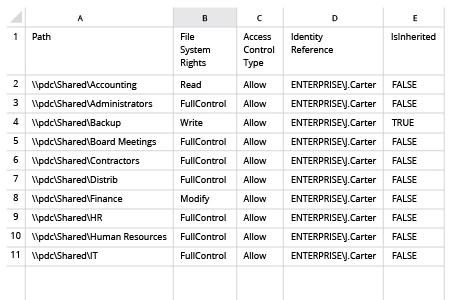
1. Open Powershell ISE and create new script with the following code (define path on the file server and name of the user):
dir -Recurse \\fs1\Shared | where { $_.PsIsContainer } | % { $path1 = $_.fullname; Get-Acl $_.Fullname | % { $_.access | where { $_.IdentityReference -like "ENTERPRISE\J.Carter" } | Add-Member -MemberType NoteProperty '.\Application Data' -Value $path1 -passthru }} | Export-Csv "C:\temp\AccountPermissions.csv"
2. Run the script.
3. Open the file produced by the script in MS Excel.
Learn more about Netwrix Auditor for Windows File Servers
How to Detect Who Has Access to What Data on Windows File Servers
Although security breaches can originate from external attacks, they can also stem from insider activity. If users are granted excessive permissions that enable them to access, copy, distribute, modify or delete files on file servers, it can lead to disruption of critical business processes, exposure of sensitive data or even a full-scale data breach.
Share on