
How to Detect Users Who Have Direct Permissions on Your File Servers
Native Auditing
- Open the PowerShell ISE on your file server → Create a new script with the following code:
      $search_folder = "\\share\path\"

$out_file = "C:\temp\directpermissionsexport.csv"
$out_error = "C:\temp\errors.csv"

$items = Get-ChildItem -Path $search_folder -recurse

$found = @()
$errors = @()

ForEach ($item in $items) {

try {
$acl = Get-Acl $item.fullname

ForEach ($entry in $acl.access) {
If (!$entry.IsInherited) {
$found += New-Object -TypeName PSObject -Property @{
Folder = $item.fullname
Access = $entry.FileSystemRights
Control = $entry.AccessControlType
User = $entry.IdentityReference
Inheritance = $entry.IsInherited

}
}
}
} catch {

$errors += New-Object -TypeName PSObject -Property @{
Item = $item.fullname
Error = $_.exception
}

}
}

$found |
Select-Object -Property Folder,User,Control,Access,Inheritance |
Export-Csv -NoTypeInformation -Path $out_file

$errors |
Export-Csv -NoTypeInformation -Path $out_err
- Specify the parameters below and run the script:
- $search_folder: enter a path to a shared folder you want to inspect for direct permissions
- $out_file: enter a path to a file with results
- $out_error: enter a path to an error log file
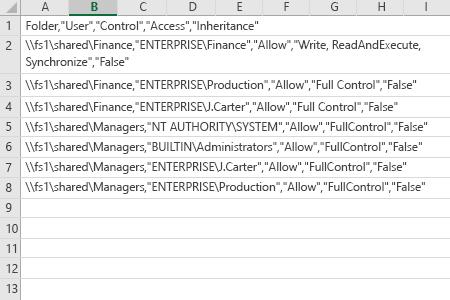
- Open the file produced by the script in MS Excel.
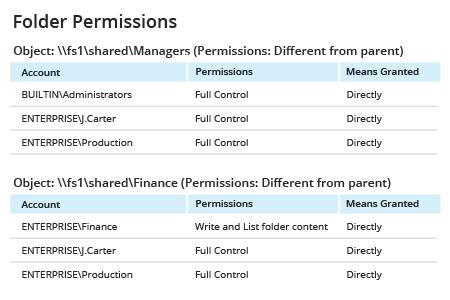
Netwrix Auditor for Windows File Servers
- Run Netwrix Auditor → Navigate to “Reports” → Expand the “File Servers” section → Go to “File Servers - State-in-Time” → Select “Folder Permissions” → Click “View” → Set the “Expand Group Membership” filter to “No” → Click “View Report”.
- To save the report, click the "Export" button → Choose a format from the dropdown menu → Click “Save”.
Share on