
Centro risorseGuida pratica
Come rilevare chi ha tentato di modificare un file o una cartella sul tuo server di file Windows
Come rilevare chi ha tentato di modificare un file o una cartella sul tuo server di file Windows
Native Auditing
- Naviga fino alla condivisione di file richiesta → Fai clic destro e seleziona "Proprietà".
- Vai alla scheda "Sicurezza" → Clicca sul pulsante "Avanzate" → Passa alla scheda "Controllo" → Clicca sul pulsante "Aggiungi" e definisci il controllo:
- Principal è uguale a "Everyone"
- Type equals "All"
- Si applica a: "Questa cartella, sottocartelle e file".
- Seleziona i seguenti "Advanced Permissions":
- Attraversare la cartella / eseguire il file
- Elenca cartella / leggi dati
- Creare file /scrivere dati
- Crea cartelle / aggiungi dati
- Scrivi attributi.
- Esegui gpedit.msc → Vai al menu "Modifica".
- Crea una nuova policy → Modifica → Configurazione del computer → Criteri → Impostazioni Windows → Impostazioni di sicurezza → Criteri locali → Criteri di controllo:
- Verifica l'accesso agli oggetti → Definisci → Successi e Fallimenti
- Vai a "Configurazione della Criteri di Controllo Avanzati" → Criteri di Controllo → Accesso agli Oggetti:
- Audit File System → Definire → Successi e Fallimenti
- Audit Handle Manipulation → Definire → Successi e Fallimenti
- Vai al registro eventi → Definisci:
- Imposta la dimensione massima del registro di sicurezza a 4 GB
- Metodo di conservazione per il registro di sicurezza su "Sovrascrivi eventi secondo necessità"
- Per collegare il nuovo GPO all'OU con i server di file, vai su "Group Policy Management" → Clicca con il tasto destro sull'OU definito → Scegli "Link an Existing GPO" → Seleziona il GPO che hai creato.
- Per forzare l'aggiornamento della policy di gruppo, vai su "Group Policy Management" → Clic destro sull'OU definito → Clicca su "Group Policy Update".
- Apri Visualizzatore eventi → Cerca nei log di sicurezza di Windows l'ID evento 4656 con la parola chiave "Audit Failed", la categoria di attività "File Server" o "Removable Storage" e con le stringhe "Accessi: READ_CONTROL" e Motivi di accesso: "WriteData (o AddFile) Non concesso". "Soggetto: ID Sicurezza" ti mostrerà chi ha tentato di modificare un file.
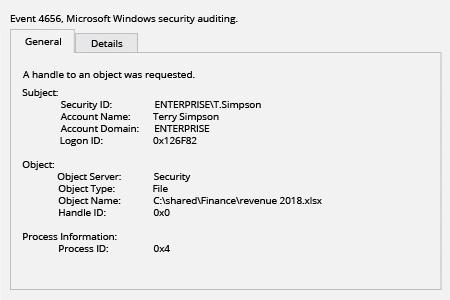
Netwrix Auditor for Windows File Servers
- Esegui Netwrix Auditor → Vai su “Ricerca” → Clicca su “Modalità avanzata” se non selezionata → Imposta i seguenti filtri:
- Filtro = “Origine dati”
Operatore = “Uguale”
Valore = “File Servers” - Filter = “Azione”
Operator = “Uguale”
Value = “Modifica (Tentativo Fallito)”
- Filtro = “Origine dati”
- Fai clic sul pulsante “Cerca” e controlla chi ha tentato di modificare file e cartelle sul tuo file server.
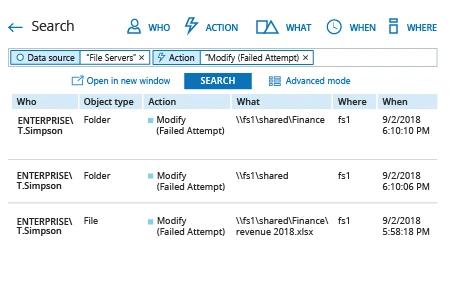
Per creare un avviso su tentativi falliti di modificare un file o una cartella, seguire i seguenti passaggi:
- Dai risultati della ricerca, vai su “Strumenti” → Clicca su “Crea avviso” → Specifica il nome del nuovo avviso.
- Passa alla scheda “Destinatari” → Clicca su "Aggiungi Destinatario" → Specifica l'indirizzo email dove desideri che venga consegnato l'avviso.
- Fai clic su “Aggiungi” per salvare l’allerta.
Condividi su