
How to Get a SharePoint Permissions Report with or without PowerShelll
Native Auditing
- Open the PowerShell ISE → Import the PowerShell snap-in for Microsoft SharePoint by running the following cmdlet:
Add-PSSnapin Microsoft.SharePoint.PowerShell
- Run the following script on your SharePoint server, specifying the SharePoint site URL ($SPSiteURL) and the file path for export to csv ($ExportFile):
      [void][System.Reflection.Assembly]::LoadWithPartialName
("Microsoft.SharePoint")
$SPSiteUrl = "http://sharepoint/sites/ent"
$SPSite = New-Object Microsoft.SharePoint.SPSite($SPSiteUrl);
$ExportFile = "C:\root\Permissions.csv"
"Web Title,Web URL,List Title,User or Group,Role,Inherited" | out-file $ExportFile
foreach ($WebPath in $SPSite.AllWebs)
{
if ($WebPath.HasUniqueRoleAssignments)
{
$SPRoles = $WebPath.RoleAssignments;
foreach ($SPRole in $SPRoles)
{
foreach ($SPRoleDefinition in $SPRole.RoleDefinitionBindings)
{
$WebPath.Title + "," + $WebPath.Url + "," + "N/A" + "," +
$SPRole.Member.Name + "," + $SPRoleDefinition.Name + "," +
$WebPath.HasUniqueRoleAssignments | out-file $ExportFile -append
}
}
}
foreach ($List in $WebPath.Lists)
{
if ($List.HasUniqueRoleAssignments)
{
$SPRoles = $List.RoleAssignments;
foreach ($SPRole in $SPRoles)
{
foreach ($SPRoleDefinition in $SPRole.RoleDefinitionBindings)
{
$WebPath.Title + "," + $WebPath.Url + "," + $List.Title + "," +
$SPRole.Member.Name + "," + $SPRoleDefinition.Name | out-file $ExportFile -append
}
}
}
}
}
$SPSite.Dispose();
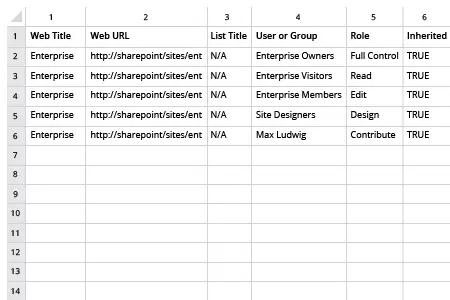
- Open the file produced by the script in MS Excel.
Sample Report:
Netwrix Auditor for SharePoint
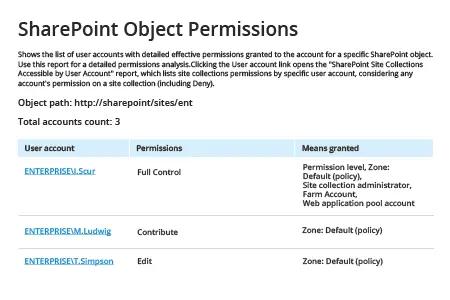
- Run Netwrix Auditor → Navigate to “Reports” → Expand the “SharePoint” section → Go to “SharePoint – State-in-Time” → Select “SharePoint Object Permissions” → Click “View”.
- Specify the “Object Path” and set “Permissions” to “(Select All)”.
- To export the report to CSV or another format, click the “Export” button → Choose a format from the dropdown menu → Click "Save".
Sample report:
Share on