
How to Detect Who Was Accessing Shared Mailbox in Office 365
Native Auditing
- Open PowerShell → Run the following command to connect with Exchange Online instance and enter your credentials in the pop-up window:
      $UserCredential = Get-Credential
$Session = New-PSSession -ConfigurationName Microsoft.Exchange -ConnectionUri https://outlook.office365.com/powershell-liveid/ -Credential $UserCredential -Authentication Basic -AllowRedirection
Import-PSSession $Session
- To enable mailbox auditing run:
- For a single mailbox:
Set-Mailbox –Identity "TestUser" -AuditEnabled $true
- For all mailboxes:
$UserMailboxes = Get-mailbox -Filter {(RecipientTypeDetails -eq 'UserMailbox')} $UserMailboxes | ForEach {Set-Mailbox $_.Identity -AuditEnabled $true}
- To check what mailboxes have auditing enabled run:
Get-Mailbox | FL Name,AuditEnabled
- Open Exchange Administration Center → Navigate to "Compliance Management" Auditing.
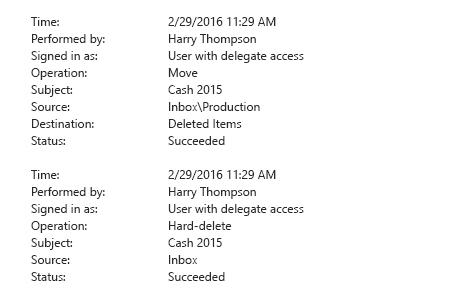
- Click "Run a non-owner mailbox access report". You will get the report on non-owner access to all mailboxes with enabled auditing over the past two weeks.
- To view non-owner access to a specific mailbox Click on a mailbox to view all non-owner access events with the details.
Netwrix Auditor for Exchange
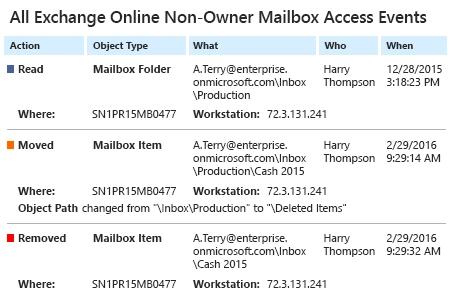
- Run Netwrix Auditor → Click "Reports" → Choose Exchange Online → Choose "All Exchange Non-Owner Mailbox Access Events" → Click "View".
- In order to save a report, click "Export" button → PDF → Save as → Choose a location to save it.
Share on