
How to Detect Who Disabled a User Account in Active Directory
Native Auditing
- Run gpedit.msc → Create a new GPO → Edit it → Go to "Computer Configuration" → Policies → Windows Settings → Security Settings → Local Policies > Audit Policy:
- Audit account management → Define → Success.
- Go to Event Log → Define:
- Maximum security log size to 4GB
- Retention method for security log to Overwrite events as needed.
- Link the new GPO to OU with User Accounts → Go to "Group Policy Management" → Right-click the defined OU → Choose "Link an Existing GPO" → Choose the GPO that you’ve created.
- Force the group policy update → In "Group Policy Management" → Right-click the defined OU → Click on "Group Policy Update".
- Open ADSI Edit → Connect to Default naming context → Right-click DomainDNS object with the name of your domain → Properties → Security (Tab) → Advanced (Button) → Auditing (Tab) → Add Principal "Everyone" → Type "Success" → Applies to "This object and Descendant objects" → Permissions → Select all check boxes except the following:
- Full Control
- List Contents
- Read all properties
- Read permissions → Click "OK".
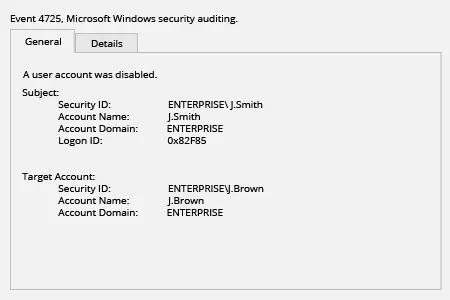
- Open Event viewer and search Security log for event ID’s 4725 (User Account Management task category).
Netwrix Auditor for Active Directory
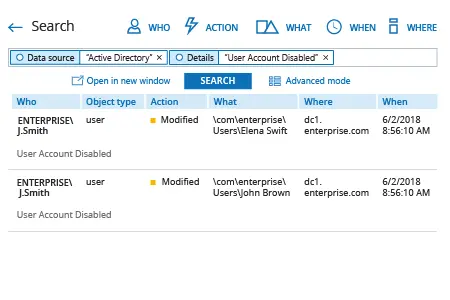
- Run Netwrix Auditor → Navigate to "Search" → Click on "Advanced mode" if not selected → Set up the following filters:
- Filter = "Data source"
Operator = "Equals"
Value = "Active Directory" - Filter = "Details"
Operator = "Contains"
Value = "User Account Disabled"
- Filter = "Data source"
- Click the "Search" button and review who disabled which user accounts in your Active Directory.
Share on