
Centro de recursosGuía práctica
Cómo obtener un informe de permisos de SharePoint Online con PowerShell o Netwrix Auditor
Cómo obtener un informe de permisos de SharePoint Online con PowerShell o Netwrix Auditor
Solución nativa
- Descargue e instale el SharePoint Online Client Components SDK.
- Abra el PowerShell ISE.
- Ejecute el siguiente script, ingresando los valores apropiados para las variables $Url y $Path para especificar la dirección del sitio de SharePoint y la ruta de salida del informe:
      #SPO-specific cmdlets require sharepoint-online module
Install-Module -NameMicrosoft.Online.SharePoint.PowerShell
$ServiceURL ="https://enterprise-admin.sharepoint.com"
$URL = "https://enterprise.sharepoint.com"
$Path = "C:\Temp\GroupsReport.csv"
$Cred = Get-Credential
#Connect to SharePoint Online
Connect-SPOService -url$ServiceURL -Credential$Cred
#Generating Report
$GroupsData = @()
#get sharepoint online groups powershell
$SiteGroups =Get-SPOSiteGroup -Site$URL
ForEach($Group in $SiteGroups) {
$GroupsData +=New-Object PSObject-Property @{
'Group Name' =$Group.Title
'Permissions' =$Group.Roles -join ","
'Users' = $Group.Users -join ","
}
}
#Export the data to CSV
$GroupsData |Export-Csv $Path-NoTypeInformation
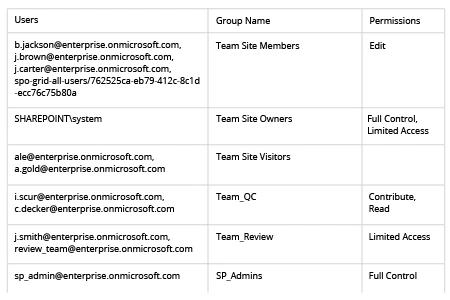
- Revise su informe CSV:
Netwrix Auditor para SharePoint
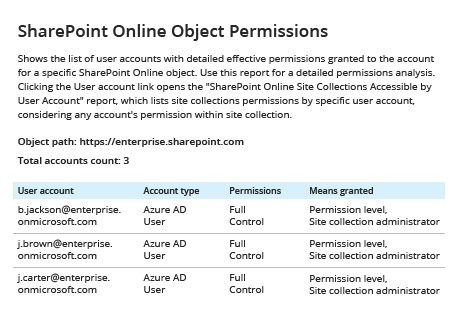
- Ejecute Netwrix Auditor. Navegue a “Informes” -> Haga clic en “Predefinido” -> Despliegue la sección “SharePoint Online” -> Vaya a “SharePoint Online – Estado en Tiempo” -> Seleccione “Permisos de Objeto de SharePoint Online” -> Haga clic en “Ver”.
- Especifique la URL del sitio en el campo “Object Path” -> Haga clic en “View Report”.
- Revise el informe fácil de entender:
Compartir en