
Guida alla gestione degli errori con Try-Catch in PowerShell
Aug 25, 2025
La gestione degli errori in PowerShell utilizza blocchi Try-Catch-Finally per gestire errori terminanti e non terminanti, assicurando l'affidabilità degli script in esecuzione non assistita. Try racchiude il codice a rischio, Catch risponde alle eccezioni e Finally libera le risorse. Con opzioni come -ErrorAction, $ErrorActionPreference, e $Error, gli amministratori possono imporre una gestione rigorosa, catturare messaggi di errore dettagliati e automatizzare il recupero. Questo approccio riduce i tempi di inattività, previene la perdita di dati e consente la creazione di script resilienti su larga scala.
Introduzione alla gestione degli errori in PowerShell
Molti script PowerShell sono progettati per essere eseguiti in modo non supervisionato, quindi è fondamentale garantire che possano gestire gli errori in modo fluido. Una corretta gestione degli errori aiuta a prevenire una vasta gamma di problemi, da operazioni incomplete e tempi di inattività del sistema a perdita di dati. La gestione degli errori deve tenere conto sia degli errori terminanti, che interrompono l'esecuzione dello script, sia degli errori non terminanti, che consentono allo script di continuare a funzionare ma possono influenzare l'output.
Uno dei meccanismi più utili per la gestione degli errori in PowerShell è il blocco Try-Catch-Finally. Il blocco Try contiene codice che potrebbe generare un'eccezione. Se ciò accade, il controllo viene trasferito al blocco Catch, che gestisce l'errore intraprendendo azioni come saltare un file problematico o un input non valido, oltre a registrare l'evento. Il blocco Finally viene sempre eseguito, svolgendo compiti di pulizia come la chiusura di file, il rilascio di risorse o la registrazione di informazioni. Ad esempio, creare messaggi di errore dettagliati per Try Catch in PowerShell può consentirti di intraprendere le azioni appropriate per risolvere i problemi.
Questo documento offre un'analisi approfondita dei blocchi Try-Catch-Finally. Lungo il percorso, tratteremo anche alcuni altri metodi di gestione degli errori in PowerShell, inclusa l'utilizzo del parametro ErrorAction per controllare come i cmdlet rispondono agli errori e l'uso della variabile $Error per memorizzare la cronologia degli errori.
Contenuti correlati selezionati:
Cosa sono gli errori in PowerShell?
Gli errori sono eventi che possono influenzare il normale flusso di esecuzione di uno script o possono interromperlo completamente. Cause comuni di errori includono sintassi errata, file mancanti, permessi insufficienti o risorse non disponibili. Esistono due tipi principali di errori, errori di terminazione ed errori non di terminazione.
Errori di terminazione: Errori critici che interrompono lo script
Gli errori di terminazione interrompono immediatamente l'esecuzione dello script a meno che non vengano gestiti correttamente. Questi errori si verificano quando PowerShell si imbatte in un problema dal quale non può riprendersi, come un errore di sintassi, la chiamata di una variabile o di un file inesistente, o la mancanza di permessi sufficienti per eseguire l'operazione richiesta.
Ad esempio, lo script sottostante tenta di ottenere il file users.txt:
Get-Content C:\users.txt | Get-ADUser -Properties name | Select-Object -Property SamAccountName,name
Se il file non esiste nella posizione specificata o l'account che esegue lo script non ha i permessi per accedervi, lo script genererà un errore terminale, interrompendo l'operazione dello script come mostrato qui:

Errori non terminanti: Errori che consentono lo script di continuare
Gli errori non terminanti in PowerShell sono errori che non interrompono l'esecuzione dello script. Questi errori sono comunemente generati da cmdlet che tentano di elaborare più oggetti, dove un singolo fallimento non ferma necessariamente l'intero script.
Ad esempio, supponiamo di eseguire lo script utilizzato nell'esempio precedente ma ora il file esiste e abbiamo i permessi per accedervi. Tuttavia, non disponiamo di connettività a un controller di dominio. In questo caso, il primo comando verrà eseguito e otterrà il contenuto del file. Tuttavia, il comando successivo fallirà, generando errori non terminanti per ciascuno dei tre oggetti nel file.
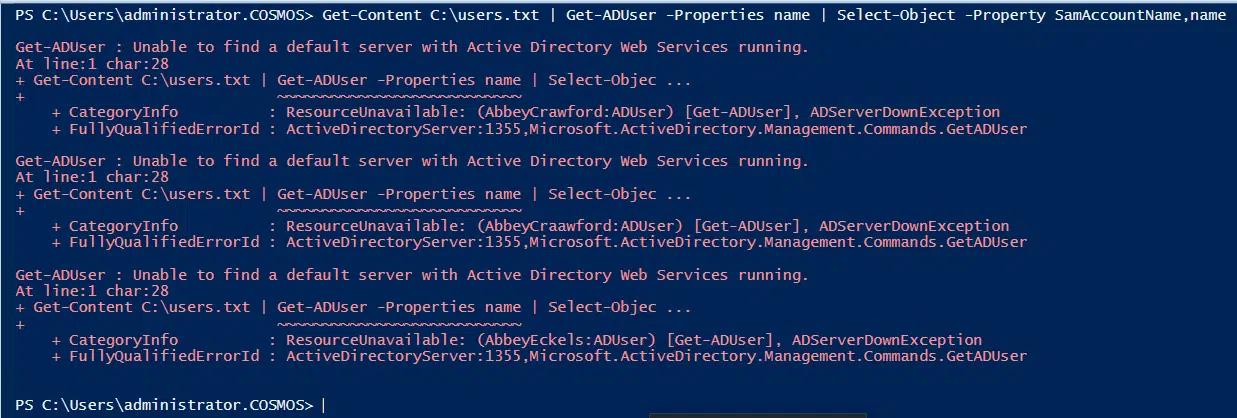
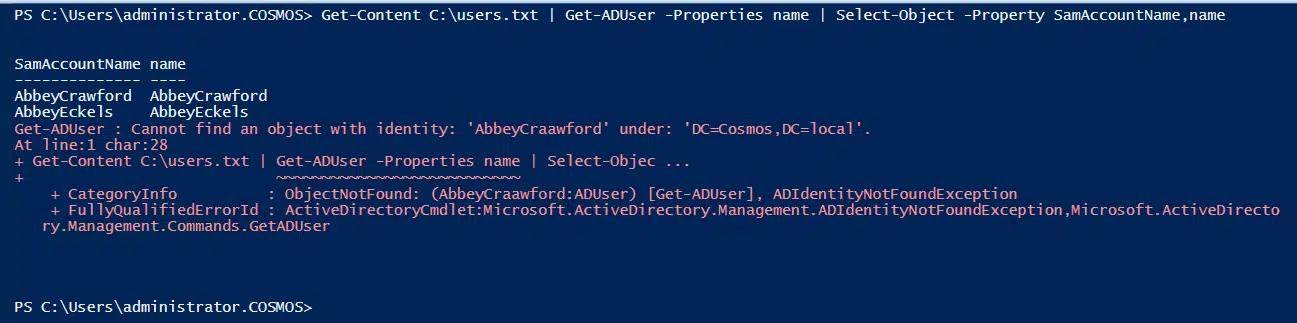
Ora supponiamo che la connettività del controller di dominio sia stata ripristinata, ma un oggetto nel file presenta un nome utente non valido. L'esecuzione dello script genererà l'errore non terminante mostrato di seguito per l'oggetto, ma gli altri oggetti verranno elaborati dallo script.
Dove vengono memorizzati gli errori: la variabile $Error
$Error è un array automatico che memorizza gli errori recenti riscontrati durante l'esecuzione dello script, il che lo rende molto utile nel debugging e nella risoluzione dei problemi. L'errore più recente è memorizzato all'indice [0].
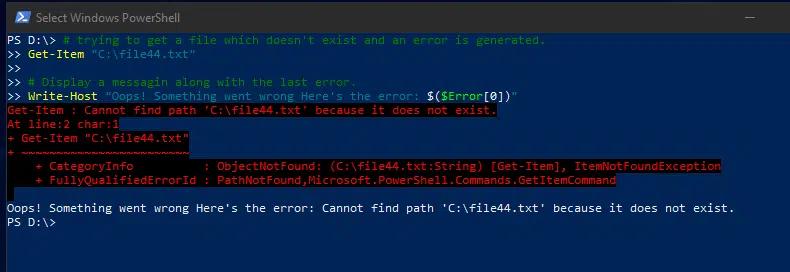
Ad esempio, quando lo script seguente tenta di recuperare un file inesistente, recupera l'errore risultante da $Error e lo visualizza con un messaggio amichevole:
      # trying to get a file which doesn't exist, and an error is generated.

Get-Item "C:\file44.txt"

# Display a message along with the last error.

Write-Host "Oops! Something went wrong Here's the error: $($Error[0])"
Comprensione dei blocchi Try, Catch e Finally
Un buon metodo per gestire gli errori in modo fluido è implementare i blocchi Try-Catch-Finally.
Try Block: Dove risiede il codice potenzialmente soggetto a errori
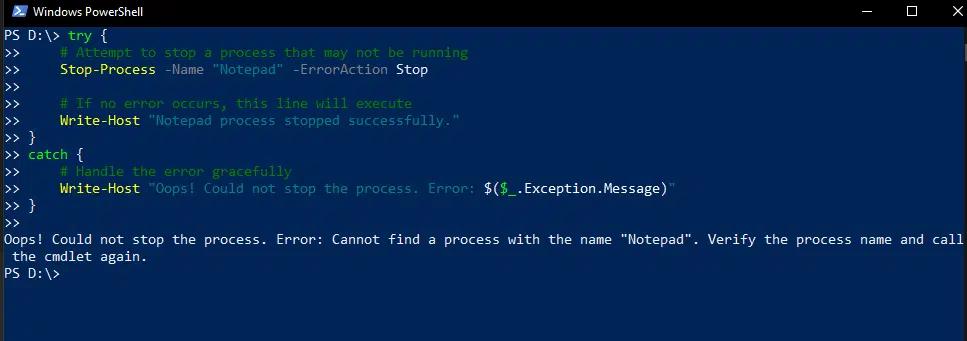
Il blocco Try racchiude il codice che potrebbe generare un errore. Ad esempio, lo script seguente è progettato per interrompere il processo del Blocco note. Il blocco Try interromperà quel processo se è attualmente in esecuzione, ma se non lo è, l'esecuzione salterà al blocco Catch, impedendo allo script di bloccarsi.
      try {

    # Attempt to stop a process that may not be running

    Stop-Process -Name "Notepad" -ErrorAction Stop

    # If no error occurs, this line will execute

    Write-Host "Notepad process stopped successfully."

}

catch {

    # Handle the error gracefully

    Write-Host "Oops! Could not stop the process. Error: $($_.Exception.Message)"

}
Blocco Catch: Gestione degli errori quando si verificano
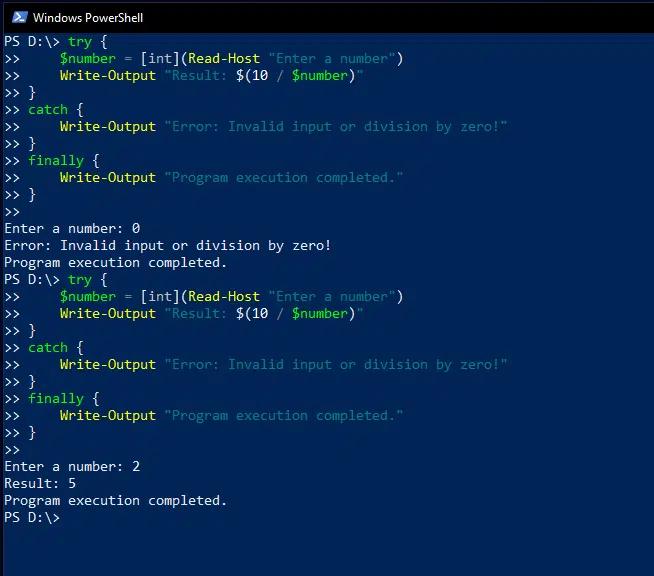
Il blocco Catch viene utilizzato per gestire le eccezioni che si verificano nel blocco Try. Nell'esempio seguente di PowerShell Try Catch, lo script invita l'utente a inserire un numero, divide 10 per quel numero e stampa il risultato. Tuttavia, se il numero inserito è 0, il tentativo di divisione risulterà in un errore, poiché non è possibile dividere per zero. In quel caso, il blocco Catch verrà eseguito e stamperà un messaggio di errore invece di un numero.
      try {

    $number = [int](Read-Host "Enter a number")

    Write-Output "Result: $(10 / $number)"

}

catch {

    Write-Output "Error: Invalid input or division by zero!"

}

finally {

    Write-Output "Program execution completed."

}
Blocco Finally: Codice che viene sempre eseguito, indipendentemente dall'eventuale presenza di errori
Il blocco Finally verrà sempre eseguito indipendentemente dal fatto che sia stata lanciata un'eccezione.
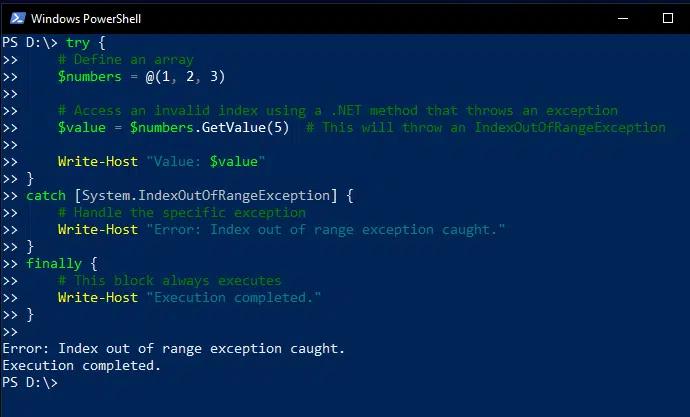
Ad esempio, lo script seguente definisce un array con solo tre elementi ma tenta di stampare il quinto elemento; questa eccezione è gestita nel blocco Catch, che stampa un errore. Tuttavia, viene eseguito anche il blocco Finally, quindi viene stampato un messaggio aggiuntivo.
      try {

    # Define an array

    $numbers = @(1, 2, 3)

    # Access an invalid index using a .NET method that throws an exception

    $value = $numbers.GetValue(5)

    Write-Host "Value: $value"

}

catch [System.IndexOutOfRangeException] {

    # Handle the specific exception

    Write-Host "Error: Index out of range exception caught."

}

finally {

    # This block always executes

    Write-Host "Execution completed."

}
Esempio avanzato: Utilizzo di più blocchi Catch per diversi tipi di eccezioni
Uno script può includere più blocchi Catch per gestire diversi tipi di eccezioni, consentendo una gestione degli errori più granulare. Infatti, il framework .Net fornisce un ricco insieme di tipi di messaggi di eccezione PowerShell Try Catch , tra cui i seguenti:
- System.DivideByZeroException — Si verifica quando si tenta di dividere un numero per zero
- System.FormatException — Si verifica quando si tenta di convertire un input non numerico in un numero
- System.ArgumentNullException — Si verifica quando un argomento passato è null ma non dovrebbe mai essere null
- System.IO.IOException — Generata quando si verifica un errore di I/O
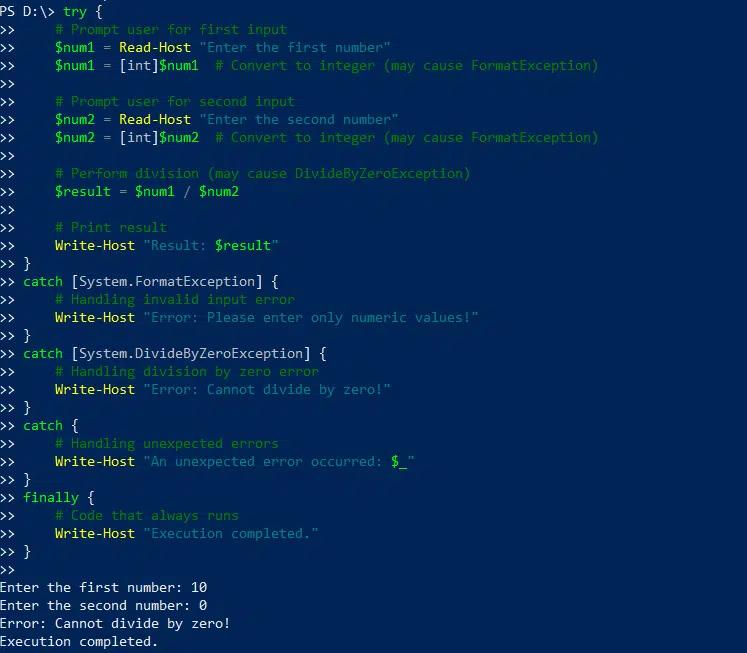
Ad esempio, lo script seguente richiede all'utente di inserire due numeri, li converte in formato intero, divide il primo numero per il secondo e stampa il risultato. Il primo blocco Catch gestisce la possibilità che l'input dell'utente non possa essere convertito in formato intero, e il secondo blocco Catch gestisce la possibilità di tentare di dividere per zero.
      try {

    # Prompt user for first input

    $num1 = Read-Host "Enter the first number"

    $num1 = [int]$num1  # Convert to integer (may cause FormatException)

    # Prompt user for second input

    $num2 = Read-Host "Enter the second number"

    $num2 = [int]$num2  # Convert to integer (may cause FormatException)

    # Perform division (may cause DivideByZeroException)

    $result = $num1 / $num2

    # Print result

    Write-Host "Result: $result"

}

catch [System.FormatException] {

    # Handling invalid input error

    Write-Host "Error: Please enter only numeric values!"

}

catch [System.DivideByZeroException] {

    # Handling division by zero error

    Write-Host "Error: Cannot divide by zero!"

}

catch {

    # Handling unexpected errors

    Write-Host "An unexpected error occurred: $_"

}

finally {

    # Code that always runs

    Write-Host "Execution completed."

}
Tecniche avanzate di gestione degli errori
Per creare script più robusti e manutenibili, considera l'utilizzo delle seguenti tecniche di gestione degli errori in combinazione con i blocchi PowerShell Try and Catch:
- Utilizza $ErrorActionPreference = “Stop” per garantire che tutti gli errori siano trattati come terminanti, il che li rende più facili da intercettare.
- Utilizza -ErrorAction Stop su comandi individuali per abilitare un controllo più granulare senza influenzare l'intero script.
- Utilizza $_.Exception.Message e $PSItem per accedere ai dettagli dell'errore.
Catturare Eccezioni Specifiche
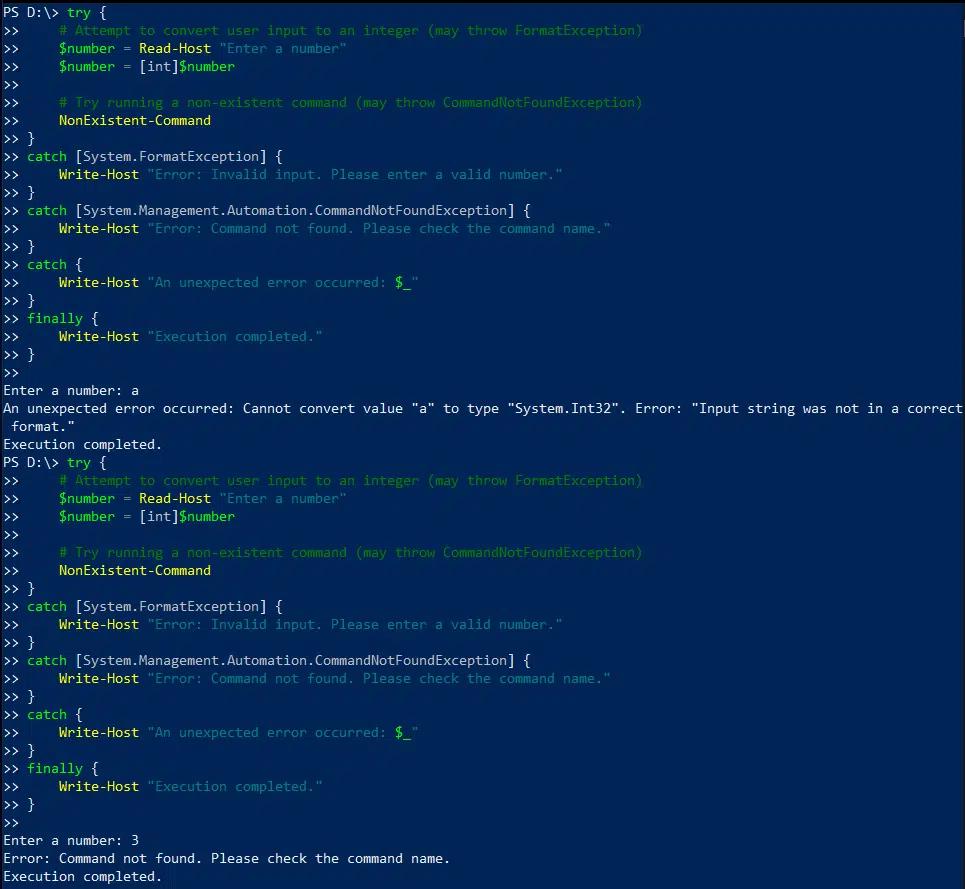
Lo script seguente è destinato a convertire l'input dell'utente in un intero e poi eseguire un comando. Il primo blocco Catch gestisce la possibilità di un input utente non valido, e il secondo gestisce i tentativi di esecuzione di un comando non valido. Se si verifica una delle eccezioni, lo script stampa un messaggio personalizzato.
      try {

    # Attempt to convert user input to an integer (may throw FormatException)

    $number = Read-Host "Enter a number"

    $number = [int]$number

    # Try running a non-existent command (may throw CommandNotFoundException)

    NonExistent-Command

}

catch [System.FormatException] {

    Write-Host "Error: Invalid input. Please enter a valid number."

}

catch [System.Management.Automation.CommandNotFoundException] {

    Write-Host "Error: Command not found. Please check the command name."

}

catch {

    Write-Host "An unexpected error occurred: $_"

}

finally {

    Write-Host "Execution completed."

}
Utilizzando $_.Exception.Message e $PSItem per accedere ai dettagli dell'errore
Per accedere ai dettagli degli errori all'interno di un blocco Catch, puoi utilizzare le seguenti variabili:
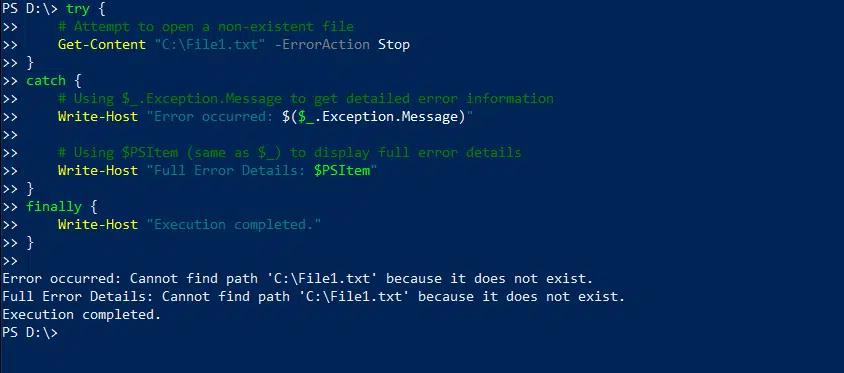
- $_.Exception.Message fornisce un chiaro e user-friendly Try Catch messaggio di errore di PowerShell, con solo la parte rilevante dell'errore.
- $PSItem contiene l'intero oggetto di errore, inclusi il tipo di errore, la fonte e il tracciato dello stack.
The following script illustrates the difference in the output provided by these variables:
      try {

    # Attempt to open a non-existent file

    Get-Content "C:\File1.txt" -ErrorAction Stop

}

catch {

    # Using $_.Exception.Message to get detailed error information

    Write-Host "Error occurred: $($_.Exception.Message)"

    # Using $PSItem (same as $_) to display full error details

    Write-Host "Full Error Details: $PSItem"

}

finally {

    Write-Host "Execution completed."

}
Using Trap Statements
A Trap statement defines code that is executed when a specific error occurs, regardless of where in the script the error occurs. As a result, it provides a mechanism for handling errors at a higher (global) level than individual PowerShell Try-Catch blocks.
The following script uses Try-Catch in PowerShell to handle the possibility of an attempt to divide by zero. The Trap statement will catch any other error that might happen, which in this case is using the Get-Item cmdlet with a file that doesn’t exist.
      # Global error handler using trap

trap {

    Write-Host "Global Error Handler (trap): $_"

    continue  # Allows the script to continue execution

}

function Test-TryCatch {

    try {

        Write-Host "Inside Try Block"

        1 / 0  # This will cause a division by zero error

        Write-Host "This line will not execute due to the error above."

    } catch {

        Write-Host "Caught in Try-Catch: $_"

    }

}

Write-Host "Before function call"

Test-TryCatch

Write-Host "After function call"

# Triggering another error outside try-catch to see if trap works

Write-Host "Triggering an error outside Try-Catch"

Get-Item "C:\NonExistentFile.txt" -ErrorAction Stop  # Force a terminating error

Write-Host "Script completed"
Handling Non-Terminating Errors in PowerShell
Catch blocks are designed to handle terminating errors; since non-terminating errors don’t stop script execution, they don’t trigger Catch block. However, we can convert non-terminating errors into terminating errors using the -ErrorAction Stop parameter. This parameter forces the script to treat non-terminating error as terminating errors, which will allow Catch blocks to handle them appropriately.
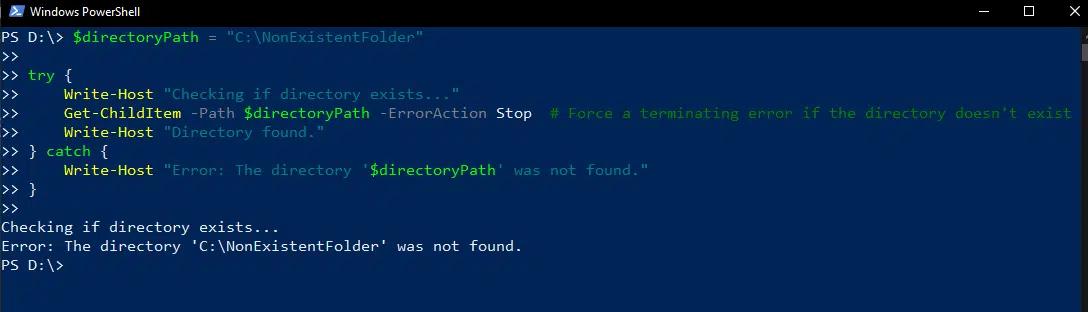
Suppose we run the following script but the folder it tries to access does not exist. The Try block uses -ErrorAction Stop to convert this non-terminating error into terminating error so it will be handled by the Catch block.
      $directoryPath = "C:\NonExistentFolder"

try {

    Write-Host "Checking if directory exists..."

    Get-ChildItem -Path $directoryPath -ErrorAction Stop  # Force a terminating error if the directory doesn't exist

    Write-Host "Directory found."

} catch {

    Write-Host "Error: The directory '$directoryPath' was not found."

}
Best Practices for Using Try-Catch in PowerShell
To maximize the clarity, efficiency and maintainability of your code, craft your error handling block carefully. In particular, PowerShell Try-Catch should be used for genuine exceptions only. By limit the code in Try block to only those operations that might throw and exception makes it easier to identify the source of exceptions and debug the script. In other cases, consider if-else or switch statements.
Other key best practices include the following:
- Make sure that the code inside the Try block follows the single responsibility principle, which means that each piece of code performs a specific task.
- Use separate Catch blocks to handle different types of exceptions.
- Always include a Finally block to clean up code and release resources.
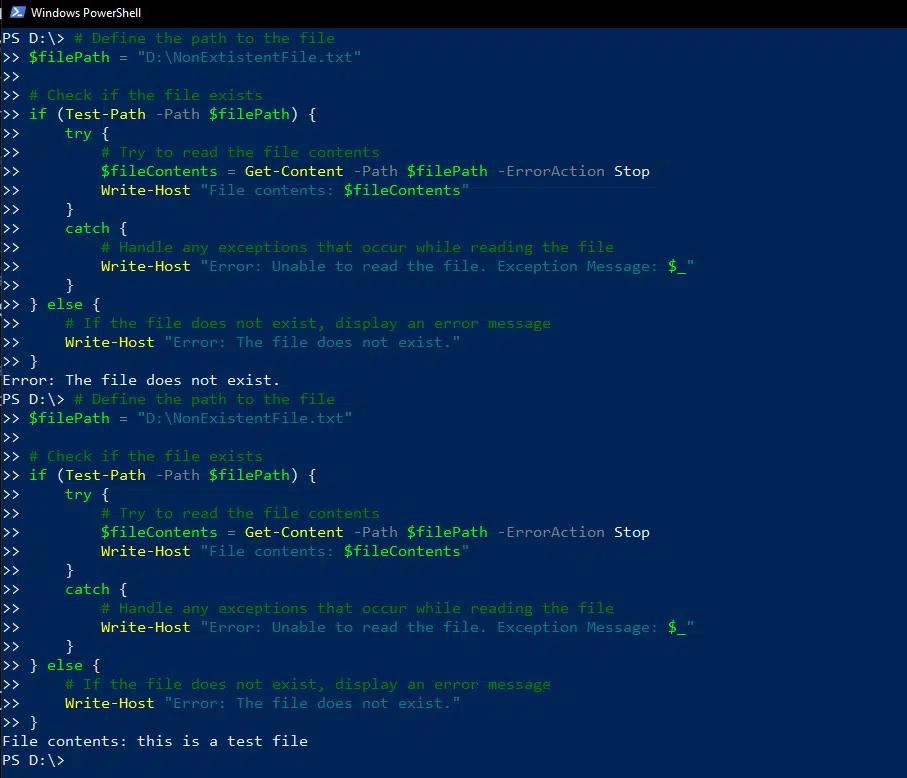
The following script illustrates some of these best practices. It uses an if statement with test-path to check whether a file exists before attempting to access it. If the file doesn’t exist, the error is displayed using the else statement. The Try-Catch block is used only to read the content of the file; if the script encounters an error like lack of permissions, the Catch block will handle the exception and display an error message.
      # Define the path to the file

$filePath = "D:\NonExistentFile.txt"

# Check if the file exists

if (Test-Path -Path $filePath) {

    try {

        # Try to read the file contents

        $fileContents = Get-Content -Path $filePath -ErrorAction Stop

        Write-Host "File contents: $fileContents"

    }

    catch {

        # Handle any exceptions that occur while reading the file

        Write-Host "Error: Unable to read the file. Exception Message: $_"

    }

} else {

    # If the file does not exist, display an error message

    Write-Host "Error: The file does not exist."

}
PowerShell Try-Catch and Script Continuation
Using Continue Statements
When a script encounters an error within a Try-Catch block, the default behavior is for the script to handle the exception in the Catch block and stop executing. However, there are scenarios where we want to continue execution after handling the error, such as when processing a batch of files or testing connections to multiple servers.
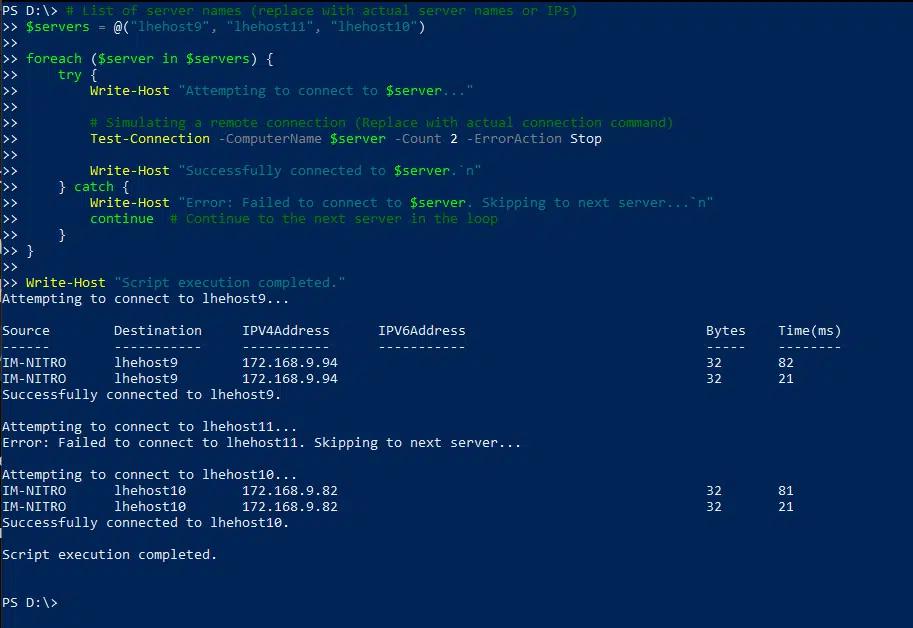
To ensure that a single failure does not halt the entire iteration, use a Continue statement. For example, the following script tests the connection of multiple servers; the Continue statement ensures that execution will continue even if an error occurs on one server.
      # List of server names (replace with actual server names or IPs)

$servers = @("lhehost9", "lhehost11", "lhehost10")

foreach ($server in $servers) {

    try {

        Write-Host "Attempting to connect to $server..."

        # Simulating a remote connection (Replace with actual connection command)

        Test-Connection -ComputerName $server -Count 2 -ErrorAction Stop

        Write-Host "Successfully connected to $server.`n"

    } catch {

        Write-Host "Error: Failed to connect to $server. Skipping to next server...`n"

        continue  # Continue to the next server in the loop

    }

}

Write-Host "Script execution completed."
Using the $ErrorActionPreference Variable
Another way to force script execution to continue after an error is to use the $ErrorActionPreference variable. While Try-Catch blocks enable localized error handling, $ErrorActionPreference is a global setting that controls PowerShell’s response to non-terminating errors.
We already saw that you can set $ErrorActionPreference to “Stop” in order to ensure that all errors are treated as terminating and thereby make them easier to catch. However, this variable has additional settings, including Continue (the default), Silentlycontinue, Inquire and Ignore. By choosing the setting for this variable, you can define how errors are managed across the script.
PowerShell Finally Block: Ensuring Resource Cleanup
As noted earlier, the Finally block executes after the Try and Catch blocks, regardless of whether an error occurred during script execution. It is often used for cleanup process such as closing files, terminating connections and releasing resources.
For instance, the following script opens a file and writes “hello world” into it. If an error occurs, the Catch block will print a message. In any case, the Finally block will make sure that file stream is closed to prevent any resource leakage.
      try {

    $filePath = "D:\Office\Backup\eventviewer_logs.txt"

    $fileStream = [System.IO.StreamWriter]::new($filePath)

    $fileStream.WriteLine("Hello, World!")

}

catch {

    Write-Host "An error occurred: $_"

}

finally {

    if ($fileStream) {

        $fileStream.Close()

        Write-Host "File stream closed successfully."

    }

}
Handling Multiple Errors in PowerShell
Variables that Store and Count Errors
PowerShell provides two variables that are quite helpful in auditing and debugging scripts that encounter multiple exceptions:
- $Error keeps a list of the errors encountered during a session.
- $Error.count provides the total number of errors recorded in current session.
For accurate tracking, it may be necessary to clear the list of errors from time to time during a session. Using $Error.clear() will remove all stored errors.
Using Nested Try-Catch Blocks to Handle Multiple Errors
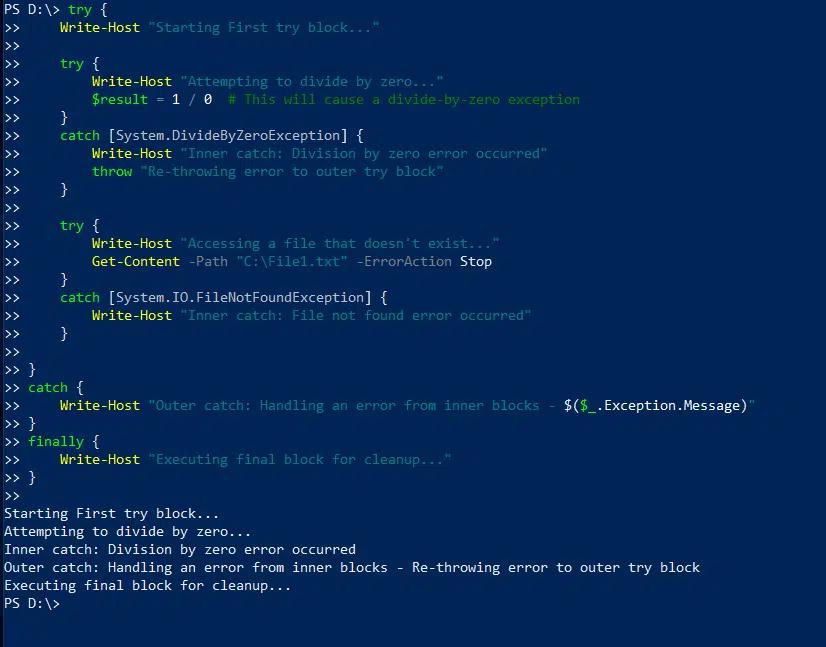
The following script includes two nested Try-Catch blocks to handle two different potential errors, attempting to divide by zero and attempting to access a non-existent file:
      try {

    Write-Host "Starting First try block..."

    try {

        Write-Host "Attempting to divide by zero..."

        $result = 1 / 0  # This will cause a divide-by-zero exception

    }

    catch [System.DivideByZeroException] {

        Write-Host "Inner catch: Division by zero error occurred"

        throw "Re-throwing error to outer try block"

    }

    try {

        Write-Host "Accessing a file that doesn't exist..."

        Get-Content -Path "C:\File1.txt" -ErrorAction Stop

    }

    catch [System.IO.FileNotFoundException] {

        Write-Host "Inner catch: File not found error occurred"

    }

}

catch {

    Write-Host "Outer catch: Handling an error from inner blocks - $($_.Exception.Message)"

}

finally {

    Write-Host "Executing final block for cleanup..."

}
Error Messages and Debugging in PowerShell
Accessing Detailed Error Information
When errors occur during script execution, simply knowing that an error occurred is not enough; we need detailed information to diagnose and fix the problem. As noted earlier, the $Error variable keeps an array of error records, with the most recent error at $Error[0]. Specific error properties include Exception, CategoryInfo, InvocationInfo and ScriptStackTrace.
The ScriptStackTrace property is invaluable because it provides the detailed call stack, showing the sequence of functions call and script locations that led to the error. To access this detailed information for the most recent error, use $Error[0].ScriptStackTrace.
Providing Custom Error Messages
Displaying meaningful and user-friendly error messages enhances script usability and debugging. Custom messages can provide users with insight into what went wrong and sometimes help them correct the error, such as by fixing an incorrect file path, incorrect process name or insufficient permissions.
To display custom messages, we can use Write-host or write-error in a Catch block. Include $_.Exception.message to provide additional details.
For example, when an error (division by zero) occurs during execution of the following script, a detailed notification is both printed to the console and emailed to the administrator:
      $SMTPServer = "lvkex.ca.lo"

$SMTPPort = 587

$From = "aadministrator@ca.lo"

$To = "administrator@ca.lo"

$Subject = "PowerShell Script Error Alert"

try {

    Write-Host "Executing script..."

    # Simulate an error (divide by zero)

    $result = 1 / 0

}

catch {

    # Capture actual error message details

    $ErrorMessage = @"

An error occurred in the PowerShell script.

Message: $($_.Exception.Message)

Script: $($MyInvocation.ScriptName)

Line: $($_.InvocationInfo.ScriptLineNumber)

Date: $(Get-Date -Format "yyyy-MM-dd HH:mm:ss")

"@

    # Log error to console and send email

    Write-Host "An error occurred. Sending email notification..."

    Send-MailMessage -SmtpServer $SMTPServer -Port $SMTPPort -From $From -To $To -Subject $Subject -Body $ErrorMessage

}

}

Common Use Cases for PowerShell Try-Catch
Updating User Profiles in Bulk While Handling Errors in Data Entry
Administrators often use a PowerShell to automatically update user information in Active Directory based on a csv file. Since the input file might contain invalid data, it’s important to use Try-Catch to handle and log errors.
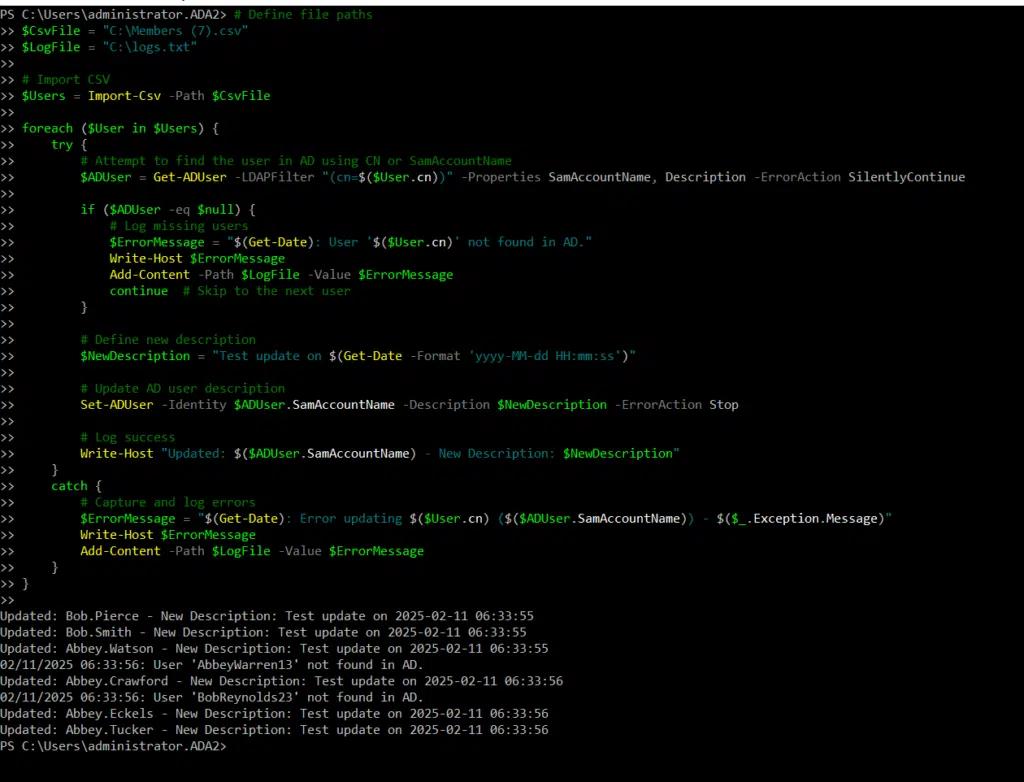
The following script imports a csv file containing a list of users and iterates through it to update their descriptions in AD. It prints the results on the console and records any errors in a log file.
      # Define file paths

$CsvFile = "C:\Members (7).csv"

$LogFile = "C:\logs.txt"

# Import CSV

$Users = Import-Csv -Path $CsvFile

foreach ($User in $Users) {

    try {

        # Attempt to find the user in AD using CN or SamAccountName

        $ADUser = Get-ADUser -LDAPFilter "(cn=$($User.cn))" -Properties SamAccountName, Description -ErrorAction SilentlyContinue

        if ($ADUser -eq $null) {

            # Log missing users

            $ErrorMessage = "$(Get-Date): User '$($User.cn)' not found in AD."

            Write-Host $ErrorMessage

            Add-Content -Path $LogFile -Value $ErrorMessage

            continue  # Skip to the next user

        }

        # Define new description

        $NewDescription = "Test update on $(Get-Date -Format 'yyyy-MM-dd HH:mm:ss')"

        # Update AD user description

        Set-ADUser -Identity $ADUser.SamAccountName -Description $NewDescription -ErrorAction Stop

        # Log success

        Write-Host "Updated: $($ADUser.SamAccountName) - New Description: $NewDescription"

    }

    catch {

        # Capture and log errors

        $ErrorMessage = "$(Get-Date): Error updating $($User.cn) ($($ADUser.SamAccountName)) - $($_.Exception.Message)"

        Write-Host $ErrorMessage

        Add-Content -Path $LogFile -Value $ErrorMessage

    }

}
Handling Issues with Server or Network Connections
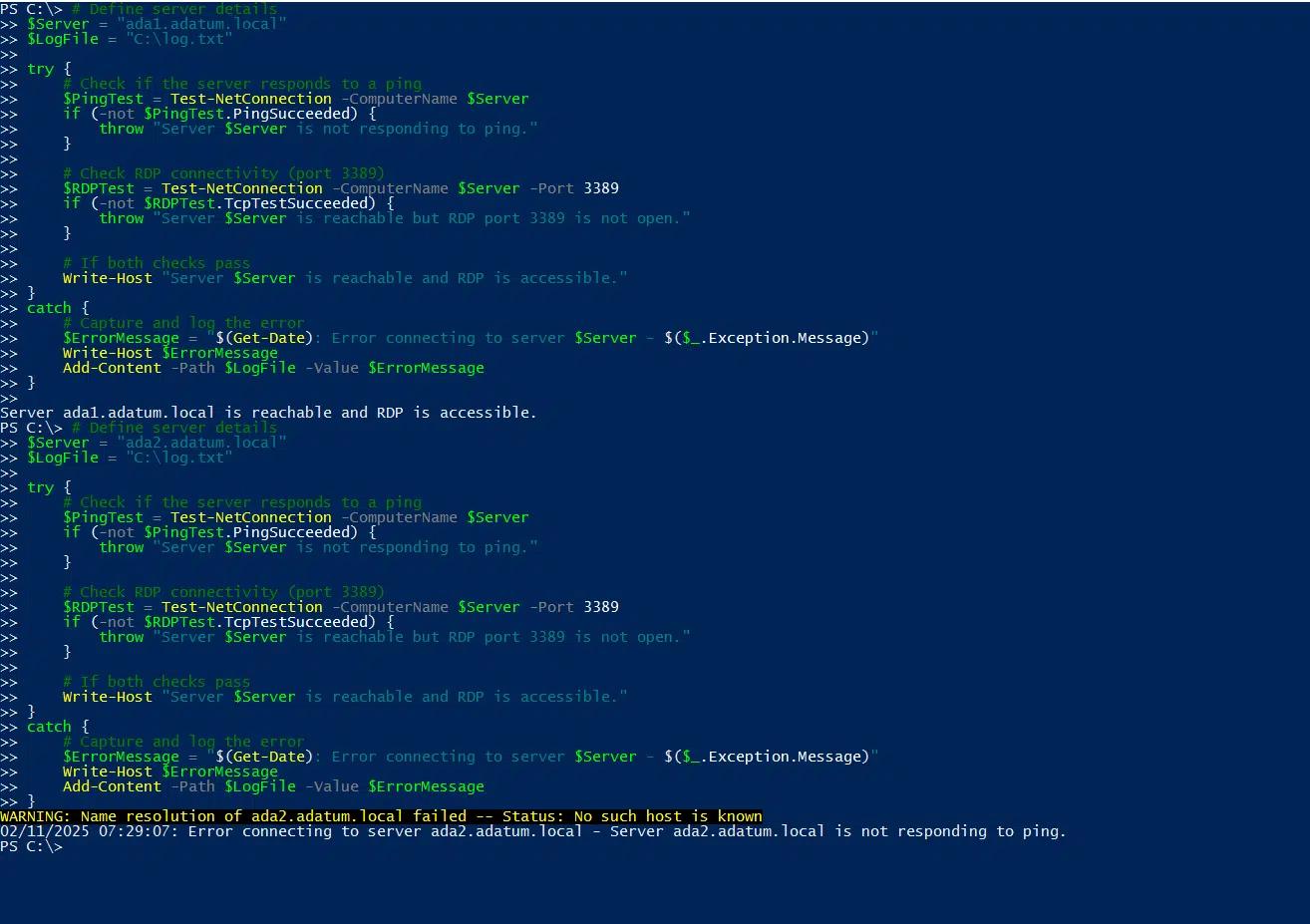
Try-Catch blocks are also useful for handling server and network connection issues. For example, the following script illustrates how to test the connection to a server, once with the correct name and once with incorrect name:
      # Define server details

$Server = "ada1.adatum.local"

$LogFile = "C:\log.txt"

try {

    # Check if the server responds to a ping

    $PingTest = Test-NetConnection -ComputerName $Server

    if (-not $PingTest.PingSucceeded) {

        throw "Server $Server is not responding to ping."

    }

    # Check RDP connectivity (port 3389)

    $RDPTest = Test-NetConnection -ComputerName $Server -Port 3389

    if (-not $RDPTest.TcpTestSucceeded) {

        throw "Server $Server is reachable but RDP port 3389 is not open."

    }

    # If both checks pass

    Write-Host "Server $Server is reachable, and RDP is accessible."

}

catch {

    # Capture and log the error

    $ErrorMessage = "$(Get-Date): Error connecting to server $Server - $($_.Exception.Message)"

    Write-Host $ErrorMessage

    Add-Content -Path $LogFile -Value $ErrorMessage

}
Conclusion
Try-Catch-Finally blocks are an invaluable tool for handling errors in PowerShell scripts. By combining them with mechanisms such as the ErrorAction parameter and the $ErrorActionPreference and $Error variables, you can create robust scripts that run smoothly even when unexpected issues arise. As a result, you can automate tasks with confidence that you will not suffer problems like incomplete operation, system downtime or data loss.
FAQ
Why isn’t my PowerShell try-catch catching errors?
The most common reason try-catch blocks don’t work is that you’re dealing with non-terminating errors. PowerShell has two types of errors: terminating (which stop execution) and non-terminating (which display a message but continue running). Try-catch only catches terminating errors by default.
To catch non-terminating errors, add -ErrorAction Stop to the command inside your try block. This forces PowerShell to treat the error as terminating:
      try {
    Get-ChildItem "C:\NonExistent" -ErrorAction Stop
} catch {
    Write-Host "Caught the error!"
}
Without -ErrorAction Stop, the error message displays but your catch block never executes.
Another issue is scope-related. If you’re calling functions or external scripts from within your try block, errors from those might not bubble up correctly. Make sure the function or script you’re calling also uses proper error handling, or use $ErrorActionPreference = "Stop" at the beginning of your script to change the default behavior globally. Remember that changing the global preference affects all commands in your script, so use it carefully in production environments.
How do you fix PowerShell try-catch still showing error messages?
Even with proper try-catch implementation, you might still see error messages because PowerShell displays them before the catch block processes them. This happens with non-terminating errors that become terminating through -ErrorAction Stop. The error appears in the console, then gets caught by your handler.
To suppress the error display completely, use -ErrorAction SilentlyContinue combined with checking $? (the automatic success variable) or $Error[0] for the most recent error:
      Get-ChildItem "C:\NonExistent" -ErrorAction SilentlyContinue
if (!$?) {
    Write-Host "Command failed silently"
}
This approach gives you control over error detection without visible error messages.
For a cleaner solution, capture the error information in your catch block and decide how to handle it. Use $_.Exception.Message to get the error details, then log or display them according to your needs. This way, you control exactly what users see:
      try {
    Get-ChildItem "C:\NonExistent" -ErrorAction Stop
} catch {
    Write-Warning "Directory access failed: $($_.Exception.Message)"
}
This approach is especially important in enterprise environments where error messages need to be user-friendly and logged appropriately.
How do you handle PowerShell try-catch with non-terminating errors?
Non-terminating errors require special handling because they don’t trigger catch blocks by default. The most reliable approach is using -ErrorAction Stop on individual commands where you want to catch errors. This converts non-terminating errors to terminating ones that your try-catch can handle.
For functions that generate multiple non-terminating errors, consider setting $ErrorActionPreference = "Stop" at the function level, then reset it afterward:
      function Test-Function {
    $ErrorActionPreference = "Stop"
    try {
        # your commands here
    } catch {
        # error handling
    } finally {
        $ErrorActionPreference = "Continue"
    }
}
An alternative approach uses the -ErrorVariable parameter to capture errors without stopping execution. Run your command with -ErrorVariable myErrors -ErrorAction SilentlyContinue, then check if $myErrors has any content. This method lets you handle errors after command completion without interrupting the flow:
      Get-ChildItem "C:\*" -ErrorVariable problems -ErrorAction SilentlyContinue
if ($problems) {
    Write-Host "Found $($problems.Count) errors to review"
}
This pattern works well for bulk operations where you want to collect all problems before deciding how to respond.
What’s the difference between ErrorAction Stop and SilentlyContinue in try-catch?
ErrorAction Stop converts non-terminating errors into terminating errors that immediately halt execution and trigger your catch block. Use this when you want your try-catch to handle the error and you can’t continue if the command fails. It’s the most common choice for critical operations where failure should stop the process.
ErrorAction SilentlyContinue suppresses error messages and allows execution to continue, but errors don’t trigger catch blocks. The error still occurs and gets added to $Error, but no visible error message appears, and your script keeps running. This option is useful when you expect some operations to fail and want to handle them through conditional logic rather than exception handling.
The key difference in try-catch scenarios is control flow. With Stop, your catch block runs and you decide what happens next. With SilentlyContinue, you need to check success manually using $?, $Error, or -ErrorVariable. For security-focused operations, Stop provides better error visibility and handling, ensuring that access failures or security violations don’t go unnoticed. In enterprise environments, explicit error handling through try-catch with ErrorAction Stop creates better audit trails and more predictable script behavior.
How do you use try-catch with PowerShell loops and continue execution?
In loops, try-catch behavior depends on where the error occurs and what you want to happen next. To continue processing remaining items after an error, place the try-catch inside the loop and use continue in the catch block:
      foreach ($item in $items) {
    try {
        Process-Item $item -ErrorAction Stop
    } catch {
        Write-Warning "Failed to process $item"
        continue
    }
}
This skips the failed item and moves to the next one.
If you want to retry failed operations, combine try-catch with a retry counter:
      foreach ($item in $items) {
    $retries = 0
    do {
        try {
            Process-Item $item -ErrorAction Stop
            break
        } catch {
            $retries++
            if ($retries -ge 3) {
                Write-Error "Failed after 3 attempts: $item"
                break
            }
            Start-Sleep 1
        }
    } while ($retries -lt 3)
}
This pattern is valuable for network operations or resource-intensive tasks that might fail temporarily.
For collecting both successes and failures, use arrays to track results:
      $successful = @()
$failed = @()
foreach ($item in $items) {
    try {
        Process-Item $item -ErrorAction Stop
        $successful += $item
    } catch {
        $failed += @{Item=$item; Error=$_.Exception.Message}
    }
}
This approach provides complete visibility into bulk operations, which is essential for data processing, user management, or system administration tasks where you need to report on both successes and failures to stakeholders.
Condividi su
Scopri di più
Informazioni sull'autore

Tyler Reese
Vicepresidente della Gestione Prodotti, CISSP
Con più di due decenni nel settore della sicurezza del software, Tyler Reese conosce intimamente le sfide di identità e sicurezza in rapida evoluzione che le aziende affrontano oggi. Attualmente, ricopre il ruolo di direttore del prodotto per il portfolio di Netwrix Identity and Access Management, dove le sue responsabilità includono la valutazione delle tendenze di mercato, la definizione della direzione per la linea di prodotti IAM e, in ultima analisi, la soddisfazione delle esigenze degli utenti finali. La sua esperienza professionale spazia dalla consulenza IAM per le aziende Fortune 500 al lavoro come architetto aziendale di una grande compagnia diretta al consumatore. Attualmente detiene la certificazione CISSP.
Scopri di più su questo argomento
Powershell Elimina il file se esiste
PowerShell Write to File: "Out-File" e Tecniche di Output del File
Come creare nuovi utenti di Active Directory con PowerShell
Come eseguire uno script PowerShell
Cos'è PowerShell? Una guida completa alle sue funzionalità e utilizzi