
PowerShell Try-Catch: Error Handling Guide
Mar 9, 2025
PowerShell error handling uses Try-Catch-Finally blocks to manage terminating and non-terminating errors, ensuring scripts remain reliable in unattended execution. Try encloses risky code, Catch responds to exceptions, and Finally cleans resources. With options like -ErrorAction, $ErrorActionPreference, and $Error, admins can enforce strict handling, capture detailed error messages, and automate recovery. This approach reduces downtime, prevents data loss, and enables resilient scripting at scale.
Introduction to Error Handling in PowerShell
Many PowerShell scripts are designed to run unattended, so it is vital to ensure that they can handle errors smoothly. Proper error handling helps prevent a wide variety of issues, from incomplete operations and system downtime to data loss. Error handling needs to account for both terminating errors, which stop script execution, and non-terminating errors, which allow the script to continue running but can affect the output.
One of the most useful mechanisms for error handling in PowerShell is the Try-Catch-Finally block. The Try block contains code that could throw an exception. If that happens, control is transferred to the Catch block, which handles the error by taking actions such as skipping a problematic file or invalid input, as well as logging the event. The Finally block always executes, performing cleanup tasks such as closing files, releasing resources or logging information. For example, creating detailed error messages for Try Catch in PowerShell can enable you to take appropriate actions to resolve issues.
This document provides a deep dive into Try-Catch-Finally blocks. Along the way, we will also cover some other error handling methods in PowerShell, including using the ErrorAction parameter to control how cmdlets respond to errors and using the $Error variable to store the history of errors.
Handpicked related content:
What are Errors in PowerShell?
Errors are events that can affect the normal flow of execution of a script or can stop it entirely. Common causes of errors include incorrect syntax, missing files, insufficient permissions or unavailable resources. There are two primary types of errors, terminating errors and non-terminating errors.
Terminating Errors: Critical Errors that Stop the Script
Terminating errors immediately stop the script execution unless they are properly handled. These errors occur when PowerShell faces an issue it cannot recover from, such as a syntax error, calling a variable or file that does not exist, or lack of sxufficient permissions to perform the requested operation.
For example, the script below attempts to get the file users.txt:
Get-Content C:\users.txt | Get-ADUser -Properties name | Select-Object -Property SamAccountName,name
If this file does not exist at the specified location or the account running the script does not have permissions to access it, the script will generate a terminating error, halting script operation as shown here:

Non-Terminating Errors: Errors that Allow the Script to Continue
Non-terminating errors in PowerShell are errors that do not stop the script’s execution. These errors are commonly generated by cmdlets that attempt to process multiple objects, where one failure does not necessarily stop the entire script.
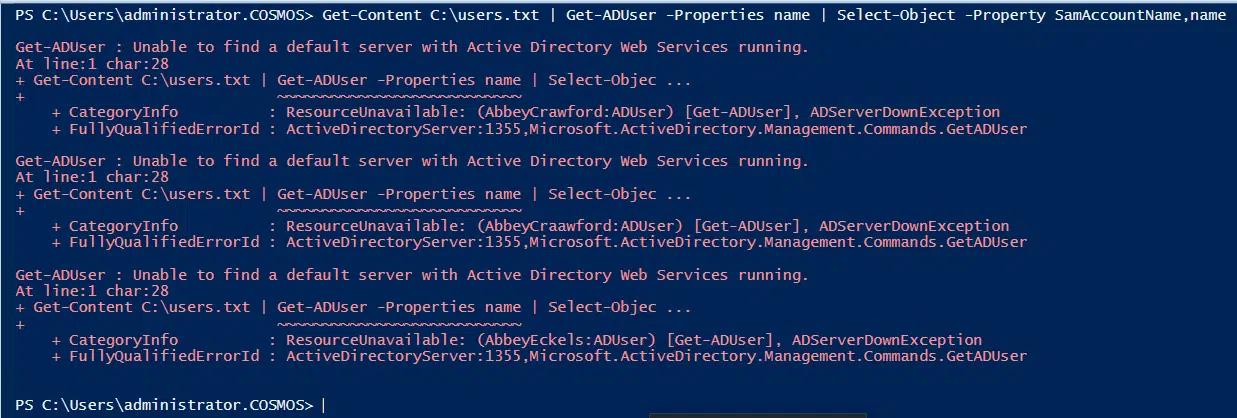
For example, suppose we run the script used in the previous example but now the file does exist and we have permissions to access it. However, we do not have connectivity to a domain controller. In this case, the first command will run and get the contents of the file. However, the next command will fail, generating non-terminating errors for each of the three objects in the file.
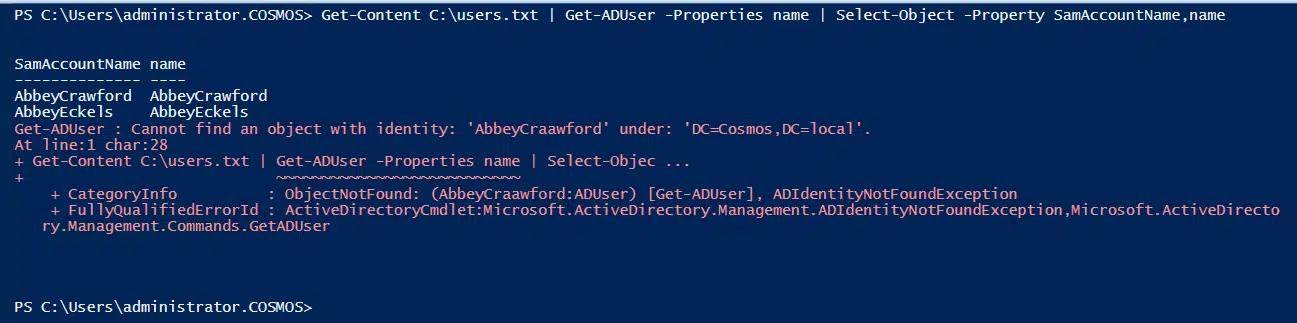
Now suppose domain controller connectivity is restored, but one object in the file has an invalid username. Running the script will generate the non-terminating error shown below for the object, but the other objects will be processed by the script.
Where Errors Are Stored: the $Error Variable
$Error is an automatic array that stores recent errors encountered during script execution, which makes it very useful in debugging and troubleshooting script. The most recent error is stored at index [0].
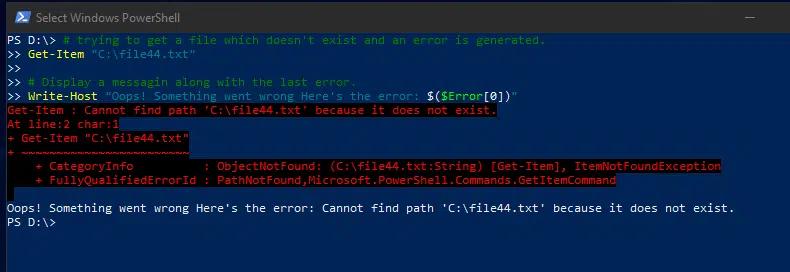
For example, when the following script attempts to fetch a non-existent file, it retrieves the resulting error from $Error and displays it with a friendly message:
      # trying to get a file which doesn't exist, and an error is generated.

Get-Item "C:\file44.txt"

# Display a message along with the last error.

Write-Host "Oops! Something went wrong Here's the error: $($Error[0])"
Understanding Try, Catch and Finally Blocks
A good way to smoothly handle errors is to implement Try-Catch-Finally blocks.
What is Active Directory?
Download eBook
Try Block: Where Potentially Error-Prone Code Resides
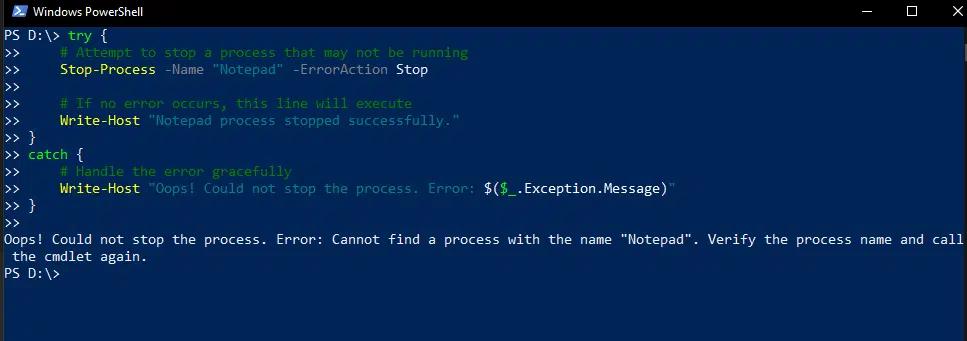
The Try block encloses code that might produce an error. For example, the following script is designed to stop the Notepad process. The Try block will stop that process if it is currently running, but if it is not running, execution will jump to the Catch block, preventing the script from crashing.
      try {

    # Attempt to stop a process that may not be running

    Stop-Process -Name "Notepad" -ErrorAction Stop

    # If no error occurs, this line will execute

    Write-Host "Notepad process stopped successfully."

}

catch {

    # Handle the error gracefully

    Write-Host "Oops! Could not stop the process. Error: $($_.Exception.Message)"

}
Catch Block: Handling Errors When They Occur
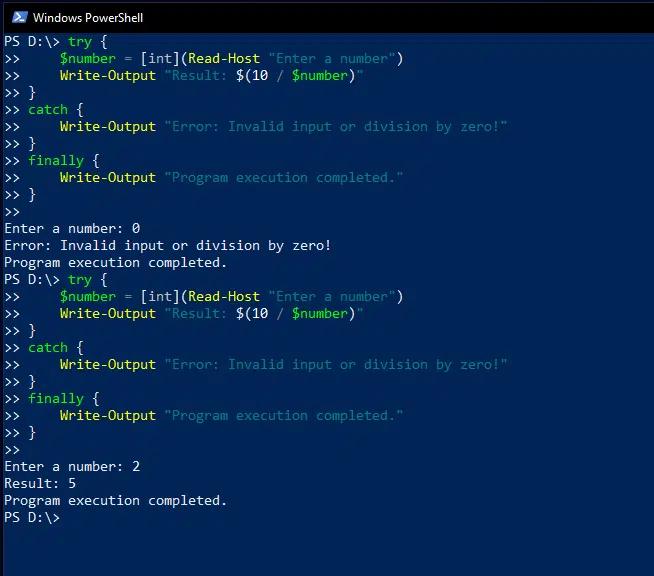
The Catch block is used to handle exceptions that occur in the Try block. In the following PowerShell Try Catch example, the script prompts the user to enter a number, divides 10 by that number, and prints the result. However, if the input number is 0, the attempt at division will result in an error, since it’s not possible to divide by zero. In that case, the Catch block will execute and print an error message instead of a number.
      try {

    $number = [int](Read-Host "Enter a number")

    Write-Output "Result: $(10 / $number)"

}

catch {

    Write-Output "Error: Invalid input or division by zero!"

}

finally {

    Write-Output "Program execution completed."

}
Finally Block: Code that Always Runs, Whether or Not an Error Occurs
The Finally block will always execute regardless of whether an exception was thrown.
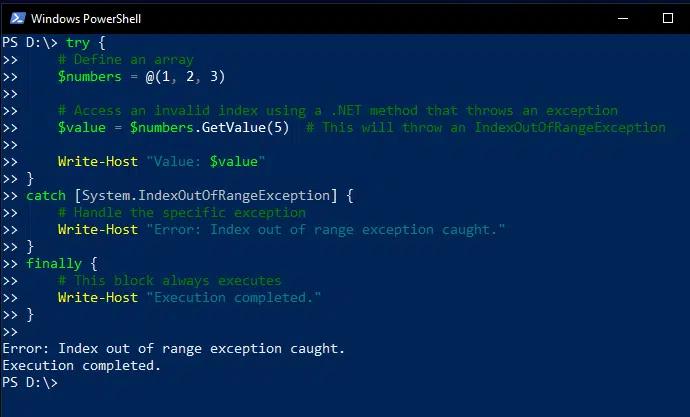
For instance, the following script defines an array with just three elements but attempts to print the fifth element; this exception is handled in the Catch block, which prints an error. However, the Finally block is also executed, so an additional message is printed.
      try {

    # Define an array

    $numbers = @(1, 2, 3)

    # Access an invalid index using a .NET method that throws an exception

    $value = $numbers.GetValue(5)

    Write-Host "Value: $value"

}

catch [System.IndexOutOfRangeException] {

    # Handle the specific exception

    Write-Host "Error: Index out of range exception caught."

}

finally {

    # This block always executes

    Write-Host "Execution completed."

}
Advanced Example: Using Multiple Catch Blocks for Different Types of Exceptions
A script can include multiple Catch blocks to handle different types of exceptions, allowing for more granular error handling. Indeed, the .Net framework provides a rich set of PowerShell Try Catch exception message types, including the following:
- System.DivideByZeroException — Occurs when attempting to divide any number by zero
- System.FormatException — Arises when attempting to convert a non-numeric input into a number
- System.ArgumentNullException — Occurs when a passed arguments is null but should never be null
- System.IO.IOException — Thrown when an I/O error occurs
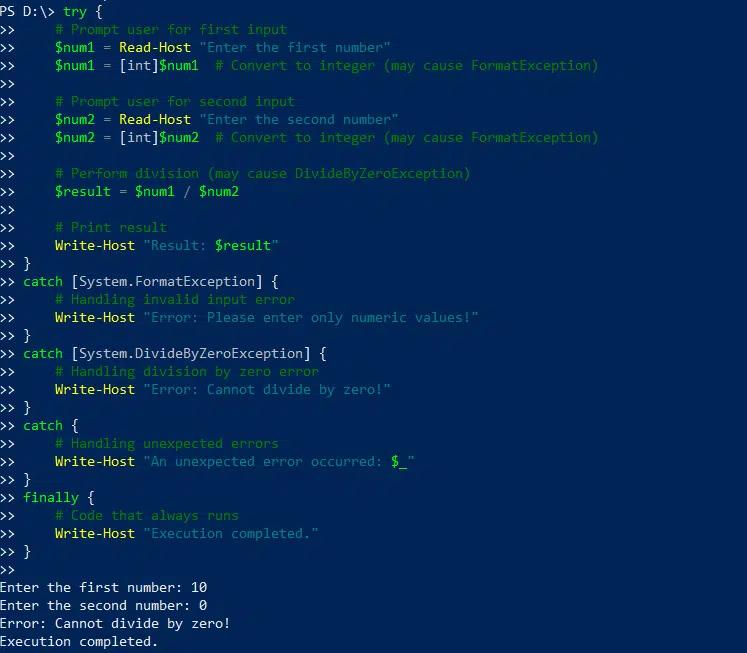
For instance, the following script asks for the user to input two numbers, converts them to integer format, divides the first number by the second, and prints the result. The first Catch block handles the possibility that the user’s input cannot be converted into integer format, and the second Catch block handles the possibility of attempting to divide by zero.
      try {

    # Prompt user for first input

    $num1 = Read-Host "Enter the first number"

    $num1 = [int]$num1  # Convert to integer (may cause FormatException)

    # Prompt user for second input

    $num2 = Read-Host "Enter the second number"

    $num2 = [int]$num2  # Convert to integer (may cause FormatException)

    # Perform division (may cause DivideByZeroException)

    $result = $num1 / $num2

    # Print result

    Write-Host "Result: $result"

}

catch [System.FormatException] {

    # Handling invalid input error

    Write-Host "Error: Please enter only numeric values!"

}

catch [System.DivideByZeroException] {

    # Handling division by zero error

    Write-Host "Error: Cannot divide by zero!"

}

catch {

    # Handling unexpected errors

    Write-Host "An unexpected error occurred: $_"

}

finally {

    # Code that always runs

    Write-Host "Execution completed."

}
Advanced Error Handling Techniques
To create more robust and maintainable scripts, consider using the following error handling techniques in combination with PowerShell Try and Catch blocks:
- Use $ErrorActionPreference = “Stop” to ensure that all errors are treated as terminating, which makes them easier to catch.
- Use -ErrorAction Stop on individual commands to enable more granular control without affecting the entire script.
- Use $_.Exception.Message and $PSItem to access error details.
Catching Specific Exceptions
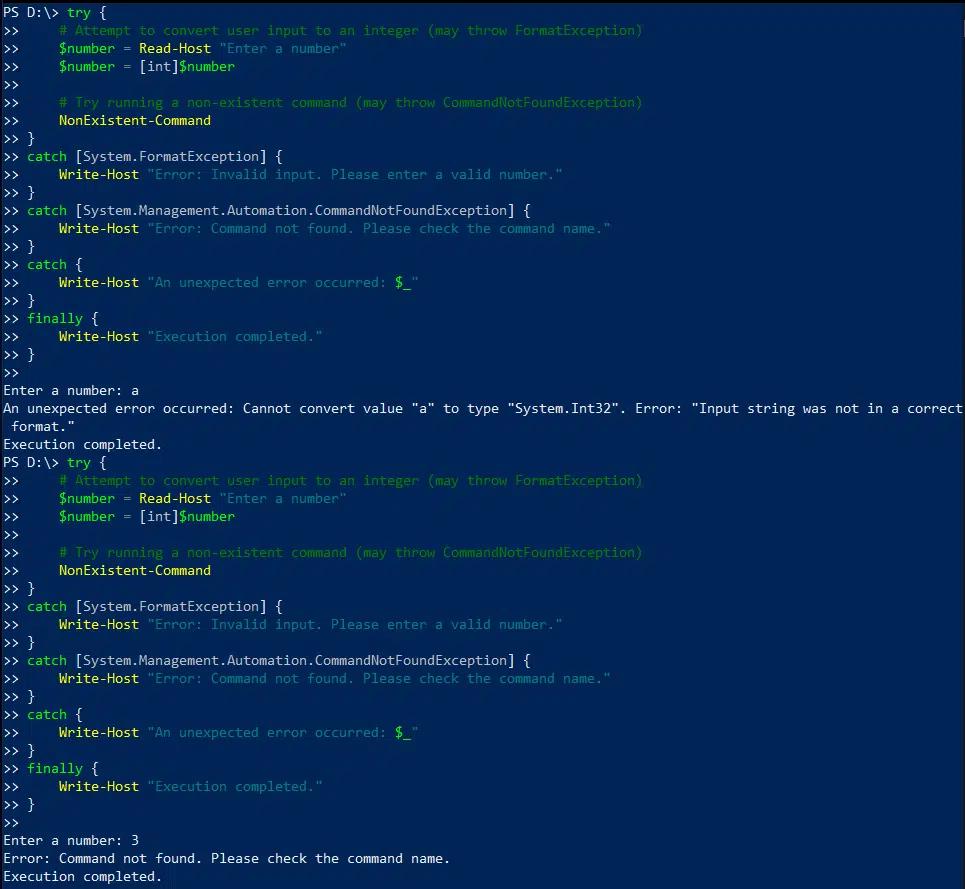
The following script is intended to convert input from user into a user into an integer and then run a command. The first Catch block handles the possibility of invalid user input, and the second handles attempts to execute an invalid command. If either exception occurs, the script prints a custom message.
      try {

    # Attempt to convert user input to an integer (may throw FormatException)

    $number = Read-Host "Enter a number"

    $number = [int]$number

    # Try running a non-existent command (may throw CommandNotFoundException)

    NonExistent-Command

}

catch [System.FormatException] {

    Write-Host "Error: Invalid input. Please enter a valid number."

}

catch [System.Management.Automation.CommandNotFoundException] {

    Write-Host "Error: Command not found. Please check the command name."

}

catch {

    Write-Host "An unexpected error occurred: $_"

}

finally {

    Write-Host "Execution completed."

}
Using $_.Exception.Message and $PSItem to Access Error Details
To access error details within a Catch block, you can use the following variables:
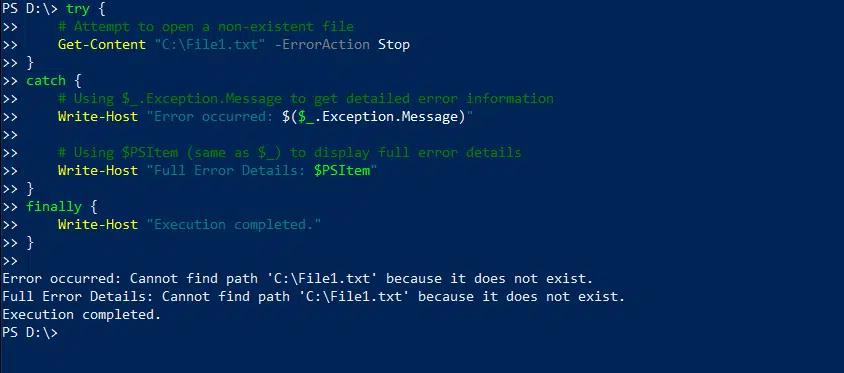
- $_.Exception.Message provides a clear, user-friendly Try Catch PowerShell error message, with only the relevant part of the error.
- $PSItem holds the full error object, including the error type, source and stack trace.
The following script illustrates the difference in the output provided by these variables:
      try {

    # Attempt to open a non-existent file

    Get-Content "C:\File1.txt" -ErrorAction Stop

}

catch {

    # Using $_.Exception.Message to get detailed error information

    Write-Host "Error occurred: $($_.Exception.Message)"

    # Using $PSItem (same as $_) to display full error details

    Write-Host "Full Error Details: $PSItem"

}

finally {

    Write-Host "Execution completed."

}
Using Trap Statements
A Trap statement defines code that is executed when a specific error occurs, regardless of where in the script the error occurs. As a result, it provides a mechanism for handling errors at a higher (global) level than individual PowerShell Try-Catch blocks.
The following script uses Try-Catch in PowerShell to handle the possibility of an attempt to divide by zero. The Trap statement will catch any other error that might happen, which in this case is using the Get-Item cmdlet with a file that doesn’t exist.
      # Global error handler using trap

trap {

    Write-Host "Global Error Handler (trap): $_"

    continue  # Allows the script to continue execution

}

function Test-TryCatch {

    try {

        Write-Host "Inside Try Block"

        1 / 0  # This will cause a division by zero error

        Write-Host "This line will not execute due to the error above."

    } catch {

        Write-Host "Caught in Try-Catch: $_"

    }

}

Write-Host "Before function call"

Test-TryCatch

Write-Host "After function call"

# Triggering another error outside try-catch to see if trap works

Write-Host "Triggering an error outside Try-Catch"

Get-Item "C:\NonExistentFile.txt" -ErrorAction Stop  # Force a terminating error

Write-Host "Script completed"
Handling Non-Terminating Errors in PowerShell
Catch blocks are designed to handle terminating errors; since non-terminating errors don’t stop script execution, they don’t trigger Catch block. However, we can convert non-terminating errors into terminating errors using the -ErrorAction Stop parameter. This parameter forces the script to treat non-terminating error as terminating errors, which will allow Catch blocks to handle them appropriately.
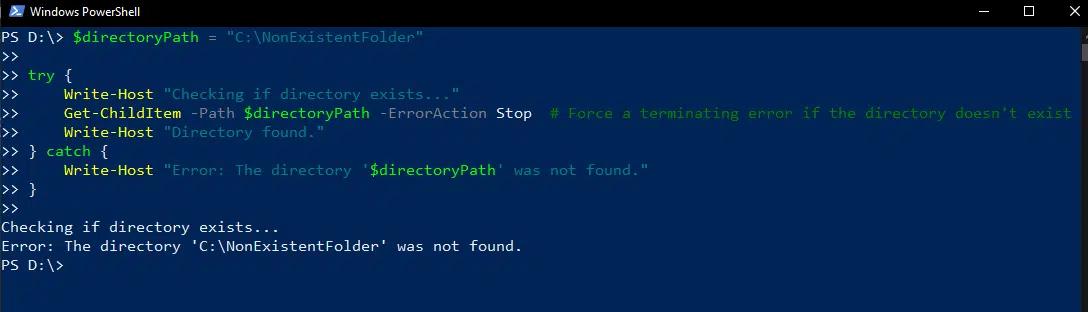
Suppose we run the following script but the folder it tries to access does not exist. The Try block uses -ErrorAction Stop to convert this non-terminating error into terminating error so it will be handled by the Catch block.
      $directoryPath = "C:\NonExistentFolder"

try {

    Write-Host "Checking if directory exists..."

    Get-ChildItem -Path $directoryPath -ErrorAction Stop  # Force a terminating error if the directory doesn't exist

    Write-Host "Directory found."

} catch {

    Write-Host "Error: The directory '$directoryPath' was not found."

}
Best Practices for Using Try-Catch in PowerShell
To maximize the clarity, efficiency and maintainability of your code, craft your error handling block carefully. In particular, PowerShell Try-Catch should be used for genuine exceptions only. By limit the code in Try block to only those operations that might throw and exception makes it easier to identify the source of exceptions and debug the script. In other cases, consider if-else or switch statements.
Other key best practices include the following:
- Make sure that the code inside the Try block follows the single responsibility principle, which means that each piece of code performs a specific task.
- Use separate Catch blocks to handle different types of exceptions.
- Always include a Finally block to clean up code and release resources.
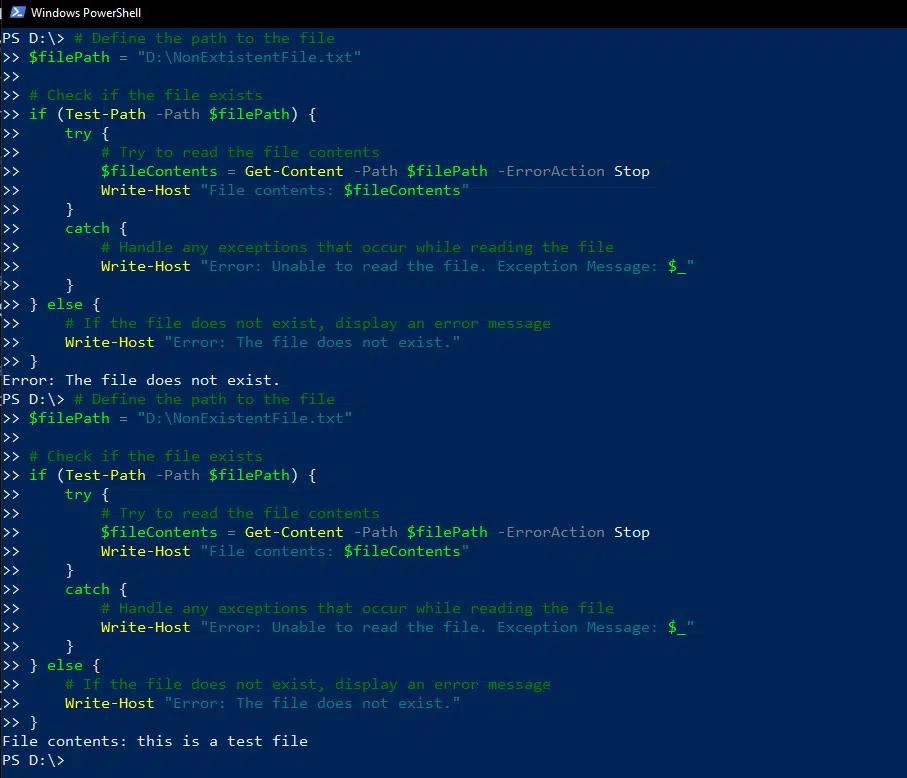
The following script illustrates some of these best practices. It uses an if statement with test-path to check whether a file exists before attempting to access it. If the file doesn’t exist, the error is displayed using the else statement. The Try-Catch block is used only to read the content of the file; if the script encounters an error like lack of permissions, the Catch block will handle the exception and display an error message.
      # Define the path to the file

$filePath = "D:\NonExistentFile.txt"

# Check if the file exists

if (Test-Path -Path $filePath) {

    try {

        # Try to read the file contents

        $fileContents = Get-Content -Path $filePath -ErrorAction Stop

        Write-Host "File contents: $fileContents"

    }

    catch {

        # Handle any exceptions that occur while reading the file

        Write-Host "Error: Unable to read the file. Exception Message: $_"

    }

} else {

    # If the file does not exist, display an error message

    Write-Host "Error: The file does not exist."

}
PowerShell Try-Catch and Script Continuation
Using Continue Statements
When a script encounters an error within a Try-Catch block, the default behavior is for the script to handle the exception in the Catch block and stop executing. However, there are scenarios where we want to continue execution after handling the error, such as when processing a batch of files or testing connections to multiple servers.
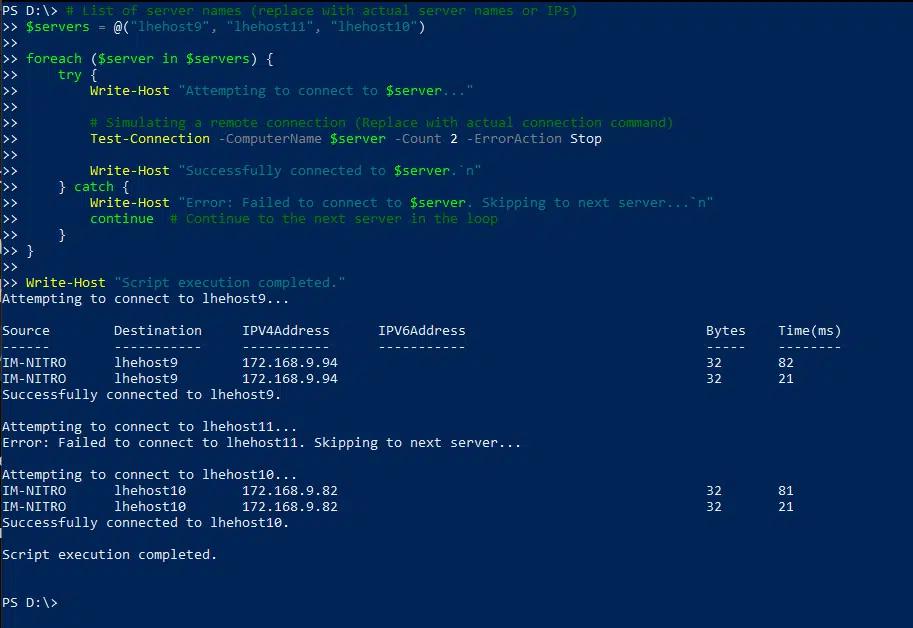
To ensure that a single failure does not halt the entire iteration, use a Continue statement. For example, the following script tests the connection of multiple servers; the Continue statement ensures that execution will continue even if an error occurs on one server.
      # List of server names (replace with actual server names or IPs)

$servers = @("lhehost9", "lhehost11", "lhehost10")

foreach ($server in $servers) {

    try {

        Write-Host "Attempting to connect to $server..."

        # Simulating a remote connection (Replace with actual connection command)

        Test-Connection -ComputerName $server -Count 2 -ErrorAction Stop

        Write-Host "Successfully connected to $server.`n"

    } catch {

        Write-Host "Error: Failed to connect to $server. Skipping to next server...`n"

        continue  # Continue to the next server in the loop

    }

}

Write-Host "Script execution completed."
Using the $ErrorActionPreference Variable
Another way to force script execution to continue after an error is to use the $ErrorActionPreference variable. While Try-Catch blocks enable localized error handling, $ErrorActionPreference is a global setting that controls PowerShell’s response to non-terminating errors.
We already saw that you can set $ErrorActionPreference to “Stop” in order to ensure that all errors are treated as terminating and thereby make them easier to catch. However, this variable has additional settings, including Continue (the default), Silentlycontinue, Inquire and Ignore. By choosing the setting for this variable, you can define how errors are managed across the script.
PowerShell Finally Block: Ensuring Resource Cleanup
As noted earlier, the Finally block executes after the Try and Catch blocks, regardless of whether an error occurred during script execution. It is often used for cleanup process such as closing files, terminating connections and releasing resources.
For instance, the following script opens a file and writes “hello world” into it. If an error occurs, the Catch block will print a message. In any case, the Finally block will make sure that file stream is closed to prevent any resource leakage.
      try {

    $filePath = "D:\Office\Backup\eventviewer_logs.txt"

    $fileStream = [System.IO.StreamWriter]::new($filePath)

    $fileStream.WriteLine("Hello, World!")

}

catch {

    Write-Host "An error occurred: $_"

}

finally {

    if ($fileStream) {

        $fileStream.Close()

        Write-Host "File stream closed successfully."

    }

}
Handling Multiple Errors in PowerShell
Variables that Store and Count Errors
PowerShell provides two variables that are quite helpful in auditing and debugging scripts that encounter multiple exceptions:
- $Error keeps a list of the errors encountered during a session.
- $Error.count provides the total number of errors recorded in current session.
For accurate tracking, it may be necessary to clear the list of errors from time to time during a session. Using $Error.clear() will remove all stored errors.
Using Nested Try-Catch Blocks to Handle Multiple Errors
The following script includes two nested Try-Catch blocks to handle two different potential errors, attempting to divide by zero and attempting to access a non-existent file:
      try {

    Write-Host "Starting First try block..."

    try {

        Write-Host "Attempting to divide by zero..."

        $result = 1 / 0  # This will cause a divide-by-zero exception

    }

    catch [System.DivideByZeroException] {

        Write-Host "Inner catch: Division by zero error occurred"

        throw "Re-throwing error to outer try block"

    }

    try {

        Write-Host "Accessing a file that doesn't exist..."

        Get-Content -Path "C:\File1.txt" -ErrorAction Stop

    }

    catch [System.IO.FileNotFoundException] {

        Write-Host "Inner catch: File not found error occurred"

    }

}

catch {

    Write-Host "Outer catch: Handling an error from inner blocks - $($_.Exception.Message)"

}

finally {

    Write-Host "Executing final block for cleanup..."

}
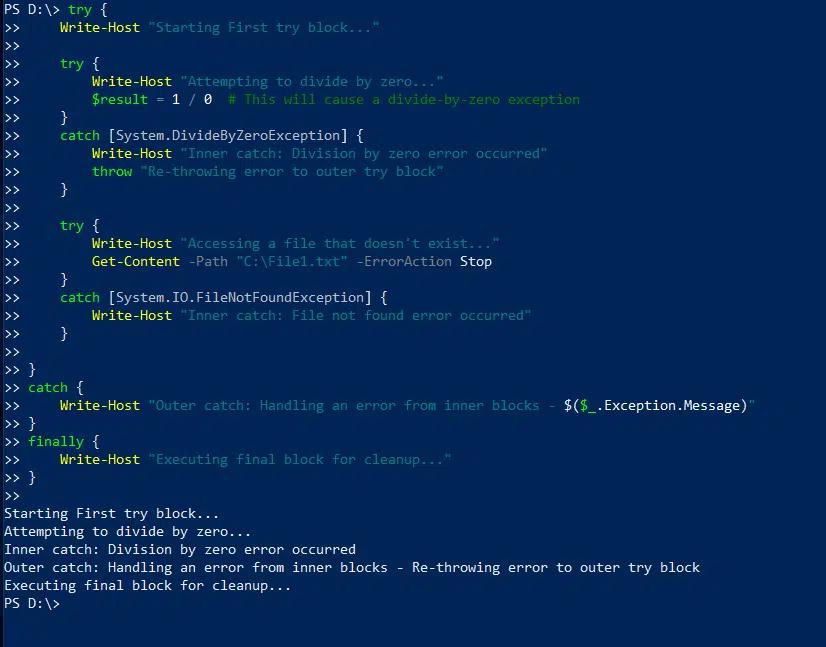
Error Messages and Debugging in PowerShell
Accessing Detailed Error Information
When errors occur during script execution, simply knowing that an error occurred is not enough; we need detailed information to diagnose and fix the problem. As noted earlier, the $Error variable keeps an array of error records, with the most recent error at $Error[0]. Specific error properties include Exception, CategoryInfo, InvocationInfo and ScriptStackTrace.
The ScriptStackTrace property is invaluable because it provides the detailed call stack, showing the sequence of functions call and script locations that led to the error. To access this detailed information for the most recent error, use $Error[0].ScriptStackTrace.
Providing Custom Error Messages
Displaying meaningful and user-friendly error messages enhances script usability and debugging. Custom messages can provide users with insight into what went wrong and sometimes help them correct the error, such as by fixing an incorrect file path, incorrect process name or insufficient permissions.
To display custom messages, we can use Write-host or write-error in a Catch block. Include $_.Exception.message to provide additional details.
For example, when an error (division by zero) occurs during execution of the following script, a detailed notification is both printed to the console and emailed to the administrator:
      $SMTPServer = "lvkex.ca.lo"

$SMTPPort = 587

$From = "aadministrator@ca.lo"

$To = "administrator@ca.lo"

$Subject = "PowerShell Script Error Alert"

try {

    Write-Host "Executing script..."

    # Simulate an error (divide by zero)

    $result = 1 / 0

}

catch {

    # Capture actual error message details

    $ErrorMessage = @"

An error occurred in the PowerShell script.

Message: $($_.Exception.Message)

Script: $($MyInvocation.ScriptName)

Line: $($_.InvocationInfo.ScriptLineNumber)

Date: $(Get-Date -Format "yyyy-MM-dd HH:mm:ss")

"@

    # Log error to console and send email

    Write-Host "An error occurred. Sending email notification..."

    Send-MailMessage -SmtpServer $SMTPServer -Port $SMTPPort -From $From -To $To -Subject $Subject -Body $ErrorMessage

}

}

Common Use Cases for PowerShell Try-Catch
Updating User Profiles in Bulk While Handling Errors in Data Entry
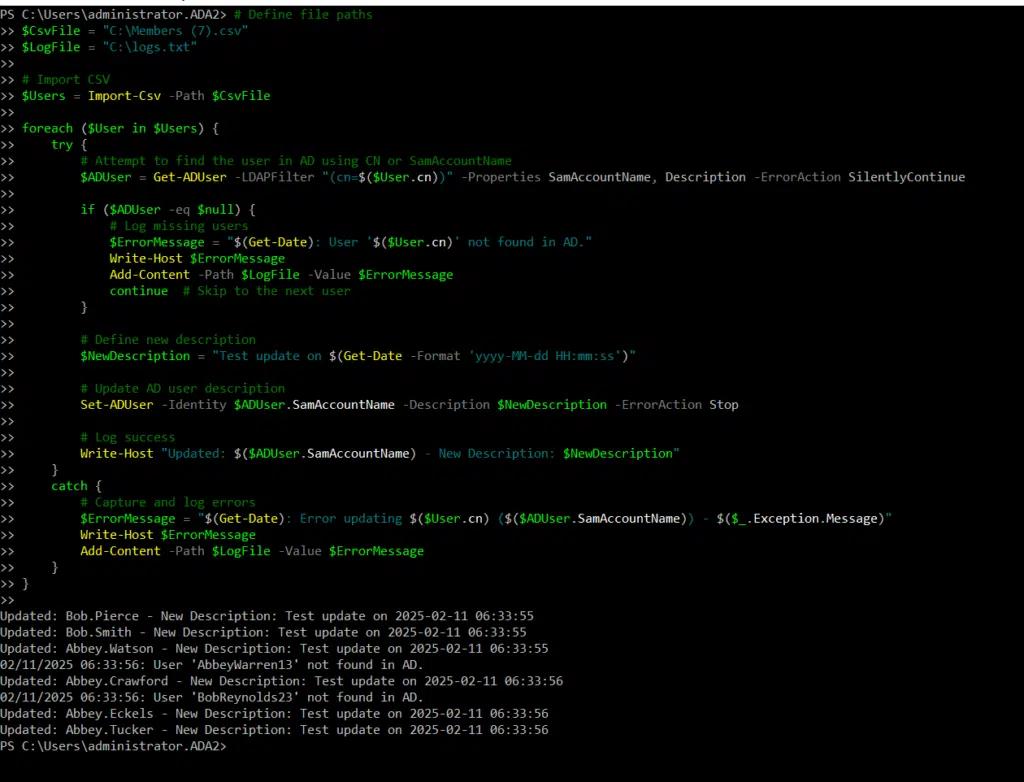
Administrators often use a PowerShell to automatically update user information in Active Directory based on a csv file. Since the input file might contain invalid data, it’s important to use Try-Catch to handle and log errors.
The following script imports a csv file containing a list of users and iterates through it to update their descriptions in AD. It prints the results on the console and records any errors in a log file.
      # Define file paths

$CsvFile = "C:\Members (7).csv"

$LogFile = "C:\logs.txt"

# Import CSV

$Users = Import-Csv -Path $CsvFile

foreach ($User in $Users) {

    try {

        # Attempt to find the user in AD using CN or SamAccountName

        $ADUser = Get-ADUser -LDAPFilter "(cn=$($User.cn))" -Properties SamAccountName, Description -ErrorAction SilentlyContinue

        if ($ADUser -eq $null) {

            # Log missing users

            $ErrorMessage = "$(Get-Date): User '$($User.cn)' not found in AD."

            Write-Host $ErrorMessage

            Add-Content -Path $LogFile -Value $ErrorMessage

            continue  # Skip to the next user

        }

        # Define new description

        $NewDescription = "Test update on $(Get-Date -Format 'yyyy-MM-dd HH:mm:ss')"

        # Update AD user description

        Set-ADUser -Identity $ADUser.SamAccountName -Description $NewDescription -ErrorAction Stop

        # Log success

        Write-Host "Updated: $($ADUser.SamAccountName) - New Description: $NewDescription"

    }

    catch {

        # Capture and log errors

        $ErrorMessage = "$(Get-Date): Error updating $($User.cn) ($($ADUser.SamAccountName)) - $($_.Exception.Message)"

        Write-Host $ErrorMessage

        Add-Content -Path $LogFile -Value $ErrorMessage

    }

}
Handling Issues with Server or Network Connections
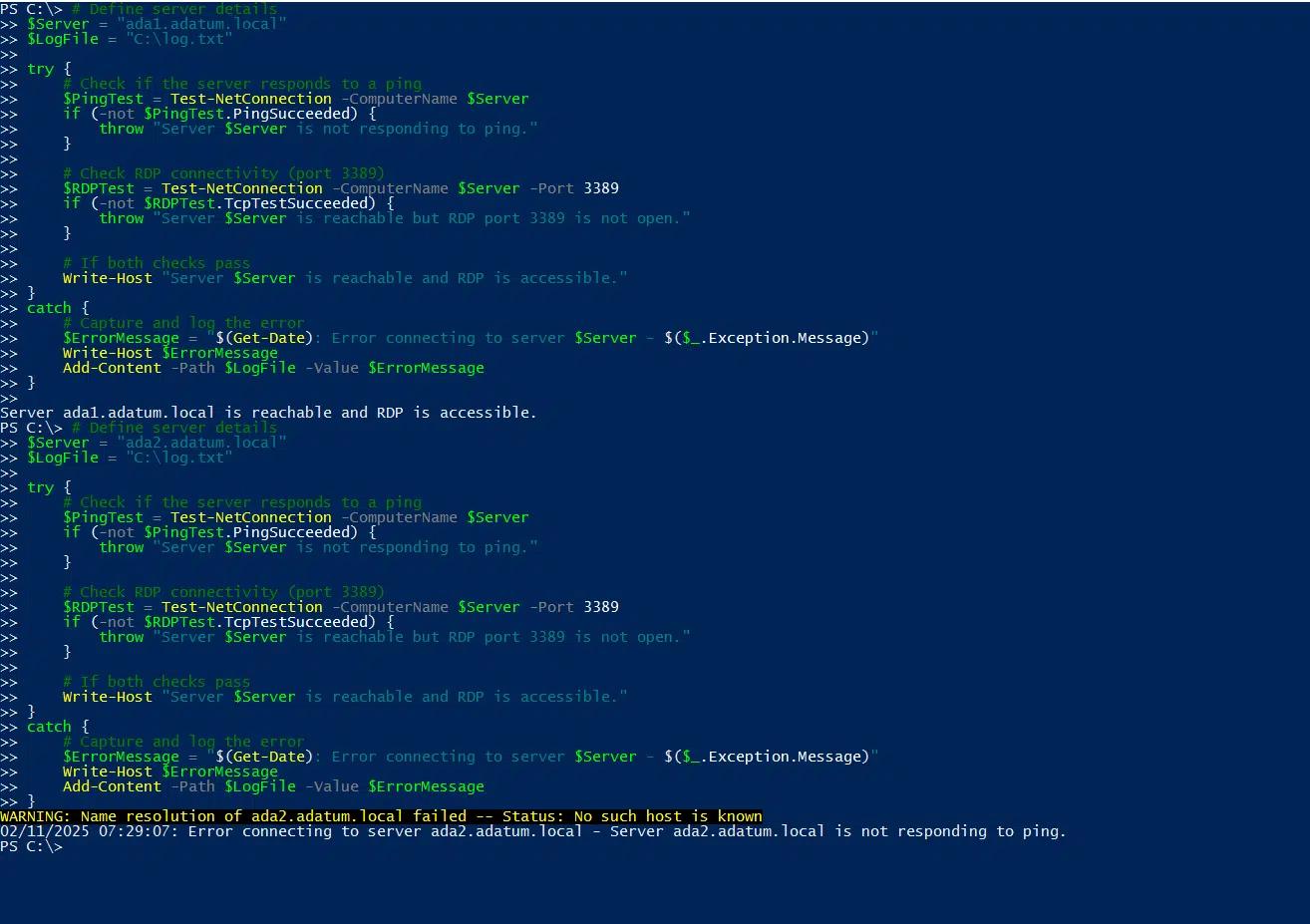
Try-Catch blocks are also useful for handling server and network connection issues. For example, the following script illustrates how to test the connection to a server, once with the correct name and once with incorrect name:
      # Define server details

$Server = "ada1.adatum.local"

$LogFile = "C:\log.txt"

try {

    # Check if the server responds to a ping

    $PingTest = Test-NetConnection -ComputerName $Server

    if (-not $PingTest.PingSucceeded) {

        throw "Server $Server is not responding to ping."

    }

    # Check RDP connectivity (port 3389)

    $RDPTest = Test-NetConnection -ComputerName $Server -Port 3389

    if (-not $RDPTest.TcpTestSucceeded) {

        throw "Server $Server is reachable but RDP port 3389 is not open."

    }

    # If both checks pass

    Write-Host "Server $Server is reachable, and RDP is accessible."

}

catch {

    # Capture and log the error

    $ErrorMessage = "$(Get-Date): Error connecting to server $Server - $($_.Exception.Message)"

    Write-Host $ErrorMessage

    Add-Content -Path $LogFile -Value $ErrorMessage

}
Conclusion
Try-Catch-Finally blocks are an invaluable tool for handling errors in PowerShell scripts. By combining them with mechanisms such as the ErrorAction parameter and the $ErrorActionPreference and $Error variables, you can create robust scripts that run smoothly even when unexpected issues arise. As a result, you can automate tasks with confidence that you will not suffer problems like incomplete operation, system downtime or data loss.
FAQ
Why isn’t my PowerShell try-catch catching errors?
The most common reason try-catch blocks don’t work is that you’re dealing with non-terminating errors. PowerShell has two types of errors: terminating (which stop execution) and non-terminating (which display a message but continue running). Try-catch only catches terminating errors by default.
To catch non-terminating errors, add -ErrorAction Stop to the command inside your try block. This forces PowerShell to treat the error as terminating:
      try {
    Get-ChildItem "C:\NonExistent" -ErrorAction Stop
} catch {
    Write-Host "Caught the error!"
}
Without -ErrorAction Stop, the error message displays but your catch block never executes.
Another issue is scope-related. If you’re calling functions or external scripts from within your try block, errors from those might not bubble up correctly. Make sure the function or script you’re calling also uses proper error handling, or use $ErrorActionPreference = "Stop" at the beginning of your script to change the default behavior globally. Remember that changing the global preference affects all commands in your script, so use it carefully in production environments.
How do you fix PowerShell try-catch still showing error messages?
Even with proper try-catch implementation, you might still see error messages because PowerShell displays them before the catch block processes them. This happens with non-terminating errors that become terminating through -ErrorAction Stop. The error appears in the console, then gets caught by your handler.
To suppress the error display completely, use -ErrorAction SilentlyContinue combined with checking $? (the automatic success variable) or $Error[0] for the most recent error:
      Get-ChildItem "C:\NonExistent" -ErrorAction SilentlyContinue
if (!$?) {
    Write-Host "Command failed silently"
}
This approach gives you control over error detection without visible error messages.
For a cleaner solution, capture the error information in your catch block and decide how to handle it. Use $_.Exception.Message to get the error details, then log or display them according to your needs. This way, you control exactly what users see:
      try {
    Get-ChildItem "C:\NonExistent" -ErrorAction Stop
} catch {
    Write-Warning "Directory access failed: $($_.Exception.Message)"
}
This approach is especially important in enterprise environments where error messages need to be user-friendly and logged appropriately.
How do you handle PowerShell try-catch with non-terminating errors?
Non-terminating errors require special handling because they don’t trigger catch blocks by default. The most reliable approach is using -ErrorAction Stop on individual commands where you want to catch errors. This converts non-terminating errors to terminating ones that your try-catch can handle.
For functions that generate multiple non-terminating errors, consider setting $ErrorActionPreference = "Stop" at the function level, then reset it afterward:
      function Test-Function {
    $ErrorActionPreference = "Stop"
    try {
        # your commands here
    } catch {
        # error handling
    } finally {
        $ErrorActionPreference = "Continue"
    }
}
An alternative approach uses the -ErrorVariable parameter to capture errors without stopping execution. Run your command with -ErrorVariable myErrors -ErrorAction SilentlyContinue, then check if $myErrors has any content. This method lets you handle errors after command completion without interrupting the flow:
      Get-ChildItem "C:\*" -ErrorVariable problems -ErrorAction SilentlyContinue
if ($problems) {
    Write-Host "Found $($problems.Count) errors to review"
}
This pattern works well for bulk operations where you want to collect all problems before deciding how to respond.
What’s the difference between ErrorAction Stop and SilentlyContinue in try-catch?
ErrorAction Stop converts non-terminating errors into terminating errors that immediately halt execution and trigger your catch block. Use this when you want your try-catch to handle the error and you can’t continue if the command fails. It’s the most common choice for critical operations where failure should stop the process.
ErrorAction SilentlyContinue suppresses error messages and allows execution to continue, but errors don’t trigger catch blocks. The error still occurs and gets added to $Error, but no visible error message appears, and your script keeps running. This option is useful when you expect some operations to fail and want to handle them through conditional logic rather than exception handling.
The key difference in try-catch scenarios is control flow. With Stop, your catch block runs and you decide what happens next. With SilentlyContinue, you need to check success manually using $?, $Error, or -ErrorVariable. For security-focused operations, Stop provides better error visibility and handling, ensuring that access failures or security violations don’t go unnoticed. In enterprise environments, explicit error handling through try-catch with ErrorAction Stop creates better audit trails and more predictable script behavior.
How do you use try-catch with PowerShell loops and continue execution?
In loops, try-catch behavior depends on where the error occurs and what you want to happen next. To continue processing remaining items after an error, place the try-catch inside the loop and use continue in the catch block:
      foreach ($item in $items) {
    try {
        Process-Item $item -ErrorAction Stop
    } catch {
        Write-Warning "Failed to process $item"
        continue
    }
}
This skips the failed item and moves to the next one.
If you want to retry failed operations, combine try-catch with a retry counter:
      foreach ($item in $items) {
    $retries = 0
    do {
        try {
            Process-Item $item -ErrorAction Stop
            break
        } catch {
            $retries++
            if ($retries -ge 3) {
                Write-Error "Failed after 3 attempts: $item"
                break
            }
            Start-Sleep 1
        }
    } while ($retries -lt 3)
}
This pattern is valuable for network operations or resource-intensive tasks that might fail temporarily.
For collecting both successes and failures, use arrays to track results:
      $successful = @()
$failed = @()
foreach ($item in $items) {
    try {
        Process-Item $item -ErrorAction Stop
        $successful += $item
    } catch {
        $failed += @{Item=$item; Error=$_.Exception.Message}
    }
}
This approach provides complete visibility into bulk operations, which is essential for data processing, user management, or system administration tasks where you need to report on both successes and failures to stakeholders.
Share on
Learn More
About the author

Tyler Reese
VP of Product Management, CISSP
With more than two decades in the software security industry, Tyler Reese is intimately familiar with the rapidly evolving identity and security challenges that businesses face today. Currently, he serves as the product director for the Netwrix Identity and Access Management portfolio, where his responsibilities include evaluating market trends, setting the direction for the IAM product line, and, ultimately, meeting end-user needs. His professional experience ranges from IAM consultation for Fortune 500 companies to working as an enterprise architect of a large direct-to-consumer company. He currently holds the CISSP certification.