
Teams sprawl: Managing Microsoft Teams proliferation
Mar 2, 2026
Teams sprawl occurs when Microsoft Teams creation outpaces governance, resulting in unmanaged workspaces, unclear ownership, and uncontrolled data exposure. Because each team generates a Microsoft 365 Group and connected services, sprawl expands access risk, complicates compliance, and increases operational cost. Preventing it requires lifecycle controls, ownership enforcement, and visibility across Teams, SharePoint, and identity.
Teams sprawl is one of the most overlooked security risks in Microsoft 365 environments. When all your employees can create teams on demand, without approval, naming conventions, or expiration policies, the result is hundreds of ungoverned workspaces with no clear ownership, inconsistent naming, and scattered data.
That governance gap creates measurable risk. The Netwrix 2025 Cybersecurity Trends Report found that mistakes or negligence by business users have ranked among the top three security challenges for three consecutive years.
Teams sprawl is a textbook example of how that risk manifests: well-intentioned collaboration decisions that, without guardrails, create security and compliance exposure across the organization.
What is Microsoft Teams sprawl, and why does it happen?
Microsoft Teams sprawl is the uncontrolled proliferation of teams, channels, and content across your Microsoft 365 environment. It goes beyond having too many teams. It's what happens when the rate of team creation outpaces an organization's ability to track ownership, enforce access controls, and inventory the data inside each workspace.
The problem compounds quickly because Teams doesn't exist in isolation. Every team creates an underlying Microsoft 365 Group, an associated SharePoint site, a shared mailbox, and a OneNote notebook. That proliferation creates real security and compliance exposure, not just digital clutter.
So why does it happen? Microsoft 365 enables Teams creation by default, and the platform ships with no approval workflow, no naming requirements, and no expiration policies. From there, four factors drive sprawl deeper into the environment:
- Permissive defaults create the foundation: Microsoft 365 Groups creation is enabled for all users out of the box. There's no native approval mechanism, no naming policy enforcement, and no automatic lifecycle management unless you configure it yourself.
- The pandemic accelerated everything: When organizations rushed to enable remote work in 2020, IT teams prioritized getting Teams running over governing it. That legacy sprawl from 2020-2021 often remains unaddressed.
- Technical expertise requirements create barriers: The Teams Admin Center can't restrict team creation. That governance control lives in Microsoft Entra ID PowerShell and the Entra admin center. Organizations lacking PowerShell expertise can use third-party governance platforms that provide template-based automation without requiring scripting knowledge.
- Inadequate visibility compounds the problem: Native usage reports show limited activity data for the past 28 days only. There's no native reporting for inactive or abandoned teams. You can't fix what you can't see, and Microsoft's native tooling leaves significant visibility gaps.
These root causes don't just create operational headaches. They create concrete security, compliance, and financial exposure that grows worse the longer sprawl goes unaddressed.
Signs your organization has a Teams sprawl problem
If any of the following sound familiar, sprawl has likely already taken hold:
- Teams without active owners: Teams with no owner, or teams with five or more owners, have diluted accountability to the point where nobody is actually responsible for what's inside them.
- No activity in 90+ days: Teams sitting idle with no archival strategy for completed projects indicate missing lifecycle policies. Every inactive team still carries permissions and data.
- Uncontrolled guest access: A November 2025 Teams update (MC1182004) enabled users to start chats with any email address by default. If you haven't audited guest access policies recently, external users may have more access than you realize.
- Duplicate and inconsistent naming: Multiple teams with similar names, generic labels like "Project" or "Test," and teams lacking context in their descriptions all indicate missing naming standards.
- No expiration policies configured: If teams persist indefinitely regardless of usage, every completed project team remains active and accessible, expanding your attack surface and complicating compliance audits.
- Unrestricted team creation: If you haven't configured creation restrictions through Microsoft Entra ID, every user can spawn new teams without oversight. This is the default Microsoft 365 configuration, and most organizations never change it.
Netwrix Directory Manager automates group and user management across Active Directory and Entra ID with delegated self-service. Request a demo
The business and security risks of Teams sprawl
Ungoverned Teams environments create risk across security exposure, compliance failures, and operational costs. Each one compounds the others, and together they make a case for treating sprawl as a security issue rather than an IT housekeeping task.
1. Security exposure
The most immediate risk is unauthorized access. When teams proliferate without oversight, membership management breaks down. Former employees retain access, guest users linger indefinitely, and permission assignments accumulate without corresponding removal. The result is access control privilege creep that grows worse with every unmanaged team.
That access problem feeds a data visibility problem. PHI, PII, Controlled Unclassified Information (CUI), and financial records scatter across uncontrolled teams, making centralized inventory impossible.
Native Microsoft tools can show you what's inside a specific team, but they don't provide the audit trails needed to locate sensitive data across hundreds of proliferated teams and their associated SharePoint sites.
Meanwhile, ungoverned team creation effectively creates shadow IT inside a platform that's supposed to be managed. Employees aren't acting maliciously, but when anyone can spin up a workspace and store data without IT oversight, they're bypassing the controls that were put in place for exactly this kind of risk.
2. Compliance failures
Teams sprawl creates exposure across multiple regulatory frameworks:
- HIPAA: When PHI ends up in unmonitored teams, organizations lose the ability to enforce least-privilege access to protected health information. If a breach occurs, the 60-day notification requirement assumes you can identify where PHI lives, and across hundreds of ungoverned teams, you can't.
- SOC 2: Auditors expect evidence that access controls are applied consistently across your environment. Teams sprawl creates exactly the kind of inconsistency they're looking for: workspaces with unmanaged membership, no ownership accountability, and no audit trail showing who accessed what.
- CMMC 2.0: For defense contractors, sprawl undermines the access control practices that assessors evaluate. If your Teams environment can't demonstrate controlled access to Controlled Unclassified Information, that gap can cost you contract eligibility.
- GDPR: Proliferated teams retain personal data beyond necessity, making "right to be forgotten" fulfillment practically impossible when you can't locate all instances of a person's data.
eDiscovery compounds these compliance risks. Microsoft Teams supports eDiscovery through Microsoft Purview, but sprawl makes it operationally impractical.
Content search becomes exponentially difficult across hundreds of unmanaged teams, identifying workspaces for legal hold becomes nearly impossible, and communication compliance monitoring can't scale.
3. Operational and financial costs
Security and compliance risks get the most attention, but sprawl also creates a steady drag on IT resources. Every ungoverned team is a workspace that someone eventually has to triage:
- Determining ownership
- Assessing whether it holds sensitive data
- Deciding whether to archive or delete it
That triage doesn't happen proactively in most organizations, so it piles up until a compliance audit or security incident forces the issue, at which point cleanup becomes an emergency rather than a routine process.
Storage costs compound in the background. Every team generates an associated SharePoint site, and inactive teams retain files, chat history, and shared documents indefinitely unless expiration or retention policies are in place.
Organizations with hundreds of orphaned teams are paying for storage that serves no business purpose and creates liability they haven't accounted for.
Then there's the discovery cost. When legal or compliance teams need to search across an ungoverned environment during litigation or regulatory inquiry, eDiscovery processing costs scale with the number of workspaces involved.
What should be a targeted search becomes a broad sweep across hundreds of teams with inconsistent naming, unclear ownership, and no data classification. That inefficiency translates directly into billable hours, delayed timelines, and increased exposure during the discovery process itself.
How to prevent new Teams sprawl
Governance controls for Teams creation, naming, and expiration all live at the Microsoft Entra ID level, not in the Teams Admin Center. Getting prevention right means configuring four things at the directory level.
Restricting team creation
Use Microsoft Entra ID PowerShell or the Entra admin center to create a dedicated security group containing all users authorized to create teams. Then configure directory-level settings to limit creation to that group. The AzureADPreview module reached end of support on March 30, 2025, so Microsoft now recommends the Microsoft Graph PowerShell SDK for long-term support.
Avoid blanket restrictions that create IT bottlenecks. The goal is to channel creation through users who understand your naming conventions and data classification requirements, not to eliminate self-service collaboration entirely.
Implementing naming policies
Configure naming policies in Microsoft Entra ID (Entra admin center → Groups → Naming Policy). Use fixed strings or dynamic attributes like [Department], [Company], or [Office] to enforce consistent naming across all Microsoft 365 Groups workloads, including Teams, Outlook, SharePoint, Planner, and Viva Engage.
Consistent naming does more than improve organization. It makes audit scoping, compliance searches, and lifecycle decisions practical at scale. When teams follow predictable naming patterns, identifying ownership, purpose, and sensitivity level becomes straightforward.
Configuring expiration policies
Set expiration policies through Microsoft Entra ID (Groups → Expiration) to automatically expire teams after a defined period, typically 365 days. Teams with active usage automatically renew around 35 days before expiration, so productive teams aren't affected. All team owners receive renewal notifications at 30 days.
This is the single most effective control against sprawl accumulation. Without expiration, every completed project team persists indefinitely, accumulating permissions and data that nobody actively governs.
Enforcing ownership requirements
Ownership is the foundation of every other governance control. Without an accountable owner, naming policies don't get enforced, expiration renewals don't get evaluated, and sensitive data decisions don't get made.
Require a minimum of two owners for all teams. Implement quarterly ownership reviews using Microsoft Entra ID Access Reviews and define escalation procedures for assigning new owners when current owners leave the organization.
How to clean up existing Teams sprawl
Governance policies prevent new sprawl, but they don't address the teams that already exist without oversight. A structured cleanup process works through five phases.
Phase 1: Inventory assessment
Start by exporting a full inventory of your current Teams environment, including team names, ownership status, activity levels, and visibility settings. Identify cleanup candidates based on:
- Inactivity: Teams with no activity for 90-180 days
- Missing ownership: Teams with no active owner or no owner at all
- Duplicates: Multiple teams with similar or identical names
- Single-member teams: Workspaces created but never used for collaboration
Phase 2: Stakeholder communication
Notify team owners of inactive teams, establish cleanup timelines (typically 30-60 day notice), and provide clear processes for owners to renew or justify keeping their teams. Communication is critical, as deleting teams without notice creates organizational friction and undermines trust in IT governance.
Phase 3: Archiving inactive teams
Archiving makes teams read-only while preserving all content. For regulated industries, archiving should be your default action rather than immediate deletion. Archived teams retain their data for compliance purposes while removing them from active collaboration and preventing further permission accumulation.
Phase 4: Deleting unnecessary teams
Deletion should occur only after confirming that:
- No retention policies apply
- Data has no compliance value
- No legal holds exist
- The needed data has been exported
- Stakeholder approval has been obtained
Deleted teams enter a 30-day soft-delete state before permanent removal, providing a recovery window if something was removed prematurely.
Phase 5: Configuring retention policies
Configure retention policies for Teams channel messages and chats through Microsoft Purview before beginning large-scale deletion. Retention duration should align with your regulatory requirements. Without these policies in place, cleanup efforts risk accidentally deleting data that has compliance value.
Once cleanup is complete, the ongoing challenge is sustaining governance without constant manual effort. The expiration policies, ownership reviews, and creation restrictions covered in the prevention section above keep sprawl from rebuilding.
How Netwrix supports Teams governance
Governance policies and cleanup scripts address the structural side of Teams sprawl. But the deeper challenge is visibility:
- Knowing who has access to what data across hundreds of teams and their associated SharePoint sites
- Detecting when permissions drift
- Producing audit evidence that regulators actually accept
That's the gap Microsoft's native tools leave open, and where Netwrix fits. Netwrix 1Secure delivers visibility into your Microsoft 365 environment from day one with no complex deployments. For SharePoint Online, 1Secure tracks data access activity, surfaces sensitive data locations, and monitors permission changes across your collaboration environment.
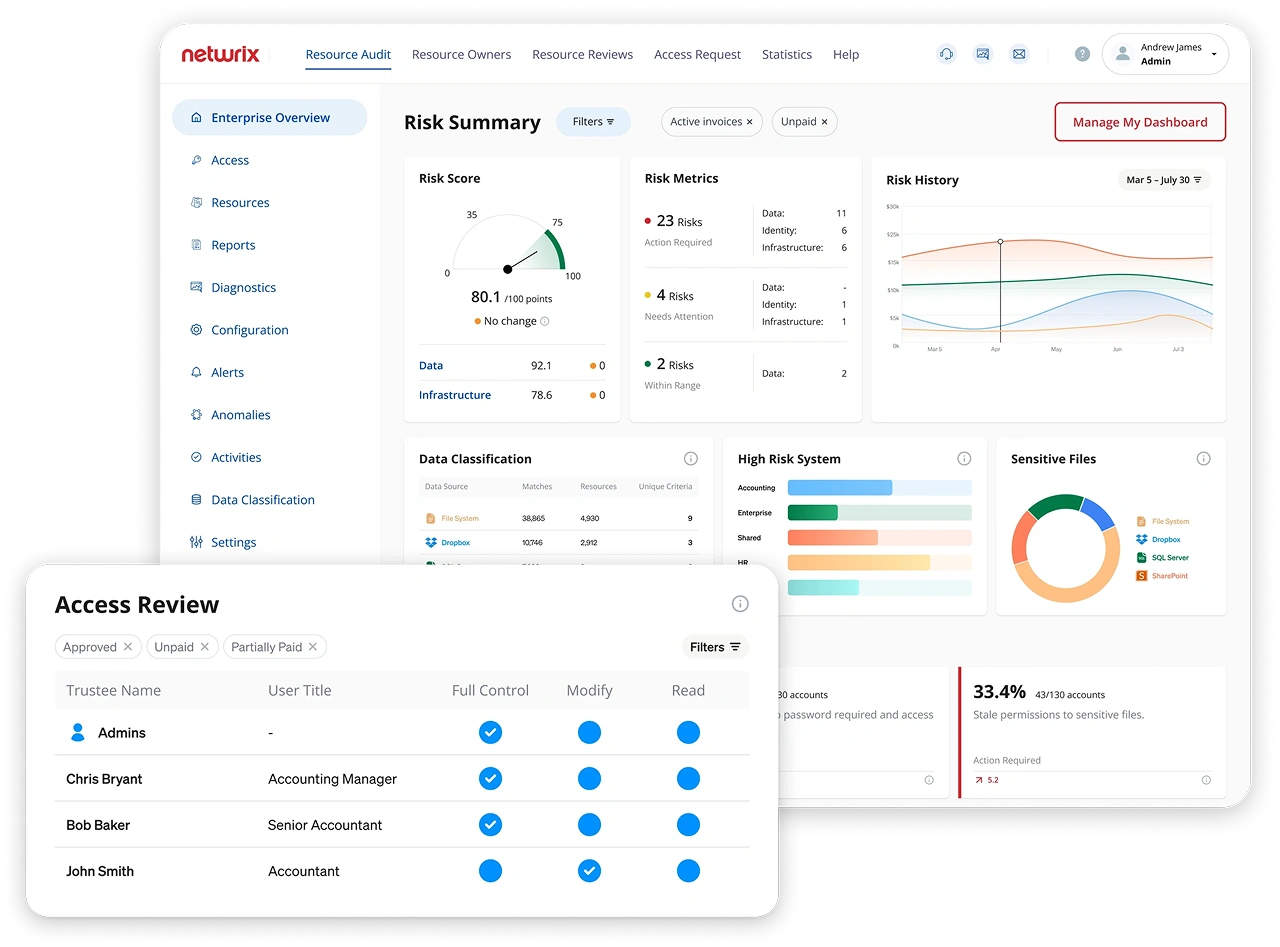
Risk assessment dashboards highlight the issues Teams sprawl creates: excessive permissions, open access to sensitive data, dormant accounts with lingering access, and permission configurations that violate organizational policy. AI-based remediation recommendations help teams prioritize what to fix first.
Netwrix Auditor provides the deep, compliance-focused auditing that regulated industries require. With quick deployment and reports available within hours, Auditor delivers audit trails across Teams, SharePoint, Active Directory, and file servers. Google-like interactive search lets investigators answer "who accessed what, and when" across your entire environment, not just one team at a time.
Predefined compliance mappings for HIPAA, SOC 2, GDPR, PCI DSS, and CMMC mean audit prep becomes pulling reports rather than manually gathering evidence.
For privileged access within your Microsoft 365 environment, Netwrix Privilege Secure provides just-in-time provisioning that eliminates standing admin privileges, with session recording for audit trails.
Most organizations don't lack governance intent. They lack the ability to see what's happening across their Teams environment clearly enough to act on it. Netwrix closes that gap without adding complexity to an already stretched security team.
Book a demo to see Netwrix in action and find out how quickly you can move from ungoverned sprawl to auditable control.
Frequently asked questions about Teams sprawl
Share on
Learn More
About the author

Dirk Schrader
VP of Security Research
Dirk Schrader is a Resident CISO (EMEA) and VP of Security Research at Netwrix. A 25-year veteran in IT security with certifications as CISSP (ISC²) and CISM (ISACA), he works to advance cyber resilience as a modern approach to tackling cyber threats. Dirk has worked on cybersecurity projects around the globe, starting in technical and support roles at the beginning of his career and then moving into sales, marketing and product management positions at both large multinational corporations and small startups. He has published numerous articles about the need to address change and vulnerability management to achieve cyber resilience.
Learn more on this subject
Who owns your AI agents? Probably no one
Getting your IGA project right: Start with personas
They did everything right on identity hygiene. They got breached 4x more often
AI governance strategy: Beyond the compliance facade
RBAC vs ABAC: Key differences, use cases, and how to choose