
How to List AD Group Members using PowerShell or Netwrix Auditor
Native Auditing
To list members of an AD group, follow these easy steps:
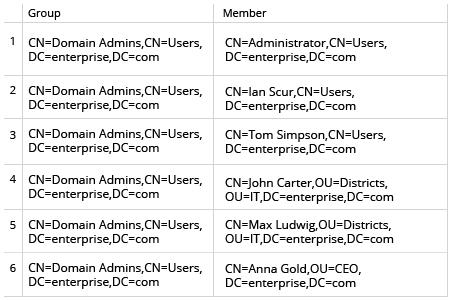
- Open the Powershell ISE on your domain controller → Run the following Powershell script, specifying the CSV path where you want to export the results:
      $nameofgroup= 'Domain Admins'
$groupsusers=Get-ADGroup -Identity $nameofgroup |
ForEach-Object{
$settings=@{Group=$_.DistinguishedName;Member=$null}
$_ | Get-ADGroupMember |
ForEach-Object{
$settings.Member=$_.DistinguishedName
New-Object PsObject -Property $settings
}
}
$groupsusers | Export-Csv C:\scripts\GroupsUsers.csv –NoTypeInformation
- Open the resulting CSV file, which will contain a list of all the members of the specified Active Directory group.
Netwrix Auditor for Active Directory
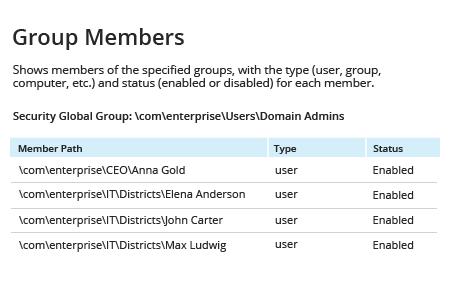
- Run Netwrix Auditor → Navigate to “Reports” → Expand the “Active Directory” section → Go to “Active Directory – State-in-Time” → Select “Group Members” → Click “View”.
You can easily restrict the report to the members of a specific group. For instance, to see just the members of the Domain Admins group, enter “\com\enterprise\Users\Domain Admins” in the “Group Path” filter → Click “View Report”.
- To export the report to a CSV file click the "Export" button → Choose CSV format from the dropdown menu → Click "Save".
Share on