
Security Tip: Detect Permission Changes in Active Directory
Dec 15, 2016
In this tip, I will show you how to enable auditing for changes to permissions on Active Directory objects. The following changes will log Event ID 5136 whenever someone successfully delegates or changes permissions on an object in Active Directory.
Handpicked related content:
The first step is to enable auditing of directory service changes on DCs, which you can do by modifying the Default Domain Controllers Policy Group Policy Object (GPO).
- Log in to a server or workstation, where the Remote Server Administration Tools (RSAT) are installed, with an account that has domain administrator privileges.
- Open Group Policy Management. If you are working on a Windows Server, Group Policy Management can be found in the Tools menu in the Server Manager.
- In Group Policy Management, expand your AD forest, Domains, your domain, and then the Domain Controllers Organizational Unit (OU).
- Right click the Default Domain Controllers Policy GPO, and select Edit from the menu.
- In the Group Policy Management Editor window, in the left pane under Computer Configuration, expand Policies > Windows Settings > Advanced Policy Configuration and click DS Access.
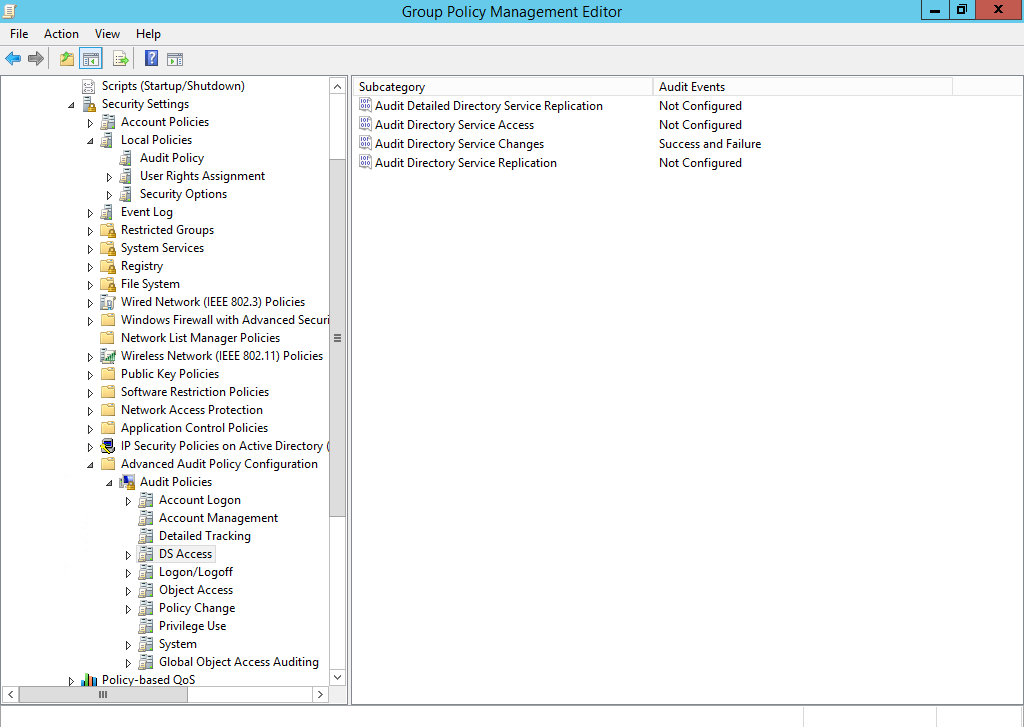
- Double click Audit Directory Service Changes on the right.
- In the Properties dialog on the Policy tab, check Configure the following audit events, and check both Success and Failure. Click OK.
- Close the Group Policy Management Editor
Now let’s add a system access control list (SACL) to the domain to audit for modified permissions.
- Open Active Directory Users and Computers (ADUC).
- Open the View menu and make sure that Advanced Features has a tick to the left. If not, click Advanced Features to activate it.
- In the left pane, right click your AD domain and select Properties from the menu.
- In the Properties dialog, switch to the Security tab and click Advanced.
- In the Advanced Security Settings dialog, switch to the Auditing tab, and click Add.
- In the Auditing Entry dialog, click Select a principal, type everyone under Enter the object name to select in the Select User, Computer, Service Account, or Group dialog, and click OK.
- In the Auditing Entry dialog, make sure that Type: is set to Success and that Applies to: is set to This object and all descendant objects.
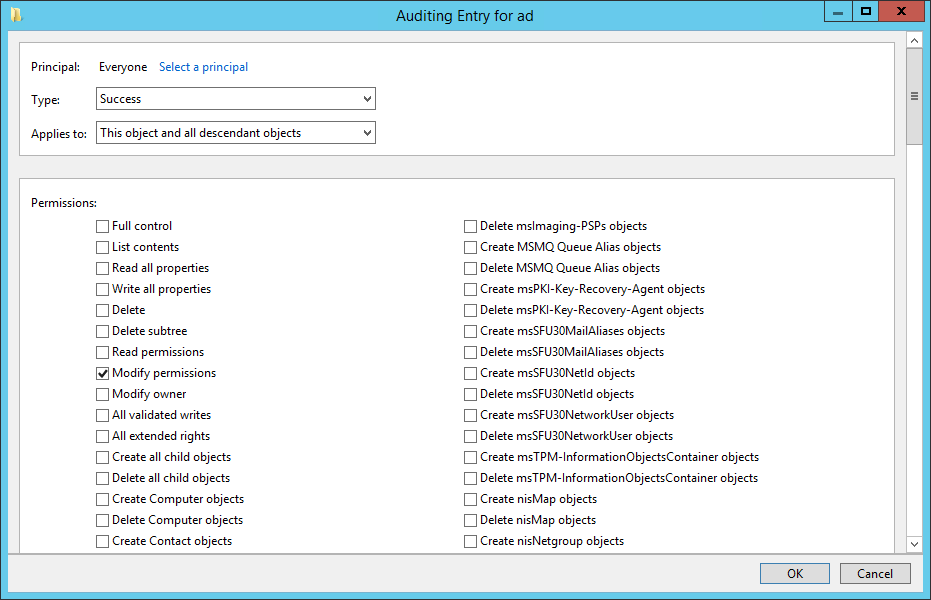
- Under Permissions, make sure that Modify permissions is the only selected option, and click OK.
- In the Advanced Security Settings and domain Properties dialogs, click OK.
- Close ADUC.
To prove that permission changes are now being logged, I delegated permissions (by using the Delegation of Control Wizard that is built into ADUC on the User container in AD) to a group called Helpdesk so that members can reset user passwords. To get a list of security events, I logged into a domain controller and ran the following command in PowerShell:
      Get-EventLog Security -Newest 10 | Where-Object {$_.EventID -eq 5136} |
Format-List
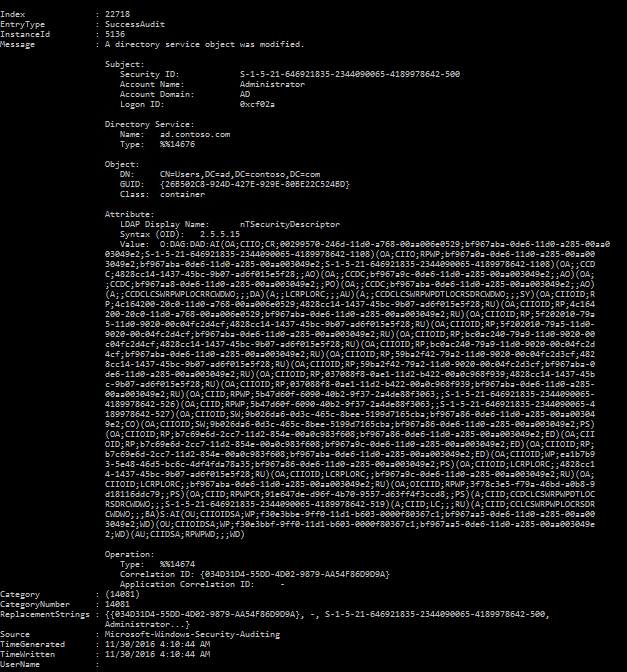
As you can see in the screenshot, a change was made to permissions on the Users container by the Administrator account, and the value of the new security descriptor (SDDL) is given, albeit in a quite unreadable format.
Handpicked related content:
Share on
Learn More
About the author

Russell Smith
IT consultant
IT consultant and author specializing in management and security technologies. Russell has more than 15 years of experience in IT, he has written a book on Windows security, and he coauthored a text for Microsoft’s Official Academic Course (MOAC) series.