
How to generate an Active Directory OU permissions report
To report on the permissions granted on an Active Directory organizational unit (OU), you need the OU's access control list, the record AD keeps of which accounts hold which rights. Below, you’ll find how that access control list is structured, a PowerShell script that pulls it for free, how to read what comes back, and how to generate the same report without scripts using Netwrix Auditor.
See who’s accessing what, when, and why with Netwrix Auditor.
How do OU permissions work in Active Directory?
Every object in Active Directory, including each OU, carries an access control list (ACL): a set of access control entries (ACEs) stating which accounts or groups can do what to that object. Permissions on an OU come from three places:
- Explicit, granted directly on the OU itself.
- Through group membership, where an account gets rights because it belongs to a group that was granted access.
- Inherited, flowing down from a parent container, since AD permissions cascade from the domain root through each parent OU unless inheritance is explicitly blocked.
This is why a useful permissions report needs to show more than who has access. It needs to show how they got it too, since a direct grant carries different risk than the same access inherited from a parent container or picked up through a group.
Generate the report with PowerShell (Get-Acl)
- Open Powershell ISE → Create a new script with the code below, set the Username and export path, then run it:
      $schemaIDGUID = @{}
#ignore duplicate errors if any#
$ErrorActionPreference = 'SilentlyContinue'
Get-ADObject -SearchBase (Get-ADRootDSE).schemaNamingContext -LDAPFilter '(schemaIDGUID=*)' -Properties
name, schemaIDGUID |
ForEach-Object {$schemaIDGUID.add([System.GUID]$_.schemaIDGUID,$_.name)}
Get-ADObject -SearchBase "CN=Extended-Rights,$((Get-ADRootDSE).configurationNamingContext)" -LDAPFilter
'(objectClass=controlAccessRight)' -Properties name, rightsGUID |
ForEach-Object {$schemaIDGUID.add([System.GUID]$_.rightsGUID,$_.name)}
$ErrorActionPreference = 'Continue'
# Get OU.
$OUs = Get-ADOrganizationalUnit -Filter 'Name -like "Production"'| Select-Object -ExpandProperty
DistinguishedName
# retrieve OU permissions.
# Add report columns to contain the OU path and string names of the ObjectTypes.
ForEach ($OU in $OUs) {
$report += Get-Acl -Path "AD:\$OU" |
Select-Object -ExpandProperty Access |
Select-Object @{name='organizationalUnit';expression={$OU}}, `
@{name='objectTypeName';expression={if ($_.objectType.ToString() -eq '00000000-0000- 0000-0000-
000000000000') {'All'} Else {$schemaIDGUID.Item($_.objectType)}}}, `
@{name='inheritedObjectTypeName';expression={$schemaIDGUID.Item($_.inheritedObjectType)}}, `
*
}
# Export report out to a CSV file for analysis in Excel.
$report | Export-Csv -Path "C:\data\OU_Permissions.csv" -NoTypeInformation
- Open the exported file in Excel.
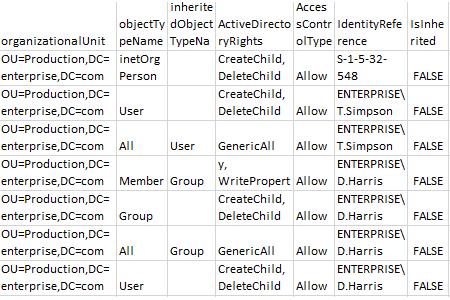
Sample report:
Read and interpret the report
Once you have the CSV, a few columns matter most:
- IdentityReference: who or what group has access.
- ActiveDirectoryRights: what that account can actually do. GenericAll, for example, means full control over the object, not just read access.
- IsInherited: whether the right was granted directly or inherited from a parent container. This is usually where the risk hides. A direct grant (IsInherited = False) to an individual account, or a broad group like Authenticated Users holding more than it needs, is worth a closer look.
- AccessControlType: whether the entry allows or denies the right. Deny entries are rare and worth investigating on their own.
If you see a rights level like GenericAll or WriteProperty granted directly to an individual account rather than through an expected group, or a broad built-in group holding more than read access, that's a candidate for cleanup under least privilege.
Report at scale with a tool
Once you need this across more than one OU, on a recurring schedule, or without maintaining a script, Netwrix Auditor gives you the same report built in.
- In Netwrix Auditor, go to "Reports" → Expand the "Active Directory" section → Go to "Active Directory - State-in-Time" → Select "Object Permissions in Active Directory" → Click "View".
- Specify the values for the filters below, then click "View Report":
- Object UNC Path
- Means Granted
- Permissions
- To save the report, click the "Export" button → Choose a format from the dropdown menu → Click "Save".
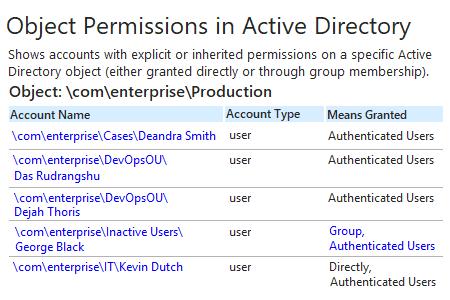
Beyond this one-time report, Netwrix Auditor also tracks who changed what, when, and how, so you can catch unusual activity before it becomes an incident, not just a snapshot. And there's nothing to decode: Account Name, Account Type, and Means Granted come already labeled, no GenericAll or IsInherited to translate.
Get an Active Directory permissions list for a specific OU to revoke excessive access rights and prevent privilege abuse
A single OU report is a good starting point, but strong Active Directory security means covering more than what you thought to check. Netwrix Auditor extends this view across the entire AD environment, flags excessive or stale permissions, and lets data owners review current access and approve or request changes, so cleanup isn't limited to one OU at a time.
See who’s accessing what, when, and why with Netwrix Auditor. Download free trial.
FAQs
Share on