
PowerShell For Loop & While Loop : Maîtriser l'automatisation du système
Mar 2, 2025
Les boucles PowerShell automatisent les tâches répétitives et les opérations en masse avec des constructions telles que For, ForEach, While, Do-While et Do-Until. Chaque type de boucle prend en charge différents cas d'utilisation, allant de l'itération de tableaux à la surveillance de processus ou au filtrage de journaux. Combiner des boucles avec Break, Continue, Try-Catch et des pipelines améliore l'efficacité et la gestion des erreurs. Pour les grands ensembles de données, ForEach-Object permet un traitement efficace de la mémoire, essentiel pour l'automatisation d'entreprise et les opérations dans le cloud.
PowerShell est un interpréteur de commandes et un langage de script multiplateforme conçu pour les administrateurs système. Les commandes PowerShell peuvent être combinées en scripts pour automatiser les tâches répétitives et traiter de grands ensembles de données efficacement.
Les boucles jouent un rôle important dans les scripts en offrant une manière structurée d'exécuter un bloc de code à plusieurs reprises. Cet article offre une plongée approfondie dans les types de boucles disponibles, y compris des exemples de scripts pour de nombreux cas d'utilisation courants, des méthodes pour gérer les erreurs de manière fluide, des stratégies pour améliorer l'efficacité des scripts, et les meilleures pratiques pour assurer la lisibilité et la gestion.
Contenu connexe sélectionné :
Pourquoi les boucles sont précieuses dans PowerShell
Les boucles sont des structures de contrôle de programmation qui exécutent de manière répétée un bloc de code jusqu'à ce que la condition spécifiée soit remplie. Elles sont essentielles pour automatiser les tâches répétitives, traiter des collections de données et effectuer des opérations en masse.
Aperçu des types de boucles PowerShell
PowerShell propose plusieurs types de boucles pour automatiser les tâches répétitives. Chaque boucle a ses propres atouts, ce qui la rend adaptée à différents scénarios. Voici un aperçu de chaque type de boucle :
- Pour — La boucle For de PowerShell est idéale lorsque vous connaissez le nombre de fois que vous souhaitez exécuter la boucle. Ensuite, vous configurez simplement une variable compteur qui est incrémentée de 1 après chaque itération de la boucle.
- ForEach — La boucle ForEach est conçue pour itérer sur une collection d'éléments, tels que les éléments d'un tableau ou d'une liste. Par exemple, vous pourriez parcourir une liste de noms, en écrivant chacun dans la console.
- While — The PowerShell While loop executes a block of code until a specified condition is false, making it suitable for scenarios in which the number of iterations is unknown. For example, you could execute your code as long as a certain flag is set to True. Note that the condition is checked before the first execution, so the code block might never run.
- Do-While — La boucle Do-While est similaire à la boucle While avec une différence clé : le bloc de code est exécuté avant que la condition ne soit vérifiée, donc il s'exécutera au moins une fois.
- Do-Until — La boucle Do-Until est également similaire à la boucle While dans PowerShell, mais l'exécution de la boucle continue jusqu'à ce que la condition devienne vraie.
Applications pratiques des boucles dans l'automatisation des affaires
Les boucles jouent un rôle important dans des tâches telles que le traitement des données, la génération de rapports, la vérification des mises à jour logicielles et la vérification de l'état des services. Par exemple, une boucle peut être utilisée pour pinguer continuellement une liste de serveurs afin de vérifier leur disponibilité et notifier automatiquement l'équipe informatique si un serveur devient injoignable ou ne répond pas. Les boucles peuvent également être utilisées pour des opérations en masse, comme la création ou la modification de comptes d'utilisateurs dans Active Directory ou le traitement des fichiers journaux pour des audits de sécurité.
Types de boucles dans PowerShell et quand les utiliser
Boucle For
La boucle For dans PowerShell a la syntaxe suivante :
      for ([Initialization]; [Condition]; [Increment/Decrement]) {

  # Code to be executed in each iteration

}
- Initialisation — Cette partie définit une variable compteur et fixe la valeur initiale. Elle est exécutée au début de la boucle.
- Condition — Cette partie spécifie une condition qui doit rester vraie pour que la boucle continue ses itérations.
- Incrément/Décrément — Cette partie est exécutée après chaque itération ; elle est généralement utilisée pour mettre à jour la valeur de la variable compteur.
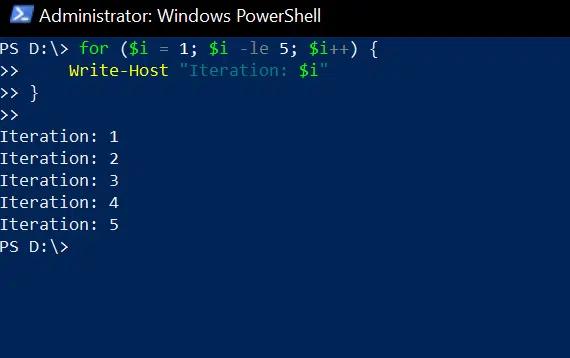
Dans cet exemple, la variable $i est initialisée à 1, la boucle s'exécutera tant que $i est inférieur ou égal à 5, et $i est incrémenté de 1 après chaque itération :
      for ($i = 1; $i -le 5; $i++) {

    Write-Host "Iteration: $i"

}
Les utilisations courantes de la boucle For incluent :
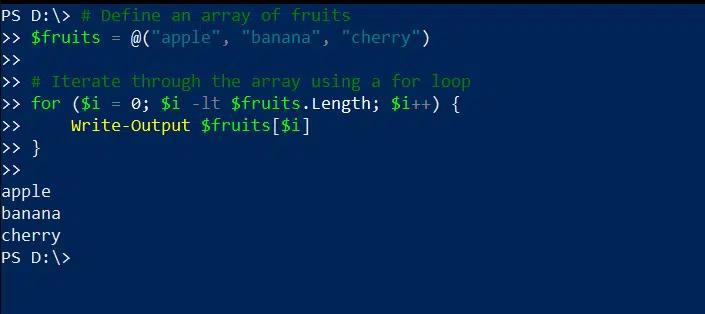
- Itération à travers un tableau — Dans l'exemple suivant d'une boucle For, PowerShell itère à travers un tableau et imprime chaque élément dans la console :
      # Define an array of fruits

$fruits = @("apple", "banana", "cherry")

# Iterate through the array using a for loop

for ($i = 0; $i -lt $fruits.Length; $i++) {

    Write-Output $fruits[$i]

}
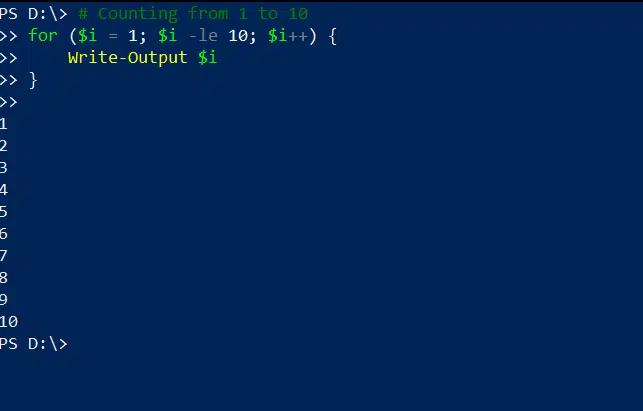
- Comptage — Voici comment utiliser une boucle for pour afficher les nombres de 1 à 10 :
      # Counting from 1 to 10

for ($i = 1; $i -le 10; $i++) {

    Write-Output $i

}
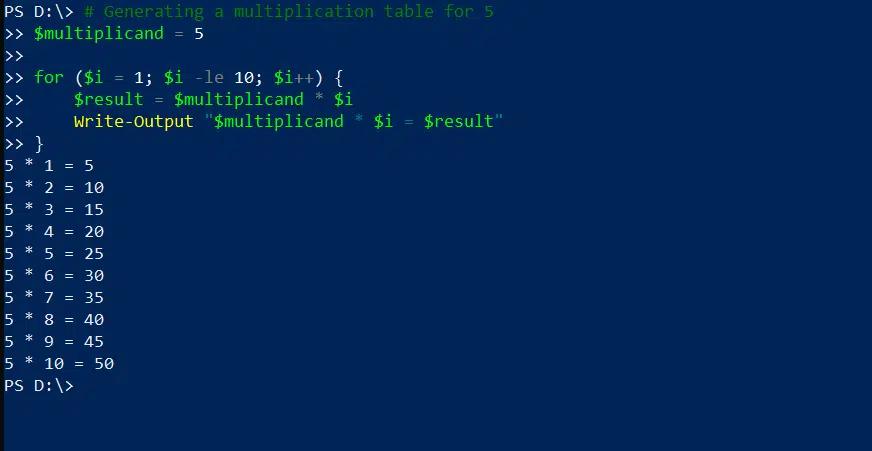
- Génération d'une table — Le script suivant génère un tableau montrant comment multiplier par 5 :
      # Generating a multiplication table for 5

$multiplicand = 5

for ($i = 1; $i -le 10; $i++) {

    $result = $multiplicand * $i

    Write-Output "$multiplicand * $i = $result"

}
Boucle ForEach
Une boucle ForEach exécute un bloc de code pour chaque élément d'une collection. L'exemple simple suivant crée un tableau ($names) avec trois noms et écrit chaque nom dans la console :
      $names = "Alice", "Bob", "Charlie"

foreach ($name in $names) {

  # Code to execute for each item in the collection

  Write-Host "Hello, $name!"

}
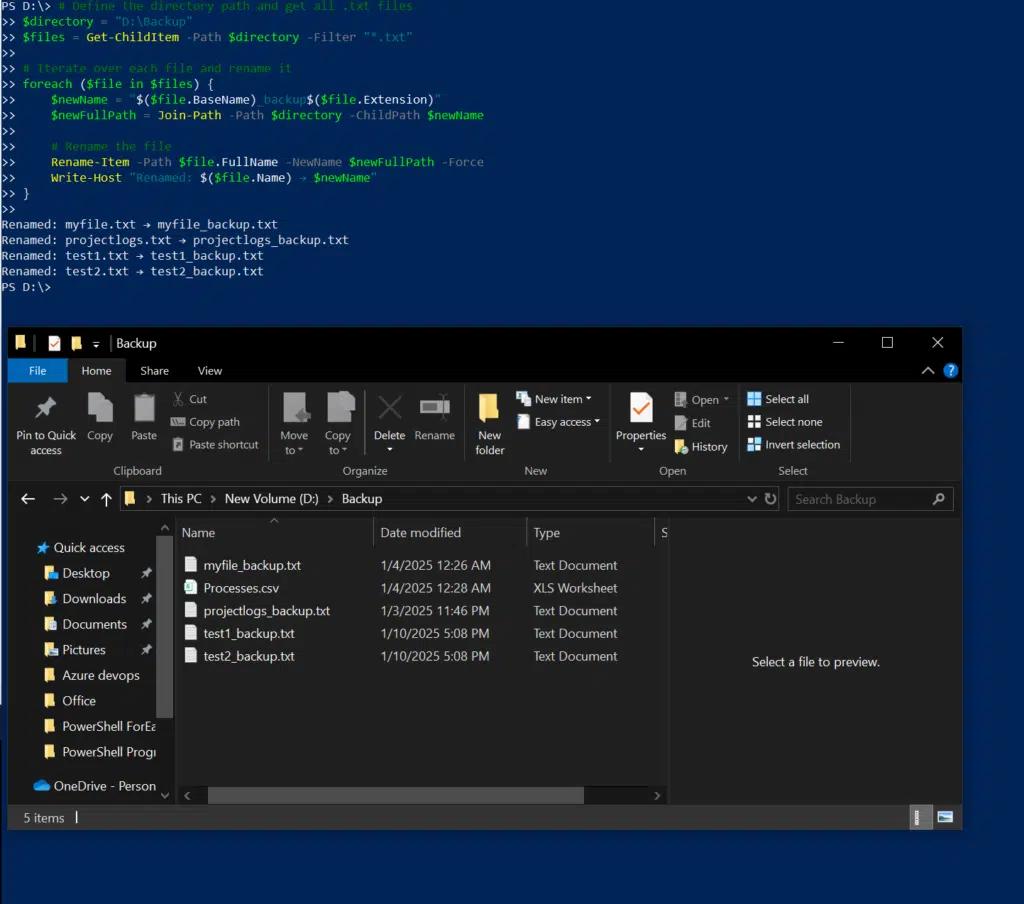
Le script suivant récupère tous les fichiers texte d'un répertoire et les enregistre dans le même répertoire avec un nouveau nom pour indiquer qu'il s'agit de sauvegardes :
      # Define the directory path and get all .txt files

$directory = "D:\Backup"

$files = Get-ChildItem -Path $directory -Filter "*.txt"

# Iterate over each file and rename it

foreach ($file in $files) {

    $newName = "$($file.BaseName)_backup$($file.Extension)"

    $newFullPath = Join-Path -Path $directory -ChildPath $newName

    # Rename the file

    Rename-Item -Path $file.FullName -NewName $newFullPath -Force

    Write-Host "Renamed: $($file.Name) ? $newName"

}
Boucles While, Boucles Do-While et Boucles Do-Until
Boucles While et Do-While
Tandis que les boucles While et Do-While exécutent un bloc de code de manière répétée tant qu'une condition spécifiée est remplie, ce qui les rend utiles lorsque vous ne savez pas à l'avance combien de fois une boucle doit s'exécuter.
Comme mentionné précédemment, la principale différence entre While et Do-While réside dans le moment où la condition est vérifiée : la boucle While dans PowerShell vérifie la condition avant d'exécuter le code, tandis que la boucle Do-While exécute la boucle une fois avant de vérifier la condition, donc le code s'exécute même si la condition est initialement fausse.
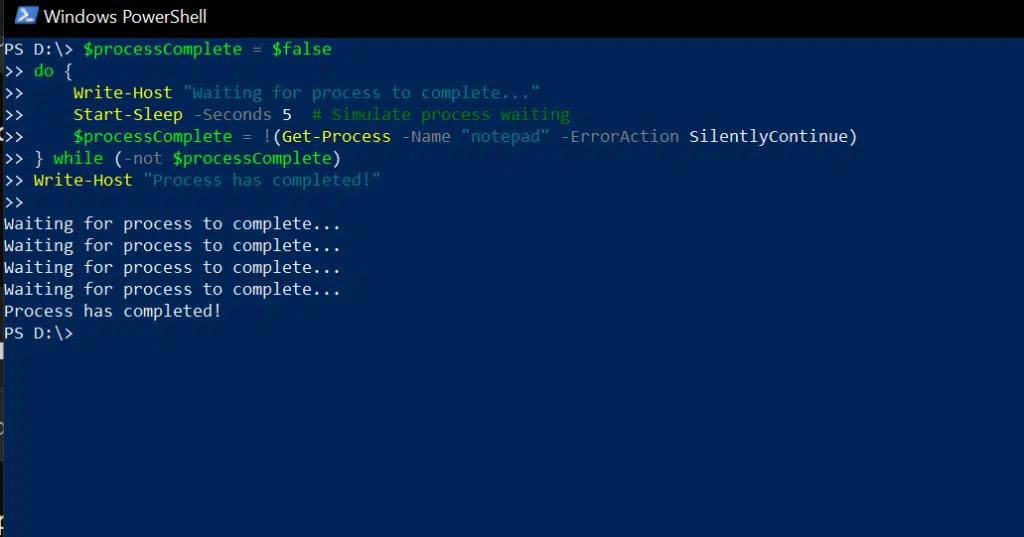
Par exemple, le script suivant utilise une boucle Do-While pour vérifier le statut d'un processus notepad toutes les 5 secondes jusqu'à ce que le processus soit fermé :
      $processComplete = $false

do {

    Write-Host "Waiting for process to complete..."

    Start-Sleep -Seconds 5  # Simulate process waiting

    $processComplete = !(Get-Process -Name "notepad" -ErrorAction SilentlyContinue)

} while (-not $processComplete)

Write-Host "Process has completed!"
Boucle Do-Until
La boucle Do-Until est similaire à Do-While ; cependant, une boucle Do-While continue tant que la condition est vraie, tandis qu'une boucle Do-Until continue tant que la condition est fausse. Par conséquent, Do-Until est plus efficace lorsque vous attendez qu'un événement se produise.
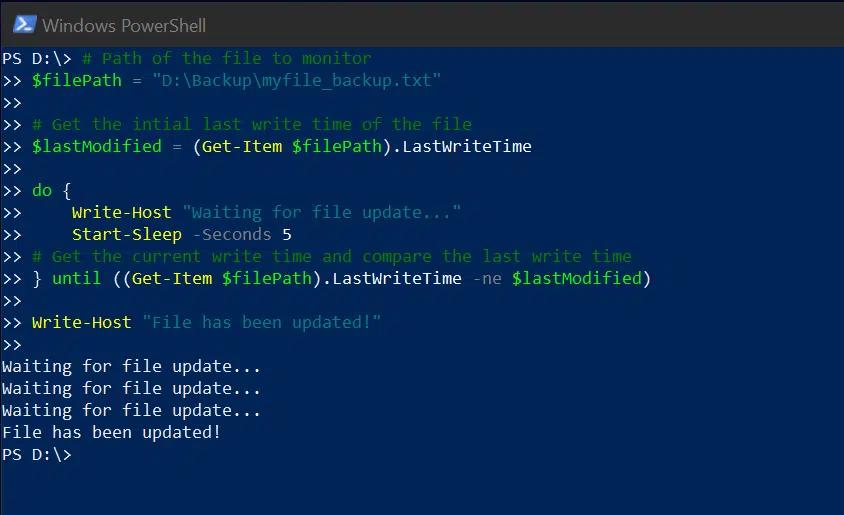
For example, the following script uses a Do-Until loop to wait until a file update occurs. Every 5 seconds, it compares the current last write time with the $lastModified variable; as soon as they are different, it prints a message that the file has been updated.
      # Path of the file to monitor

$filePath = "D:\Backup\myfile_backup.txt"

# Get the initial last write time of the file

$lastModified = (Get-Item $filePath).LastWriteTime

do {

    Write-Host "Waiting for file update..."

    Start-Sleep -Seconds 5

# Get the current write time and compare the last write time

} until ((Get-Item $filePath).LastWriteTime -ne $lastModified)

Write-Host "File has been updated!"
Advanced Loop Techniques for Enhanced Automation
Combining Loops with If-Else Conditional Statements
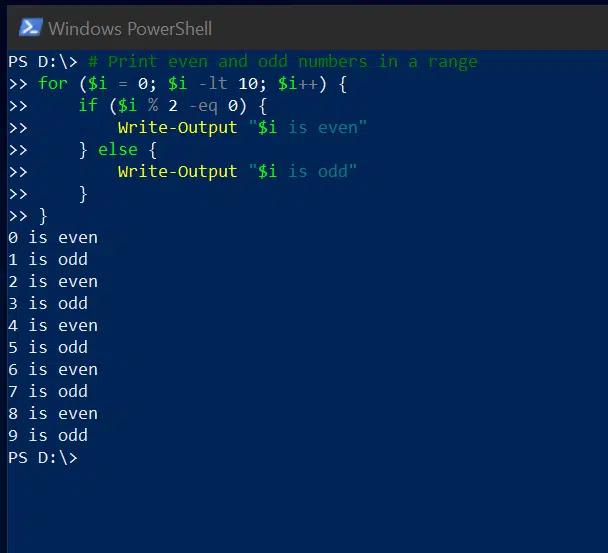
If and Else statements are used to execute code conditionally based on conditions defined within the loop. For example, the following code iterates from 0 to 9 and reports whether each number is even or odd:
      # Print even and odd numbers in a range

for ($i = 0; $i -lt 10; $i++) {

    if ($i % 2 -eq 0) {

        Write-Output "$i is even"

    } else {

        Write-Output "$i is odd"

    }

}
Exiting a Loop Early with Break
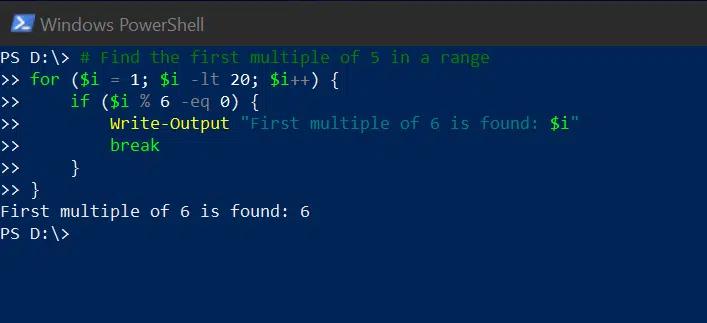
The Break statement is used to exit a loop when the specified condition is met; the rest of the code in the loop doesn’t get executed.
In the following example, the for loop is set up to iterate from 1 to 19; however if a multiple of 6 is found, it will print out the item and exit the loop:
Skipping Unnecessary Iterations with Continue
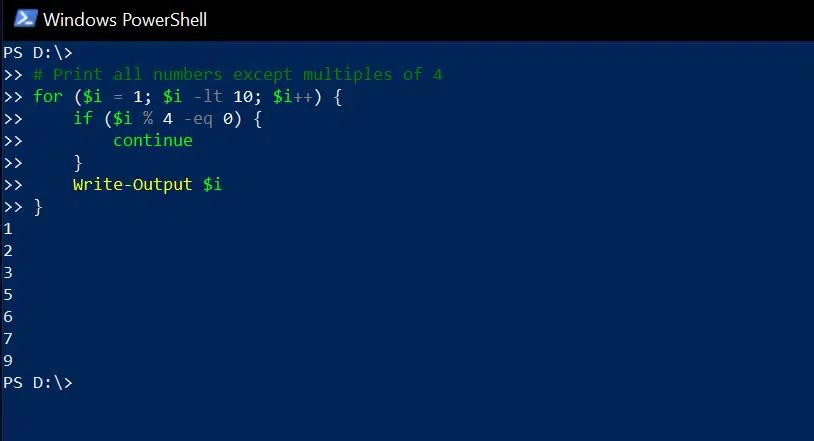
The Continue statement skips the rest of the code inside the current loop iteration and moves to the next iteration. The following example iterates through the numbers from 1 to 9, printing each of them except those that are multiples of 4:
      # Print all numbers except multiples of 4

for ($i = 1; $i -lt 10; $i++) {

    if ($i % 4 -eq 0) {

        continue

    }

    Write-Output $i

}
Memory Management in Loops
Reducing Memory Usage with the ForEach-Object Cmdlet
While you can use the ForEach loop when you want to iterate through the objects in a collection, there are times when it is preferable to use the ForEach-Object cmdlet instead:
- The ForEach loop iterates through a collection stored in memory in a variable. It is suitable for scenarios in which a collection is already in memory and a speedy outcome is needed.
- The ForEach-object cmdlet processes items one at a time as they go through a pipeline, which significantly reduces memory usage. It is particularly useful for processing each line of large log files individually.
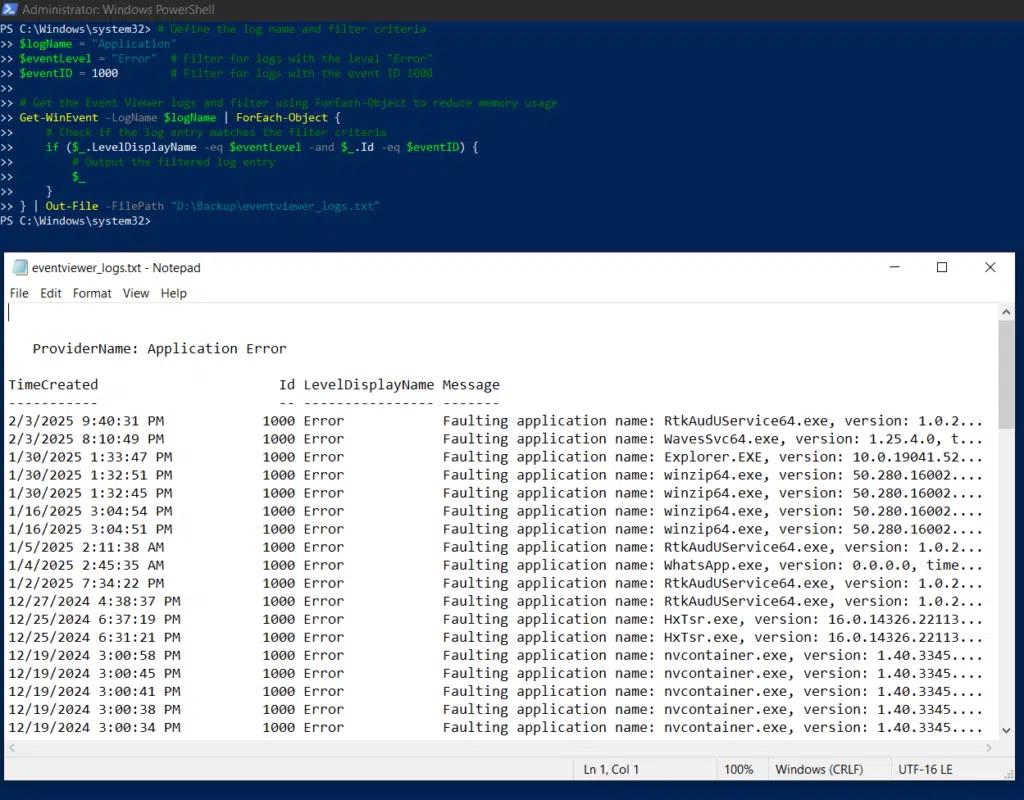
The following script uses the ForEach-Object cmdlet to find Event Viewer log entries with a specific event ID and store those events in a text file:
      # Define the log name and filter criteria

$logName = "Application"

$eventLevel = "Error"  # Filter for logs with the level "Error"

$eventID = 1000        # Filter for logs with the event ID 1000

# Get the Event Viewer logs and filter using ForEach-Object to reduce memory usage

Get-WinEvent -LogName $logName | ForEach-Object {

    # Check if the log entry matches the filter criteria

    if ($_.LevelDisplayName -eq $eventLevel -and $_.Id -eq $eventID) {

        # Output the filtered log entry

        $_

    }

} | Out-File -FilePath "D:\Backup\eventviewer_logs.txt"
Nested Loops for Complex Data Handling
PowerShell allows you to nest one For loop inside another. You can use this technique for tasks such as:
- Efficient handling of multi-dimensional data like arrays of arrays or matrices
- Processing of hierarchical structures such as JSON, XML and nested hash tables
- Performing repetitive tasks on structured data e.g. batch processing log files
Example: Creating a Multi-Level Data Structure
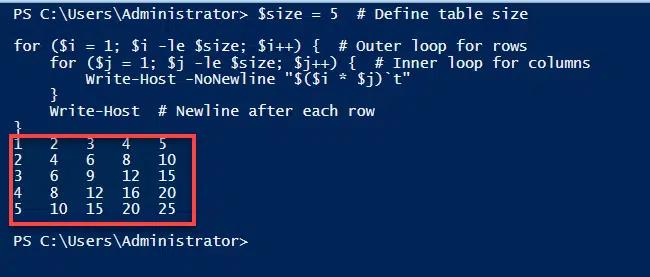
The following script uses nested For loops to generate a multiplication table:
      $size = 5  # Define table size

for ($i = 1; $i -le $size; $i++) {  # Outer loop for rows

    for ($j = 1; $j -le $size; $j++) {  # Inner loop for columns

        Write-Host -NoNewline "$($i * $j)`t"

    }

    Write-Host  # Newline after each row

}
Example: Handling Hierarchical Data (Nested Hash Tables)
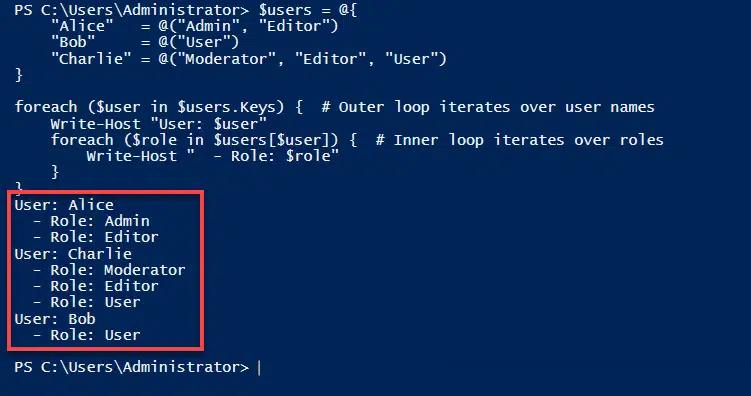
Other types of loops, such as the ForEach loop, can also be nested, as illustrated in the following script for handling hierarchical data:
      $users = @{

    "Alice"   = @("Admin", "Editor")

    "Bob"     = @("User")

    "Charlie" = @("Moderator", "Editor", "User")

}

foreach ($user in $users.Keys) {  # Outer loop iterates over usernames

    Write-Host "User: $user"

    foreach ($role in $users[$user]) {  # Inner loop iterates over roles

        Write-Host "  - Role: $role"

    }

}
Error Handling and Debugging in Loops
Importance of Try-Catch for Robust Script Execution
Error handling is essential when a PowerShell script could encounter failure conditions such as file not found, permission denied or network issue. Proper error handling using Try-Catch blocks ensures that your script will handle such exceptions gracefully by displaying meaningful error messages and continue running or terminate safely.
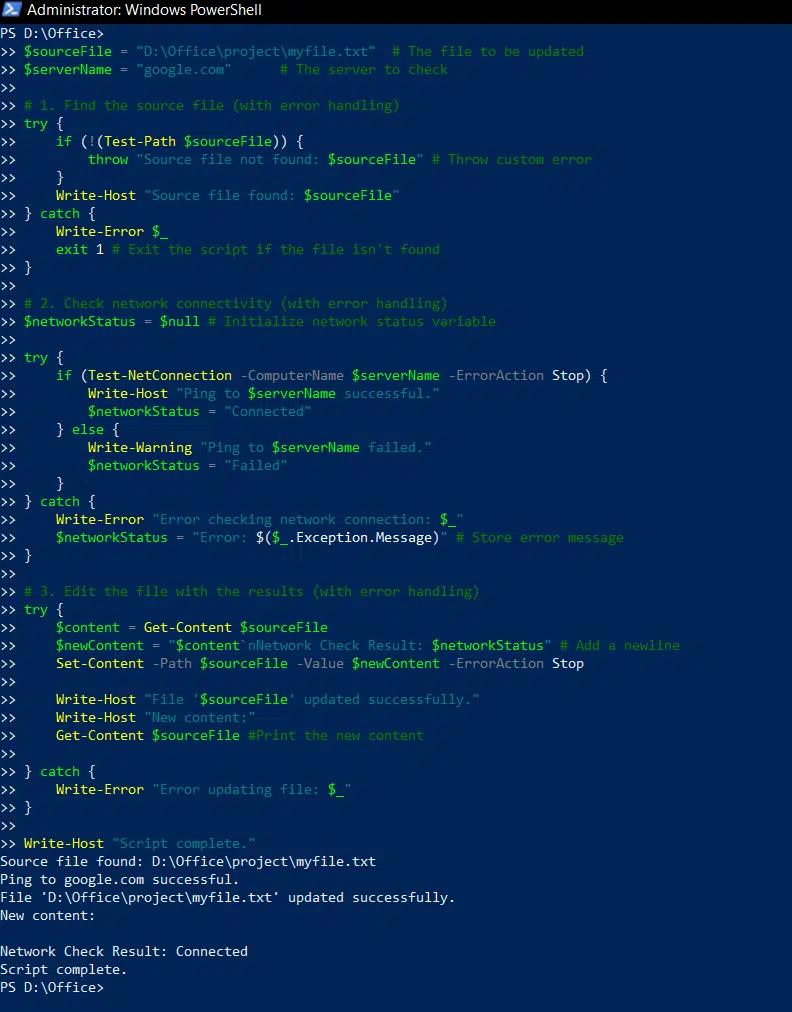
The following script for updating a file uses Try-Catch to smoothly handle cases in which the file cannot be found or a connection to the server cannot be established:
      $sourceFile = "D:\Office\project\myfile.txt"  # The file to be updated

$serverName = "google.com"      # The server to check

# 1. Find the source file (with error handling)

try {

    if (!(Test-Path $sourceFile)) {

        throw "Source file not found: $sourceFile" # Throw custom error

    }

    Write-Host "Source file found: $sourceFile"

} catch {

    Write-Error $_

    exit 1 # Exit the script if the file isn't found

}

# 2. Check network connectivity (with error handling)

$networkStatus = $null # Initialize network status variable

try {

    if (Test-NetConnection -ComputerName $serverName -ErrorAction Stop) {

        Write-Host "Ping to $serverName successful."

        $networkStatus = "Connected"

    } else {

        Write-Warning "Ping to $serverName failed."

        $networkStatus = "Failed"

    }

} catch {

    Write-Error "Error checking network connection: $_"

    $networkStatus = "Error: $($_.Exception.Message)" # Store error message

}

# 3. Edit the file with the results (with error handling)

try {

    $content = Get-Content $sourceFile

    $newContent = "$content`nNetwork Check Result: $networkStatus" # Add a newline

    Set-Content -Path $sourceFile -Value $newContent -ErrorAction Stop

    Write-Host "File '$sourceFile' updated successfully."

    Write-Host "New content:"

    Get-Content $sourceFile #Print the new content

} catch {

    Write-Error "Error updating file: $_"

}

Write-Host "Script complete."
Performance Optimization Tips for PowerShell Loops
The following strategies can reduce execution time and resource consumption when using For loops.
Reduce unnecessary iterations.
To reduce unnecessary loop iterations, filter data before entering a loop and use Break and Continue to exit the loop when a certain condition is met.
Avoid unnecessary computations inside loops.
A key best practice for improving loop efficiency in PowerShell is to avoid unnecessary computations inside loops. Instead, compute the values outside the loop whenever possible. For example, if a function or command gets data that does not change during iteration, then it should be executed once before entering the loop.
Enhance loop readability and maintainability.
To make your loops easier to understand and maintain, be sure to:
- Use clear variable names and consistent indentation.
- Use a modular design that breaks complex logic into separate functions.
- Use For loops when the iteration count is known and While loops for condition-based repetition.
- Keep loops concise and avoid unnecessary nesting.
Minimize console output.
Avoid unnecessary use of Write-Host statements.
Use pipelines effectively to reduce script overhead.
When processing large datasets, use pipelines to stream data from one cmdlet to the next. This strategy avoids the need to store large intermediate results in memory, significantly reducing overhead.
Use ForEach loops and the ForEach-Object cmdlet wisely.
As noted earlier, the ForEach-Object cmdlet requires less memory than the ForEach loop, so consider revising scripts to use ForEach-Object when appropriate.
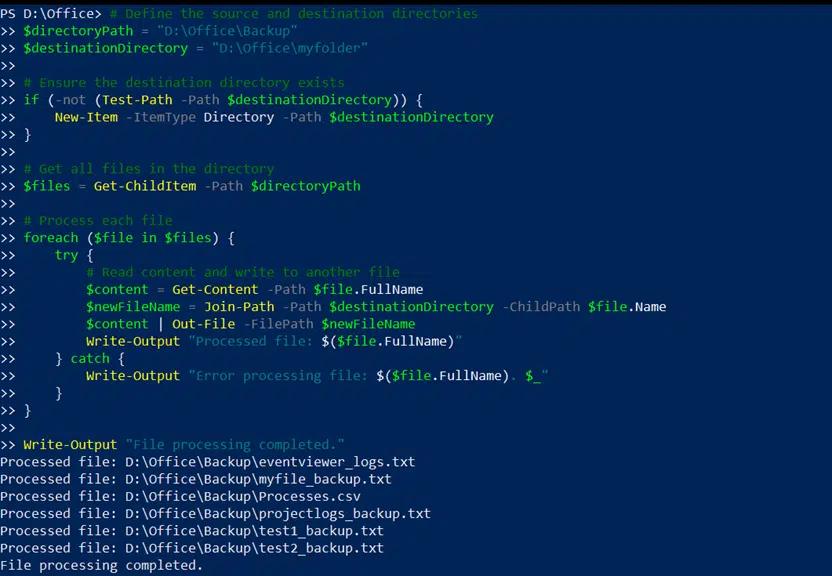
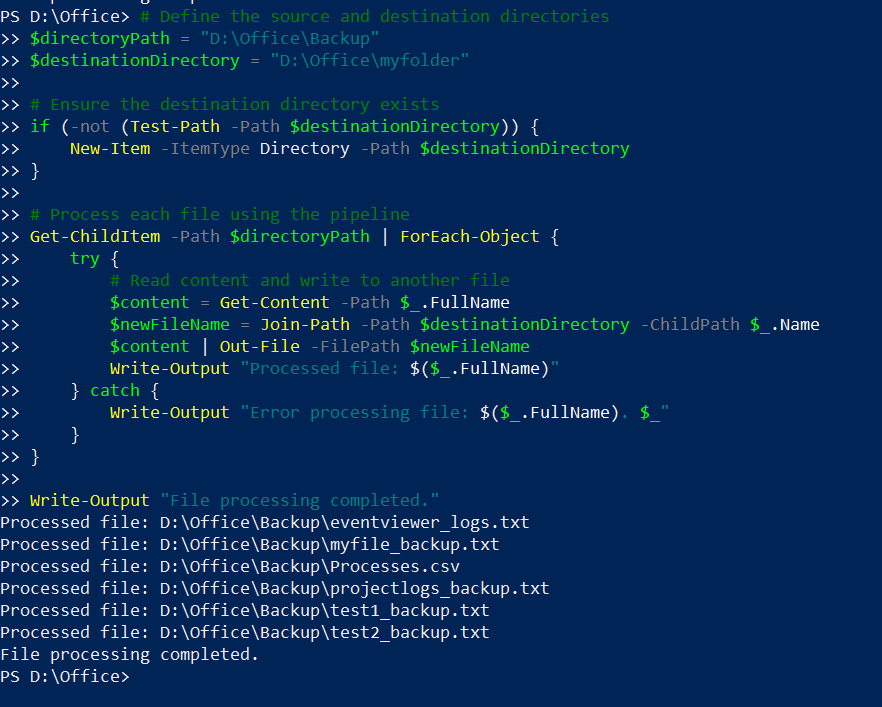
For example, here is a script that uses a foreach loop to copy files from one directory to another, followed by a script that achieves the same goal using the foreach-object cmdlet.
Using a ForEach Loop
      # Define the source and destination directories

$directoryPath = "D:\Office\Backup"

$destinationDirectory = "D:\Office\myfolder"

# Ensure the destination directory exists

if (-not (Test-Path -Path $destinationDirectory)) {

    New-Item -ItemType Directory -Path $destinationDirectory

}

# Get all files in the directory

$files = Get-ChildItem -Path $directoryPath

# Process each file

foreach ($file in $files) {

    try {

        # Read content and write to another file

        $content = Get-Content -Path $file.FullName

        $newFileName = Join-Path -Path $destinationDirectory -ChildPath $file.Name

        $content | Out-File -FilePath $newFileName

        Write-Output "Processed file: $($file.FullName)"

    } catch {

        Write-Output "Error processing file: $($file.FullName). $_"

    }

}

Write-Output "File processing completed."
Using the ForEach-Object Cmdlet
      # Define the source and destination directories

$directoryPath = "D:\Office\Backup"

$destinationDirectory = "D:\Office\myfolder"

# Ensure the destination directory exists

if (-not (Test-Path -Path $destinationDirectory)) {

    New-Item -ItemType Directory -Path $destinationDirectory

}

# Process each file using the pipeline

Get-ChildItem -Path $directoryPath | ForEach-Object {

    try {

        # Read content and write to another file

        $content = Get-Content -Path $_.FullName

        $newFileName = Join-Path -Path $destinationDirectory -ChildPath $_.Name

        $content | Out-File -FilePath $newFileName

        Write-Output "Processed file: $($_.FullName)"

    } catch {

        Write-Output "Error processing file: $($_.FullName). $_"

    }

}

Write-Output "File processing completed."
Real-World Applications of PowerShell Loops
Automating System Administration Tasks
Administrators can use loops to perform a certain action on each object in a collection, such as a set of files, directories or user accounts. For instance, loops can be used to apply security patches to all servers in a network; monitor system resources and restart services or send notifications when necessary; and modify or delete Active Directory objects.
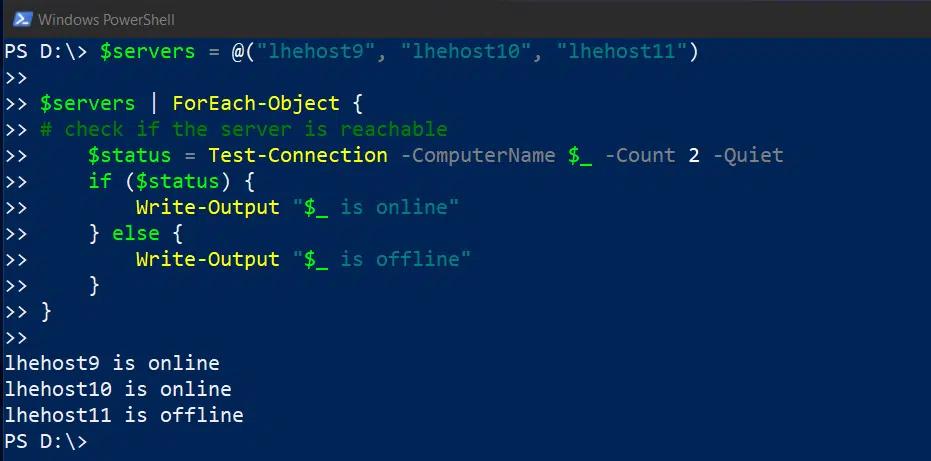
Automating Server Checks with the ForEach-Object Cmdlet
The following script reports whether servers are online:
      $servers = @("lhehost9", "lhehost10", "lhehost11")

$servers | ForEach-Object {

# check if the server is reachable

    $status = Test-Connection -ComputerName $_ -Count 2 -Quiet

    if ($status) {

        Write-Output "$_ is online"

    } else {

        Write-Output "$_ is offline"

    }

}
Scheduling System Tasks with While loops
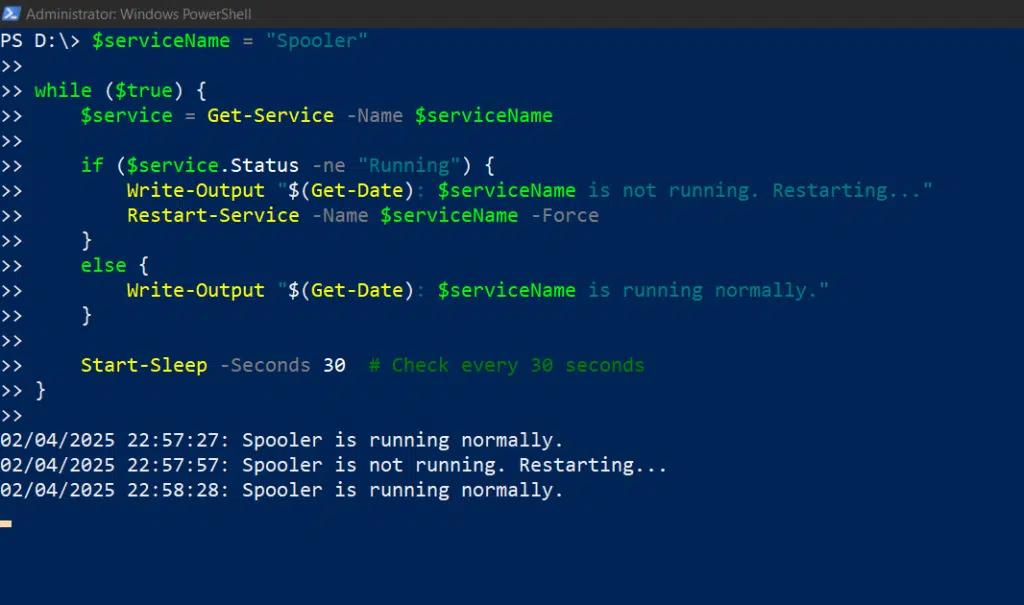
This script monitors the status of the Spooler service and restarts it when necessary:
      $serviceName = "Spooler"

while ($true) {

    $service = Get-Service -Name $serviceName

    if ($service.Status -ne "Running") {

        Write-Output "$(Get-Date): $serviceName is not running. Restarting..."

        Restart-Service -Name $serviceName -Force

    }

    else {

        Write-Output "$(Get-Date): $serviceName is running normally."

    }

    Start-Sleep -Seconds 30  # Check every 30 seconds

}
Data Processing in Enterprise Environments
In enterprise environments, data processing often involves handling large amounts of data from various sources, such as databases, log files and system resources. Loops can iterate over these large datasets to streamline reporting, analyze event logs and filter out irrelevant data.
Using Loops to Automate Reports
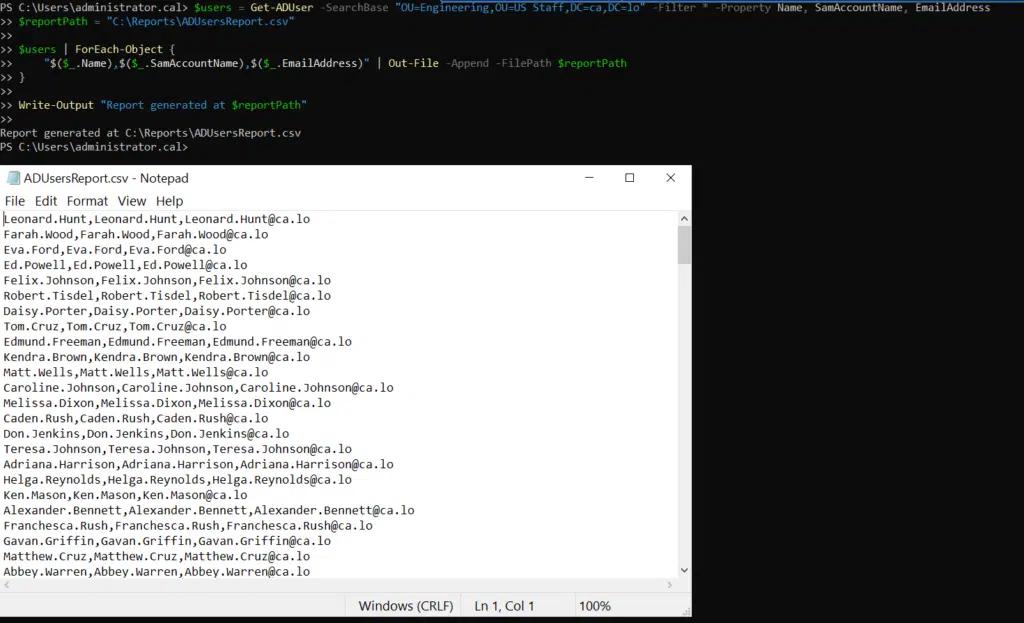
The following script creates a .csv file listing all Active Directory users in a specific organization unit:
      $users = Get-ADUser -SearchBase "OU=Engineering,OU=US Staff,DC=ca,DC=lo" -Filter * -Property Name, SamAccountName, EmailAddress

$reportPath = "C:\Reports\ADUsersReport.csv"

$users | ForEach-Object {

    "$($_.Name),$($_.SamAccountName),$($_.EmailAddress)" | Out-File -Append -FilePath $reportPath

}

Write-Output "Report generated at $reportPath"
Using Loops to Filter Logs
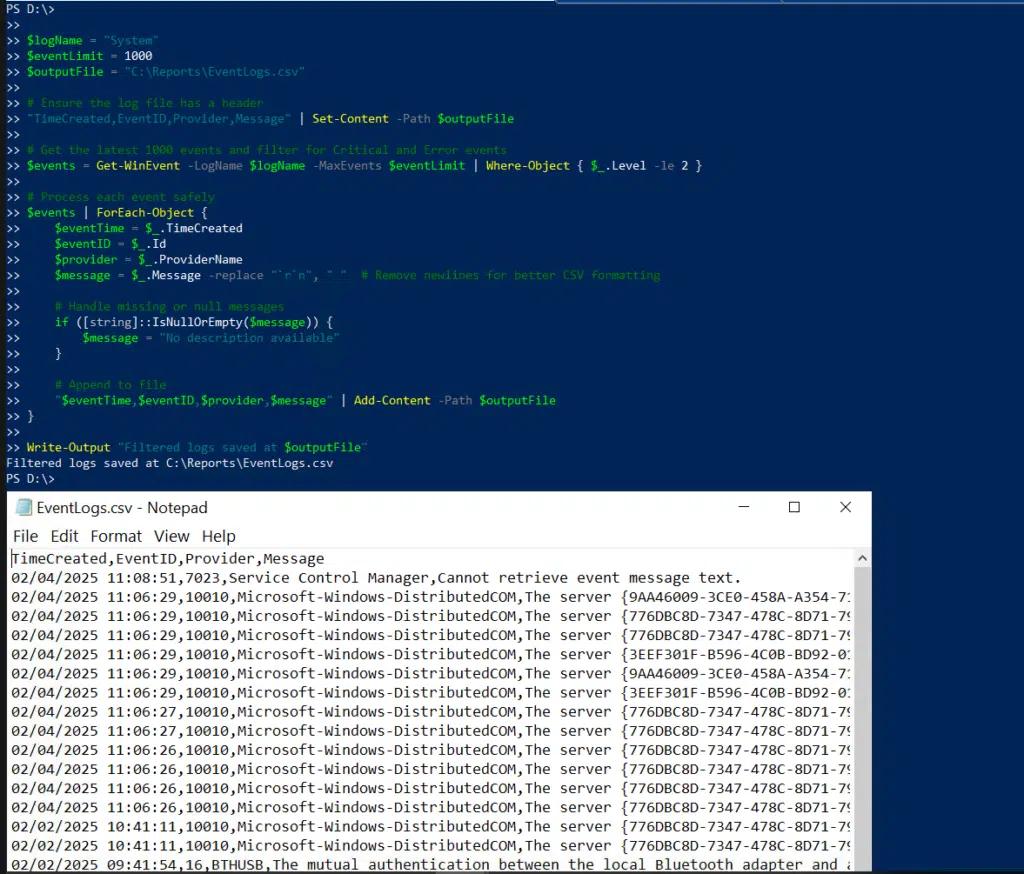
This script gets the 1,000 most recent entries from a system log and creates a .csv file listing the critical events:
      $logName = "System"

$eventLimit = 1000

$outputFile = "C:\Reports\EventLogs.csv"

# Ensure the log file has a header

"TimeCreated,EventID,Provider,Message" | Set-Content -Path $outputFile

# Get the latest 1000 events and filter for Critical and Error events

$events = Get-WinEvent -LogName $logName -MaxEvents $eventLimit | Where-Object { $_.Level -le 2 }

# Process each event safely

$events | ForEach-Object {

    $eventTime = $_.TimeCreated

    $eventID = $_.Id

    $provider = $_.ProviderName

    $message = $_.Message -replace "`r`n", " "  # Remove newlines for better CSV formatting

    # Handle missing or null messages

    if ([string]::IsNullOrEmpty($message)) {

        $message = "No description available"

    }

    # Append to file

    "$eventTime,$eventID,$provider,$message" | Add-Content -Path $outputFile

}

Write-Output "Filtered logs saved at $outputFile"
PowerShell Loops for DevOps and Cloud Operations
Loop-based Automation for Cloud Infrastructure Management
In modern DevOps and cloud environments, PowerShell loops can play an important role in managing and scaling infrastructure. Administrators can automate repetitive tasks such as updating virtual machines and docker containers and applying security patches across cloud infrastructure. Loops can iterate through virtual machines in a cloud infrastructure such as an Azure Resource group to check their health status and start any virtual machine that stopped unexpectedly. Similarly, in containerized environments, loops can help automate tasks like pulling updated docker images, restarting stopped containers and ensuring service availability.
Looping through Virtual Machines or Containers for Updates or Checks
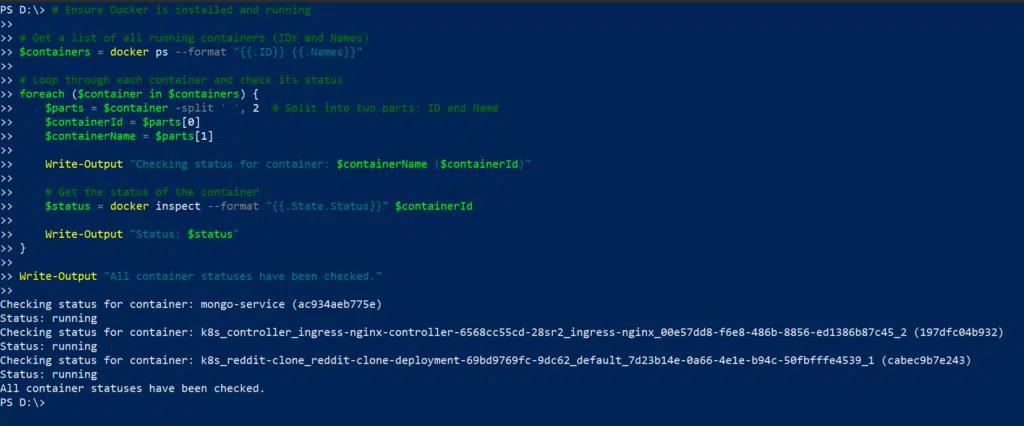
The following script uses a ForEach loop to check the status of each Docker container, extract its ID and name, and print its status on the console:
      # Ensure Docker is installed and running

# Get a list of all running containers

$containers = docker ps --format "{{.ID}} {{.Names}}"

# Loop through each container and check its status

foreach ($container in $containers) {

    $containerId, $containerName = $container -split ' '

    Write-Output "Checking status for container: $containerName ($containerId)"

    # Get the status of the container

    $status = docker inspect --format "{{.State.Status}}" $containerId

    Write-Output "Status of container $containerName: $status"

}

Write-Output "All container statuses have been checked."
Conclusion
PowerShell offers multiple types of loops for creating scripts that serve a wide range of use cases, including For, ForEach, While, Do-While and Do-Until loops. Try-Catch blocks and Break-Continue statements enable smooth handling of error conditions and improve script efficiency. To hone your skill with loops, feel free to experiment with the code examples here.
FAQ
What’s the difference between ForEach and ForEach-Object?
The ForEach loop is used to iterate through a data collection in memory, while the foreach-object cmdlet is used to process data coming from a pipeline. Foreach-object is memory efficient as it processes each item streamed through pipeline one at a time, whereas foreach offers faster performance for smaller datasets.
How do you optimize PowerShell loops for large datasets?
When processing large datasets, you can minimize memory usage and execution time by filtering data before entering loop, using the foreach-object cmdlet rather than the foreach loop, and precomputing values outside of loops to avoid redundant operations in each iteration.
Can you exit a PowerShell loop early?
Yes, you can exit a loop or just the current iteration of a loop using Break and Continue statements. The Break statement immediately terminates the entire loop and transfers control to the next statement, whereas the Continue statement skips the remaining statements in the current iteration and proceeds to the next iteration.
What’s the best way to debug loops in PowerShell?
A good way to debug loops in PowerShell is by using Write-Host, Write-Debug or Write-Output to print variable values during each iteration.
Partager sur
En savoir plus
À propos de l'auteur

Tyler Reese
Vice-président de la gestion de produit, CISSP
Avec plus de deux décennies d'expérience dans l'industrie de la sécurité logicielle, Tyler Reese connaît intimement les défis d'identité et de sécurité en rapide évolution auxquels les entreprises sont confrontées aujourd'hui. Actuellement, il occupe le poste de directeur de produit pour le portefeuille Netwrix Identity and Access Management, où ses responsabilités incluent l'évaluation des tendances du marché, la définition de la direction de la gamme de produits IAM et, en fin de compte, la satisfaction des besoins des utilisateurs finaux. Son expérience professionnelle s'étend de la consultation en IAM pour des entreprises du Fortune 500 à l'architecture d'entreprise d'une grande société de vente directe aux consommateurs. Il détient actuellement la certification CISSP.
En savoir plus sur ce sujet
Supprimer le fichier avec Powershell s'il existe
PowerShell Write to File : "Out-File" et techniques de sortie de fichier
Comment créer de nouveaux utilisateurs Active Directory avec PowerShell
Comment exécuter un script PowerShell
Qu'est-ce que PowerShell ? Un guide complet de ses fonctionnalités et utilisations