
PowerShell Foreach-Schleife erklärt: Syntax, Beispiele und bewährte Methoden | Netwrix Blog | Einblicke für Cybersecurity- und IT-Profis
Aug 25, 2025
Die PowerShell ForEach-Schleife vereinfacht das Durchlaufen von Sammlungen wie Arrays, Listen oder Pipeline-Ausgaben und ist daher unerlässlich für Automatisierung und Datenverarbeitung. Sie führt einen Block Code für jedes Element aus und unterstützt Anwendungsfälle wie das Umbenennen von Dateien, das Aktualisieren Active Directory Benutzer oder das Parsen von Protokollen. Zu den bewährten Methoden gehören die Verwendung klarer Variablennamen, die Kombination mit Fehlerbehandlung und die Nutzung von ForEach-Object für speichereffiziente, pipelinegesteuerte Aufgaben.
Die foreach-Schleife in PowerShell ermöglicht es Ihnen, alle Elemente in einer Sammlung zu durchlaufen und für jedes Element einen Block Code auszuführen. Zum Beispiel können Sie eine foreach-Schleife verwenden, um eine Liste aller Dateien in einem Verzeichnis für ein Audit zu erstellen, alle auf dem System laufenden Prozesse anzuzeigen oder alte Dateien in ein Archiv zu verschieben.
Dieser Artikel erläutert die Syntax der PowerShell-foreach-Schleife und untersucht häufige Anwendungsfälle, komplett mit Beispiel-Skripten. Anschließend erklärt er, wie man gängige Fehler vermeidet und bietet Best Practices für den effektiven Einsatz von foreach-Schleifen.
Einstieg in PowerShell Foreach-Schleifen
Grundlegende Syntax und Verarbeitung
Hier ist die grundlegende Syntax der foreach-Anweisung:
      foreach ($item in $collection) {

    # Code to execute for each item

}
Die Verarbeitung dieser foreach-Schleife erfolgt wie folgt:
- PowerShell lädt die Sammlung $collection in den Speicher und bestimmt die Anzahl der enthaltenen Objekte.
- Das erste Objekt aus $collection wird der Variablen $item zugewiesen, und der Codeblock wird für dieses Objekt ausgeführt.
- Der Wert von $item wird auf das nächste Objekt in $collection aktualisiert und der Codeblock wird für dieses Objekt ausgeführt. Dieser Schritt wird wiederholt, bis alle Objekte in $collection verarbeitet worden sind.
Erweiterte Syntax
Die foreach-Methode bietet eine prägnantere Möglichkeit, über Sammlungen zu iterieren, und kann potenziell eine bessere Leistung liefern. Die Syntax lautet wie folgt:
$collection.ForEach({ <expression> })
Vergleich des Foreach-Schlüsselworts, des Foreach-Object und der Foreach-Methode
Das Schlüsselwort Foreach, das Objekt foreach-object und die Methode Foreach dienen einem ähnlichen Zweck, haben jedoch unterschiedliche Anwendungsfälle und Verhaltensweisen.
ForEach Keyword
The foreach keyword is used to iterate over collection of items, loads all the items of collection in memory and process all items at once. Making it an ideal choice when dealing with in-memory collection for speedy processing.
ForEach-Object Cmdlet
Foreach-object cmdlet, on the other hand, is a pipeline-oriented cmdlet designed to process each object streaming through pipeline one at a time. It reduces resource consumption such as memory and is suitable for scenarios where loading the entire collection into memory is not practical. While slightly slower than foreach due to the pipeline overhead, its advantageous in efficient memory utilization during script execution.
ForEach Method
Foreach method was introduced in PowerShell 5, foreach method is useful on certain collection types such as arrays and lists, provides concise syntax for performing actions on each element. Foreach method is object-oriented and used when we want to chain methods and for in-memory collection its more efficient than foreach-object cmdlet.
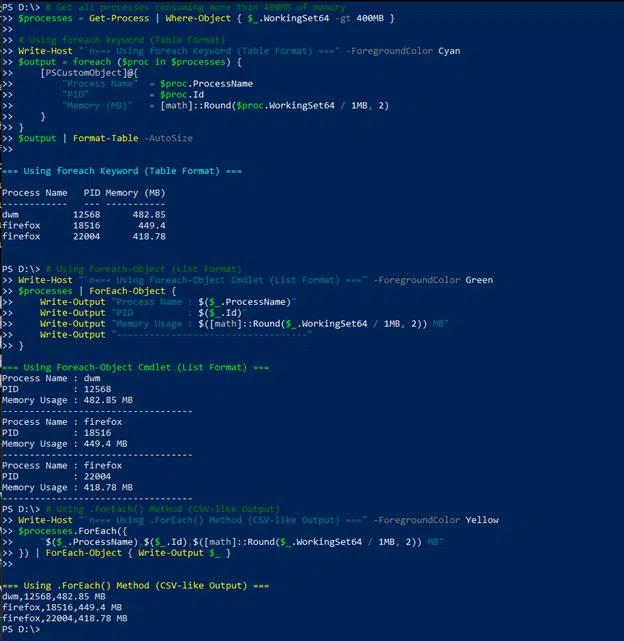
In the following example, we are getting processes consuming memory more than 400 mb with foreach, foreach-object and foreach method.
      # Get all processes consuming more than 400MB of memory

$processes = Get-Process | Where-Object { $_.WorkingSet64 -gt 400MB }

# Using foreach keyword (Table Format)

Write-Host "`n=== Using foreach Keyword (Table Format) ===" -ForegroundColor Cyan

$output = foreach ($proc in $processes) {

    [PSCustomObject]@{

        "Process Name"  = $proc.ProcessName

        "PID"           = $proc.Id

        "Memory (MB)"   = [math]::Round($proc.WorkingSet64 / 1MB, 2)

    }

}

$output | Format-Table -AutoSize

# Using Foreach-Object (List Format)

Write-Host "`n=== Using Foreach-Object Cmdlet (List Format) ===" -ForegroundColor Green

$processes | ForEach-Object {

    Write-Output "Process Name : $($_.ProcessName)"

    Write-Output "PID          : $($_.Id)"

    Write-Output "Memory Usage : $([math]::Round($_.WorkingSet64 / 1MB, 2)) MB"

    Write-Output "-----------------------------------"

}

# Using .ForEach() Method (CSV-like Output)

Write-Host "`n=== Using .ForEach() Method (CSV-like Output) ===" -ForegroundColor Yellow

$processes.ForEach({

    "$($_.ProcessName),$($_.Id),$([math]::Round($_.WorkingSet64 / 1MB, 2)) MB"

}) | ForEach-Object { Write-Output $_ }
Common Use Cases
Display All Numbers in an Array
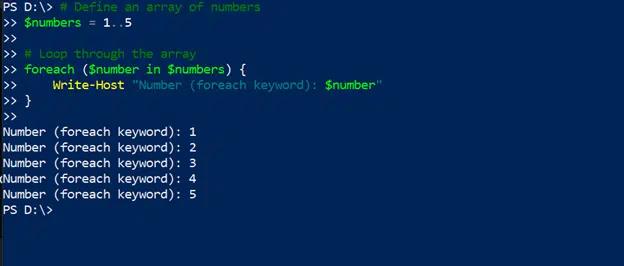
The following script will loop through an array of numbers and write each one to the console:
      # Define an array of numbers

$numbers = 1..5

# Loop through the array

foreach ($number in $numbers) {

    Write-Host "Number (foreach keyword): $number"

}
Display the Names of All Files in a Directory
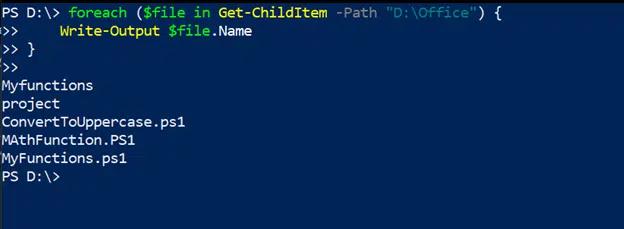
The following PowerShell foreach example uses the Get-ChildItem cmdlet to retrieves the file from a specified directory and displays the name of each file:
      foreach ($file in Get-ChildItem -Path " D:\Office") {

    Write-Output $file.Name

}
Manipulate Each Object in a Collection
The following script gets all processes whose name starts with either C or F, checks to see if each process is running, and adds the custom property isActive to each process to document its status:
      # Get all processes whose names start with 'C' or 'F'

$processes = Get-Process | Where-Object { $_.Name -like "C*" -or $_.Name -like "F*" }

foreach ($process in $processes) {

    $isActive = $process.Responding

    $process | Add-Member -NotePropertyName "IsActive" -NotePropertyValue $isActive

}

$processes | Format-Table -Property Name, Id, IsActive

Advanced Techniques
Processing Items Differently Based on Your Criteria
You can use If statements in foreach loops to perform different actions based on the characteristics of each object being processed. The following script gets all files in a specified directory but outputs the names of only those larger than 10 kb:
      foreach ($file in Get-ChildItem -Path "D:\Office") {

  if ($file.Length -gt 10KB) {

    Write-Output $file.Name

  }

}
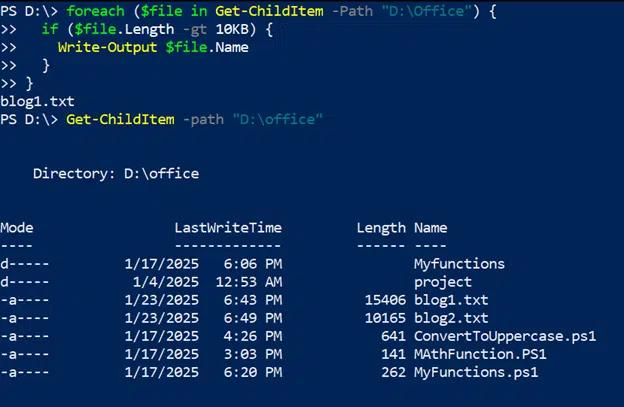
This script could easily be modified to take other actions on the large files in a directory instead of merely listing them. For example, you could to copy them to another location, compress them, or delete them based on when they were last accessed.
Using Nesting
Putting one foreach loop inside another is called nesting. Nested foreach loops can be used to iterate through two or more collections and perform operations that involve element from both collections. For instance, nesting can be used to generate combinations of parameters for testing, creating Cartesian products of sets or iterate over multi-dimensional data.
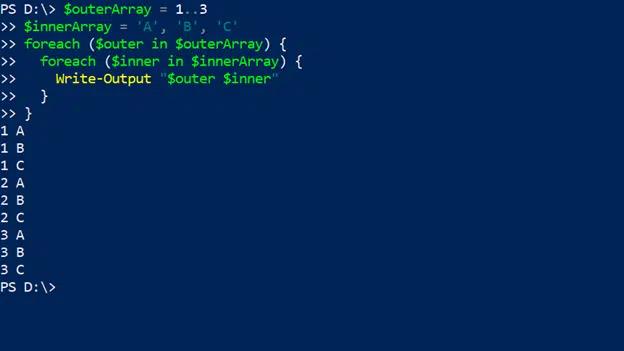
The script below uses nested foreach loops to generate all possible combinations of items from two different arrays, one with three numbers and one with three letters:
      $outerArray = 1..3

$innerArray = 'A', 'B', 'C'

foreach ($outer in $outerArray) {

  foreach ($inner in $innerArray) {

    Write-Output "$outer $inner"

  }

}
Handling Errors
If a foreach loop encounters an error, the script will terminate. One common example is when the code tries to divide by zero, which is not mathematically possible. The resulting error message can help you identify the cause of issues.
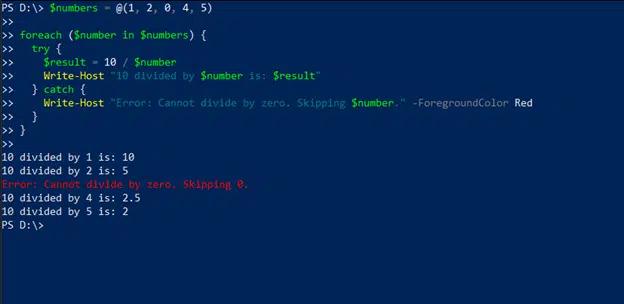
You can use a Try-Catch block to handle potential issues gracefully and ensure that the script continues to process additional elements in the collection. In the following script, the try block attempts to perform a division problem using each number in a collection. If the operation is successful, the result is written to the host; if not, the catch block displays an error message in red. In either case, the loop proceeds to the next item in the collection.
      # Sample collection of items.

$numbers = @(1, 2, 0, 4, 5)

foreach ($number in $numbers) {

  try {

    $result = 10 / $number

    Write-Host "10 divided by $number is: $result"

  } catch {

    Write-Host "Error: Cannot divide by zero. Skipping $number." -ForegroundColor Red

  }

}
Avoiding Common Mistakes
Here are some mistakes that are often made with foreach loops and how to avoid them.
Using the Same Variable Name in Nested Loops
Using the same variable name in nested loops can lead to unexpected behavior and conflicts. For instance, the following script uses the same variable $item in both the outer and inner loops:\
      foreach ($item in $collection) {

  foreach ($item in $nestedCollection) { # Overwrites outer $item

    Write-Host $item

  }

}
To avoid problems, use unique variable names for each loop:
      foreach ($outerItem in $collection) {

  foreach ($innerItem in $nestedCollection) {

    Write-Host $innerItem

  }

}
Breaking Out of Loops Prematurely
A break statement can be used to exit a foreach loop once a desired condition is met. However, using break statements improperly can prematurely terminate the loop, leading to incomplete processing of the collection.
Accordingly, use break carefully. Consider alternative like continue to skip specific iterations without exiting the loop:
Infinite Loops
If the loop condition never evaluates to false or the collection is modified in an improper way, the loop can continue indefinitely. For example, as the following script iterates over a collection, it keeps adding new items to that collection:
      $collection = @("Item1", "Item2", "Item3")

foreach ($item in $collection) {

  $collection.Add("NewItem")  # Changes collection size dynamically

}
One way to avoid this infinite loop is to make a copy of the original collection and then iterate through the copy, making changes to the original:
      # Original collection

$collection = @("Item1", "Item2", "Item3")

# Iterate over a copy of the collection

foreach ($item in $collection.Clone()) {

  Write-Host "Processing $item"

  $collection.Add("NewItem")  # Modify the original collection safely

}

Write-Host "Final Collection: $collection"
Best Practices
The following best practices can help you use foreach loops more effectively.
For pipelined data, use the foreach-object cmdlet.
As we have seen, foreach in PowerShell loads a collection into memory and then processes each items sequentially. Sometimes, however, you need to process objects passed through a pipeline. In those cases, use the foreach-object cmdlet, which also uses less memory. For examples, see this Essential PowerShell Commands guide.
Maximize the readability and maintainability of scripts.
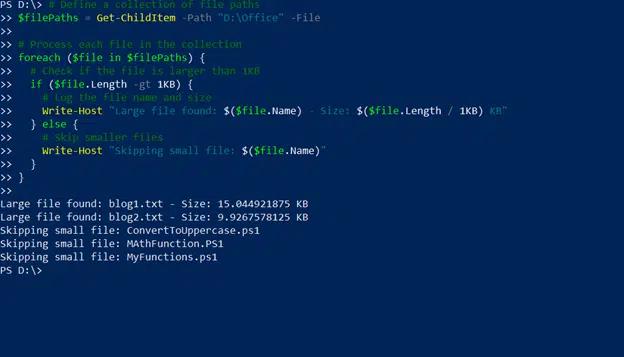
To make your scripts easier to read and maintain, use consistent indentation and spacing for your foreach loops, add meaningful comments, and keep the loop body concise by defining functions or methods, as illustrated here:
      # Define a collection of file paths

$filePaths = Get-ChildItem -Path "D:\Office" -File

# Process each file in the collection

foreach ($file in $filePaths) {

  # Check if the file is larger than 1KB

  if ($file.Length -gt 1KB) {

    # Log the file name and size

    Write-Host "Large file found: $($file.Name) - Size: $($file.Length / 1KB) KB"

  } else {

    # Skip smaller files

    Write-Host "Skipping small file: $($file.Name)"

  }

}
Conclusion
The foreach loop in PowerShell is a valuable tool for automating tasks that require iterating through a collection and running code on each item, such as managing files and controlling processes. Start by experimenting with the simple examples provided in this article and then move on to more advanced techniques like nested loops and error handling.
FAQ
What is the difference between a foreach loop and the foreach-object cmdlet?
A foreach loop is used to iterate over an array or other collection, which it loads into memory before processing the data. The foreach-object cmdlet is used to process objects passed through a pipeline by another cmdlet.
How do you handle errors in a foreach loop?
Use a try-catch block to handle exceptions gracefully.
Can you break out of a foreach loop in PowerShell?
Yes, you can use a break statement to exit a foreach loop once a desired condition is met. Here, the loop is broken when the number 5 is reached in the collection, so only the numbers 1 through 4 are written to the host:
      foreach ($number in 1..10) {

    if ($number -eq 5) { break }

    Write-Host $number

}

How do you nest foreach loops?
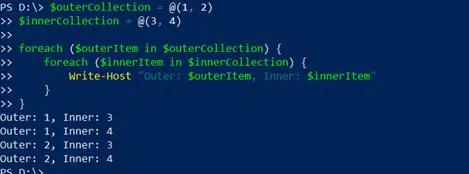
To nest foreach loops, place one loop inside another. To avoid errors, be sure to use unique variable names for different loops. The following script uses nested foreach loops to iterate two collections and display all possible combinations of the items in those collections:
      $outerCollection = @(1, 2)

$innerCollection = @(3, 4)

foreach ($outerItem in $outerCollection) {

    foreach ($innerItem in $innerCollection) {

        Write-Host "Outer: $outerItem, Inner: $innerItem"

    }

}
Teilen auf
Erfahren Sie mehr
Über den Autor

Tyler Reese
VP of Product Management, CISSP
Mit mehr als zwei Jahrzehnten in der Software-Sicherheitsbranche ist Tyler Reese bestens vertraut mit den sich schnell entwickelnden Identitäts- und Sicherheitsherausforderungen, denen Unternehmen heute gegenüberstehen. Derzeit ist er als Produktleiter für das Netwrix Identity and Access Management Portfolio tätig, wo seine Aufgaben die Bewertung von Markttrends, die Festlegung der Richtung für die IAM-Produktlinie und letztendlich die Erfüllung der Bedürfnisse der Endanwender umfassen. Seine berufliche Erfahrung reicht von IAM-Beratung für Fortune-500-Unternehmen bis hin zur Arbeit als Unternehmensarchitekt eines großen Direkt-an-Verbraucher-Unternehmens. Derzeit hält er die CISSP-Zertifizierung.
Erfahren Sie mehr zu diesem Thema
Powershell Delete File If Exists
PowerShell Write to File: "Out-File" und Dateiausgabetechniken
So erstellen Sie neue Active Directory-Benutzer mit PowerShell
So führen Sie ein PowerShell-Skript aus
Was ist PowerShell? Ein kompletter Leitfaden zu seinen Funktionen & Anwendungen