
Windows Server용 Netwrix Auditor
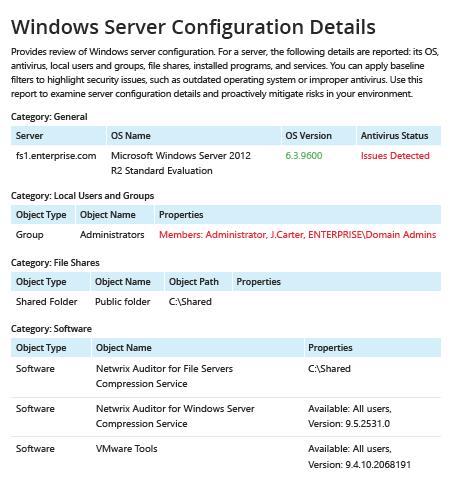
- Netwrix Auditor 실행 → "Reports"로 이동 → "Windows Server" 섹션 확장 → "Windows Server – State-in-Time"로 이동 → "Windows Server Configuration Details" 선택 → "View"를 클릭합니다.
- 보고서를 저장하려면 "Export" 버튼을 클릭 → 드롭다운 메뉴에서 형식을 선택 → "Save"를 클릭하세요.
자세히 알아보기: Netwrix Auditor for Windows Server
네이티브 감사
- 컴퓨터 목록이 포함된 파일을 생성 → Powershell ISE를 열기 → 다음 스크립트를 실행하되 내보내기(Export) 경로를 조정하세요:
      #Start PSRemoting.
Invoke-Command -ComputerName (Get-Content C:\data\computers.txt) -scriptblock {

#Run the commands concurrently for each server in the list
$CPUInfo = Get-WmiObject Win32_Processor #Get CPU Information
$OSInfo = Get-WmiObject Win32_OperatingSystem #Get OS Information

#Get Memory Information. The data will be shown in a table as GB, rounded to the nearest second decimal.
$PhysicalMemory = Get-WmiObject CIM_PhysicalMemory | Measure-Object -Property capacity -Sum | % {[math]::round(($_.sum / 1GB),2)}

#Get Network Configuration
$Network = Get-WmiObject Win32_NetworkAdapterConfiguration -Filter 'ipenabled = "true"'

#Get local admins.
$localadmins = Get-CimInstance -ClassName win32_group -Filter "name = 'administrators'" | Get-CimAssociatedInstance -Association win32_groupuser

#Get list of shares
$Shares = Get-WmiObject Win32_share | Where {$_.name -NotLike "*$"}
$infoObject = New-Object PSObject

#Add data to the infoObjects.
Add-Member -inputObject $infoObject -memberType NoteProperty -name "ServerName" -value $CPUInfo.SystemName

Add-Member -inputObject $infoObject -memberType NoteProperty -name "CPU_Name" -value $CPUInfo.Name

Add-Member -inputObject $infoObject -memberType NoteProperty -name "TotalMemory_GB" -value $PhysicalMemory

Add-Member -inputObject $infoObject -memberType NoteProperty -name "OS_Name" -value $OSInfo.Caption

Add-Member -inputObject $infoObject -memberType NoteProperty -name "OS_Version" -value $OSInfo.Version

Add-Member -inputObject $infoObject -memberType NoteProperty -name "IP Address" -value $Network.IPAddress

Add-Member -inputObject $infoObject -memberType NoteProperty -name "LocalAdmins" -value $localadmins.Caption

Add-Member -inputObject $infoObject -memberType NoteProperty -name "SharesName" -value $Shares.Name

Add-Member -inputObject $infoObject -memberType NoteProperty -name "SharesPath" -value $Shares.Path

$infoObject
} | Select-Object * -ExcludeProperty PSComputerName, RunspaceId, PSShowComputerName | Export-Csv -path C:\data\Server_Inventory_$((Get-Date).ToString('MM-dd-yyyy')).csv -NoTypeInformation
- 스크립트가 생성한 파일을 MS Excel에서 여세요.
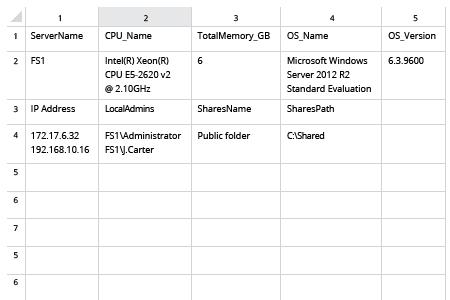
서버 인벤토리를 수집하여 알려진 양호한 기준선에서의 편차를 탐지
중요한 자산을 정확히 파악하려면, 완전하고 최신 상태의 하드웨어 인벤토리와 철저한 소프트웨어 인벤토리가 필요합니다. 여기에는 도메인에 어떤 Windows Server가 있는지, 각 서버에서 실행 중인 OS 버전(예: Windows Server 2012 또는 Windows Server 2008), 그리고 외부 공격으로부터 잘 보호되고 있는지 여부가 포함되어야 합니다. 서버 인벤토리를 수집하는 PowerShell 스크립트는 서버 목록을 확보하는 데 도움이 될 수 있습니다. 하지만 모든 중요한 정보를 수집하고 유용한 보고서를 작성하려면 시간과 노력, 그리고 PowerShell에 대한 탄탄한 지식이 필요합니다.
Netwrix Auditor for Windows Server는 조직 전체에 있는 모든 서버에 대해 필요한 모든 세부 정보를 하나의 포괄적이고 읽기 쉬운 보고서로 제공합니다. 이 보고서는 CSV 파일로 손쉽게 내보내 Excel에서 사용할 수 있으며, 또는 PFD 파일로 내보낼 수도 있습니다. 보고서는 각 서버에 설치된 OS의 이름과 버전, 그리고 안티바이러스 상태 등 다양한 정보를 풍부하게 담고 있습니다. 보고서에 필터를 적용하기만 하면, 올바른 기준선에서의 편차를 즉시 탐지할 수 있으므로 컴퓨터와 데이터의 보안을 강화하기 위한 조치를 바로 취할 수 있습니다.
공유하기