
기본 감사
- 파일 서버에서 PowerShell ISE를 열고 → 다음 코드로 새 스크립트를 만드세요:
      $search_folder = "\\share\path\"

$out_file = "C:\temp\directpermissionsexport.csv"
$out_error = "C:\temp\errors.csv"

$items = Get-ChildItem -Path $search_folder -recurse

$found = @()
$errors = @()

ForEach ($item in $items) {

try {
$acl = Get-Acl $item.fullname

ForEach ($entry in $acl.access) {
If (!$entry.IsInherited) {
$found += New-Object -TypeName PSObject -Property @{
Folder = $item.fullname
Access = $entry.FileSystemRights
Control = $entry.AccessControlType
User = $entry.IdentityReference
Inheritance = $entry.IsInherited

}
}
}
} catch {

$errors += New-Object -TypeName PSObject -Property @{
Item = $item.fullname
Error = $_.exception
}

}
}

$found |
Select-Object -Property Folder,User,Control,Access,Inheritance |
Export-Csv -NoTypeInformation -Path $out_file

$errors |
Export-Csv -NoTypeInformation -Path $out_err
- 아래 매개변수를 지정한 다음 스크립트를 실행하십시오:
- $search_folder: 직접 권한이 있는지 확인하려는 공유 폴더의 경로를 입력합니다
- $out_file: 결과가 들어 있는 파일의 경로를 입력합니다
- $out_error: 오류 로그 파일의 경로를 입력합니다
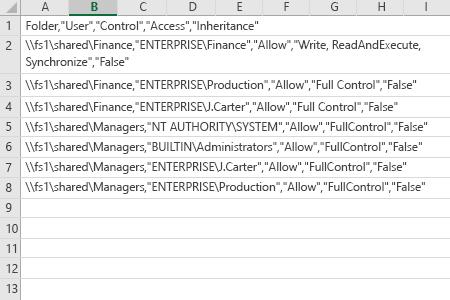
- 스크립트가 생성한 파일을 MS Excel에서 여십시오.
Netwrix Auditor for Windows File Servers
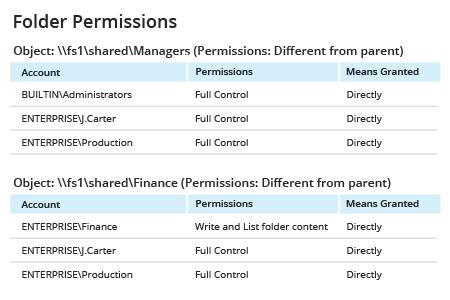
- Netwrix Auditor 실행 → “Reports”로 이동 → “File Servers” 섹션을 확장 → “File Servers - State-in-Time”로 이동 → “Folder Permissions” 선택 → “View”를 클릭 → “Expand Group Membership” 필터를 “No”로 설정 → “View Report”를 클릭합니다.
- 보고서를 저장하려면 "Export" 버튼을 클릭 → 드롭다운 메뉴에서 형식을 선택 → “Save”를 클릭합니다.
공유하기