
네이티브 솔루션
사전 요구 사항: 아래의 스크립트 중 어떤 것이든 실행하려면 다음 명령으로 Active DirectoryPowerShell 모듈을 가져와야 합니다:
Import-Module ActiveDirectory
- 도메인 컨트롤러에서 Windows PowerShell ISE를 여세요.
- 최근 90일 이상 비활성화된 사용자를 확인하려면 아래 PowerShell 스크립트 중 하나를 실행하세요:
Search-ADAccount cmdlet을 사용하면:
Search-ADAccount –AccountInActive -UsersOnly –TimeSpan 90:00:00:00 –ResultPageSize 2000 –ResultSetSize $null |?{$_.Enabled –eq $True} | Select-Object Name, SamAccountName, DistinguishedName| Export-CSV “C:\Temp\InactiveUsers.CSV” –NoTypeInformation
Get-ADUser cmdlet을 사용하면:
      $date= (get-date).AddDays(-90)

Get-ADUser-Filter {LastLogonDate-lt $date} -Property Enabled|Where-Object {$_.Enabled -like “true”} |SelectName,SamAccountName,DistinguishedName|Export-CSV “C:\Temp\InactiveUsers.CSV” -NoTypeInformation
필요한 경우, 위 스크립트에서 “Select-Object Name” 파이프라인 부분을 제거하면 사용자에 대한 방대한 정보를 포함한 보고서를 생성할 수 있습니다.
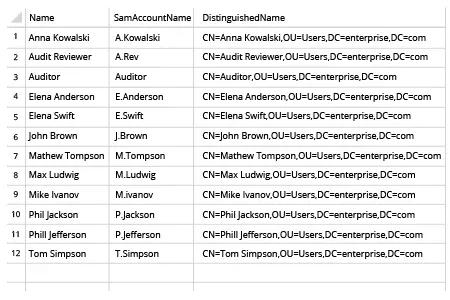
- 스크립트에서 생성된 CSV 파일을 MS Excel에서 여십시오:
Netwrix Auditor for Active Directory
- Netwrix Auditor 실행 → "Reports"로 이동 → "Active Directory" 섹션 확장 → "Active Directory – State-in-Time"로 이동 → "User Accounts" 선택 → "View" 클릭.
- "Days Inactive" 매개변수를 필요한 기간(예: 90일)으로 설정 → "View Report"를 클릭합니다.
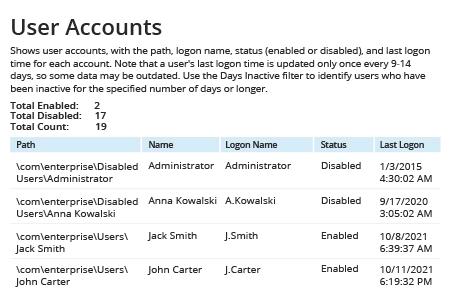
- 보고서를 저장하려면 "Export" 버튼을 클릭 → 드롭다운 메뉴에서 형식을 선택 → "Save"를 클릭합니다.
공유하기