
Netwrix Auditor for Active Directory
- Netwrix Auditor를 실행 → "Reports"로 이동 → "Active Directory" 섹션을 확장 → "Active Directory - State-in-Time"로 이동 → "Account Permissions in Active Directory"를 선택 → "View"를 클릭합니다.
- 아래 필터의 값을 지정한 다음 "View Report"를 클릭하세요:
- 계정 UNC 경로
- 부여됨
- 권한
- 보고서를 저장하려면 "Export" 버튼을 클릭 → 드롭다운 메뉴에서 형식을 선택 → "Save"를 클릭하세요.
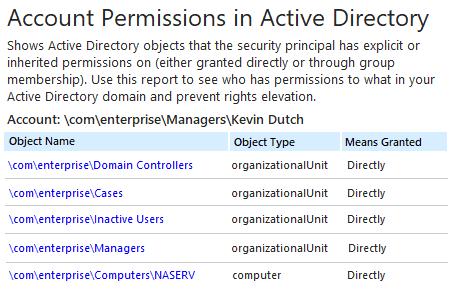
자세히 알아보기: Netwrix Auditor for Active Directory
네이티브 감사
- PowerShell ISE를 열고 → 아래 코드로 새 스크립트를 생성한 다음 내보내기용 사용자 이름과 경로를 지정합니다 → 스크립트를 실행하세요.
      Import-Module ActiveDirectory
# Array for report.
$report = @()
$schemaIDGUID = @{}
# ignore duplicate errors if any #
$ErrorActionPreference = 'SilentlyContinue'
Get-ADObject -SearchBase (Get-ADRootDSE).schemaNamingContext -LDAPFilter '(schemaIDGUID=*)' -Properties name, schemaIDGUID |
 ForEach-Object {$schemaIDGUID.add([System.GUID]$_.schemaIDGUID,$_.name)}
Get-ADObject -SearchBase "CN=Extended-Rights,$((Get-ADRootDSE).configurationNamingContext)" -LDAPFilter '(objectClass=controlAccessRight)' -Properties name, rightsGUID |
 ForEach-Object {$schemaIDGUID.add([System.GUID]$_.rightsGUID,$_.name)}
$ErrorActionPreference = 'Continue'
# Get a list of AD objects.
$AOs  = @(Get-ADDomain | Select-Object -ExpandProperty DistinguishedName)
$AOs += Get-ADOrganizationalUnit -Filter * | Select-Object -ExpandProperty DistinguishedName
$AOs += Get-ADObject -SearchBase (Get-ADDomain).DistinguishedName -SearchScope Subtree -LDAPFilter '(objectClass=*)' | Select-Object -ExpandProperty DistinguishedName
# Loop through each of the AD objects and retrieve their permissions.
# Add report columns to contain the path.
ForEach ($AO in $AOs) {
    $report += Get-Acl -Path "AD:\$AO" |
     Select-Object -ExpandProperty Access |
     Select-Object @{name='organizationalunit';expression={$AO}}, `
                   @{name='objectTypeName';expression={if ($_.objectType.ToString() -eq '00000000-0000-0000-0000-000000000000') {'All'} Else {$schemaIDGUID.Item($_.objectType)}}}, `
                   @{name='inheritedObjectTypeName';expression={$schemaIDGUID.Item($_.inheritedObjectType)}}, `
                   *
} # Filter by single user and export to a CSV file.
$User ='Username'
$report | Where-Object {$_.IdentityReference -like "*$User*"} | Select-Object IdentityReference, ActiveDirectoryRights, OrganizationalUnit, IsInherited -Unique |
Export-Csv -Path "C:\data\explicit_permissions.csv" -NoTypeInformation
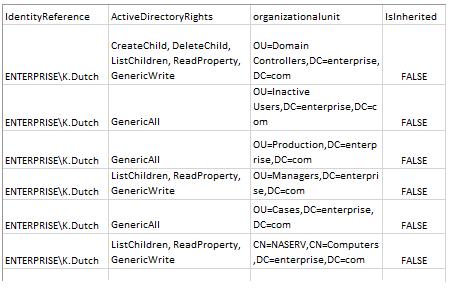
- MS Excel을 시작하고 스크립트에서 생성된 파일을 여세요.
샘플 보고서:
Active Directory 사용자 권한 보고서를 지속적으로 확인해 공격 표면 영역을 줄이세요
적절한 Active Directory 관리와 더 나은 보안을 위해 모범 사례에서는 권한을 Active Directory 그룹 멤버십을 통해 상속받도록 하며, 권한을 명시적으로 할당하지 않도록 요구합니다. 하지만 액세스 권한이 이 원칙을 따르도록 보장하는 것은 어려울 수 있습니다. IT 관리자는 권한이 어떻게 부여되었는지 자세히 설명하는 Active Directory 사용자 권한 보고서를 정기적으로 확인해, 명시적으로 할당된 권한을 제거할 수 있어야 하며, 또한 데이터 소유자와 협업하여 일상 업무에 필요하지 않은 권한을 부여하는 그룹에서 사용자를 제거해야 합니다. 정기적인 권한 검토와 정리는 특권 남용 및 데이터 유출 위험을 최소화하는 데 도움이 됩니다. 하지만 PowerShell 같은 보고 도구에 의존해 보고서를 만들고, 해독하기 어려운 출력물을 검토하는 작업은 모두 시간이 많이 들고 오류가 발생하기 쉽습니다.
Netwrix Auditor for Active Directory는 특정 사용자가 액세스할 수 있는 모든 개체와 권한이 그룹 멤버십을 통해 부여되었는지 또는 명시적으로 부여되었는지를 한눈에 보여주는 포괄적인 보고서를 제공함으로써 PowerShell 스크립팅의 한계를 극복합니다. 사용자가 특정 개체에 대해 정확히 어떤 권한을 보유하고 있는지와 같은 더 자세한 내용을 쉽게 드릴다운으로 확인할 수 있습니다.
공유하기