
기본 제공 솔루션
- PowerShell ISE를 열고 아래의 PowerShell 스크립트로 새 파일을 만든 다음, 컴퓨터 이름과 출력 경로를 입력해야 합니다:
      $cred = Get-Credential
$comp = "PDC"
$session = New-PSSession -ComputerName $comp -Credential $cred
$script = {
"Services:"
Get-WmiObject win32_service -ErrorAction Stop| where {$_.StartMode -like 'Auto' -and $_.Startname -notlike '*local*' -and $_.Startname -notlike '*NT AU*'}| Select-Object Name, DisplayName, State, StartMode, StartName | Format-Table -Property * -AutoSize| Out-String -Width 4096
# To output to CSV, add this string to the previous command: | Export-Csv c:\Out\filename.csv - NoTypeInformation

"ScheduledTasks"
schtasks.exe /query /V /FO CSV | ConvertFrom-Csv | Where { $_.TaskName -ne "TaskName" -and $_.TaskName -like "*powershell*"}|Select-Object @{ label='Name'; expression={split-path $_.taskname -Leaf} }, Author ,'run as user','task to run'| Format-Table -Property * -AutoSize| Out-String -Width 4096
# To export to CSV, add this string to the previous command: | Export-Csv c:\Out\filename.csv - NoTypeInformation
}
Invoke-Command -Session $session -ScriptBlock $script
- 해당 로컬 컴퓨터에서 관리자 권한이 있는 계정의 자격 증명을 사용하여 스크립트를 실행하세요.
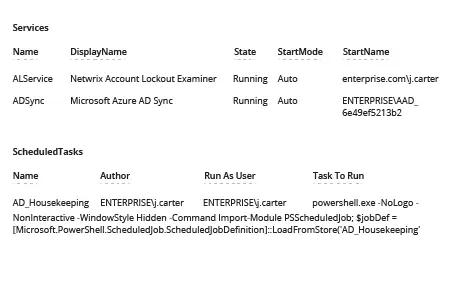
- 생성된 보고서를 검토하세요:
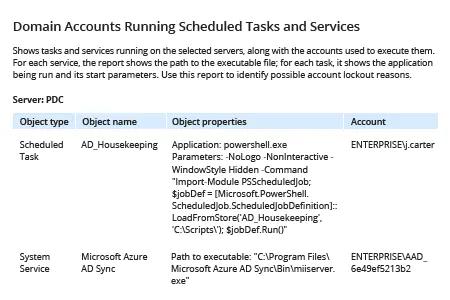
Netwrix Auditor for Windows Server
- Netwrix Auditor를 실행합니다. “Reports”로 이동한 다음 -> “Predefined”를 클릭합니다 -> “Windows Server” 섹션을 확장합니다 -> “Windows Server – State-in-Time”를 클릭합니다 -> “Domain Accounts Running Scheduled Tasks and Services”를 선택합니다 -> “View”를 클릭합니다.
- 특정 서버 또는 워크스테이션에만 보고서를 제한하려면: 필터의 “Server name” 필드에 컴퓨터 이름을 입력 -> “View Report”를 클릭합니다.
공유하기