
SharePoint Online 권한 보고서 받는 방법
SharePoint 권한은 사이트, 라이브러리, 폴더 및 항목 수준에 적용되며, 어느 수준에서든 상속을 끊고 자체 권한을 가질 수 있으므로 '누가 이 파일에 접근할 수 있는지'를 기본적으로 파악하기 어렵습니다. 권한 보고서는 액세스 권한이 있는 모든 사용자와 그룹, 각 권한 수준, 액세스가 상속된 것인지 직접 부여된 것인지를 명시합니다. 시점별 내보내기는 즉각적인 검토를 지원하며, 예약된 보고서는 더 빠르고 쉬운 비교를 위해 기록을 보존합니다.
네이티브 솔루션
- 다음을 다운로드하여 설치하세요: SharePoint Online Client Components SDK.
- PowerShell ISE를 여세요.
- 다음 스크립트를 실행하고 $Url 및 $Path 변수에 적절한 값을 입력하여 SharePoint 사이트 주소와 보고서 출력 경로를 지정하세요:
      #SPO-specific cmdlets require sharepoint-online module
Install-Module -NameMicrosoft.Online.SharePoint.PowerShell
$ServiceURL ="https://enterprise-admin.sharepoint.com"
$URL = "https://enterprise.sharepoint.com"
$Path = "C:\Temp\GroupsReport.csv"
$Cred = Get-Credential
#Connect to SharePoint Online
Connect-SPOService -url$ServiceURL -Credential$Cred
#Generating Report
$GroupsData = @()
#get sharepoint online groups powershell
$SiteGroups =Get-SPOSiteGroup -Site$URL
ForEach($Group in $SiteGroups) {
$GroupsData +=New-Object PSObject-Property @{
'Group Name' =$Group.Title
'Permissions' =$Group.Roles -join ","
'Users' = $Group.Users -join ","
}
}
#Export the data to CSV
$GroupsData |Export-Csv $Path-NoTypeInformation
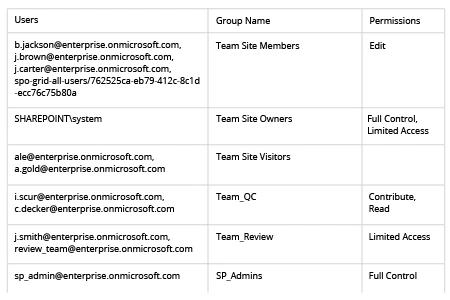
- CSV 보고서를 검토하세요:
Netwrix Auditor for SharePoint
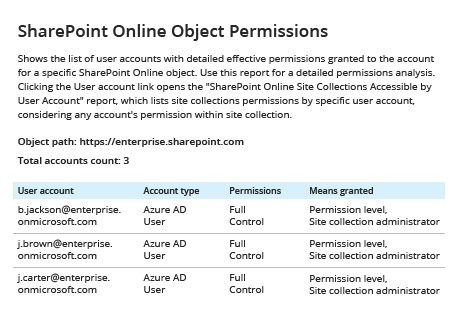
- Netwrix Auditor를 실행하세요. “Reports”로 이동한 다음 “Predefined”를 클릭합니다. “SharePoint Online” 섹션을 확장하고 “SharePoint Online – State-in-Time”로 이동합니다. “SharePoint Online Object Permissions”를 선택한 다음 “View”를 클릭합니다.
- “Object Path” 필드에 사이트 URL을 지정한 다음 -> “View Report”를 클릭하세요.
- 쉽게 이해할 수 있는 보고서를 확인하세요:
- PowerShell: 온프레미스 팜의 단일 Online 사이트 그룹 또는 모든 웹 및 목록에 가장 적합합니다.
SharePoint 권한 보고서는 한 번에 하나의 시스템에 대해 그 질문에 답하지만, SharePoint는 그 답을 쉽게 얻도록 하지 않습니다. 액세스는 사이트, 라이브러리, 폴더 및 항목 수준에서 할당되며, 해당 체인의 어떤 객체도 상속을 끊고 자체 권한 세트를 가질 수 있습니다. 직접 부여, 그룹 멤버십 및 공유 링크가 더 많은 경로에 쌓여 검토자가 풀어야 할 복잡함을 더합니다.
- SharePoint admin center: Microsoft의 Data Access Governance 보고서를 통한 라이선스가 적용된 테넌트 전체 보기용으로 최적입니다.
실무에서 자주 발생하는 문제입니다. 장기간 진행된 Microsoft Q&A thread에서는 관리자가 감사자에게 모든 SharePoint 사이트, 사용자 및 권한의 전체 내보내기 방법을 여러 번 묻는 내용을 볼 수 있습니다. 적절한 방법은 범위, 환경이 Online인지 온프레미스인지, 내보내기 실행 빈도에 따라 다릅니다:
사이트가 새 프로젝트에 공유되고, 아무도 승인한 기억이 없는 멤버가 그룹에 추가되며, 수년 전에 만들어진 라이브러리에는 한눈에 파악할 수 없는 접근 권한이 있습니다. 조직의 74%는 민감한 데이터가 어디에 저장되어 있고 어떤 아이덴티티가 접근할 수 있는지 단일 통합 뷰를 얻지 못한다고 Netwrix 2026 Data and Identity Security Report에 따르면 밝혀졌습니다.
- 전용 감사 플랫폼: 과거 상태 기록이 있는 반복 가능하고 예약된 출력에 적합합니다.
팀이 SharePoint 권한 보고서를 생성하는 이유는 무엇인가요?
권한 내보내기는 일반적으로 다음 요구 사항 중 하나를 지원합니다:
각 내보내기는 특정 시점의 스냅샷입니다. 사이트, 라이브러리, 폴더 또는 항목에 접근 권한이 있는 모든 사용자와 그룹, 각자의 권한 수준, 그리고 해당 객체가 그 접근 권한을 상속받는지 아니면 관리자가 직접 할당했는지를 나열합니다.
- 과도한 공유 조사: 의도보다 더 널리 공유된 후 누가 사이트에 접근할 수 있었는지 검토합니다.
- 퇴사자 점검: 디렉터리에서 퇴사 직원을 제거하면 SharePoint 접근 권한도 해제되었음을 확인합니다.
SharePoint 권한 보고서가 보여주는 내용
- 감사 증거: 접근이 정책과 일치함을 심사자 또는 내부 컴플라이언스에 증명하는 자료입니다.
이 가이드의 각 방법은 아래 필드의 일부 버전을 생성하며, 실제로 내보내기에 포함되는 내용은 권한 모델이 아닙니다.
권한 수준/역할 필드
사용자 및 그룹 할당
각 주체 옆에는 해당 주체가 가진 권한 수준이 표시됩니다: 전체 제어, 편집, 기여, 읽기 또는 사이트 관리자가 정의한 사용자 지정 수준. 온라인 스크립트는 이를 Permissions로 내보내고, 온프레미스 스크립트는 Roles로 내보냅니다.
상속 플래그(상속됨 대 고유)
사이트, 라이브러리 및 항목 수준 항목
Netwrix Access Analyzer는 중첩된 AD 그룹과 SharePoint 상속을 해결하여 과도하게 노출된 민감한 데이터를 표시합니다. 무료 평가판을 다운로드하세요
각 행은 액세스 권한을 가진 주체를 나타냅니다. 이는 SharePoint group 예를 들어 Finance Members, Microsoft 365 그룹, 표시 이름 또는 user principal name(UPN)으로 식별된 개별 계정, 또는 Everyone except external users와 같은 특별한 클레임일 수 있습니다. 온라인 스크립트는 이를 Users로 작성하며, 온프레미스 스크립트는 User/Group으로 작성합니다.
열에는 객체가 상위 객체로부터 권한을 상속받는지 아니면 고유한 권한 집합을 가지는지 기록됩니다. Unique로 표시된 행을 우선시하세요. 해당 객체의 접근 권한이 사이트 기본값과 다르기 때문입니다. 온프레미스 스크립트는 이를 Inheritance로 기록하며, Online 사이트 그룹 스크립트에는 이에 상응하는 열이 없습니다.
SharePoint 관리 센터에서 기본 권한 보고서를 실행하는 방법
각 행에는 웹 제목과 사이트 URL 또는 목록/라이브러리 이름과 목록에 대한 서버 상대 URL 등 설명하는 객체가 포함됩니다. 별도의 사이트 수준 공유 보고서는 게스트와 공유된 파일 및 폴더에 이 개념을 확장하지만, 사이트 관리자만 실행할 수 있습니다.
Microsoft의 Data Access Governance(DAG) 보고서는 SharePoint Online 및 OneDrive에 대한 테넌트 전체 권한 보고의 기본 경로로, SharePoint 관리 센터에서 사용할 수 있습니다. 사이트 소유자는 사이트 설정에서 해당 사이트의 Data Access Governance 세부 정보를 볼 수도 있습니다.
1. 라이선스 및 관리자 액세스 확인
이 보고서를 기반으로 감사를 계획하기 전에 테넌트 라이선스를 확인하세요. 추가 라이선스는 DAG 보고서에 필요하며, 이를 사용하려면 SharePoint 관리 센터에 접근해야 합니다. 테넌트에 해당 추가 라이선스가 없으면 아래 PowerShell 섹션으로 넘어가세요.
특정 사람에 관한 질문일 때는 "사용자별 사이트 권한"을 선택하세요. 이 옵션은 사용자가 직접 할당되었거나 그룹 구성원으로서 접근할 수 있는 모든 SharePoint 및 OneDrive 사이트를 나열합니다.
2. 질문에 맞는 보고서를 선택하고 스냅샷 또는 활동 보기 중에서 선택하세요
테넌트 전체 질문에는 "Site permissions for your organization"을 선택하세요. 이는 모든 SharePoint 및 OneDrive 사이트의 권한 구조 스냅샷으로, 광범위하게 접근 가능하거나 과도하게 공유된 사이트를 찾는 곳입니다.
같은 관리자 센터 영역에는 공유 링크, 파일의 민감도 레이블, 특수 SharePoint 그룹을 통해 공유된 사이트 및 파일, 그리고 "Everyone except external users" (EEEU) 클레임에 대한 보고서도 포함되어 있습니다.
3. 보고서를 실행하고 다운로드하세요
발견 사항 처리 방법
DAG 보고서에는 관리자가 보고서에서 직접 여러 수정 작업을 시작할 수 있는 수정 조치가 포함되어 있습니다.
기본 보고서가 멈추는 곳
Microsoft 365 관리 센터에서 SharePoint 관리 센터를 열고, 보고서를 확장한 다음 Data access governance를 선택하고, 보고서 유형을 선택한 후 보고서 만들기 또는 보고서 실행을 선택하세요. 완료되면 동일한 페이지에서 다운로드하세요.
소유자 그룹 외부의 Full Control 할당을 검토하고 현재 비즈니스 필요가 없는 할당은 표준 least-privilege 원칙에 따라 취소하세요. 적절한 경우 개별 직접 권한 부여를 그룹 멤버십으로 대체하여 다음 검토 시 읽어야 할 행 수를 줄이고, 오래되었거나 너무 광범위한 공유 링크를 삭제하세요.
지금 검토에 스냅샷이 필요한지 활동 보고서가 필요한지 결정하세요. 스냅샷은 기본적으로 현재 권한 상태를 반영하며, 선택하면 과거 상태도 반영하고 "누가 지금 접근 권한을 가지고 있는지"를 보여줍니다. 이는 감사자가 일반적으로 원하는 버전입니다. 활동 보고서는 대신 일정 기간 동안의 공유 및 접근 이벤트를 다루며, 무엇이 변경되었고 누가 공유했는지를 알려줍니다.
PowerShell로 SharePoint Online 권한 보고서 받는 방법
SharePoint Server farm의 경우 또는 비교할 이력이 있는 주기적으로 실행되는 보고서의 경우 PowerShell 또는 전용 도구가 처리합니다.
각 스냅샷은 특정 시점의 tenant를 설명하므로, 지난 분기 보고서는 그때 기록된 권한만 포함합니다. 보고서는 해당 추가 라이선스에 의존하며, SharePoint Online과 OneDrive만 포함하고, 사이트 관리자가 한 번에 한 사이트씩 파일 및 폴더 공유 보고서를 실행해야 합니다.
1. SharePoint Online Management Shell을 설치합니다
SharePoint Online Management Shell 모듈 Microsoft.Online.SharePoint.PowerShell을(를) 아래 스크립트를 실행하기 전에 설치하세요. 일부 환경에서는 여전히 이전 Client Components 소프트웨어 개발 키트(SDK)를 사용하지만, 아래 스크립트는 최신 모듈이 필요합니다.
2. SharePoint Online에 연결하고 보고서 스크립트를 실행합니다
테넌트 관리자 URL에 연결하여 Get-SPOSiteGroup으로 사이트의 모든 SharePoint 그룹을 읽고 결과를 CSV로 작성합니다. 완전한 효과 권한 보고서를 생성하지 않으며 직접 부여, 중첩 또는 외부 멤버십 해석, 공유 링크 및 사이트 수준 아래의 고유 권한을 놓칠 수 있습니다.
3. 내보낸 CSV 보고서를 검토하세요
PowerShell은 더 좁은 필요를 충족하며, 한 사이트의 그룹, 권한 수준 및 표시된 구성원을 쉼표로 구분된 값(CSV) 파일로 다룹니다. 아래 스크립트는 SharePoint 사이트 그룹 멤버십 보고서를 작성합니다.
SharePoint 관리자 권한이 있는 계정으로 PowerShell을 열고, 워크스테이션당 한 번 Install-Module을 실행한 다음 이후 실행에서는 해당 줄을 주석 처리하세요. 유용한 PowerShell 명령어 이 종류의 보고서에는 다음으로 시작하세요 Connect-SPOService 및 Get-SPOSiteGroup, 둘 다 아래에서 사용됩니다.
PowerShell로 온프레미스 SharePoint 권한 보고서 받는 방법
1. SharePoint Management Shell을 엽니다
$Path 위치에서 CSV를 엽니다. $Path 각 행은 사이트의 하나의 SharePoint 그룹이며, 세 개의 열로 구성됩니다: 그룹 이름, 권한(그룹이 가진 권한 수준, 쉼표로 구분), 사용자(표시된 그룹 구성원).
Permissions별로 정렬하여 Full Control 권한이 있는 모든 그룹을 찾은 다음 Users 열을 읽어 각 나열된 구성원이 여전히 해당 그룹에 속하는지 확인하세요. 상속을 끊는 라이브러리, 폴더 및 항목은 별도의 검토가 필요합니다.
2. 권한 보고서 스크립트를 실행하세요
SharePoint Server 팜의 경우 아래 스크립트가 사이트 모음 내 모든 웹을 반복합니다. 고유 역할 할당이 있는 웹 및 목록의 권한을 내보내며, 웹 제목 및 URL, 해당되는 경우 목록 제목, 각 사용자 또는 그룹 및 해당 역할을 포함합니다. 웹 수준 행의 경우 웹의 고유 권한 상태도 출력합니다.
$ServiceURL을(를) 테넌트 관리자 URL로, $URL을(를) 보고할 사이트로, $Path를 CSV 출력 위치로 설정한 다음 스크립트를 실행하세요. 스크립트는 Get-Credential, Connect-SPOService를 사용하며, 를 사용하여 SharePoint 그룹별로 제목, 역할 및 구성원이 포함된 행을 만듭니다.ForEach 루프 to build one row per SharePoint group with its title, roles, and members.
3. 내보낸 CSV 보고서를 검토하세요
CSV를 엽니다. Web Title과 Web URL은 항목이 적용되는 위치를 식별하고, List Title은 웹 또는 목록의 이름을 나타내며, User 또는 Group과 Role은 누가 무엇을 가지고 있는지 기록하며, 마지막 열은 권한이 상속되는지 여부를 기록합니다(웹 항목의 경우).
상속을 고유로 필터링하여 사이트 기본값에서 액세스를 변경한 각 위치를 분리한 다음, 규제된 데이터를 보유한 목록에서 전체 제어 및 기여 역할을 확인하세요.
팜의 서버에서 SharePoint Management Shell을 엽니다. 표준 PowerShell 콘솔을 선호하는 경우 스크립트의 첫 번째 줄이 Microsoft.SharePoint.PowerShell 스냅인을 Add-PSSnapin으로 추가합니다.
Netwrix가 SharePoint 권한 보고를 지원하는 방법
Netwrix Auditor는 과거 상태의 기록을 보존하는 일정에 따라 SharePoint 권한 보고서의 감사 측면으로 해당 증거 추적을 확장합니다.
Netwrix Access Analyzer는 SharePoint 권한 보고서의 증거 작업을 지원합니다. 실제 접근 권한을 계산하여 원시 ACL을 나열하는 대신 중첩된 그룹 구성원, 공유 링크 및 고유 권한을 해결하여 팀이 사용자가 실제로 접근할 수 있는 항목을 확인할 수 있도록 합니다.
SharePoint 권한 보고서의 핵심 내용
보고할 사이트 모음을 $SiteURL에 설정하고 출력 파일을 $Path로 설정한 다음 스크립트를 실행하세요. 이 스크립트는 사이트 모음의 모든 웹을 순회하며, 각 웹의 역할 할당을 기록하고, 상속이 끊긴 목록이나 라이브러리를 기록하며, 완료 시 SPSite 객체를 해제합니다.
First National Bank and Trust of Beloit, 17개 지점을 둔 가족 운영 은행으로, Auditor의 전체 제품군과 SharePoint 지원을 사용하여 Office of the Comptroller of the Currency (OCC) 검사관을 위한 지속적이고 감사 준비가 된 증거를 유지합니다. 준비 시간이 1주일에서 1시간으로 줄었고, 300명의 모니터링 대상 사용자에 대한 일일 활동 검토는 이제 15분이 소요됩니다.
이 기능은 Netwrix의 광범위한 Data Access Governance 제품 내에 포함되어 있으며, SharePoint를 넘어 파일 서버 및 기타 데이터 저장소에 동일한 가시성을 제공합니다.
데모 요청를 통해 Netwrix Access Analyzer와 Netwrix Auditor가 일회성 SharePoint 권한 내보내기를 지속적이고 감사 준비가 된 기록으로 전환하는 방식을 확인하세요.
마이그레이션 중 권한 가시성 단편, 관리 센터는 Online 테넌트를 다루는 반면 SharePoint Server 팜은 별도의 보고가 필요합니다. 마이그레이션 중간의 사이트는 전환 시 두 곳 모두에 권한을 가질 수 있어 출처와 대상 간에 차이가 발생합니다.
권한 수준은 사용자와 그룹에 대한 개별 권한을 묶으며, 상속은 이러한 할당을 사이트, 라이브러리, 폴더 및 항목에 전달합니다.
잘못된 권한 부여, 끊어진 상속, 공유 링크는 사용자가 원래 접근해서는 안 되는 정보를 추가, 조회, 복사, 편집 또는 삭제할 수 있게 할 수 있습니다. 이러한 확산은 하나의 끊어진 상속 체인이나 공유 링크에서 시작될 수 있습니다.
기본 SharePoint 권한 수준 및 각 권한이 부여하는 내용
자동
특정 목록, 라이브러리, 폴더 또는 항목과 해당 항목이 의존하는 공유 리소스에 대한 액세스가 제한됩니다. SharePoint는 사용자가 상위 개체가 아닌 하위 개체에 액세스할 때 이를 자동으로 할당합니다.
게시 사이트는 승인(페이지, 목록 항목 및 문서 편집 및 승인) 및 계층 관리(사이트 생성 및 페이지, 목록 항목 및 문서 편집)를 추가합니다.
사이트의 홈 페이지에는 해당 사이트에 속한 그룹만 표시되며, 실제로 누가 접근할 수 있는지를 결정하는 공유 링크, 상속 끊김 또는 보안 그룹 중첩은 표시되지 않습니다. 과도한 권한과 누가 접근 권한을 가지고 있는지에 대한 가시성 부족은 각각 35%와 37%로 조직에서 보고하는 민감한 데이터 노출의 두 가지 주요 원인입니다. 이는 Netwrix 2026 Data and Identity Security Report 설문조사 결과입니다. SharePoint 권한을 신뢰성 있게 확인하려면 홈 페이지를 넘어 모든 경로를 추적해야 합니다.
SharePoint의 기본 권한 수준은 표준 팀 사이트에서 전체 제어, 디자인, 편집, 기여, 읽기, 보기 전용, 제한된 액세스이며 게시 사이트는 더 많은 수준을 추가합니다. 각 수준은 개별 권한의 고정된 집합이며, 수준은 가장 많은 액세스에서 가장 적은 액세스 순입니다.
각 수준 내의 사이트, 목록 및 개인 권한
Contribute와 Edit는 혼동하기 쉽고, 둘 사이의 경계는 구조적입니다. Contribute 사용자는 라이브러리에서 문서를 업로드, 편집 및 삭제할 수 있지만, 열을 추가하거나 보기를 변경하거나 새 목록을 만들 수는 없습니다.
읽기 권한은 다운로드가 포함되므로 동일한 주의가 필요합니다. 라이브러리에 읽기 권한이 있는 사람은 누구나 그 안의 모든 파일 사본을 다운로드할 수 있으므로, 사용자가 브라우저에서만 콘텐츠를 볼 수 있도록 보기 전용 권한이 존재합니다.
Permission Levels 페이지에서 Full Control 및 Limited Access를 제외한 대부분의 기본 수준을 변경할 수 있습니다. 그러나 내장된 수준을 편집하면 해당 수준이 사용되는 모든 곳에서 의미가 변경됩니다. 가장 가까운 수준을 복사하여 복사본을 편집하세요.
SharePoint는 사이트, 목록 및 개인 범주로 분류된 개별 권한에서 모든 권한 수준을 구성합니다. 권한 수준 편집 페이지를 열면 이러한 확인란이 표시됩니다
사이트 권한은 사이트 자체를 관리합니다:
- 웹사이트 관리
- 권한 관리
- 하위 사이트 만들기
- 페이지 보기
- 권한 나열
목록 권한은 콘텐츠를 관리합니다:
사용자 지정 수준에서 관리 권한과 권한 나열은 반드시 주의해야 할 두 가지로, 함께 사용자가 누가 접근 권한을 갖는지 보고 수정할 수 있게 합니다.
- 목록 관리
- 목록 동작 재정의
- 항목 편집
- 항목 추가
- 항목 삭제
- 열린 항목
- 항목 보기
- 항목 승인
- 버전 보기
- 버전 삭제
- 알림 생성
- 애플리케이션 페이지 보기
종속 권한
잠금 모드
Override List Behaviors는 다른 사용자가 체크아웃한 문서를 폐기하거나 체크인하는 것을 포함합니다. 승인 관련 권한은 별도로 콘텐츠 승인을 처리합니다. 개인 권한은 사용자의 페이지 보기, 개인 보기 관리 및 개인 웹 파트 추가, 제거 또는 업데이트를 제어합니다. 이는 개인이 보는 내용만 변경하므로 거버넌스에 거의 영향을 미치지 않습니다.
종속성 표는 사용자 지정 권한이 어떻게 상호 작용하는지 관리합니다. Manage Lists는 사용자가 목록 내용을 보고 열 수 있는 권한에 의존하므로 편집 페이지에서 선택하면 해당 권한도 함께 선택됩니다. 종속성을 지우면 그에 의존하는 권한도 지워집니다. 이는 사용자가 만드는 모든 사용자 지정 수준에 영향을 미칩니다. "삭제는 하지만 보기 권한은 없음" 권한 세트를 만들 수 없으며, 겉보기에는 최소한으로 보이는 수준도 종속성이 해결되면 의도보다 더 많은 권한을 포함할 수 있습니다.
이 기능을 켜면 익명 사용자와 Limited Access 사용자는 양식과 애플리케이션 페이지를 열 수 없습니다. 일반 방문자가 목록 구조를 탐색하지 않도록 하려는 게시된 사이트에서는 반드시 해야 할 설정입니다.
제한된 액세스 사용자는 소유자가 부여한 단일 항목을 열 수 있도록 허용하는 수준이기 때문에 일반적으로 목록 양식과 같은 애플리케이션 페이지에 접근할 수 있습니다. Microsoft는 이를 위해 사이트 모음 기능인 제한된 액세스 사용자 권한 잠금 모드를 제공합니다.
SharePoint 그룹 및 권한 수준과의 매핑 방법
- 방문자는 읽기 권한을 가집니다.
- 구성원은 목록 생성 및 삭제뿐만 아니라 항목 수준 변경을 포함하는 Edit 권한을 가집니다.
이 그룹을 생성, 편집 및 감사하는 일상 업무에 대해서는 SharePoint 권한 그룹 관리 방법. Owners, Members 및 Visitors는 각 팀 사이트에 기본 제공되며 각각 하나의 수준을 가집니다.
Microsoft 365 그룹에 연결된 팀 사이트에서 Owners 및 Members 그룹은 해당 그룹의 구성원을 기반으로 합니다. Teams 팀이나 Microsoft Entra ID의 그룹에 사용자를 추가하면 해당 사용자가 편집 권한이 있는 SharePoint Members 그룹에 배치됩니다.
- 소유자는 전체 제어 권한을 가지며 사이트, 권한 및 그룹을 관리합니다.
사용자 지정 그룹 또는 사용자 지정 권한 수준?
대부분의 액세스는 그룹 기반 할당을 통해 이루어지며, 개인에 대한 직접 할당보다는 SharePoint 그룹이 사용자와 Active Directory 또는 Microsoft Entra ID security groups를 보유하고, 권한 수준은 SharePoint 그룹에 연결됩니다.
Netwrix Access Analyzer는 중첩된 AD 그룹과 SharePoint 상속을 해결하여 과도하게 노출된 민감한 데이터를 표시합니다. 무료 평가판을 다운로드하세요
권한 상속이 작동하는 방식과 이를 중단하거나 복원하는 방법
그룹 질문과 수준 질문을 결정하세요 별도로. 동일한 사람들이 여러 사이트에서 일관된 액세스가 필요하거나 비즈니스 역할(프로젝트 관리자, 감사자, 계약자 그룹)이 Owners, Members 또는 Visitors와 일치하지 않을 때 사용자 지정 그룹을 만드세요.
기본 수준이 맞지 않을 때 사용자 지정 권한 수준을 만드세요. 예를 들어, 기록 라이브러리를 위한 "삭제 없이 기여" 수준이나 알림 생성도 허용하는 읽기 수준이 있습니다. 가장 가까운 기본 수준을 복사하여 조정해 사용자 지정 수준을 만들면 종속성이 유지되고 기본 수준은 표준으로 남습니다.
새 목록, 라이브러리, 폴더 또는 항목이 권한을 상속합니다 상위 항목에서, 사이트는 사이트 컬렉션 루트에서 상속합니다. 상단의 Members 그룹을 변경하면 변경 사항이 하위의 모든 상속 개체에 적용됩니다.
라이브러리, 폴더 또는 항목에 고유한 액세스 목록을 부여하려면 고유 권한을 할당하기 전에 상위 항목으로부터 상속을 끊어야 합니다. 객체는 상위 항목 권한의 복사본으로 시작한 후 자체 경로를 따릅니다.
- 상위 항목에 대한 이후 변경 사항은 더 이상 객체에 적용되지 않습니다. 사이트의 구성원 그룹에서 떠난 계약자를 제거하더라도 상위 수준 권한 변경이 고유 권한이 부여된 라이브러리에 영향을 미치지 않으므로 상속이 끊긴 라이브러리를 검토해야 합니다.
- 누군가에게 하위 권한을 부여하면 제한된 액세스 항목이 사이트 루트까지 각 상위 항목에 표시되며, 이로 인해 시간이 지남에 따라 사이트 권한 페이지에 이러한 항목이 쌓이게 됩니다.
견고한 SharePoint 권한 전략 계획
동료와 단일 문서를 공유하면 해당 항목에 고유한 권한 범위가 부여되므로 사용자가 자유롭게 공유하는 라이브러리는 권한 UI를 열지 않아도 수백 개의 고유 권한 범위를 가질 수 있습니다. 상속 복원은 이 모든 것을 되돌립니다.
권한 전략은 사이트와 콘텐츠가 쌓일 때 기본 동작에 맡기지 않고 의도적으로 이러한 결정을 내릴 때만 유지됩니다:
- 사이트 계층 구조를 구축하기 전에 권한을 중심으로 설계하세요. 서로 다른 대상이 있는 콘텐츠는 서로 다른 사이트나 적어도 서로 다른 라이브러리에 있어야 하며, 상속이 작업을 수행합니다. 공유 라이브러리 내 폴더에 고유 권한을 나중에 적용하면 권한 확산이 발생할 수 있습니다.
개체의 권한 페이지에서 고유 권한 삭제를 선택하면 개체가 상위 항목에서 상속받도록 돌아가며, 중단 이후에 이루어진 모든 고유 할당이 삭제됩니다. 상위 항목의 권한이 원하는 대로라면, 이는 권한이 변경된 라이브러리를 가장 빠르게 정리하는 방법입니다.
실제 테넌트와 접촉해도 유지되는 규칙은 권한 수준 및 그룹에 대한 Microsoft 자체 계획 지침보다 더 엄격합니다. 작업을 수행할 수 있는 가장 제한적인 수준을 그룹에 할당하고 개인이 아닌 그룹에 할당하며, 대상에 맞는 계층 구조의 가장 높은 지점에 할당하세요.
- 항목 수준 권한의 광범위한 사용을 피하십시오. 항목 수준의 단편화는 아무도 정리하지 않아 조용히 누적됩니다. 비즈니스 필요로 인해 고유 권한이 필요할 때는 필요가 끝나는 즉시 상속을 복원하십시오.
- 소수의 알려진 소유자에게만 전체 제어 권한을 예약하세요. 전체 제어에는 Manage Permissions가 포함되어 있어 모든 소유자가 누구에게나 모든 권한을 부여할 수 있습니다. 액세스 검토 주기 동안 각 사이트 모음의 Owners 그룹을 검토하세요.
모던 UI에서 SharePoint 권한 수준을 보는 방법과 변경하는 방법
- 사이트 수준에서 외부 공유 및 액세스 요청을 관리하세요.외부 공유 설정은 사용자가 게스트와 공유할 수 있는지 결정하며, 액세스 요청 설정은 규제된 데이터를 보유한 사이트에서 방문자의 접근을 누가 승인하는지 결정합니다.규제된 데이터에 대한 액세스 요청을 지정된 소유자에게 전달하세요. 승인된 액세스 요청은 수동 할당과 동일한 권한 수준을 부여합니다.
모든 목록과 라이브러리에는 액세스를 보고, 변경하거나 제거할 수 있는 자체 권한 페이지가 있으며, 동일한 제어 기능이 사이트 수준의 사이트 권한에 있습니다. 어떤 페이지를 여느냐에 따라 해당 페이지에서 수행하는 모든 변경의 범위가 결정됩니다.
1. 권한 페이지를 엽니다
2. 사용자 또는 그룹의 권한 수준 변경
- 권한을 일정에 따라 검토하세요. 그룹 구성원, 공유 링크 및 상속 중단은 검토 사이에 변경될 수 있습니다. Netwrix 2026 Data and Identity Security Report에 따르면 조직의 76%가 더 이상 필요하지 않은 민감한 데이터에 대한 액세스를 즉시 자동으로 제거하지 않는 것으로 나타났습니다. 검토를 기존 access certification cycle에 연결하고, 규제 환경에 실용적인 시작 주기로 분기별 패스를 사용하세요.
3. 사용자의 권한 제거
4. 사용자 지정 권한 수준 만들기
사용자 또는 그룹을 선택한 후 사용자 권한 제거. 이렇게 하면 이 객체에 대한 직접 항목만 제거됩니다. 사용자가 SharePoint 그룹이나 공유 링크를 통해서도 객체에 접근하는 경우 해당 경로는 열려 있으므로, 제거 후에는 반드시 권한 확인을 실행해야 합니다.
특정 사용자의 SharePoint 권한 확인 방법
사용자 또는 그룹 옆의 확인란을 선택하고 사용자 권한 편집 리본 메뉴에서 새 수준을 선택하고 이전 수준의 선택을 해제합니다. 개체가 여전히 상속 중이면 리본 메뉴에 권한 상속 중지가 대신 표시됩니다. 먼저 선택하고 확인하면 편집 컨트롤이 나타납니다.
1. 권한 확인 열기
SharePoint 사이트 설정을 열고 사이트 권한을 선택한 다음 전체 권한 설정 페이지를 엽니다.
사이트의 경우 톱니바퀴 아이콘을 선택한 후 Site permissions를 선택하여 전체 권한 설정 페이지를 엽니다. 목록이나 라이브러리의 경우 설정을 열고 Permissions for this list 또는 Permissions for this document library를 선택합니다. 페이지에는 액세스 권한이 있는 모든 사용자 및 그룹과 각 권한 수준, 그리고 해당 개체가 상위 개체에서 상속하는지 여부를 나타내는 배너가 표시됩니다.
기본 제공 Check Permissions 도구는 한 사이트에서 한 사용자 또는 그룹에 대해 "이 사람이 여기서 무엇을 할 수 있나요?"라는 질문에 답합니다. 권한 수준(Read, Contribute, Full Control 또는 다른 수준)과 부여 방식을 반환합니다.
2. 검사를 실행하세요
3. 결과 검토
리본에서 Check Permissions를 선택하고, 액세스를 확인하려는 사용자 또는 그룹 이름을 입력한 다음 Check Now를 선택합니다.
대화 상자에는 사용자가 가진 각 권한 수준과 이를 부여하는 그룹 또는 직접 할당이 나열됩니다. 예를 들어, "Marketing Members 그룹을 통해 부여된 편집" 또는 "직접 부여된 전체 제어"가 있습니다.
사이트 모음 루트에서 Site permissions 을 선택한 다음 리본에서 Permission Levels 을 선택하고, 그 다음 Add a Permission Level 을 클릭하여 이름을 지정하고 포함할 개별 권한을 선택합니다. 기존 레벨을 편집 페이지에서 복사하여 수정하는 것이 더 빠르며 기본 레벨은 변경되지 않습니다.
팀이 SharePoint 권한 보고서를 생성하는 이유
Check Permissions는 한 번에 하나의 사이트에 대해 하나의 주체를 검사하므로, 수십 개 사이트에 접근 권한이 있는 사용자는 사이트별로 검사가 필요합니다. 대화 상자는 결과를 화면에만 표시하므로, 이를 기반으로 액세스 검토를 작성하려면 다시 입력해야 합니다.
사이트 범위만 보고합니다. 사용자가 세 개 폴더 깊이에서 공유받은 문서는 해당 객체의 Permissions 페이지에서 동일한 확인을 실행하지 않으면 나타나지 않습니다. "이 계약자가 여전히 재무 사이트에 접근할 수 있나요?"와 같은 일회성 질문에는 Check Permissions가 적합한 도구입니다. 더 넓은 범위는 스크립트나 보고서가 필요합니다.
Check Permissions는 한 사이트의 한 사람에 대한 답변을 제공합니다. 질문이 전체 라이브러리나 전체 테넌트를 포함할 경우에는 내보내기가 필요합니다. 팀은 감사 전이나 공유 사고 후에, 누가 특정 라이브러리에 접근할 수 있는지 서면으로 증명해야 할 때 내보내기를 수행합니다.
Copilot 및 SharePoint 권한
PowerShell, 상태 시점 보고 도구 또는 권한 페이지를 수동으로 탐색하여 생성합니다. 결과는 지정한 사이트 전반의 모든 주체, 권한 수준 및 범위를 평면화한 내보내기 파일로, 필터링, 정렬 및 다음 검토 주기에 보관할 수 있습니다.
Copilot 결과는 사용자가 접근할 수 있는 콘텐츠에 따라 달라지므로, 지나치게 광범위한 읽기 권한 부여와 잊혀진 공유 링크가 프롬프트가 반환할 수 있는 범위를 넓힐 수 있습니다. 실제로, 아무도 찾아내지 못할 파일이 누군가 요청하면 검색 가능합니다.
Netwrix 2026 Data and Identity Security Report에 따르면 조직의 79%가 AI 도구, 모델 또는 코파일럿에서 사용되는 민감한 데이터에 대한 완전한 가시성을 갖고 있지 않습니다.
Netwrix Auditor로 SharePoint 권한 확인하는 방법
해당 내보내기를 만들고 각 필드가 의미하는 바를 아는 것은 별도의 과정입니다. 다음을 참조하세요 SharePoint Online 권한 보고서 받는 방법 SharePoint Online 및 온프레미스 팜용 PowerShell 스크립트, 기본 관리 센터 경로, 내보낸 각 열의 의미.
방문자 그룹에 "Everyone except external users"가 포함된 인사 사이트를 상상해 보세요. 이는 Copilot 이전에 잠재적인 문제였으며, Copilot 이후에는 급여 범위에 관한 프롬프트가 이를 드러낼 수 있습니다. 민감한 콘텐츠가 있는 사이트에서 어떤 그룹이 읽기 권한을 가지고 있고, 어떤 라이브러리가 광범위한 접근 권한을 부여하는 고유 권한을 가지고 있는지 검토하는 것은 Copilot이 접근할 수 있는 범위를 결정하는 사전 작업입니다.
1. SharePoint에서 계정 권한 보고서를 엽니다
SharePoint 권한 보고서는 현재 액세스, 권한 변경 및 반복 가능한 검토에 필요한 증거를 포함합니다. Netwrix Auditor는 시점별 SharePoint 보고서, 권한 변경 감사, 변경 이력 및 사이트 컬렉션 전반에 걸친 규정 준수 증거를 제공합니다. 이는 기본 도구가 사용자별로 답하는 동일한 액세스 질문을 다룹니다.
2. 사이트 모음에 들어가서 필터링하세요
범위 간 권한 증거를 필터링 가능하고 내보내기 가능하며 예약 가능하게 만들어, 화면 상에서 단일 주체를 확인하는 것과 사이트 모음 전체에 걸친 반복 가능한 접근 검토 사이의 Microsoft 기본 보고 격차를 메웁니다. 보고서 트리에서 SharePoint와 SharePoint Online은 별도의 보고 위치로 표시되며, 그 아래의 탐색 경로가 다릅니다.
3. 결과 내보내기
분기별 검토가 누군가가 보고서를 직접 불러오는 것을 기억하지 않아도 되도록 이메일로 보고서 구독을 예약하세요.
현재 상태를 넘어 Auditor는 상속이 끊긴 객체를 나열하고 권한, 권한 수준, 권한 상속, 그룹 구성원 및 보안 정책 변경 사항을 감사합니다. 각 변경을 누가, 언제, 어디서 했는지, 어떤 SharePoint 그룹 또는 사용자가 영향을 받았는지, 변경 전후 값을 기록합니다. Auditor는 구성 변경 및 데이터 읽기 또는 수정 시도도 추적합니다.
보고서의 필터 창에서 사이트 모음을 Object Path 필드에 지정한 다음 View Report를 클릭하세요. 기본적으로 지정된 사이트 모음 내 모든 개체에 대해 Full Control 권한이 표시됩니다. 필터를 사용하여 특정 권한 수준 및 목록, 라이브러리 또는 사이트 모음 내 특정 항목과 같은 보안 가능한 개체로 보고서를 제한하세요.
클릭 Export → 드롭다운 메뉴에서 형식을 선택 → 클릭 Save.
표시한 사이트에서 Full Control 권한 부여나 상속 체인 단절과 같은 중요한 권한 변경에 대해 미리 정의된 알림이나 사용자 지정 알림을 사용할 수 있습니다. 흩어진 고유 권한 범위를 정리하고 날짜가 기록된 스냅샷을 보관하면 감사 준비 시 증거 수집 기간을 단축할 수 있습니다.
Netwrix Auditor를 열고 Reports로 이동한 다음 SharePoint (또는 Microsoft 365 테넌트의 경우 SharePoint Online)를 확장하고 State-in-Time을 열고 Account Permissions in SharePoint를 선택한 다음 View를 클릭합니다.
환경 전반에서 SharePoint 액세스 권한을 가시적으로 유지
First National Bank and Trust of Beloit, 17개 지점을 가진 가족 운영 은행은 Netwrix Auditor의 전체 제품군과 SharePoint 지원을 활용하여 Office of the Comptroller of the Currency (OCC) 감사 준비 시간을 1주일에서 1시간으로 단축했습니다.
Netwrix Auditor는 SharePoint 상태 시점 보고, 권한 변경 감사 및 규정 준수 증거를 다룹니다. Netwrix Access Analyzer는 중첩 그룹 멤버십을 해결하고 파일 서버 및 Active Directory 전반에서 실제 접근 권한, 즉 누가 무엇에 실제로 접근할 수 있는지를 보여줌으로써 더 광범위한 데이터 접근 거버넌스 분석을 지원합니다.
40개 이상의 데이터 수집 모듈이 엔터프라이즈 데이터 검색, 분류 및 액세스 거버넌스를 지원합니다. 이 두 제품은 SharePoint 권한 증거를 액세스 뒤의 ID 경로와 연결합니다.
권한 수준, 그룹 및 상속은 SharePoint 액세스가 어떻게 작동해야 하는지를 설명합니다. 공유 링크, 그룹 변경 및 SharePoint Online에서 상속이 중단되는 라이브러리마다 설계와 사용자가 실제로 접근할 수 있는 범위 간의 차이가 커집니다. file servers 및 SharePoint Server 팜.
데모 요청를 통해 Netwrix Auditor와 Netwrix Access Analyzer가 SharePoint 권한 데이터를 예약된 보고서와 감사 증거로 변환하는 방법을 확인하세요.
SharePoint 권한 확인 방법에 대한 자주 묻는 질문
공유하기