
Ultimate Guide to Group Policy Management in Active Directory
Sep 6, 2026
Group policy management determines whether a domain enforces consistent security settings or drifts into configuration chaos one unaudited change at a time. Creating, linking, filtering, enforcing, delegating and backing up policy objects are the daily mechanics, while inheritance and precedence decide which setting wins when two conflict. Permissions on those objects turn misconfiguration into an attack path.
Group policy remains the primary mechanism Windows administrators use to enforce configuration and security settings across Active Directory domains. A single Group Policy object, placed at the right point in the directory, can set password requirements, strip local admin rights, or map a network drive for every account beneath it.
None of that requires touching an individual machine, which is why Group Policy has survived more than two decades of Windows administration largely unchanged.
The same reach that makes Group Policy useful also makes it hard to keep clean, and most domains accumulate GPOs faster than they retire them. A setting gets added to resolve a one-off request, and nobody removes it. Edit permissions get delegated to a team that reorganized two years ago.
A policy scoped to a single organizational unit (OU) gets relinked at the domain root during a troubleshooting session and stays there. The settings still apply reliably, but the policy layer no longer reflects what anyone actually intended, and no one can say which GPO enforces a given control or when it was last reviewed. Keeping the policy layer accurate as it grows is a discipline in its own right, separate from the mechanics of clicking through the console
What is group policy management?
A group policy object (GPO) is a container of settings that Active Directory applies to users and computers within its scope. Administrators create and link GPOs through the Group Policy Management Console (GPMC), and Active Directory automatically enforces those settings at the next policy refresh.
Group policy management is the ongoing work of creating, linking, auditing, and retiring these objects to ensure they continue to match the organization's actual needs.
GPOs typically manage four categories of settings:
- Configurations: Desktop settings, startup scripts, and logon and logoff scripts applied consistently across a group of machines.
- Security: Password policies, account lockout thresholds, and firewall rules that enforce a baseline regardless of who logs on, covered in more depth in the group policy settings admins get wrong most often.
- Access: Permissions to shared folders, printers, and applications scoped to specific organizational units (OUs).
- Software deployment: Install and schedule patches on selected machines without manual intervention.

Every GPO splits its settings into Computer Configuration (applied when a machine starts, regardless of who logs in) and User Configuration (applied at logon). Within each, administrators choose between Policies and Preferences. Policies are centrally enforced at refresh, while Preferences are designed for settings users can adjust locally
A password policy belongs in Policies, since a user who could override it would defeat the point of setting it in the first place. A default printer mapping belongs in Preferences, since forcing it as an unchangeable policy just generates help desk tickets from users who legitimately need a different printer.
Mixing these up doesn't break anything visibly, but it means the wrong settings become the ones users can't work around, and the wrong settings become the ones they can.
Why group policy management is important
Group policy isn't a set-and-forget feature. How well an organization manages its GPOs determines whether policy enforcement remains reliable as the domain grows or quietly breaks down.
Centralized security enforcement
A single GPO linked at the right scope applies a security baseline, such as a password policy or a firewall rule, to every computer and user under it. That consistency is difficult to replicate through manual configuration once a domain passes a few dozen endpoints.
Consistent configuration across the domain
GPOs eliminate the need to configure desktop settings, mapped drives, and startup scripts on a machine-by-machine basis. New computers and user accounts inherit the correct configuration automatically, reducing support tickets and the configuration drift that accumulates when admins configure systems by hand.
Operational efficiency
Well-managed GPOs reduce repetitive manual work and speed up troubleshooting. When a setting misbehaves, an administrator who knows exactly which GPOs are linked to the affected OU can isolate the cause in minutes rather than auditing every machine individually. Larger domains run into a specific set of group policy challenges as GPO count grows, from sprawl to inheritance chains nobody remembers building. Most of those challenges trace back to skipping this kind of ongoing housekeeping.
Compliance and audit evidence
Regulators and auditors expect documented evidence that security settings, such as password complexity or account lockout thresholds, apply consistently across the environment. GPOs enforce those settings. A domain that can name the GPO behind a given control, point to its last review date, and identify its owner turns an audit request from a scramble into a five-minute lookup.
The security risk of misconfigured GPOs
GPO misconfiguration is a documented attack vector with real incidents. Attackers who gain edit permissions on a GPO, whether through excessive delegation or a compromised admin account, gain a powerful lever. They can push malicious startup scripts, disable security controls domain-wide, or create a privilege-escalation path that extends far beyond the originally compromised account.
Ransomware operators have used weak GPO permissions and writable script paths for lateral movement because a single GPO edit can reach every machine the policy affects. Those scripts live in SYSVOL, the replicated share every domain controller hosts, so write access there reaches the whole domain. A quarterly review should check for:
- Edit permissions granted to non-admin accounts.
- Startup or logon scripts stored on shares with weak write permissions.
- GPOs linked at the domain level rather than scoped to a specific OU.
Any of the three is worth fixing on its own. Finding more than one at once signals the review is overdue.
According to the Netwrix 2026 Data and Identity Security Report, only 36% of organizations surveyed ran a comprehensive Active Directory security assessment in the past 12 months. The same report found that 74% aren't fully confident their AD environment is free of misconfigurations that could enable privilege escalation. GPO permissions are among the more common blind spots behind that lack of confidence, since a misconfigured GPO can create a privilege-escalation path that a broader identity review might miss entirely.
That kind of review catches most GPO-related exposures before they become incidents. Teams that skip it tend to discover the gap during an audit or, worse, during an investigation. This is also where group policy best practices pay off in ways that are hard to see day to day but obvious the first time something goes wrong.
Netwrix Auditor records before-and-after values for access and change events across hybrid Microsoft environments. Download a free trial
How to manage group policy objects
Managing GPOs covers a defined set of tasks, from installing the console through creating, linking, scoping, and eventually retiring policy objects. Most of these tasks require membership in the Domain Admins group or an equivalent delegated permission.
Native GPMC handles every task below without additional software. Teams juggling hundreds of GPOs across multiple domains, though, often layer a dedicated group policy management tool on top for reporting, change history, and bulk operations GPMC doesn't handle well on its own.
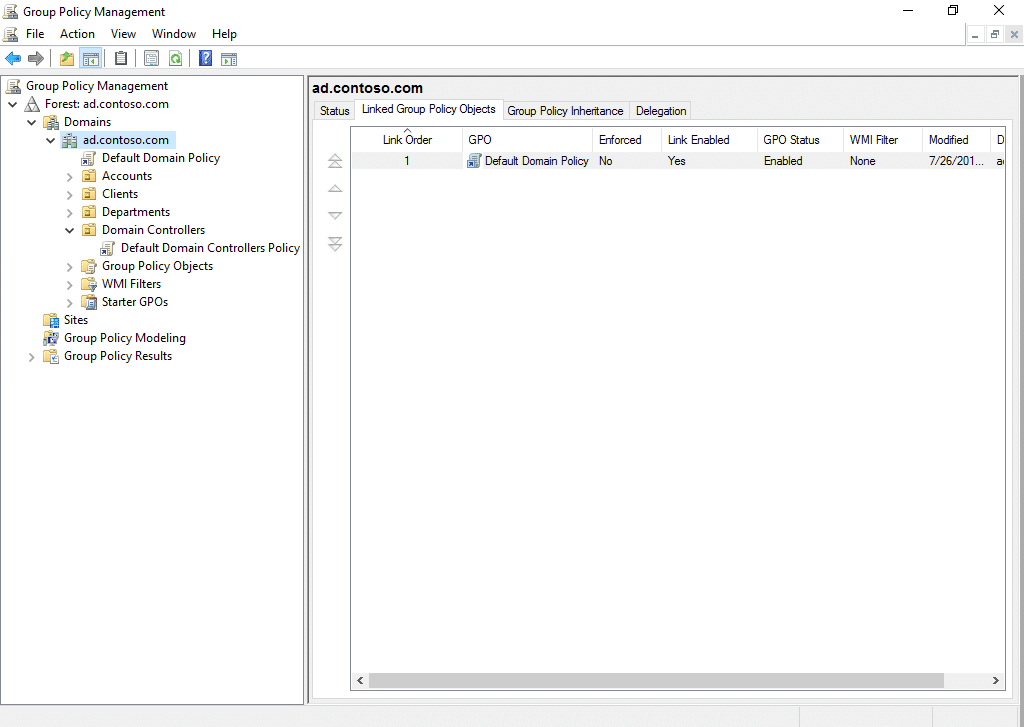
Install the Group Policy Management Console
The Group Policy Management Console (GPMC) is the primary interface administrators use to create, link, and manage GPOs across a domain. It presents every forest, domain, site, and OU a GPO can target in a single tree view.
It also shows the Group Policy Objects container, where every GPO in the domain lives, whether or not it's currently linked anywhere. GPMC is typically installed as part of the management tools, but you can add or remove it on domain controllers. To manage group policy from a member server or a workstation, install it separately.
On Windows Server:
- Open Server Manager, select Manage, then Add Roles and Features.

2. Choose either Role-based or feature-based installation, then click Next.

3. Select the target server and click Next through Server Roles.

4. On the Features page, select Group Policy Management, then click Next.

5. Complete the wizard and click Install.

On Windows 11:
- Open Settings with Win+I and go to System > Optional Features.
- Select View features, search for "group policy," and check RSAT: Group Policy Management Tools.
- Click Install.

Windows 11 Home doesn't support this installation path because RSAT features require Windows 11 Pro, Enterprise, Education, or Pro for Workstations.
Netwrix PingCastle scores an Active Directory domain against known attack paths and flags GPO weaknesses such as risky delegation and writable script paths. Download a free trial
Create a GPO
Every domain starts with two default GPOs: the Default Domain Policy and the Default Domain Controllers Policy, which set baseline settings such as password requirements. Avoid editing these directly. Instead, create a new GPO for any custom configuration:
- Open Server Manager, click Tools, and select Group Policy Management.

2. In GPMC, expand the domain, right-click the target OU or domain, and select Create a GPO in this domain and Link it here.

3. Give the GPO a descriptive name that identifies its purpose and target scope, then click OK.

Creating and linking a GPO in one step, as above, is the fastest path. To create an unlinked GPO instead, right-click Group Policy Objects and select New. The GPO has no effect until you link it to a container.
Edit a GPO
A newly created GPO starts empty. To configure it:
- Right-click the GPO and select Edit to open the Group Policy Management Editor.

This opens the Group Policy Management Editor, a separate window from GPMC itself, where the actual policy settings live.

2. Navigate to the relevant node under Computer Configuration or User Configuration and set the policy values your environment requires.
3. Confirm the settings under the GPO's Settings tab before linking it anywhere.
Link a GPO to a domain, OU, or site
Linking is what makes a GPO take effect. A GPO can link to a domain (affects everyone), a site (affects everyone at that physical location), or an OU (affects only the objects inside it, plus any sub-OUs).
- Right-click the target container in GPMC and select Link an Existing GPO.

2. Choose the GPO to apply and click OK.

Scoping links to specific OUs rather than the domain root keeps the blast radius of any single policy change contained to the group that actually needs it.
Apply security filtering
By default, a linked GPO applies to every authenticated user and computer within its scope. Security filtering narrows that scope to specific users, groups, or computers. It matters most when a GPO carries a setting intended for one department or one tier of machines within a broader OU that includes other groups.
Security filtering doesn’t change where a GPO is linked; it changes which users, groups, and computers within that scope receive the policy, based on their Read and Apply Group Policy permissions
- Open the GPO's Scope tab and find the Security Filtering pane.
- Select Authenticated Users, click Remove, then click Add and specify the accounts or groups the policy should target.

Removing Authenticated Users has a catch that can quietly break GPOs. Since Microsoft's MS16-072 update, Windows retrieves user policy in the computer's security context rather than the user's, so the computer account needs Read access to the GPO for the policy to apply at all.
Filter a GPO down to a user group alone, and it stops working, with no obvious error to explain
why. Adding Domain Computers with Read permission alongside the target group keeps the policy functioning while still narrowing who it applies to.
A GPO that disables local admin rights might link to an OU containing both standard workstations and a handful of jump boxes that legitimately need local admin for troubleshooting.
Without security filtering, that GPO locks out the jump boxes too. This is also where to audit which permissions a GPO's security filtering actually grants. Filters drift as teams reorganize, and group membership stops matching its original intent unless someone circles back to clean it up.
Block GPO inheritance
An OU can block GPOs inherited from its parent domain, site, or OU, which stops higher-level policies from reaching it. Right-click the OU in GPMC and select Block Inheritance.
Use this sparingly, since it can hide security settings that a higher-level GPO enforces for a reason.

An administrator who sets Enforced on the higher-level GPO overrides any Block Inheritance setting below it, which is the safety valve that keeps a blocked OU from silently dropping a mandatory control.
Netwrix Privilege Secure grants administrative access only for the duration of a task, so no account keeps standing GPO edit rights between changes. Request a demo
Enforce a GPO
Enforcing a GPO ensures it takes precedence over conflicting settings from other GPOs and overrides Block Inheritance at any level beneath it. GPMC exposes the option in two places, and both toggle the same flag on the same link.
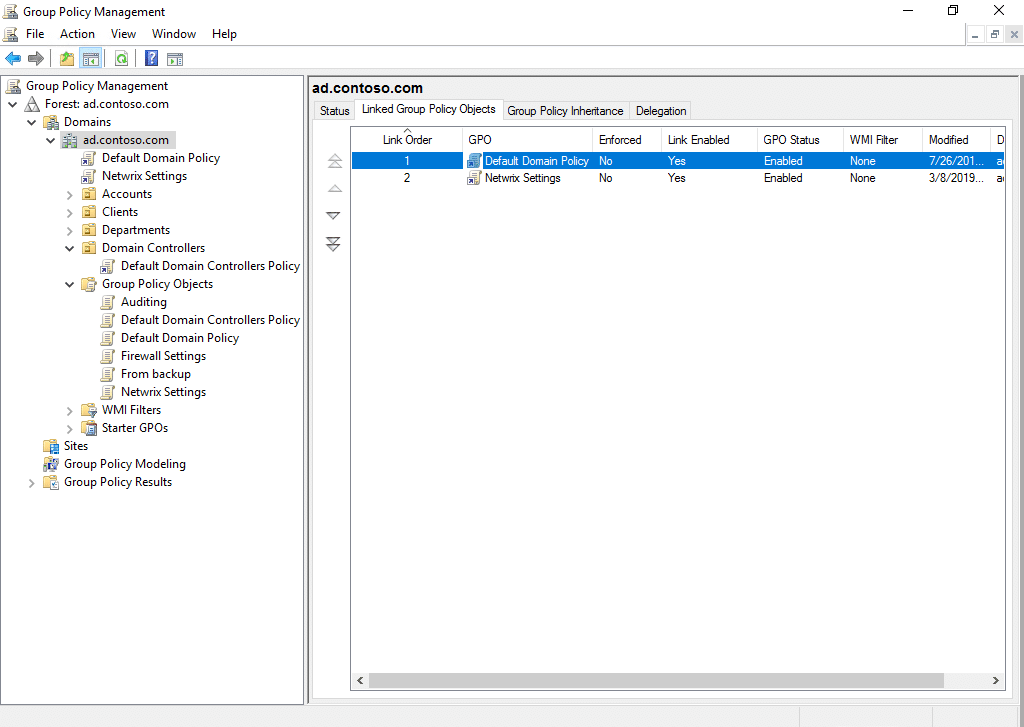
- Select the container that holds the GPO link, then open its Linked Group Policy Objects tab. The Enforced column shows the current state of every GPO linked there, which is the quickest way to see what's already enforced before changing anything.
- Right-click the GPO in that list and select Enforced.

3. To reach the same setting from the left-hand tree instead, expand the container, right-click the GPO link beneath it, and select Enforced.

4. Confirm the change took effect. The Enforced column switches from No to Yes, and GPMC adds a small padlock icon to the link in the tree.
5. Open the Group Policy Inheritance tab on a child OU to verify the enforced GPO now sits at the top of the precedence order, ahead of anything linked closer to the object.
Reserve enforcement for policies that must never be overridden, such as baseline security settings. Applied too broadly, it removes flexibility for OUs further down the hierarchy and can mask a legitimate business need for an exception. Unchecking Enforced reverses it immediately, with no other cleanup required.
Delegate permissions for a GPO
By default, Domain Admins and Enterprise Admins control every GPO. Larger teams often need to delegate specific tasks, such as editing a particular GPO, without granting full domain admin rights.
- Select the GPO, open the Delegation tab and review the existing Groups and users list before making changes. The Inherited column matters here: an entry marked Yes comes from a parent container, so removing it means editing the parent, not this GPO.
- Click Add once the current state is clear.

3. Type the account or group into the Select Users, Computers, or Groups dialog, click Check Names to resolve it against the domain, then click OK.

4. Pick the narrowest option in the Select GPO Permission dialog that still lets the person finish their job, then click OK. Read permits viewing only. Edit settings permits changing policy values. Edit settings, delete and modify security add the ability to delete the GPO outright and change who else can reach it.

5. Confirm the result on the Delegation tab. The account should now appear in the Groups and Users list with exactly the assigned permission level, and nothing more.

Those three options cover most delegation needs. For anything more granular, the Advanced button opens the GPO's full access control list, though editing permissions at that level makes the result harder to audit later.
One entry in that list is worth understanding, not editing. Authenticated Users usually shows Read with a note that it comes from security filtering, which is the permission that lets the policy apply in the first place. Removing it to tighten delegation stops the GPO from applying at all.
A help desk lead who only troubleshoots printer GPOs needs Edit settings on those specific GPOs, which is exactly what the delegation list above shows. Granting that same account edit, delete, and modify security rights across every GPO in the domain would hand over far more than the role requires.
Delegating only what each administrator needs applies the principle of least privilege to GPO management itself and limits how much damage a single compromised account can cause. Over-delegated GPO permissions are exactly the kind of gap the security risk section above warned about.
Enable or disable a GPO link
Disabling a GPO link differs from unlinking it or deleting the GPO. A disabled link keeps the connection between the GPO and the container in place but stops the settings from applying. This is useful for temporarily suspending a policy without losing its configuration or its place in the link order.
- Right-click the linked GPO under the target domain, site, or OU.
- Check Link Enabled to activate the link or uncheck it to suspend it.

A separate but related control, GPO Status, toggles whether the Computer Configuration half, the User Configuration half, or both halves of the GPO itself process at all, independent of any specific link.
Right-click the GPO under Group Policy Objects, select GPO Status, and choose Enabled, User Configuration Settings Disabled, Computer Configuration Settings Disabled, or All Settings Disabled.
Use this when a GPO only carries settings for one half, since skipping the unused half reduces the processing Active Directory performs at every refresh across a domain running hundreds of GPOs.
Back up and restore GPOs
Back up GPOs before major changes and on a regular schedule, since a corrupted or accidentally deleted GPO can otherwise mean rebuilding settings from memory.
- Right-click a GPO under Group Policy Objects and select Back Up.

2. Set the backup location, fill in the Description field, and then click OK. Descriptions are worth the few seconds they take, because the restore dialog identifies backups by description, GPO ID, and timestamp, and none of those explain why someone captured a given snapshot.

3. To capture the whole domain at once, right-click the Group Policy Objects container and select Back Up All. This is the option worth scheduling, and the same menu offers Manage Backups to prune old snapshots.

4. To restore, right-click the GPO, select Restore from Backup, then choose a snapshot from the list at that backup location and click OK.

That restore dialog also shows why backups aren't a full safety net. Each snapshot is tied to a GPO ID, so a backup only restores to the original GPO it came from. A newly created GPO carries a different GPO ID and can't receive that restore.
A backup also only captures a single point-in-time snapshot, rather than an ongoing history of every change in between. Version-control tools like Advanced Group Policy Management (AGPM) used to fill that gap, a topic this guide returns to further down.
A full walkthrough of the backup and restore process covers command-line options and domain migration scenarios in more depth.
Import GPOs across domains
Importing applies a backed-up GPO's settings to a different GPO, including one in another domain, without recreating every setting from scratch.
- Right-click the target GPO, select Import Settings, and browse to the backup location.

2. Select the source backup, review the summary, and click Finish.

When the source GPO references specific users, groups, or file paths that don't exist in the target domain, a migration table maps those references automatically instead of failing the import.
Copy a GPO
Copying creates a duplicate of an existing GPO, useful when a new policy needs to start from a known-good baseline rather than an empty object.
- Right-click the source GPO under Group Policy Objects and select Copy.

2. Right-click the Group Policy Objects container itself and select Paste. GPMC creates the duplicate with "- Copy" appended to the original name.

3. Rename the copy to something descriptive before linking it anywhere. A container full of objects named "- Copy" defeats the purpose of copying from a known-good baseline in the first place.
Copying within the same domain preserves security filtering and WMI filters. Copying across domains carries over only the policy settings, so security principals need a migration table just as they do during import.
The copy also arrives unlinked, which is useful: it gives you a chance to adjust settings before the policy reaches a single machine.
Remove a GPO link
Unlinking a GPO stops it from applying to a specific container without deleting the GPO itself, which keeps the policy available for use elsewhere. Right-click the link under the target domain, site, or OU and select Delete to remove only the link.

The context menu here is the giveaway that you're working on a link, not the GPO itself. A link's menu carries Enforced and Link Enabled, while a GPO's own menu carries GPO Status, Back Up, and Copy.
When both a GPO and its links appear in the same tree, checking which options show confirms what Delete will remove. This also differs from disabling the link, covered above, because a removed link must be relinked from scratch, while a disabled link can be flipped back on instantly.
Delete a GPO
Deleting a GPO removes it entirely and unlinks it from every location where it currently applies.
- Check the GPO's Scope tab first and note every container listed under the links. Deleting the object breaks all of those links at once, so this list is the blast radius.
- Right-click the GPO under Group Policy Objects and select Delete.
- Read the confirmation prompt before clicking Yes. It names the specific GPO and uses the word "permanently," which separates this from removing a link.

Confirm the GPO is genuinely unused first, since you can't undo this action without restoring from a backup. Back it up before deleting if there's any doubt, which takes seconds and makes the decision reversible.
Netwrix Auditor reports which GPOs apply to each container and alerts on changes to their settings. Request a demo
GPO inheritance and precedence
Multiple GPOs almost always apply to the same user or computer at once, since domain-level, site-level, and OU-level policies stack by default. Inheritance determines which GPOs reach a given object, and precedence determines which setting wins when two or more of those GPOs conflict.
Inheritance
GPOs follow the hierarchical structure of domains and OUs. A policy linked at the domain level applies to every OU beneath it, and a policy linked at a parent OU applies to every sub-OU nested under it, unless Block Inheritance interrupts the chain.
A firewall policy linked at the domain root, for example, reaches every computer in every OU without any additional configuration, which is exactly why domain-level links are worth using sparingly. A single mistake there ripples across the whole organization at once, since domain-level links skip the isolation that OU-level links provide.
Precedence
When multiple GPOs apply to the same object with conflicting settings, Active Directory resolves the conflict using LSDOU order. That order runs Local Group Policy first, then site-level GPOs, then domain-level GPOs, then OU-level GPOs from parent to child.
Because later policies in this sequence take precedence, OU OU-level setting overrides the same setting at the domain level, unless the domain-level GPO carries the Enforced flag. Within a single container, multiple linked GPOs are prioritized by their link order, and administrators can reorder that priority directly from GPMC.
Extending group policy
Beyond the core lifecycle tasks covered above, group policy supports several ways to extend what a GPO can manage or to target a container more precisely. These are optional layers that most teams add as their environment grows beyond what basic GPOs and OU-level linking can cleanly handle.
Administrative templates (.admx files) let administrators define custom policy settings for applications and Windows components that aren't covered out of the box.
Custom Preference items, built from XML files or scripts, extend management to mapped drives, printers, registry settings, and shortcuts.
Group Policy client-side extensions (CSEs) add entirely new categories of settings or management tasks. WMI filters take a different approach, targeting a GPO to computers or users that meet specific criteria, such as operating system version or available disk space, rather than an entire OU.
Administrators managing GPOs across dozens or hundreds of OUs often supplement the GPMC console with PowerShell commands built for group policy tasks. Organizations that need to push software alongside policy settings frequently pair GPO software deployment with tools like SCCM or Intune for more granular control than GPO software installation policies provide on their own.
Group Policy Modeling and troubleshooting
Even a well-managed set of GPOs can eventually produce a setting that doesn't behave as expected once inheritance, precedence, and filtering interact. Two built-in tools, plus a version-control gap this guide addresses directly, cover most troubleshooting needs.
Group Policy Modeling
The Resultant Set of Policy (RSoP) helps administrators understand how GPOs actually apply when inheritance, precedence, and filtering interact. Group Policy Modeling's planning mode simulates a scenario, such as moving a user to a different OU, before making the change. Group Policy Results, its logging mode, shows the policies currently applied to a specific user or computer, which is the faster path when troubleshooting why a setting isn't taking effect as expected.
Advanced Group Policy Management
Advanced Group Policy Management (AGPM), a Microsoft Desktop Optimization Pack (MDOP) component that added version control, workflow approvals, and check-in and check-out control over GPOs, reached end of support on April 14, 2026.
Microsoft hasn't announced a direct replacement, and organizations that relied on AGPM for GPO version control and rollback now need to evaluate alternatives for those capabilities. Teams still running AGPM in production should treat this as a near-term project rather than a someday task, since an unsupported change-control layer sitting in front of every GPO edit is its own risk.
How Netwrix helps with GPO change tracking and rollback
AGPM's disappearance leaves a specific gap. There's no built-in way to see a history of every change made to a GPO over time. You can't compare two versions of the same GPO side by side. You can't roll back a single change without restoring an entire backup.
Native GPMC backup, covered earlier in this guide, only captures a snapshot at a single point in time. It doesn't log changes made between backups, and it doesn't attribute those changes to the administrator who made them.
Netwrix Auditor closes that gap through native log-based auditing rather than AGPM's check-in and check-out model. It records every GPO modification with before-and-after values, capturing exactly what setting changed, who changed it, and when.
Administrators don't need to check GPOs in and out of a controlled repository first, since Netwrix Auditor reads the same native event logs and GPO version data that Active Directory already generates.
A GPO enforcing account lockout thresholds gets edited on a Friday afternoon to loosen the setting for a one-off support case. Nobody remembers to revert it. Without a change log, that gap surfaces during the next security review or, worse, during an incident, with no record of when the setting changed or why.
With Netwrix Auditor in place, an administrator pulls the GPO's change history and sees the exact modification alongside the account that made it. From there, the administrator reverts the setting using the tool's rollback capability, instead of manually reconstructing the original configuration from memory or an old backup.
Netwrix Auditor doesn't replicate AGPM's workflow-approval model. It won't stop an edit from happening, and it won't require sign-off before a change goes live. It provides the visibility and rollback path organizations lose once AGPM stops receiving updates.
That covers the detection and recovery half of what AGPM did. The pre-change approval workflow AGPM also offered remains a separate gap, one that a change-tracking tool by design doesn't attempt to fill.
Request a demo to see how Netwrix can help you track group policy changes, roll back unauthorized modifications, and keep GPO management auditable now that AGPM is no longer supported.
Frequently asked questions about group policy management
Share on
Learn More
About the author

Russell Smith
IT consultant
IT consultant and author specializing in management and security technologies. Russell has more than 15 years of experience in IT, he has written a book on Windows security, and he coauthored a text for Microsoft’s Official Academic Course (MOAC) series.
Learn more on this subject
Threat Lab Quarterly: August 2026
Health IT can't move imaging to the cloud. Here's how to keep on-prem systems compliant.
Microsoft is retiring memberOf operator in Entra ID Dynamic Groups. What should administrators do next?
The AI agent working for you probably has more access than you do
Powerful LDAP extended controls: Anti-remediation and invisible recon in AD