
How to Detect Modifications to Startup Items in the Windows Registry
Native Auditing
- Run gpedit.msc → Create a new GPO → Edit it: Go to "Computer Configuration" → Policies → Windows Settings → Security Settings → Local Policies → Audit Policy:
- Audit object access → Define → "Success" and "Failures".
- Go to Event Log → Define:
- Maximum security log size to 4gb
- Retention method for security log to "Overwrite events as needed".
- Link the new GPO to OU with Windows servers: Go to "Group Policy Management" → Right-click the defined OU → Choose "Link an Existing GPO" → Choose the GPO that you’ve created.
- Force the group policy update: In "Group Policy Management" right-click on the defined OU → Click "Group Policy Update".
- Run "regedit" → Navigate to "HKCU\SOFTWARE\Microsoft\Windows\CurrentVersion\Run" → Right-click "Run" key and select "permissions" → Click "Advanced" → Select "Auditing" tab → Click "Add" button:
- Select Principal: "Everyone"
- Select Type: "All"
- Select Applies to: "This keys and subkeys"
- Select Advanced Permissions: "Create Subkey", "Set Value", "Create Link", "Write DAC", and "Delete".
- Take the same steps with the following registry keys:
- HKLM\SOFTWARE\Wow6432Node\Microsoft\Windows\ CurrentVersion\Run"
- HKLM\SOFTWARE\Microsoft\Active Setup\Installed Components"
- HKLM\SOFTWARE\Wow6432Node\Microsoft\Active Setup\Installed Components".
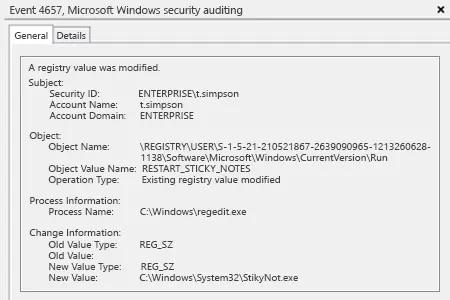
- Open Event Viewer → Search security log for event ID 4657 (a registry value was modified).
Netwrix Auditor for Windows Server
- Run Netwrix Auditor → Navigate to "Search" → Click on "Advanced mode" if not selected → Set up the following filters:
- Filter = "When"
Operator = "Equals"
Value = "Today" - Filter = "Object type"
Operator = "Equals"
Value = "Registry Key" - Filter = "What"
Operator = "Contains"
Value = "Run" - Filter = "What"
Operator = "Contains"
Value = "Installed"
- Filter = "When"
- Click the "Search" button and review what registry keys were modified and who did that.
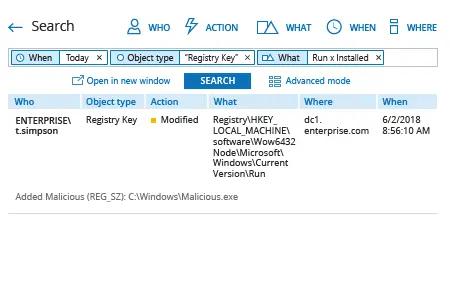
In order to create an alert triggered each time whenever a registry key is modified:
- From the search results, navigate to "Tools" → Click "Create alert" → Specify the new alert’s name.
- Switch to the "Recipients" tab → Click "Add Recipient" → Specify the email address where you want the alert to be delivered.
- Click "Add" to save the alert.
Share on