
How to Monitor Who Accessed a Shared Mailbox
Native Auditing
- To enable auditing for a specific mailbox, run the following command in Exchange Management Shell:
Set-Mailbox –Identity "TestUser" -AuditEnabled $true
- To audit all mailboxes, enter this:
$UserMailboxes = Get-mailbox -Filter {(RecipientTypeDetails -eq 'UserMailbox')} $UserMailboxes | ForEach {Set-Mailbox $_.Identity -AuditEnabled $true}
- To check which mailboxes have the mailbox audit enabled, run the following command:
Get-Mailbox | FL Name,AuditEnabled
- To retrieve the audit log entries, run the following command:
Search-MailboxAuditLog -Identity "TestUser" -LogonTypes Admin,Delegate -ShowDetails -StartDate 1/1/2014 -EndDate 12/31/
- To send the mailbox audit log entries to a specified mailbox, run the following command:
New-MailboxAuditLogSearch "smtp.server.name" -Mailboxes "TestUser","TestUser1" -LogonTypes Admin,Delegate -StartDate 1/1/2014 -EndDate 12/31/2014 –ShowDetails -StatusMailRecipients auditors@test.local
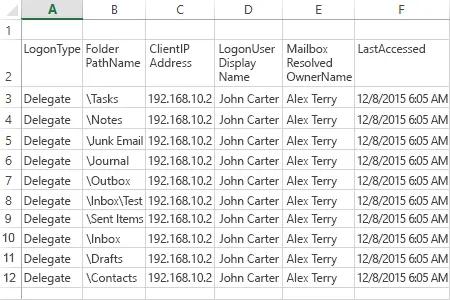
Report Sample:
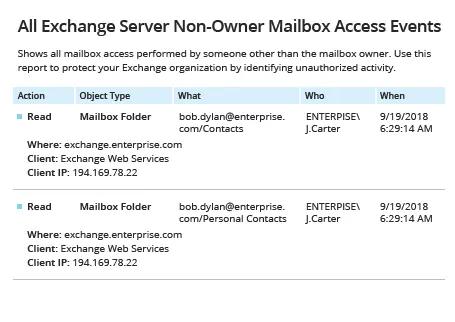
Netwrix Auditor for Exchange
- Run Netwrix Auditor → Navigate to "Reports" → Expand the "Exchange" section → Select "All Exchange Server Non-Owner Mailbox Access Events" → Click "View".
- To save the report, click the "Export" button → Choose a format from the dropdown menu → Click "Save".
Share on