
Uncovering indirect attack paths to virtualized domain controllers in Azure
Sep 24, 2026
Within Netwrix Security Research, we were helping a customer with an Entra ID assessment and knew they'd already done AD tiering on-prem. We also knew they had domain controllers virtualized in Azure, but it was hard to tell which Windows Server was actually a DC. We figured out that Azure Run Command lets you run commands as SYSTEM, so we used that to do reconnaissance and identify the DCs.
Everything shown in this post (screenshots, machine names, usernames) is from a lab environment we rebuilt afterward to demonstrate the technique. None of it is customer data.
For context, Microsoft's own docs describe Run Command as a way to run PowerShell scripts inside a Windows VM through the VM agent, mainly for general management stuff like fixing access or network issues on a machine. It doesn't check what kind of VM it's talking to, though. It will happily run on a domain controller the same way it runs on anything else.
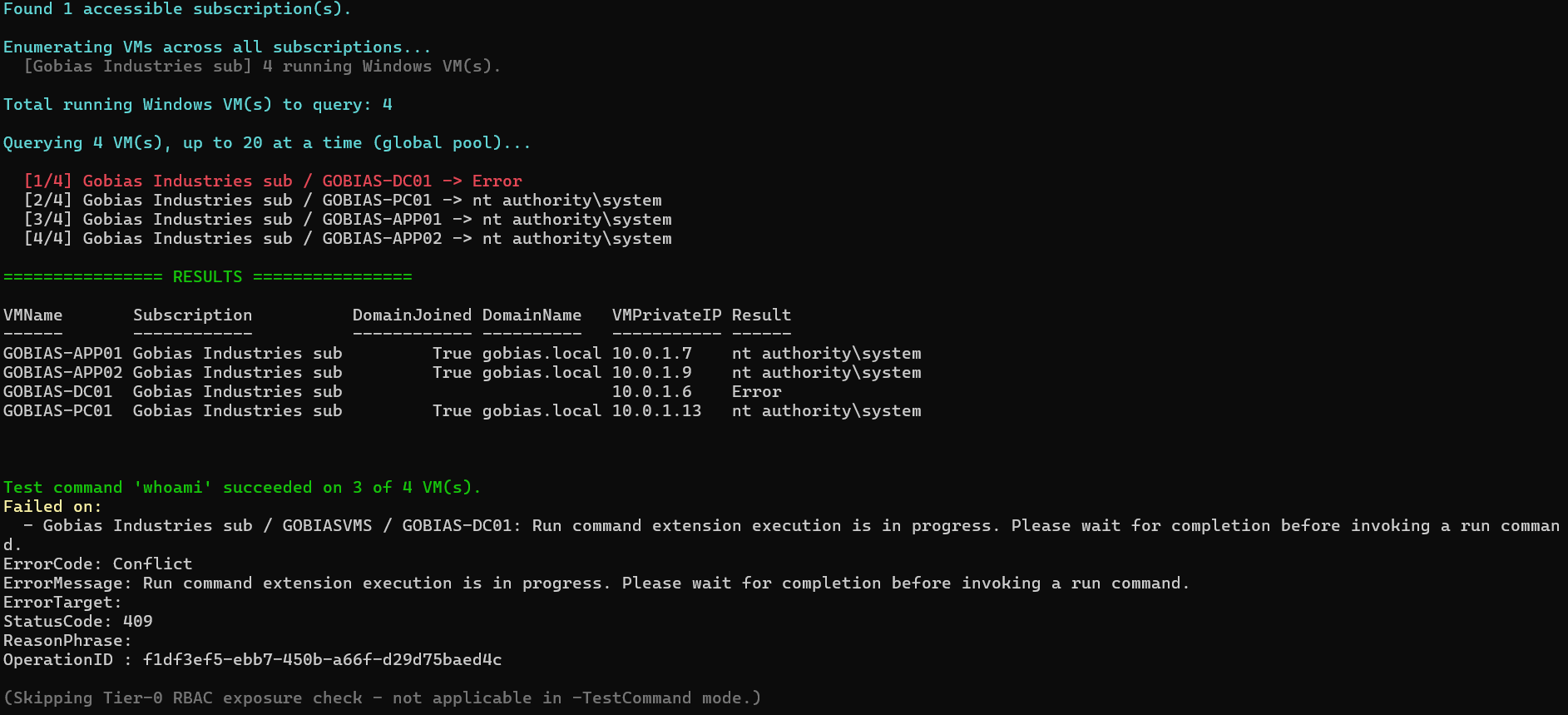
We decided to vibe-code a PowerShell script with Claude that lets us run a command against multiple Windows machines at once, instead of clicking through the Run Command console one VM at a time. All you need for this is the Microsoft.Compute/virtualMachines/runCommand/action permission, which comes with Virtual Machine Contributor or above.
The trick is running each Invoke-AzVMRunCommand call inside a ThreadJob instead of the usual Start-Job. Start-Job spins up a whole new PowerShell process per VM and reloads the Az module every time, so it slows down quickly once you're past a handful of machines. ThreadJob just runs on a thread inside the same process, so kicking off a bunch of them at once barely costs anything extra. We keep a queue of every VM we found and top it up to a fixed number running at once (20 by default). We refill a slot the moment one finishes instead of waiting for a whole batch to complete before starting the next.
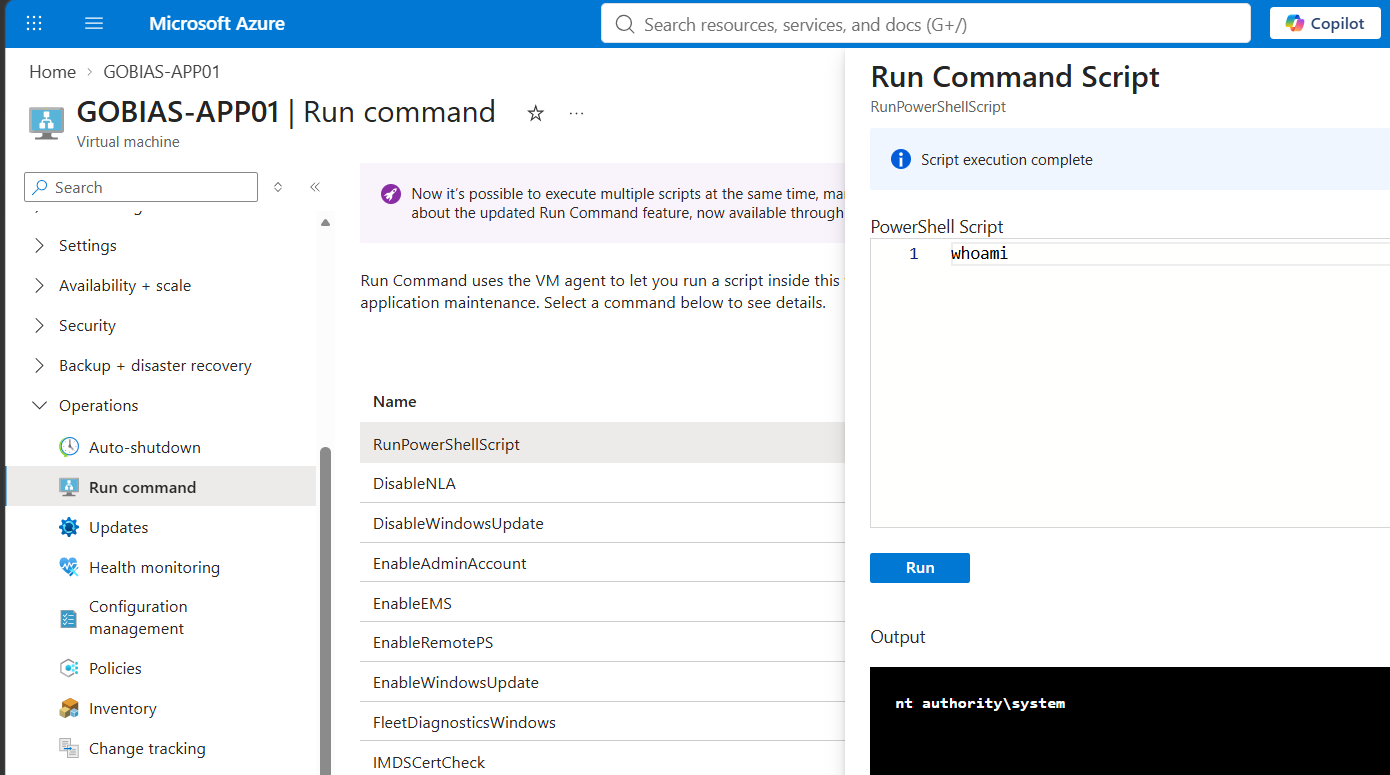
Here's what running whoami through the portal looks like for one machine at a time:
Now here's the same command running against every VM in the subscription at once, through the PowerShell script:
With that working, the next step was finding the DCs. The check itself is simple: Get-Service NTDS on every running Windows VM through Run Command. NTDS is the service that runs the AD DS database, so if it's there and running, that machine is a domain controller.
One VM was clearly running, but Run Command just errored out against it instead of answering, while every other VM in the subscription responded fine. The name alone was already a strong hint. Run Command failing on it fits exactly what you'd expect from a properly locked-down DC, with tighter security tooling getting in the way. Taking that error at face value and moving on would've meant reporting zero domain controllers in the subscription.
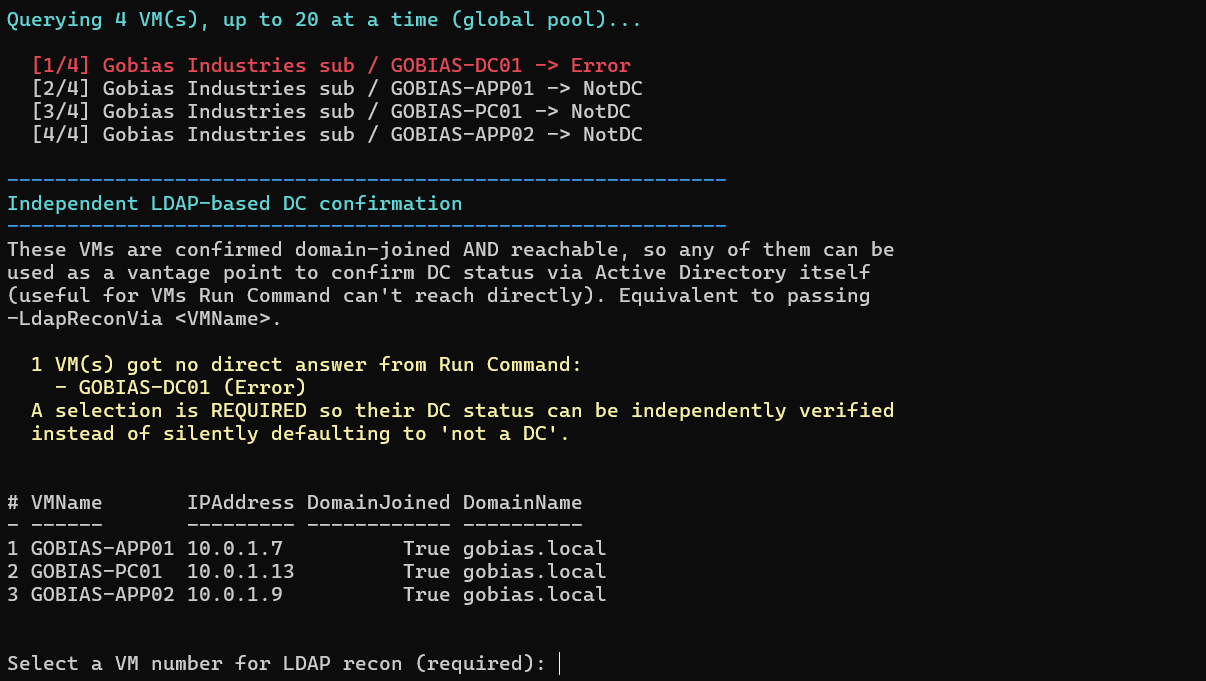
Instead of trusting the error, we asked AD directly. Any domain-joined VM that Run Command can still reach gets used to query AD over LDAP. No Active Directory module needed, just [adsisearcher], a built-in PowerShell type accelerator that works on any domain-joined box already.
The check is a userAccountControl bit called SERVER_TRUST_ACCOUNT, value 8192. AD only sets this once a computer's been promoted to a DC. We added two more checks on top: primary group 516 (the "Domain Controllers" group), and a matching NTDS Settings object in the Configuration partition.
One thing though: a matching hostname alone doesn't prove it's this VM, or even that it's in Azure. Names drift, get truncated, and are sometimes reused. So we check IP first, resolving the DC's hostname to an IP from inside the domain and comparing it against the private IP Azure itself reports for that VM. That IP only exists if the machine is genuinely running in Azure, so a match there is about as solid as it gets. When DNS doesn't resolve, we fall back to comparing hostnames instead, though we treat that one as weaker since names can drift in ways IPs just don't.
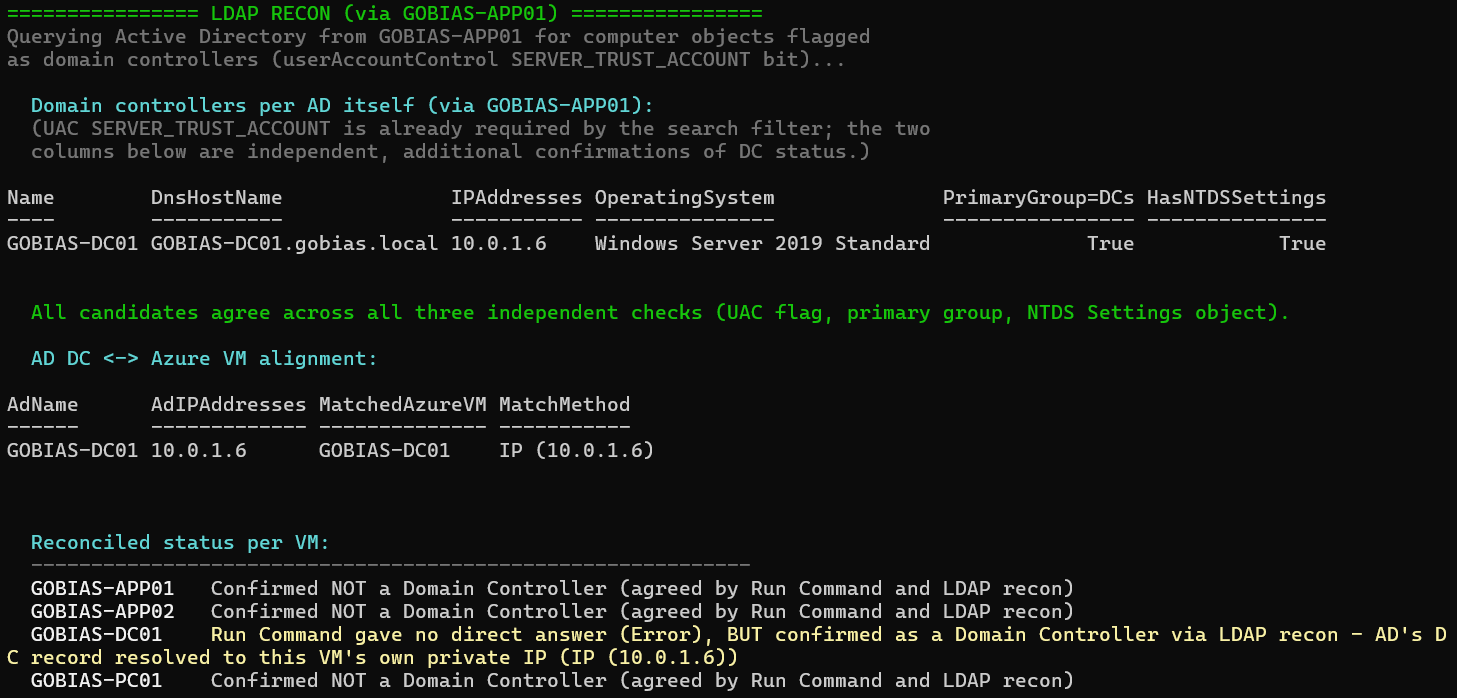
Once we could reliably confirm the machine that had errored out earlier was a domain controller, the real question was who could run arbitrary commands as SYSTEM against it, since that kind of access is Tier-0, full stop. That’s not who has Domain Admin; the customer had already worked through that with their tiering. It’s who has Azure permissions on that specific VM, because Run Command doesn't care about anything in AD. It only cares about Azure RBAC.
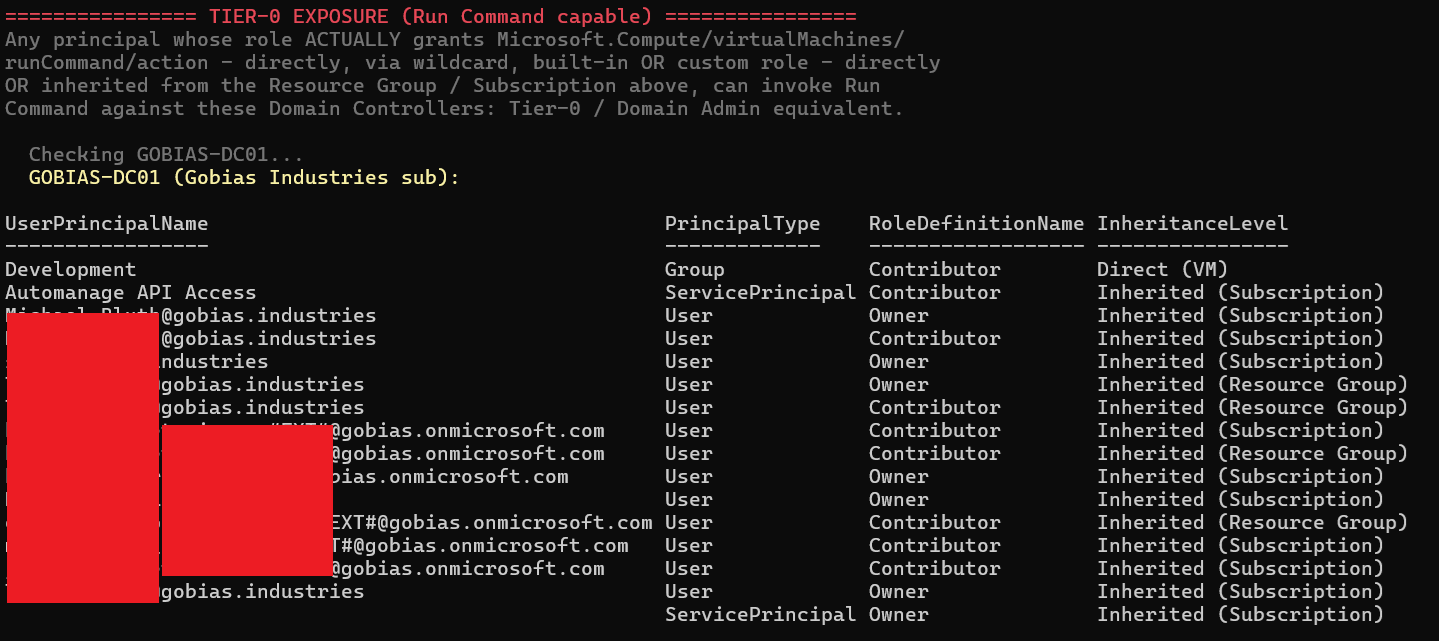
Here's what that looks like. A handful of users show up more than once (one row per role), alongside a group and two service principals, all with Owner or Contributor somewhere in the chain, most of it inherited from the Subscription rather than assigned directly on the VM. Every single one of them can invoke Run Command against a domain controller and execute code as SYSTEM. None of that has anything to do with who's actually in Domain Admins on-prem.
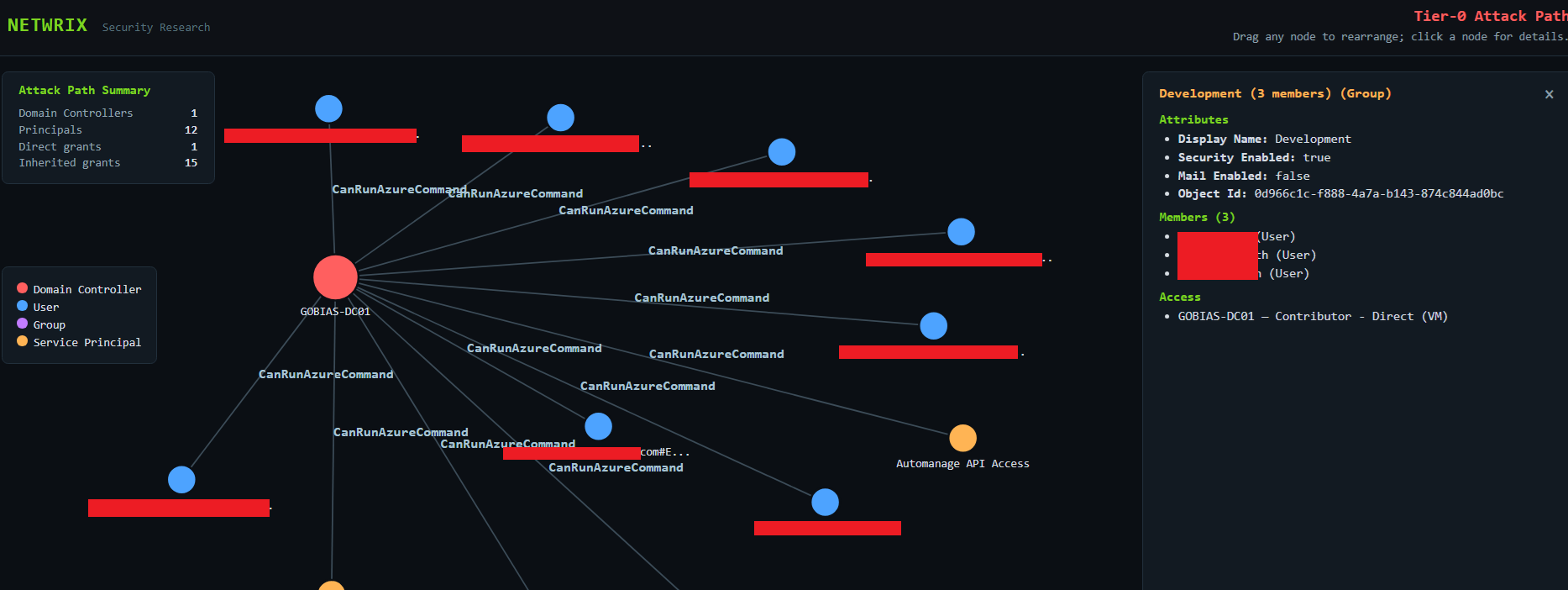
At this point, the script also asks whether you want a BloodHound-style graph generated from this data to visualize which security principals have a path, direct or indirect, to a virtualized domain controller in Azure. For our lab, that comes out to 12 principals with a path to the DC, most of it inherited from the subscription rather than assigned to the VM directly. Click any node and the sidebar breaks down exactly what it is and how it got there, including group membership, so a Group node showing "3 members" isn't just a count. You can actually see who's inside it.
Recommendation
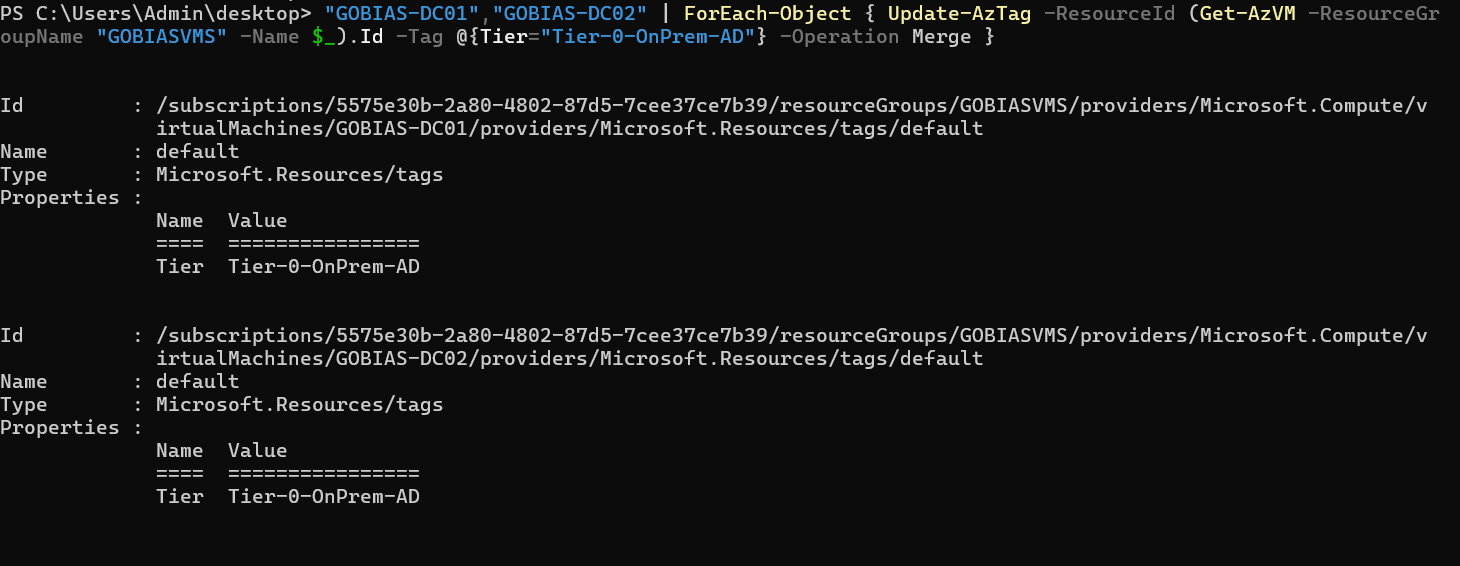
Tag your Domain Controllers in Azure with something like Tier-0-OnPrem-AD on the VM resource. It sounds obvious, but most environments we've looked at don't do it, which is why identifying them took real work in the first place instead of just filtering by tag. Once it's tagged, you can build a policy around it: deny new Owner or Contributor assignments on anything with that tag, or alert when one changes.
Tagging only tells you what's happening going forward, though. It doesn't fix what's already there. Every environment we've looked at has accumulated permissions on these VMs over time, most of it inherited from the resource group or subscription, not assigned directly. That’s exactly why it's easy to overlook. Go through who currently has access and ask, for each person and service principal, whether they still need Owner or Contributor on a box that happens to be a domain controller.
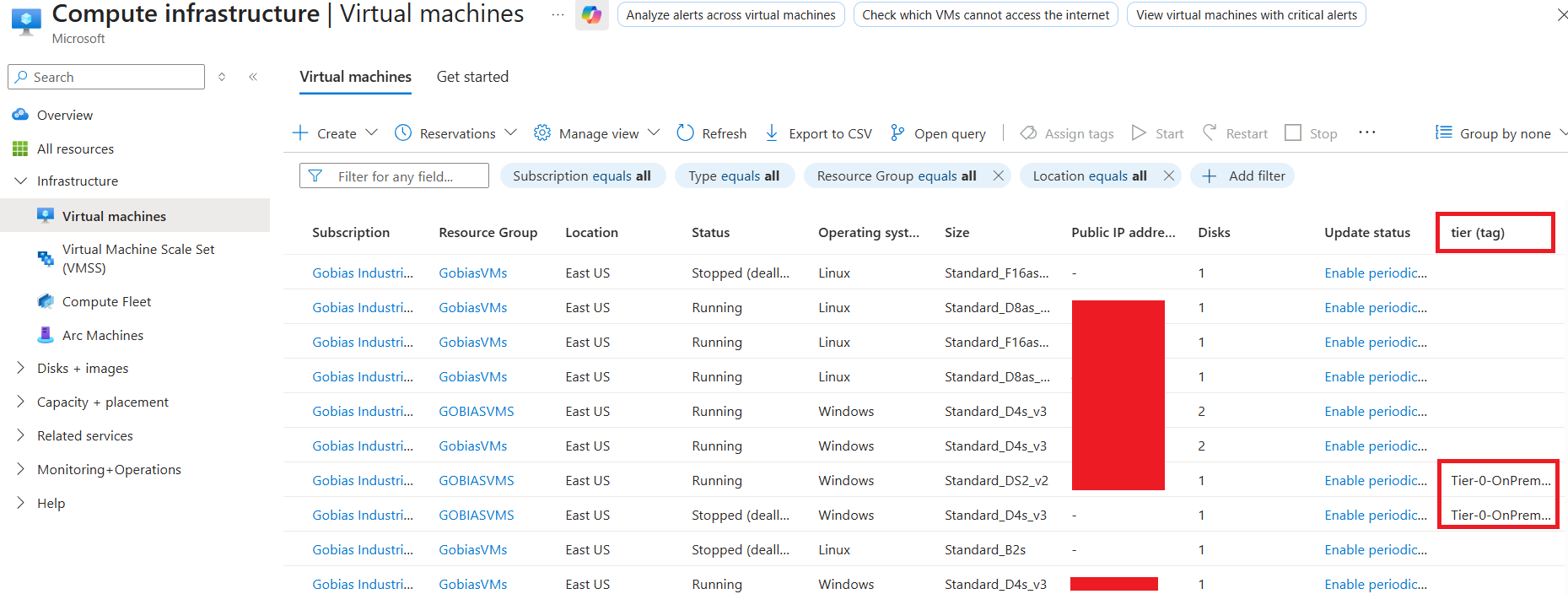
Once that's set, filtering is just adding the tier column or typing Tier-0-OnPrem-AD into the filter bar, and every DC shows up. No script needed. What took us a whole enumeration pipeline to figure out is now a two-click filter for anyone on the team.
References
- Microsoft Learn: Run scripts in a Windows VM in Azure using action Run Commands
https://learn.microsoft.com/en-us/azure/virtual-machines/windows/run-command - Microsoft Learn: Azure Instance Metadata Service for virtual machines
https://learn.microsoft.com/en-us/azure/virtual-machines/instance-metadata-service
Share on
Learn More
About the author

Huy Kha
Director of Security Research
Huy is the Director of Security Research at Netwrix, leading the security research team and driving improvements across the security product portfolio to help customers improve resilience. He is also a Microsoft MVP in Windows & Devices. With a background in incident response, security operations, and system optimization, he focuses on practical, repeatable approaches that turn complex problems into clear, streamlined processes.
Learn more on this subject
Bring Your Own Vault: Why "rip and replace" isn't the only option
Beyond the vault: Zero standing privilege defeats more than password attacks
The password was never the only problem: Legacy PAM vs. modern PAM
Intune still can't bare-metal image a device, and other things nobody told IT
Data Privacy Laws by State: Different Approaches to Privacy Protection