
How to Get a SharePoint Online External Sharing Report
Native Solution
Natively, it is not possible to generate a report on external sharing across your entire tenant. Instead, you have to generate and download a report for each SharePoint site collection separately:
- Open the site you want to report on.
- Click the cog icon to open Settings menu and then click Site usage.
- Scroll down to the Shared with external users section and click Run report.
- Pick a location to save the report and click Run report.
- Browse to the SharePoint Online location where you chose to save the report.
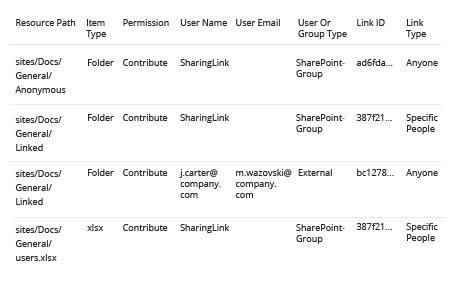
- Review the CSV report in Excel, filtering out default records (such as site Owners, Members and Visitors):
Netwrix Auditor for SharePoint
To get a report on external sharing across all sites in your tenant:
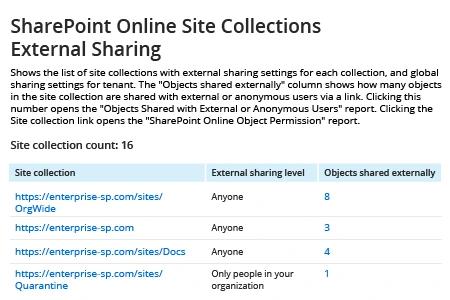
- Run Netwrix Auditor -> Navigate to “Reports” -> Choose “Predefined” -> Expand the “SharePoint Online” section -> Go to “SharePoint Online – State-in-Time” -> Select “SharePoint Online Site Collections External Sharing” -> Click “View”.
To get a report on external sharing report for a specific site collection, do either of the following:
- You can drill down to specific site level report by click the site collection link in the cross-tenant report.
Alternatively you can go directly to site-level report:
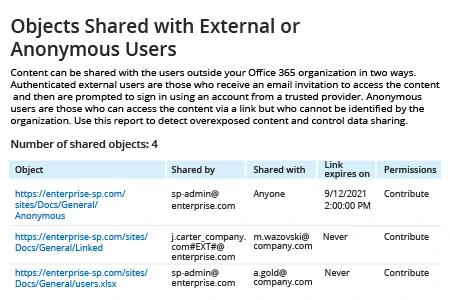
- Netwrix Auditor -> Navigate to “Reports” -> “Predefined” -> Expand the “SharePoint Online” section -> “SharePoint Online – State-in-Time” -> Select “Objects Shared with External or Anonymous Users” -> Click “View”.
- Specify the site URL in the “Site collection object path” field -> Click “View Report”.
Sample site-level report:
Share on