
How to get a SharePoint Online permissions report
SharePoint permissions attach at the site, library, folder, and item level, and any level can break inheritance and carry its own grants, so "who can reach this file" is hard to answer natively. A permissions report names every user and group with access, the level each holds, and whether access is inherited or direct. Point-in-time exports support immediate reviews; scheduled reporting preserves a history for faster, easier comparisons.
A site gets shared into a new project, a group picks up members nobody remembers approving, and libraries built years ago carry access nobody can account for at a glance. 74% of organizations can't get a single unified view of where sensitive data resides and which identities can access it, according to the Netwrix 2026 Data and Identity Security Report.
A SharePoint permissions report answers that question for one system at a time, but SharePoint doesn't make it easy to get that answer. Access gets assigned at the site, library, folder, and item level, and any object in that chain can break inheritance and carry its own permission set. Direct grants, group membership, and sharing links stack on more paths a reviewer has to untangle.
This comes up constantly in practice. One long-running Microsoft Q&A thread captures an administrator asking, more than once, how to hand auditors a full export of every SharePoint site, user, and permission. The right route depends on that scope, on whether the environment is Online or on-premises, and on how often the export needs to run:
- SharePoint admin center: Best for a licensed, tenant-wide view through Microsoft's Data Access Governance reports.
- PowerShell: Best for one Online site's groups, or every web and list in an on-premises farm.
- A dedicated audit platform: Best for repeatable, scheduled output with a history of past states.
Why do teams pull a SharePoint permissions report?
A permissions export typically supports one of these needs:
- Audit evidence: Proof for examiners or internal compliance that access matches policy.
- Offboarding checks: Confirmation that removing a departing employee from the directory also cleared their SharePoint access.
- Oversharing investigations: A review of who could reach a site after it was shared more broadly than intended.
Each export itself is a point-in-time snapshot. It lists every user and group with access to a site, library, folder, or item, the permission level each holds, and whether the object inherits that access or an administrator assigns it directly.
What a SharePoint permissions report shows
The methods in this guide each produce some version of the fields below, what actually lands in the export rather than the permission model behind it.
User and group assignments
Each row names the principal that holds access. That might be a SharePoint group such as Finance Members, a Microsoft 365 group, an individual account identified by display name or user principal name (UPN), or a special claim such as Everyone except external users. The Online script writes this as Users; the on-premises script writes User/Group.
Permission level/role field
Next to each principal sits the permission level it holds: Full Control, Edit, Contribute, Read, or a custom level that site administrators define. The Online script exports this as Permissions; the on-premises script as Roles.
Inheritance flag (inherited vs. unique)
A column records whether the object inherits permissions from its parent or has a unique set. Prioritize rows marked Unique because access at those objects diverges from the site default. The on-premises script writes this as Inheritance; the Online site-group script has no equivalent column.
Site, library, and item-level entries
Every row carries the object it describes, whether a web title and URL for a site or a list/library name and server-relative URL for a list. A separate, site-level sharing report extends this same idea to files and folders shared with guests, though only a site admin can run it.
Netwrix Access Analyzer resolves nested AD groups and SharePoint inheritance to surface overexposed sensitive data. Download a free trial
How to run native permissions reports in the SharePoint admin center
Microsoft's Data Access Governance (DAG) reports are the native route to tenant-wide permissions reporting for SharePoint Online and OneDrive, available in the SharePoint admin center. Site owners can also view a site's own Data Access Governance details from its settings.
1. Confirm licensing and admin access
Check the tenant's licensing before planning an audit around these reports. The add-on license is a requirement for the DAG reports, and using them requires access to the SharePoint admin center. If a tenant doesn't have that add-on license, skip to the PowerShell sections below.
2. Pick the report that matches the question, and choose a snapshot or an activity view
Choose "Site permissions for your organization" for tenant-wide questions. It's a snapshot of the permission structure across every SharePoint and OneDrive site, so it's the place to look for broadly accessible or overshared sites.
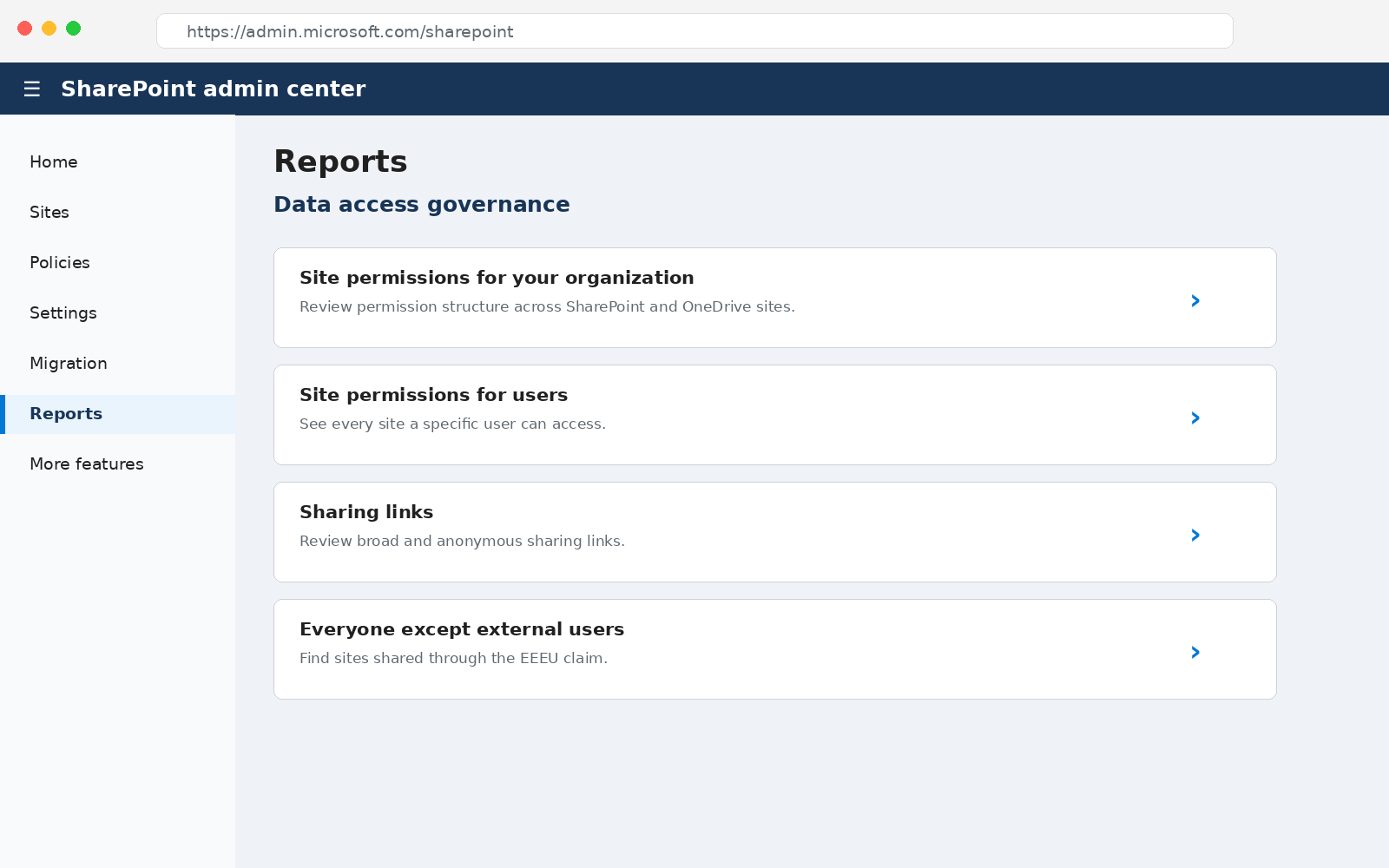
Choose "Site permissions for users" when the question is about specific people instead; it lists every SharePoint and OneDrive site a given user can reach through direct assignment or group membership.
The same admin center area also carries reports for sharing links, sensitivity labels on files, sites and files shared via special SharePoint groups, and the "Everyone except external users" (EEEU) claim.
Decide now whether the review needs a snapshot or an activity report. A snapshot reflects the current permission state by default, or a past state if you choose one, and answers "who has access right now," the version an auditor typically wants. An activity report covers sharing and access events across a period instead, and answers what changed and who shared it.
3. Run and download the report
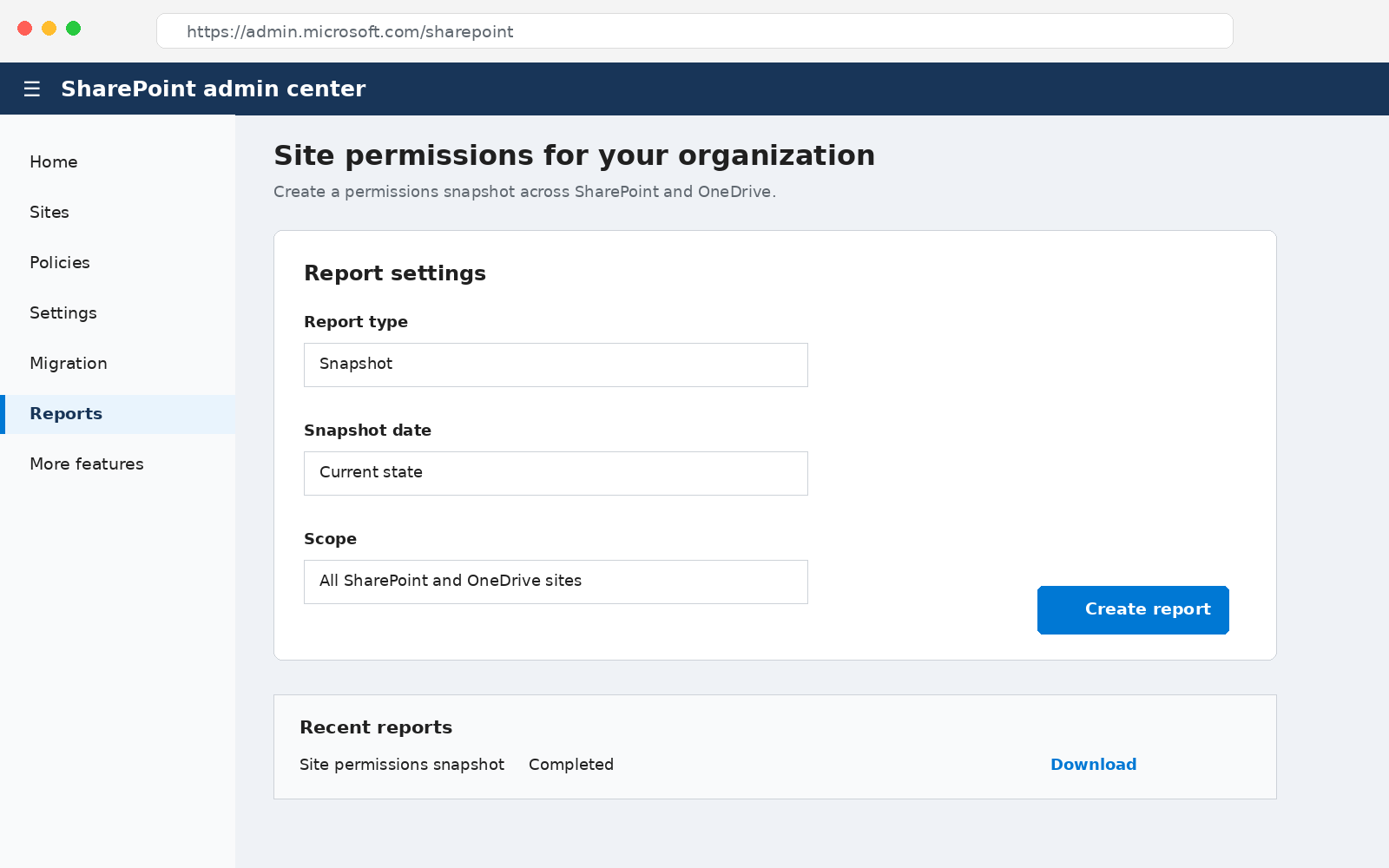
Open the SharePoint admin center from the Microsoft 365 admin center, expand Reports, select Data access governance, choose the report type, and select Create report or Run reports; once it finishes, download it from the same page.
What to do with the findings
Review Full Control assignments outside the owners group and revoke any that no longer have a current business need, following standard least-privilege practice. Replace individual direct grants with group membership where appropriate so the next review has fewer rows to read, and delete stale or overly broad sharing links.
The DAG reports include remediation actions that let administrators start several of these fixes directly from the report.
Where the native reports stop
Each snapshot describes the tenant at a single moment, so a report from last quarter only covers the permissions recorded then. The reports depend on that add-on license, cover SharePoint Online and OneDrive only, and require a site admin to run the file-and-folder sharing report one site at a time.
For a SharePoint Server farm, or for a report that runs on a cadence with a history to compare, PowerShell or a dedicated tool takes over.
How to get a SharePoint Online permissions report with PowerShell
PowerShell fits a narrower need, covering one site's groups, their permission levels, and their displayed members, in a comma-separated values (CSV) file. The script below builds a SharePoint site-group membership report.
It connects to the tenant admin URL, reads every SharePoint group on a site with Get-SPOSiteGroup, and writes the result to CSV. It doesn't produce a complete effective-permissions report and can miss direct grants, nested or external membership resolution, sharing links, and unique permissions below the site level.
1. Install the SharePoint Online Management Shell
Install the SharePoint Online Management Shell module, Microsoft.Online.SharePoint.PowerShell, before running the script below. Some environments still rely on the older Client Components software development kit (SDK), but the script below needs the newer module instead.
Open PowerShell as an account with SharePoint administrator rights, run Install-Module once per workstation, then comment out that line on later runs. Useful PowerShell commands for this kind of report start with Connect-SPOService and Get-SPOSiteGroup, both used below.
2. Connect to SharePoint Online and run the report script
Set $ServiceURL to your tenant admin URL, $URL to the site you want to report on, and $Path to the CSV output location, then run the script. The script uses Get-Credential, Connect-SPOService, and a ForEach loop to build one row per SharePoint group with its title, roles, and members.
      #SharePoint Online-specific cmdlets require sharepoint-online module
Install-Module -Name Microsoft.Online.SharePoint.PowerShell
$ServiceURL = "https://enterprise-admin.sharepoint.com"
$URL = "https://enterprise.sharepoint.com"
$Path = "C:\Temp\GroupsReport.csv"
$Cred = Get-Credential
#Connect to SharePoint Online
Connect-SPOService -url $ServiceURL -Credential $Cred
#Generating Report
$GroupsData = @()
#get sharepoint online groups powershell
$SiteGroups = Get-SPOSiteGroup -Site $URL
ForEach ($Group in $SiteGroups) {
    $GroupsData += New-Object PSObject -Property @{
        'Group Name'  = $Group.Title
        'Permissions' = $Group.Roles -join ","
        'Users'       = $Group.Users -join ","
    }
}
#Export the data to CSV
$GroupsData | Export-Csv $Path -NoTypeInformation
3. Review the exported CSV report
Open the CSV at the $Path location. Each row is one SharePoint group on the site, with three columns: Group Name, Permissions (the permission levels the group holds, comma-separated), and Users (the displayed group members).
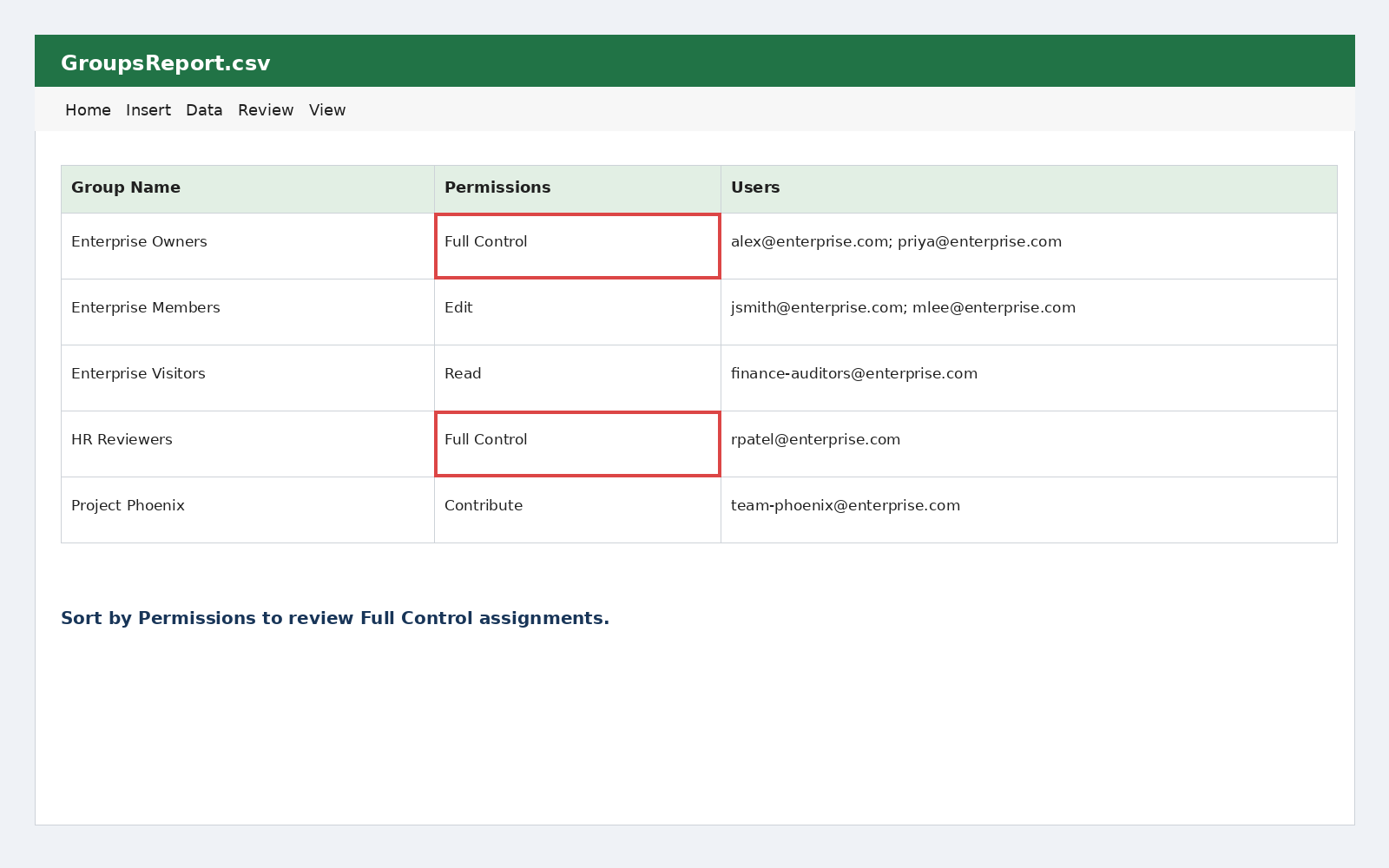
Sort by Permissions to find every group carrying Full Control, then read the Users column to confirm each listed member still belongs there. Libraries, folders, and items that break inheritance need a separate pass.
How to get an on-premises SharePoint permissions report with PowerShell
For a SharePoint Server farm, the script below iterates through all webs in the site collection. It exports permissions for webs and lists with unique role assignments, including web titles and URLs, list titles where applicable, each user or group, and its roles. For web-level rows, it also outputs the web's unique-permissions status.
1. Open the SharePoint Management Shell
Open the SharePoint Management Shell on a server in the farm. If you prefer a standard PowerShell console, the first line of the script adds the Microsoft.SharePoint.PowerShell snap-in with Add-PSSnapin.
2. Run the permissions report script
Set $SiteURL to the site collection you want to report on and $Path to the output file, then run the script. It walks every web in the site collection, records each role assignment on the web, records each list or library that has broken inheritance, and disposes of the SPSite object when it finishes.
      Add-PSSnapin Microsoft.SharePoint.PowerShell -ErrorAction SilentlyContinue
$SiteURL = "http://sharepoint/sites/finance"
$Path = "C:\Temp\SPPermissionsReport.csv"
$Report = @()
$Site = Get-SPSite $SiteURL
ForEach ($Web in $Site.AllWebs) {
    ForEach ($RA in $Web.RoleAssignments) {
        $Report += New-Object PSObject -Property @{
            'Web Title'   = $Web.Title
            'URL'         = $Web.Url
            'Object'      = "Site"
            'User/Group'  = $RA.Member.Name
            'Roles'       = ($RA.RoleDefinitionBindings | Select-Object -ExpandProperty Name) -join ","
            'Inheritance' = if ($Web.HasUniqueRoleAssignments) { "Unique" } else { "Inherited" }
        }
    }
    ForEach ($List in $Web.Lists) {
        if ($List.HasUniqueRoleAssignments) {
            ForEach ($RA in $List.RoleAssignments) {
                $Report += New-Object PSObject -Property @{
                    'Web Title'   = $Web.Title
                    'URL'         = $List.RootFolder.ServerRelativeUrl
                    'Object'      = $List.Title
                    'User/Group'  = $RA.Member.Name
                    'Roles'       = ($RA.RoleDefinitionBindings | Select-Object -ExpandProperty Name) -join ","
                    'Inheritance' = "Unique"
                }
            }
        }
    }
    $Web.Dispose()
}
$Site.Dispose()
$Report | Export-Csv $Path -NoTypeInformation
3. Review the exported CSV report
Open the CSV. Web Title and Web URL identify where the entry applies, List Title names the web or the list, User or Group and Role record who holds what, and the last column records whether permissions are inherited (for web entries).
Filter Inheritance to Unique to isolate each place where someone changed access from the site default, then check Roles for Full Control and Contribute on lists that hold regulated data.
How Netwrix helps with SharePoint permissions reporting
Netwrix Access Analyzer supports the evidence work behind a SharePoint permissions report. It calculates effective access instead of listing raw ACLs, resolving nested group membership, sharing links, and unique permissions so a team can see what a user can actually reach.
That capability sits inside Netwrix's broader Data Access Governance offering, which extends the same visibility to file servers and other data stores beyond SharePoint.
Netwrix Auditor extends that evidence trail to the audit side of SharePoint permissions reporting, on a schedule that preserves a history of past states.
First National Bank and Trust of Beloit, a family-run bank with 17 locations, uses Auditor's full suite, including its SharePoint coverage, to keep continuous, audit-ready evidence on hand for Office of the Comptroller of the Currency (OCC) examiners. Preparation dropped from one week to one hour, and daily activity review across all 300 monitored users now takes 15 minutes.
The bottom line on SharePoint permissions reporting
Permissions visibility fragments during migrations, since the admin center covers the Online tenant while a SharePoint Server farm needs its own separate reporting. A site mid-migration can carry permissions in both places during the cutover, creating drift between the source and destination.
Request a demo to see how Netwrix Access Analyzer and Netwrix Auditor turn a one-time SharePoint permissions export into an ongoing, audit-ready record.
Frequently asked questions about how to get a SharePoint Online permissions report
Share on