
Centre de ressourcesGuide pratique
Comment lister les membres d'un groupe AD en utilisant PowerShell ou Netwrix Auditor
Comment lister les membres d'un groupe AD en utilisant PowerShell ou Netwrix Auditor
Audit Natif
Pour lister les membres d'un groupe AD, suivez ces étapes simples :
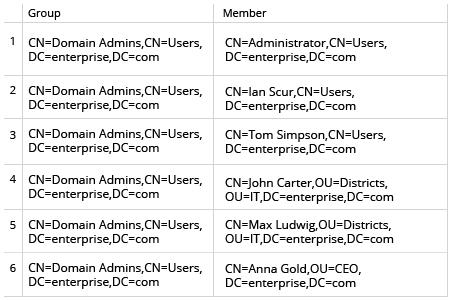
- Ouvrez l'ISE Powershell sur votre contrôleur de domaine → Exécutez le script Powershell suivant, en spécifiant le chemin CSV où vous souhaitez exporter les résultats :
      $nameofgroup= 'Domain Admins'
$groupsusers=Get-ADGroup -Identity $nameofgroup |
ForEach-Object{
$settings=@{Group=$_.DistinguishedName;Member=$null}
$_ | Get-ADGroupMember |
ForEach-Object{
$settings.Member=$_.DistinguishedName
New-Object PsObject -Property $settings
}
}
$groupsusers | Export-Csv C:\scripts\GroupsUsers.csv –NoTypeInformation
- Ouvrez le fichier CSV résultant, qui contiendra une liste de tous les membres du groupe Active Directory spécifié.
Netwrix Auditor pour Active Directory
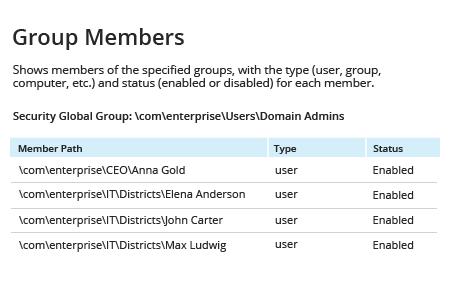
- Exécutez Netwrix Auditor → Accédez à « Rapports » → Développez la section « Active Directory » → Allez à « Active Directory – État à un moment donné » → Sélectionnez « Membres du groupe » → Cliquez sur « Afficher ».
Vous pouvez facilement restreindre le rapport aux membres d'un groupe spécifique. Par exemple, pour voir uniquement les membres du groupe Domain Admins, entrez « \com\enterprise\Users\Domain Admins » dans le filtre « Chemin du groupe » → Cliquez sur « Voir le rapport ».
- Pour exporter le rapport dans un fichier CSV, cliquez sur le bouton « Exporter » → Sélectionnez le format CSV dans le menu déroulant → Cliquez sur « Enregistrer ».
Partager sur