
ネイティブ監査
- PowerShell ISE を開く → 次の cmdlet を実行して Microsoft SharePoint 用の PowerShell スナップインをインポートします:
Add-PSSnapin Microsoft.SharePoint.PowerShell
- 次のスクリプトを SharePoint サーバーで実行し、SharePoint サイトの URL($SPSiteURL)と、CSV へのエクスポート用のファイル パス($ExportFile)を指定してください:
      [void][System.Reflection.Assembly]::LoadWithPartialName
("Microsoft.SharePoint")
$SPSiteUrl = "http://sharepoint/sites/ent"
$SPSite = New-Object Microsoft.SharePoint.SPSite($SPSiteUrl);
$ExportFile = "C:\root\Permissions.csv"
"Web Title,Web URL,List Title,User or Group,Role,Inherited" | out-file $ExportFile
foreach ($WebPath in $SPSite.AllWebs)
{
if ($WebPath.HasUniqueRoleAssignments)
{
$SPRoles = $WebPath.RoleAssignments;
foreach ($SPRole in $SPRoles)
{
foreach ($SPRoleDefinition in $SPRole.RoleDefinitionBindings)
{
$WebPath.Title + "," + $WebPath.Url + "," + "N/A" + "," +
$SPRole.Member.Name + "," + $SPRoleDefinition.Name + "," +
$WebPath.HasUniqueRoleAssignments | out-file $ExportFile -append
}
}
}
foreach ($List in $WebPath.Lists)
{
if ($List.HasUniqueRoleAssignments)
{
$SPRoles = $List.RoleAssignments;
foreach ($SPRole in $SPRoles)
{
foreach ($SPRoleDefinition in $SPRole.RoleDefinitionBindings)
{
$WebPath.Title + "," + $WebPath.Url + "," + $List.Title + "," +
$SPRole.Member.Name + "," + $SPRoleDefinition.Name | out-file $ExportFile -append
}
}
}
}
}
$SPSite.Dispose();
- スクリプトによって生成されたファイルを MS Excel で開きます。
サンプル レポート:
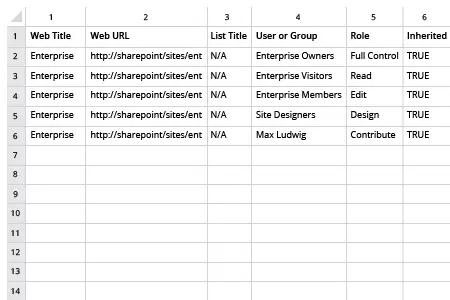
Netwrix Auditor for SharePoint
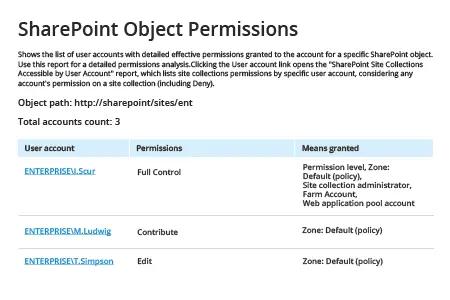
- Netwrix Auditor を実行 → 「Reports」に移動 → 「SharePoint」セクションを展開 → 「SharePoint – State-in-Time」に移動 → 「SharePoint Object Permissions」を選択 → 「View」をクリックします。
- 「Object Path」を指定し、「Permissions」を「(Select All)」に設定します。
- レポートを CSV または別の形式でエクスポートするには、「Export」ボタンをクリック → ドロップダウン メニューから形式を選択 → 「Save」をクリックします。
サンプル レポート:
共有する