
使用 Windows PowerShell 来 管理 Office 365 一开始可能会让人觉得有些奇怪。毕竟,云解决方案都承诺简单易用——这些形容词通常很少用来形容 Windows PowerShell。但请听我说下去。本文将向系统管理员展示最有用的 10 条 Office 365 PowerShell cmdlet。或许在阅读这些说明之后,你会同意:即使在云端系统中,PowerShell 也能成为一款非常有价值的工具。
1. 使用 PowerShell 连接到 Office 365 实例
首先,我们需要安装适用于 Windows PowerShell 的 Office 365 模块,并连接到 Office 365 实例。请按照以下步骤操作:
1. 下载并安装 Microsoft Online Services Sign-In Assistant for IT Professionals RTW。
2. 导入适用于 Microsoft Azure Active Directory 和 Office 365 的 Online Services PowerShell 模块:
      Install-Module -Name AzureAD
Install-Module -Name MSOnline
3. 输入您的 Office 365 管理员凭据:
$Cred = Get-Credential
4. 创建一个远程 PowerShell 会话:
$O365 = New-PSSession -ConfigurationName Microsoft.Exchange -ConnectionUri https://outlook.office365.com/powershell-liveid/ -Credential $Cred -Authentication Basic -AllowRedirection
5. 将会话命令导入本地 Windows PowerShell 会话:
Import-PSSession $O365
6. 连接到所有 Office 365 服务:
Connect-MsolService –Credential $O365
导入了 Windows PowerShell 的模块后,我们就可以开始管理我们的 Office 365 实例了。
2. 使用 PowerShell 连接到 Exchange Online 和 SharePoint Online
我们也可以分别连接到 Microsoft Exchange Online 和 Microsoft SharePoint Online。使用 PowerShell 连接到 Exchange Online 基本上与连接到 Office 365 相同:
      $Cred = Get-Credential

$Session = New-PSSession -ConfigurationName Microsoft.Exchange -ConnectionUri https://outlook.office365.com/powershell-liveid/ -Credential $Cred -Authentication Basic –AllowRedirection
连接到 SharePoint Online 有点不同。为了管理你的 SharePoint Online 租户,你首先需要下载并安装 SharePoint Online Management Shell 功能。然后运行以下 PowerShell 脚本:
      $admin="Admin@enterprise.onmicrosoft.com"
$orgname="enterprise"
$userCred = Get-Credential -UserName $admin -Message "Type the password."
Connect-SPOService -Url https://$orgname-admin.sharepoint.com -Credential $userCred
3. 获取可用的 Office 365 PowerShell cmdlet 列表
要获取所有可用的 Office 365 PowerShell commands 列表,我们需要运行 Get-Command cmdlet:
Get-Command -module MSOnline
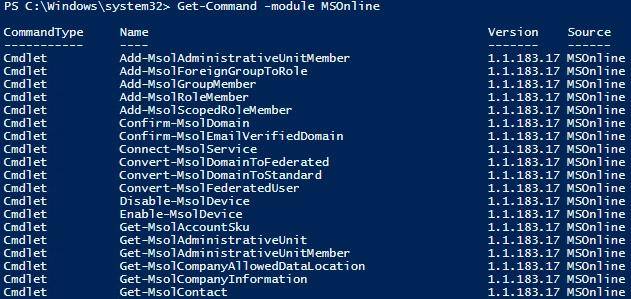
我们还可以获取适用于 Azure Active Directory 的 cmdlet 列表:
Get-Command -module AzureAD
4. 使用 PowerShell 获取所有 Office 365 用户列表
如果你需要提供 Office 365 用户和许可证列表,请使用 Get-MsolUser cmdlet。它会检索 Office 365 租户中拥有有效许可证的所有用户,并同时包含 DisplayName、City、Department 和 ObjectID 参数。
Get-MsolUser | Select DisplayName, City, Department, ObjectID
要查看账户许可证数量,需要运行以下 cmdlet:
Get-MsolAccountSku
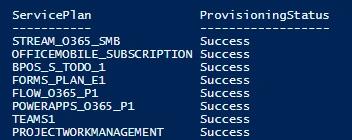
要列出可用服务,请运行以下脚本:
Get-MsolAccountSku | select -ExpandProperty ServiceStatus
5. 使用 PowerShell 在 Office 365 中创建新用户
要创建新用户,我们使用 New-MsolUser 命令:
New-MsolUser -UserPrincipalName JSmith@enterprise.onmicrosoft.com -DisplayName "John Smith" -FirstName “John” -LastName “Smith”
系统将输出用户的密码和许可状态数据。
6. 使用 PowerShell 从所有网站中移除用户
要一次性从所有网站中移除用户,请使用以下命令:
Get-SPOSite | ForEach {Remove-SPOUser -Site $_.Url -LoginName " JSmith@enterprise.onmicrosoft.com"}
7. 使用 PowerShell 在 Office 365 中更改密码
如果需要更改某个帐户的密码,请使用 Set-MsolUserPassword cmdlet。你可以像下面示例那样指定新密码,或者省略 -NewPassword 参数,让系统自动生成随机密码。
Set-MsolUserPassword -UserPrincipalName JSmith@Netwrixqcspa.onmicrosoft.com -NewPassword P@SSw0rd!
8. 使用 PowerShell 管理 Office 365 中的组成员关系
我们也可以使用 PowerShell cmdlet 来管理 Office 365 group。要获取 Office 365 中所有组的列表,只需使用命令 Get-MsolGroup。要向组中添加用户,请使用 Add-MsolGroupMember 命令:
Add-MsolGroupMember -GroupObjectId 5b61d9e1-a13f-4a2d-b5ba-773cebc08eec -GroupMemberObjectId a56cae92-a8b9-4fd0-acfc-6773a5c1c767 -GroupMembertype user
GroupObjectId 是组的十六进制 ID,你可以从 Get-MsolGroup 命令中获取。GroupMemberObejctId 是用户对象 ID,你可以通过运行此命令查找:
Get-MsolUser | Select ObjectID.
要从组中移除用户,请使用 Remove-MsoGroupMember cmdlet。
9. 使用 PowerShell 创建 SharePoint 站点集合
我们还可以使用 PowerShell 创建一个 SharePoint 网站集合:
New-SPOSite -Url "https://enterprise.sharepoint.com/sites/NewSite" -Owner "JSmith@enterprise.onmicrosoft.com" -StorageQuota "100" -Title "New Site"
10. 使用 PowerShell 在 Office 365 中创建报表
PowerShell 是制作各种报表的优秀工具。下面是一些有用的 Office 365 report(可通过 PowerShell 完成):
- 所有邮箱的详细信息:
Get-mailbox | get-MailboxStatistics
- 过去 30 天内未登录的所有邮箱列表:
Get-Mailbox –RecipientType 'UserMailbox' | Get-MailboxStatistics | Sort-Object LastLogonTime | Where {$_.LastLogonTime –lt ([DateTime]::Now).AddDays(-30) } | Format-Table DisplayName, LastLogonTime
- 有关邮件发送量最高的发件人和收件人的报告:
Get-MailTrafficTopReport
- 有关所有群组及其成员的报告:
      function Get-AllO365Members
{
    Try
    {
     $O365Groups=Get-UnifiedGroup
        foreach ($O365Group in $O365Groups)
        {
            Write-Host "Group Membership: " $O365Group.DisplayName -ForegroundColor Green
            Get-UnifiedGroupLinks –Identity $O365Group.Identity –LinkType Members
            Write-Host
        }
    }
    catch [System.Exception]
    {
        Write-Host -ForegroundColor Red $_.Exception.ToString()
    }
}
Get-AllO365Members
请注意,大多数 用于报告的 cmdlet 已被弃用,时间是 2018 年 1 月,并由新的 MS Graph Reporting API 取代。因此,部分报告目前只能在 Office 365 Security & Compliance Center 中查看。
正如您所见,使用 PowerShell 管理 Office 365 非常快且易于上手,就像在 Microsoft Windows Server 中一样。不要忘记对您对 Office 365 环境所做的所有更改进行审计;这将帮助您更快地排查问题并从问题中恢复。要了解如何在 Office 365 环境中配置原生审计,请查看我们的 Exchange Online Auditing Quick Reference Guide 和 Exchange Online Mailbox Auditing Quick Reference Guide。如果您希望获得有关 Office 365 环境中正在发生什么的可操作情报,同时具备灵活的报表、主动告警、类似 Google 的搜索以及更多功能,请申请 Netwrix Auditor for Office 365 的免费试用。
分享到
了解更多
关于作者

Jeff Melnick
系统工程总监
Jeff 是 Netwrix 的前 Global Solutions Engineering 总监。他是一位长期的 Netwrix 博主、演讲者和讲解员。在 Netwrix 博客中,Jeff 分享各种生活技巧,以及可以显著提升您系统管理体验的提示与技巧。