
Netwrix Auditor for Active Directory
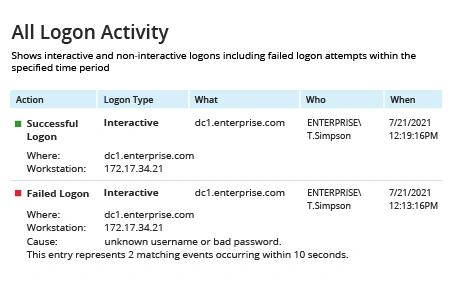
- 运行 Netwrix Auditor → 导航到“Reports(报表)”→ 打开“Active Directory(Active Directory)”→ 转到“Logon Activity(登录活动)”→ 根据要查看的登录事件,选择“Successful Logons(成功登录)”、"Failed Logons(失败登录)"或“All Logon Activity(所有登录活动)”→ 单击“View(查看)”。
- 查看报告:
原生审计
要在 Active Directory 中启用登录审计,请按以下步骤操作。
- 在域控制器上运行 Group Policy Management Console(按 Win+R → 输入“GPMC.exe”→ 单击“Run”)。
- 创建一个新策略,并将此新的 GPO 关联到包含你希望跟踪用户活动的计算机的组织单位(OU)。
- 依次进入:计算机配置 > 策略 > Windows 设置 > 安全设置 > 高级审核策略配置 > 审核策略。然后进入以下每一项:
- 系统 > 审核安全状态更改 — 将其设置为“成功”。
- 审核策略 > 登录/注销 — 将“审核登录”和“审核注销”都设置为“成功”和“失败”。
- 审核策略 > 登录/注销 > 审核 — 将“其他登录/注销事件”设置为“成功”和“失败”。
要使用 PowerShell 检查 Active Directory 中的用户登录历史,请按以下步骤操作:
- 以管理员身份打开 PowerShell ISE
- 运行以下脚本,并调整时间范围:
      # Find DC list from Active Directory
$DCs = Get-ADDomainController -Filter *

# Define time for report (default is 1 day)
$startDate = (get-date).AddDays(-1)

# Store successful logon events from security logs with the specified dates and workstation/IP in an array
foreach ($DC in $DCs){
$slogonevents = Get-Eventlog -LogName Security -ComputerName $DC.Hostname -after $startDate | where {($_.eventID -eq 4624) -or ($_.eventID -eq 4625) }}

# Crawl through events; print all logon history with type, date/time, status, account name, computer, and IP address if the user logged on remotely

 foreach ($e in $slogonevents){
   # Logon Successful Events
   # Local (Logon Type 2)
   if (($e.EventID -eq 4624 ) -and ($e.ReplacementStrings[8] -eq 2)){
     write-host "Type: Local Logon`tDate: "$e.TimeGenerated "`tStatus: Success`tUser: "$e.ReplacementStrings[5] "`tWorkstation: "$e.ReplacementStrings[11]
   }
   # Remote (Logon Type 10)
   if (($e.EventID -eq 4624 ) -and ($e.ReplacementStrings[8] -eq 10)){
     write-host "Type: Remote Logon`tDate: "$e.TimeGenerated "`tStatus: Success`tUser: "$e.ReplacementStrings[5] "`tWorkstation: "$e.ReplacementStrings[11] "`tIP Address: "$e.ReplacementStrings[18]
   }
    # Logon Failed Events
   # Local (Logon Type 2)
   if (($e.EventID -eq 4625 ) -and ($e.ReplacementStrings[8] -eq 2)){
     write-host "Type: Local Logon`tDate: "$e.TimeGenerated "`tStatus: Failed`tUser: "$e.ReplacementStrings[5] "`tWorkstation: "$e.ReplacementStrings[11]
   }
   # Remote (Logon Type 10)
   if (($e.EventID -eq 4625 ) -and ($e.ReplacementStrings[8] -eq 10)){
     write-host "Type: Remote Logon`tDate: "$e.TimeGenerated "`tStatus: Failed`tUser: "$e.ReplacementStrings[5] "`tWorkstation: "$e.ReplacementStrings[11] "`tIP Address: "$e.ReplacementStrings[18]
}}
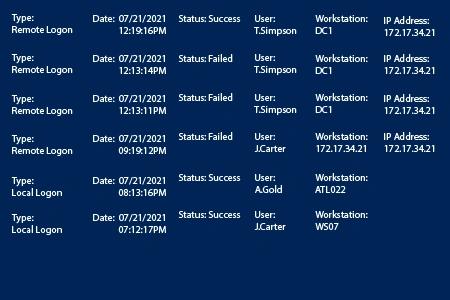
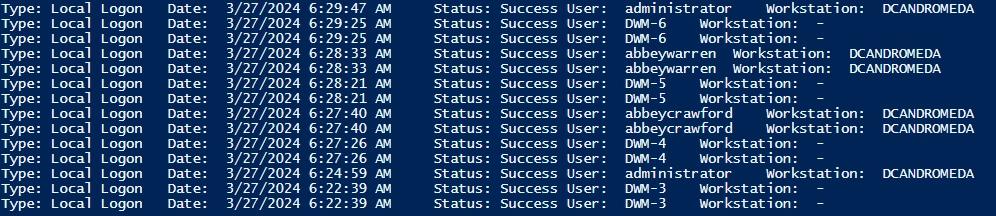
- 查看结果:
有无 PowerShell 脚本获取 Active Directory 用户登录历史
在调查账户被锁定、可疑访问,或执行定期的访问管理审计时,首先要做的事情之一是检查用户活动。登录事件往往能够立即告诉你问题所在,以及该用户是否正在访问合适的资源。要让这些数据可用,你必须在需要追踪用户活动的网络计算机上启用相应的审核策略。
Active Directory 审核会将用户登录历史的详细信息存储在域控制器上的事件日志中。因此,要获取用户登录信息,最直接的做法是在 Windows 事件查看器中筛除所有“安全 (Security)”事件,然后找到目标用户账户和登录类型。在 Windows Server 2008 到 Windows Server 2016 之间,用户登录事件的事件 ID 为 4624。这些事件包含有关 Active Directory 用户、时间、计算机以及用户登录类型的数据。如果你需要知道登录会话时间,可以使用登录 ID(在重启之间的唯一编号,用于标识登录会话)将登录事件与注销(logoff)事件 ID 4634 和 4647 关联起来。
使用原生工具获取这些信息的另一种方式是使用 PowerShell。上面提供的 PowerShell 脚本可以让你在不必手动浏览 Windows 日志的情况下获取用户登录历史报告。该脚本使用获取日志的主要命令 Get-EventLog。不过,只要你需要用户登录历史报告就运行一次 PowerShell 脚本可能会让人觉得麻烦,因为即使在小型 AD 环境中,处理时间也可能相当可观。
Netwrix Auditor for Active Directory 是一种更简单的方式,用于监控用户活动并增强 Active Directory 及依赖 AD 的系统的安全性。使用该解决方案,你可以只需几次点击即可获取针对特定用户或所有用户的清晰且详细的 Active Directory 登录历史报告。你甚至可以订阅该报告,该报告会根据你的具体计划自动通过电子邮件发送。该安全平台不仅限于用户登录审计;它还包含大量预配置报告、灵活的告警以及类似 Google 的交互式搜索,帮助你快速调查事件,并在本地、云端或混合 IT 环境中主动提升安全性。
分享到