
适用于 Windows Server 的 Netwrix Auditor
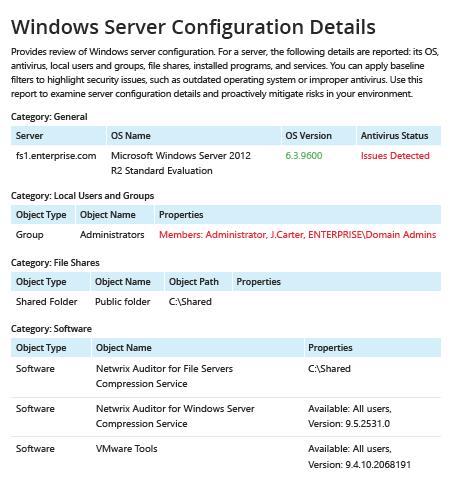
- 运行 Netwrix Auditor → 转到“Reports”(报告)→ 展开“Windows Server”部分 → 进入“Windows Server – State-in-Time” → 选择“Windows Server Configuration Details” → 点击“View”(查看)。
- 要保存报告,请单击“Export”按钮 → 从下拉菜单中选择一种格式 → 单击“Save”。
了解更多:Netwrix Auditor for Windows Server
原生审计
- 创建包含计算机列表的文件 → 打开 Powershell ISE → 运行以下脚本,并调整用于导出的路径:
      #Start PSRemoting.
Invoke-Command -ComputerName (Get-Content C:\data\computers.txt) -scriptblock {

#Run the commands concurrently for each server in the list
$CPUInfo = Get-WmiObject Win32_Processor #Get CPU Information
$OSInfo = Get-WmiObject Win32_OperatingSystem #Get OS Information

#Get Memory Information. The data will be shown in a table as GB, rounded to the nearest second decimal.
$PhysicalMemory = Get-WmiObject CIM_PhysicalMemory | Measure-Object -Property capacity -Sum | % {[math]::round(($_.sum / 1GB),2)}

#Get Network Configuration
$Network = Get-WmiObject Win32_NetworkAdapterConfiguration -Filter 'ipenabled = "true"'

#Get local admins.
$localadmins = Get-CimInstance -ClassName win32_group -Filter "name = 'administrators'" | Get-CimAssociatedInstance -Association win32_groupuser

#Get list of shares
$Shares = Get-WmiObject Win32_share | Where {$_.name -NotLike "*$"}
$infoObject = New-Object PSObject

#Add data to the infoObjects.
Add-Member -inputObject $infoObject -memberType NoteProperty -name "ServerName" -value $CPUInfo.SystemName

Add-Member -inputObject $infoObject -memberType NoteProperty -name "CPU_Name" -value $CPUInfo.Name

Add-Member -inputObject $infoObject -memberType NoteProperty -name "TotalMemory_GB" -value $PhysicalMemory

Add-Member -inputObject $infoObject -memberType NoteProperty -name "OS_Name" -value $OSInfo.Caption

Add-Member -inputObject $infoObject -memberType NoteProperty -name "OS_Version" -value $OSInfo.Version

Add-Member -inputObject $infoObject -memberType NoteProperty -name "IP Address" -value $Network.IPAddress

Add-Member -inputObject $infoObject -memberType NoteProperty -name "LocalAdmins" -value $localadmins.Caption

Add-Member -inputObject $infoObject -memberType NoteProperty -name "SharesName" -value $Shares.Name

Add-Member -inputObject $infoObject -memberType NoteProperty -name "SharesPath" -value $Shares.Path

$infoObject
} | Select-Object * -ExcludeProperty PSComputerName, RunspaceId, PSShowComputerName | Export-Csv -path C:\data\Server_Inventory_$((Get-Date).ToString('MM-dd-yyyy')).csv -NoTypeInformation
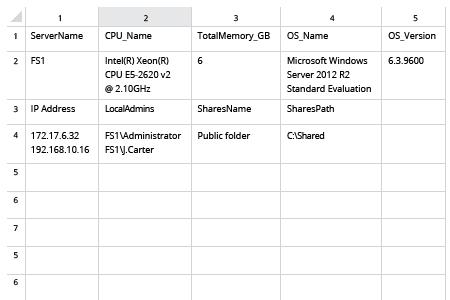
- 在 MS Excel 中打开脚本生成的文件。
收集服务器清单以检测偏离已知良好基线的情况
为确保您能够准确了解关键资产,您需要一份完整且最新的硬件清单,以及一份全面的软件清单。软件清单应包括:您的域中有哪些 Windows Server、每台服务器运行的操作系统版本(例如 Windows Server 2012 或 Windows Server 2008),以及它们是否得到了良好的外部攻击防护。使用 PowerShell 脚本来收集服务器清单,有助于您获取服务器列表。不过,收集所有重要细节并生成一份有用的报告需要时间、投入以及扎实的 PowerShell 知识。
Netwrix Auditor for Windows Server 会在一份全面、易于阅读的报告中提供您在整个组织中所需的所有服务器详细信息。您可以轻松将报告导出为 CSV 文件并在 Excel 中使用,也可以导出为 PFD 文件。该报告信息丰富,例如每台服务器上安装的操作系统名称和版本,以及防病毒状态。只需对报告应用筛选条件,即可检测与正确基线的任何偏离情况,从而让您能够立即采取措施,加强计算机和数据的安全性。
分享到