
原生审计
- 在文件服务器上打开 PowerShell ISE → 使用以下代码创建一个新脚本:
      $search_folder = "\\share\path\"

$out_file = "C:\temp\directpermissionsexport.csv"
$out_error = "C:\temp\errors.csv"

$items = Get-ChildItem -Path $search_folder -recurse

$found = @()
$errors = @()

ForEach ($item in $items) {

try {
$acl = Get-Acl $item.fullname

ForEach ($entry in $acl.access) {
If (!$entry.IsInherited) {
$found += New-Object -TypeName PSObject -Property @{
Folder = $item.fullname
Access = $entry.FileSystemRights
Control = $entry.AccessControlType
User = $entry.IdentityReference
Inheritance = $entry.IsInherited

}
}
}
} catch {

$errors += New-Object -TypeName PSObject -Property @{
Item = $item.fullname
Error = $_.exception
}

}
}

$found |
Select-Object -Property Folder,User,Control,Access,Inheritance |
Export-Csv -NoTypeInformation -Path $out_file

$errors |
Export-Csv -NoTypeInformation -Path $out_err
- 指定以下参数并运行脚本:
- $search_folder:输入要检查其直接权限的共享文件夹路径
- $out_file:输入包含结果的文件路径
- $out_error:输入错误日志文件的路径
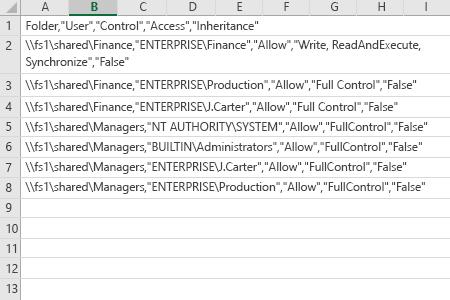
- 在 MS Excel 中打开脚本生成的文件。
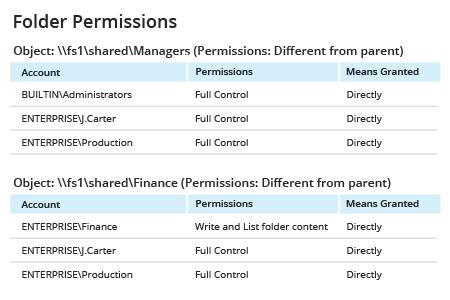
Netwrix Auditor for Windows File Servers
- 运行 Netwrix Auditor → 导航到“Reports”→ 展开“File Servers”部分 → 转到“File Servers - State-in-Time”→ 选择“Folder Permissions”→ 点击“View”→ 将“Expand Group Membership”筛选器设置为“No”→ 点击“View Report”。
- 要保存报告,请单击“Export”按钮 → 从下拉菜单中选择一种格式 → 点击“Save”。
分享到