
原生解决方案
先决条件:在运行以下任何脚本之前,你需要使用以下命令导入 Active DirectoryPowerShell 模块:
Import-Module ActiveDirectory
- 在域控制器上打开 Windows PowerShell ISE。
- 要获取 90 天或更长时间处于非活动状态的用户,请运行以下 PowerShell 脚本之一:
使用 Search-ADAccount cmdlet:
Search-ADAccount –AccountInActive -UsersOnly –TimeSpan 90:00:00:00 –ResultPageSize 2000 –ResultSetSize $null |?{$_.Enabled –eq $True} | Select-Object Name, SamAccountName, DistinguishedName| Export-CSV “C:\Temp\InactiveUsers.CSV” –NoTypeInformation
使用 Get-ADUser cmdlet:
      $date= (get-date).AddDays(-90)

Get-ADUser-Filter {LastLogonDate-lt $date} -Property Enabled|Where-Object {$_.Enabled -like “true”} |SelectName,SamAccountName,DistinguishedName|Export-CSV “C:\Temp\InactiveUsers.CSV” -NoTypeInformation
如有需要,可通过从上述脚本中删除 “Select-Object Name” 这部分管道来生成包含大量用户信息的报告。
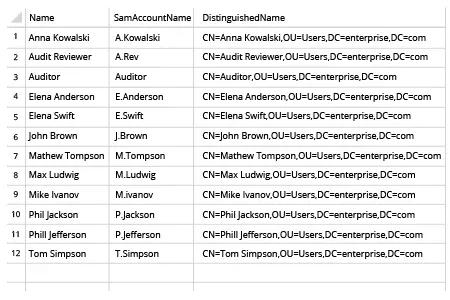
- 在 MS Excel 中打开脚本生成的 CSV 文件:
Netwrix Auditor for Active Directory
- 运行 Netwrix Auditor → 转到“Reports”→ 展开“Active Directory”部分 → 进入“Active Directory – State-in-Time”→ 选择“User Accounts”→ 点击“View”。
- 将“Days Inactive”参数设置为所需的时间范围(例如 90 天)→ 点击“View Report”。
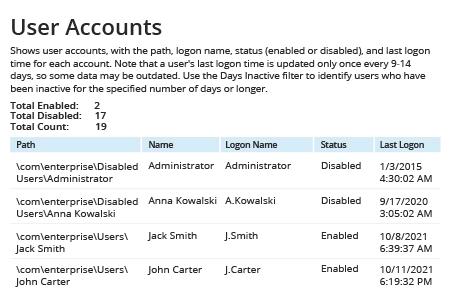
- 要保存报告,请点击“Export”按钮 → 从下拉菜单中选择格式 → 点击“Save”。
分享到