
适用于 Windows 文件服务器的 Netwrix Auditor
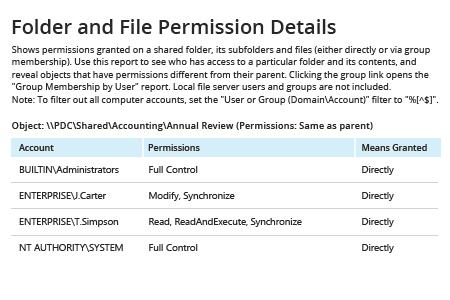
- 运行 Netwrix Auditor → 进入 "Reports" → "File Servers" → "File Servers - State-in-Time" → 选择 "Folder and File Permission Details" 报表。
- 指定以下筛选条件:
- 对象 UNC 路径 — 指定适当的路径。
- 包含子文件夹 — 设置为“Yes”。
- 具有继承权限的对象 — 设置为“Show”。
- 单击“View Report”。
要保存报告,请单击“Export”按钮 → 选择一种格式(例如 PDF)→ 单击“Save as” → 选择保存位置。
了解更多:Netwrix Auditor for Windows File Servers
原生审计
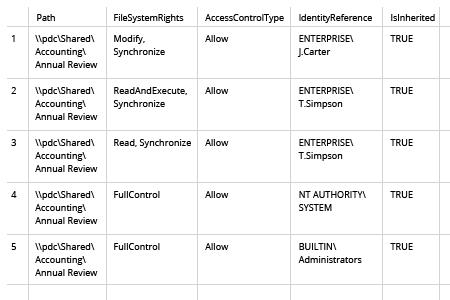
- 打开 Powershell ISE → 使用以下代码创建一个新的脚本:
      $path = "\\pdc\Shared\Accounting" #define path to the shared folder
$reportpath ="C:\data\ACL.csv" #define path to export permissions report
#script scans for directories under shared folder and gets acl(permissions) for all of them
dir -Recurse $path | where { $_.PsIsContainer } | % { $path1 = $_.fullname; Get-Acl $_.Fullname | % { $_.access | Add-Member -MemberType NoteProperty '.\Application Data' -Value $path1 -passthru }} | Export-Csv $reportpath
- 指定目标文件夹的路径,以及保存结果的位置。
- 运行该脚本。
- 在 Microsoft Excel 中打开脚本生成的文件。
使用 PowerShell 或 Netwrix Auditor 获取 ACL 共享权限的简便方法
访问控制列表(ACL)是分配给 Microsoft 环境中对象的权限列表。它定义哪些用户可以访问位于文件服务器上的文件夹和文件,以及他们在这些对象上可以执行哪些操作:读取、写入、执行、修改,甚至完全访问。采用最小特权(least-privilege)模型设置权限,并定期监控这些权限,对 Windows 文件系统中的数据安全至关重要。
你可以使用 PowerShell 的 Get-ACL cmdlet 获取 ACL 共享权限。但还有一种更简单的方法,可以在无需编写 PowerShell 脚本、也无需考虑安全描述符的情况下,保持对访问控制列表配置的掌控。
Netwrix Auditor for Windows File Servers 简化了用户权限(entitlement)以及文件分析报告流程,从而实现更好的数据安全和信息管理。它可以获取服务器上任意文件夹的 ACL。此外,仅需几次点击,您还可以发现过度暴露的数据、识别数据所有者、检查数据使用情况与数据容量,并定位那些早该清理的过期文件和重复文件。
分享到