
原生解决方案
- 打开 PowerShell ISE,并使用以下 PowerShell 脚本创建一个新文件;请务必输入计算机名称和输出路径:
      $cred = Get-Credential
$comp = "PDC"
$session = New-PSSession -ComputerName $comp -Credential $cred
$script = {
"Services:"
Get-WmiObject win32_service -ErrorAction Stop| where {$_.StartMode -like 'Auto' -and $_.Startname -notlike '*local*' -and $_.Startname -notlike '*NT AU*'}| Select-Object Name, DisplayName, State, StartMode, StartName | Format-Table -Property * -AutoSize| Out-String -Width 4096
# To output to CSV, add this string to the previous command: | Export-Csv c:\Out\filename.csv - NoTypeInformation

"ScheduledTasks"
schtasks.exe /query /V /FO CSV | ConvertFrom-Csv | Where { $_.TaskName -ne "TaskName" -and $_.TaskName -like "*powershell*"}|Select-Object @{ label='Name'; expression={split-path $_.taskname -Leaf} }, Author ,'run as user','task to run'| Format-Table -Property * -AutoSize| Out-String -Width 4096
# To export to CSV, add this string to the previous command: | Export-Csv c:\Out\filename.csv - NoTypeInformation
}
Invoke-Command -Session $session -ScriptBlock $script
- 使用在所述本地计算机上具有管理员权限的账户凭据运行脚本。
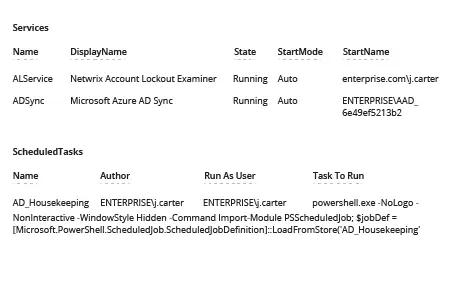
- 查看生成的报告:
Netwrix Auditor for Windows Server
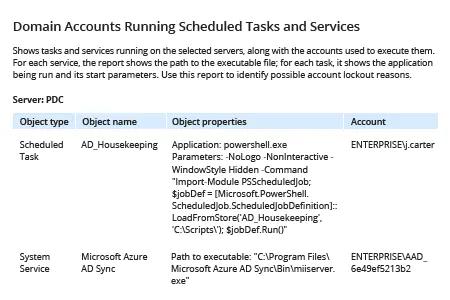
- 运行 Netwrix Auditor。依次转到“Reports”-> 点击“Predefined”-> 展开“Windows Server”部分 -> 点击“Windows Server – State-in-Time”-> 选择“Domain Accounts Running Scheduled Tasks and Services”-> 点击“View”。
- 如需将报告限制为特定服务器或工作站:在筛选器中的“Server name”字段输入计算机名称 -> 点击“View Report”。
分享到