
Force a Group Policy update with GPUpdate/Force
Aug 26, 2025
Forcing a Group Policy update applies new or modified settings to domain-joined machines immediately, without waiting for the 90-minute background refresh cycle. Three methods are available: gpupdate /force from an elevated command prompt for local machines, GPMC remote update for OU-wide deployment, and Invoke-GPUpdate for scripted remote updates in PowerShell. After forcing an update, run gpresult /r to confirm which policies applied.
Group Policy is the mechanism Windows administrators use to enforce security settings, software configurations, and user environment controls across domain-joined machines. The default refresh cycle runs every 90 minutes, which is too slow for time-sensitive changes.
This guide covers three methods for forcing an immediate group policy update: using the gpupdate command, the Group Policy Management Console, and PowerShell.
It also explains how the background refresh mechanism works and how to verify that policies are applied correctly.
What is GPupdate?
GPupdate is a Windows command-line tool that triggers a Group Policy refresh on the local machine. It contacts the domain controller, retrieves any policy changes since the last refresh, and applies them to both computer and user configuration. Without additional flags, gpupdate processes only changed or new policies, skipping anything already applied.
Group Policy Objects in Active Directory control password policies, software deployment, logon scripts, security baselines, and desktop configurations. When you modify a GPO or link a new one to an organizational unit (OU), that change doesn't reach endpoints until the next scheduled refresh completes.
The gpupdate command has been available since Windows XP and Windows Server 2003. It runs under the logged-in user context and the local SYSTEM account, applying user-side and computer-side policies separately.
Domain controllers refresh Group Policy every five minutes by default. Member workstations and servers use a 90-minute interval, plus a randomized offset of up to 30 additional minutes to reduce load on the domain controller.
Windows captures GPO change events in the security event log, but doesn't record the previous configuration value or present changes in a consolidated view.
gpupdate vs. gpupdate /force: when to use each
Running gpupdate without the /force switch applies only policies that have changed since the last refresh. If Windows determines a policy is already current, it skips reprocessing. This is efficient for routine refreshes but leaves a gap when a policy is marked unchanged yet still needs to be reapplied: for example, after a registry edit, a failed application, or a manual deletion of a policy setting.
The /force switch overrides that logic and reapplies all in-scope policies, regardless of whether the domain controller reports any changes. Every GPO gets reprocessed from scratch.
Use gpupdate without /force when you have deployed new or modified GPOs and simply want endpoints to pick up the changes ahead of their next scheduled cycle. Use gpupdate /force when:
- A policy setting was manually removed or overridden locally
- You'retroubleshooting whether a GPO is applying correctly
- You recently linked a new GPO and need immediate enforcement across a machine
- A software installation policy failed and needs to be retried
The /force switch adds marginal load to the domain controller, since it processes all in-scope policies rather than only the delta. In environments with a large number of GPOs, avoid running it simultaneously across large machine sets without staggering the requests.
Netwrix Auditor tracks every change to Group Policy Objects in Active Directory, recording who modified a GPO, what changed, and the previous configuration value. Download a free trial.
How to force a group policy update
Method 1: Command Prompt
The most direct way to force a Group Policy update is to run it from an elevated Command Prompt or PowerShell window.
Basic syntax:
gpupdate /force
Open Command Prompt as Administrator, then run the command. The output will read:
      Updating policy...

Computer Policy update has completed successfully.
User Policy update has completed successfully.
If the updated policies require a logoff or restart to take effect, gpupdate will prompt you. Certain software installation and folder redirection policies can't apply to a running session and require a fresh login.
Full parameter reference:
Parameter | Description |
|---|---|
|
/force |
Reapplies all policies regardless of change status |
|
/target:{computer|user} |
Limits the refresh to computer-side or user-side policies only |
|
/logoff |
Logs off the current user after the update, required for policies that can't apply to an active session |
|
/boot |
Restarts the computer after the update, required for policies that apply only at startup |
|
/sync |
Forces the next foreground policy application (at logon or startup) to run synchronously, blocking login until policy processing completes |
|
/wait:{value} |
Sets how long, in seconds, the command waits for policy processing to complete; /wait:0 returns immediately; the default is 600 seconds |
Target a specific policy area:
      gpupdate /force /target:computer
gpupdate /force /target:user
Use /target:computer when you have updated computer-side policies such as security policy settings, startup scripts, or software restrictions, and don't need to refresh user-side settings. Use /target:user for user-side changes, such as logon scripts, folder redirection, or software installations.
Elevated permissions note: gpupdate requires an elevated session to apply computer-side policies. Running it without elevation processes only user-side policies and may return a success message that doesn't reflect the full policy state.
Method 2: Group Policy Management Console (GPMC)
The Group Policy Management Console lets you push a forced Group Policy update to all computers in a specific OU without logging on to each machine individually. This feature, available since Windows Server 2012, uses a scheduled task to run gpupdate /force on each target computer remotely.
Steps:
- Open Group Policy Management (
gpmc.msc). - Expand your domain, then navigate to the OU that contains the computers you want to update.
- Right-click the OU and select Group Policy Update.
- A confirmation dialog asks whether you want to force a group policy update on all computers in the OU. Click Yes.
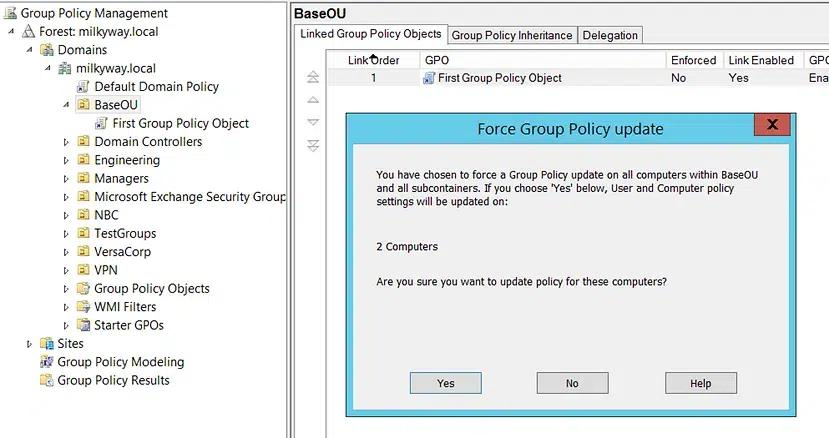
5. The Remote Group Policy update results window opens and displays the update status for each computer in the OU.
Important: The GPMC remote update doesn't fire on every machine simultaneously. Windows distributes the requests over a 10-minute random delay window to prevent all machines from contacting the domain controller at the same time. Factor that window into your timeline when verifying policy application.
Firewall requirements for remote Group Policy update:
The GPMC remote update creates a scheduled task on each target computer over WMI and RPC. Three Windows Firewall inbound rules must be enabled on target machines:
- Remote Scheduled Tasks Management (RPC): TCP dynamic ports
- Remote Scheduled Tasks Management (RPC-EPMAP): TCP port 135
- Windows Management Instrumentation (WMI-In): TCP all ports
You can enable these rules manually via Group Policy, or deploy them automatically using the built-in Group Policy Remote Update Firewall Ports Starter GPO, available in the Starter GPOs node in GPMC.
To deploy the Starter GPO:
- In GPMC, expand Starter GPOs under your domain.
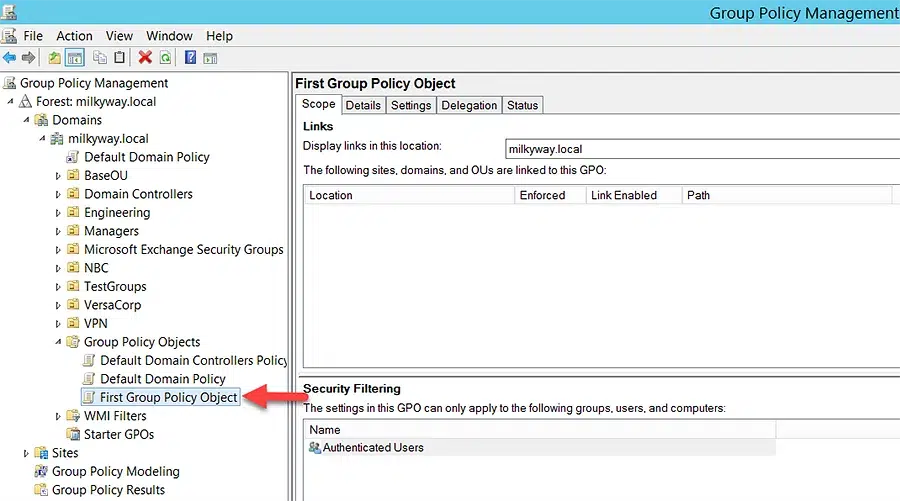
2. Right-click Group Policy Remote Update Firewall Ports and select New GPO from Starter GPO.
3. Name the new GPO and link it to the OUs containing your target computers.
4. Navigate to Computer Configuration > Policies > Windows Settings > Security Settings > Windows Firewall with Advanced Security.
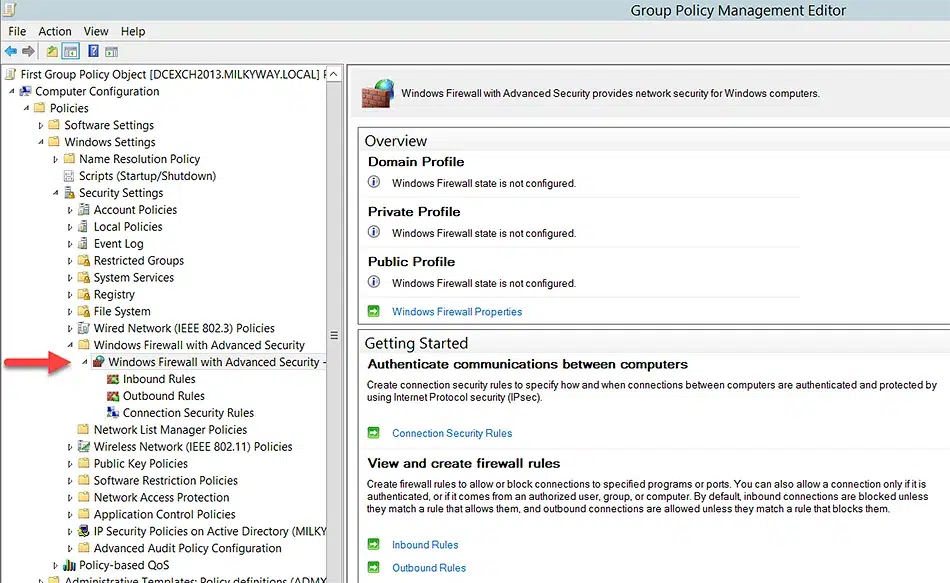
5. Confirm the three inbound rules are present and set to Enabled.
Method 3: Invoke-GPUpdate (PowerShell)
Invoke-GPUpdate is the PowerShell cmdlet for forcing Group Policy updates on remote machines without requiring a console session on each target. it's part of the GroupPolicy module included in the Remote Server Administration Tools (RSAT).
Requirements:
- RSAT with the Group Policy Management feature installed on the management machine
- PowerShell remoting enabled on target computers (
Enable-PSRemoting) - Supported on Windows 8 and Windows Server 2012 or later
Force an update on a single remote computer:
Invoke-GPUpdate -Computer "COMPUTER-NAME" -RandomDelayInMinutes 0
Setting -RandomDelayInMinutes 0 makes the update fire immediately. Omit the parameter to use the default randomized behavior.
Force an update on all computers in the domain:
      $computers = Get-ADComputer -Filter *
$computers | ForEach-Object {
    Invoke-GPUpdate -Computer $_.Name -RandomDelayInMinutes 0 -Force
}
Force an update on all computers in a specific OU:
      Get-ADComputer -Filter * -SearchBase "OU=Sales,DC=contoso,DC=com" |
ForEach-Object { Invoke-GPUpdate -Computer $_.Name -Force -RandomDelayInMinutes 0 }
Scoping the update to an OU is the preferred approach when a Group Policy setting change applies only to a subset of machines, reducing unnecessary load on the domain controller.
Full parameter reference:
Parameter | Description |
|---|---|
|
-Computer |
Name of the target computer (NetBIOS name or FQDN) |
|
-Force |
Equivalent to |
|
-RandomDelayInMinutes |
Sets a random delay before the update fires; use 0 for immediate execution |
|
-LogFilePath |
Path to a log file for capturing update output |
|
-AsJob |
Runs the update as a background job, allowing multiple updates to run in parallel |
PowerShell remoting is the key dependency. If target computers block WinRM traffic, Invoke-GPUpdate will return a connection error. Before running at scale, confirm that WinRM is enabled and that the GroupPolicy module is loaded. For a broader reference on managing Group Policy through PowerShell, the top Group Policy PowerShell commands cover the most common administrative tasks.
Netwrix Auditor records every Group Policy Object change, so your team has the audit trail compliance reviews require. Download a free trial.
How Group Policy background refresh works
Group Policy doesn't require manual intervention to stay current. The Background Policy Refresh mechanism automatically applies updated policies according to a schedule controlled by the Group Policy client service.
Default refresh intervals:
- Client computers (workstations and member servers): Every 90 minutes, plus a randomized offset of 0 to 30 minutes. The offset prevents hundreds of machines from contacting the domain controller simultaneously.
- Domain controllers: Every 5 minutes, with no random offset.
- Security settings: Every 16 hours, even when no changes have been made. Windows reapplies security settings on this fixed interval as a safeguard against local drift, regardless of what change detection reports.
These intervals apply to background refresh only. Foreground policy application, which runs at computer startup and user logon, processes policies synchronously before the desktop appears.
You can modify refresh intervals through Group Policy itself: Computer Configuration > Administrative Templates > System > Group Policy > Set Group Policy refresh interval for computers. The base interval and the maximum random offset are configurable separately.
When gpupdate /force is still necessary:
Background refresh skips unchanged policies by design. If a local override or registry edit has altered a policy value between cycles, Windows doesn't detect the discrepancy and will not correct it until the next foreground policy application.
Running gpupdate /force reapplies all policies and corrects any local drift. Following Group Policy best practices around change control reduces the frequency of emergency forced updates.
Verify policy application with gpresult:
After a forced update, confirm that policies applied correctly:
gpresult /r
This command outputs a summary of the GPOs applied to the current user and computer. To export a full HTML report:
gpresult /h C:\gpresult.html
Open the report and review the Denied GPOs and Not Applied GPOs sections. GPOs listed there indicate filtering or linking issues that a forced update can't resolve on its own.
Forcing specific policy areas to always reapply
By default, certain policy areas, including Group Policy preferences and software installation policies, don't reprocess if they have already applied successfully, even when gpupdate /force runs. You can override this behavior at the GPO level.
In the Group Policy Management Editor, navigate to Computer Configuration > Administrative Templates > System > Group Policy (for computer-side settings) or User Configuration > Administrative Templates > System > Group Policy (for user-side settings).
Enable the "Process even if the Group Policy objects haven't changed" setting for each extension you want to force reprocessing.
These settings apply globally to all GPOs in scope. Enabling force-reprocess for software installation policies across an entire domain causes software check-and-repair to run on every client during each refresh cycle, significantly increasing network and domain controller load. Enable selectively and test in a pilot OU before deploying broadly.
How Netwrix Auditor helps you track and audit Group Policy changes
Unauthorized changes to Group Policy Objects are a documented path to security misconfiguration, privilege escalation, and compliance drift.
A single GPO edit can disable Windows Firewall, weaken password enforcement, or grant elevated access across hundreds of machines, and the native Windows event log doesn't surface the full scope of what changed or who made the change.
Netwrix Auditor tracks every modification to Group Policy Objects in Active Directory, recording the previous and new values, who made the change, and when.
Security teams can configure alerts for high-risk GPO modifications and generate audit-ready reports that satisfy Active Directory auditing requirements for HIPAA, PCI DSS, SOX, and similar frameworks.
For organizations that need to demonstrate compliance with a formal Windows audit policy, Netwrix Auditor provides the before-and-after evidence auditors require.
Request a demo to see how Netwrix can help you track Group Policy changes, audit Active Directory modifications, and maintain continuous visibility across your Windows environment.
Frequently asked questions about forcing a group policy update with gpupdate /force
Share on
Learn More
About the author

Jonathan Blackwell
Head of Software Development
Since 2012, Jonathan Blackwell, an engineer and innovator, has provided engineering leadership that has put Netwrix GroupID at the forefront of group and user management for Active Directory and Azure AD environments. His experience in development, marketing, and sales allows Jonathan to fully understand the Identity market and how buyers think.
Learn more on this subject
Continuous posture management vs. point-in-time assessments
Health IT can't move imaging to the cloud. Here's how to keep on-prem systems compliant.
Microsoft is retiring memberOf operator in Entra ID Dynamic Groups. What should administrators do next?
The AI agent working for you probably has more access than you do
Powerful LDAP extended controls: Anti-remediation and invisible recon in AD