
How to Check AD Group Membership with Command Line
Accurate Active Directory (AD) group membership checks prevent access-review gaps, unmanaged privileges, and troubleshooting delays. Native Windows and AD tools can query users, groups, or the current logon token, but their limits include truncated output, direct-membership-only results, local scope, and Lightweight Directory Access Protocol (LDAP) naming requirements. PowerShell handles recurring checks across many objects more efficiently.
Removing someone from the directory doesn't always remove their access. When an offboarding check only looks at direct group membership, it misses whatever came through nested groups, and that access outlives the account change that was supposed to end it.
The Netwrix 2026 Data and Identity Security Report found that lack of visibility into who has access is the top reason organizations cite for security exposure, named by 37% of respondents, more than any other cause.
Windows offers several ways to confirm group membership from the command line. The right one depends on whether you're checking yourself, another user, or a group, and whether nested membership matters.
Why check AD group membership
Different roles run this check for different reasons, and the reason usually decides which tool fits best:
- Help desk and IT support confirm why a user can't reach a resource, tracing it back to the group that should grant access.
- Security and compliance teams run access reviews, comparing who's actually in a sensitive group against who should be.
- AD administrators scope Group Policy Objects (GPOs) and delegated permissions, since both apply to groups rather than individual accounts.
- Offboarding workflows confirm that removing a departing employee from the directory removes them from every group that granted access, not just their account.
- Compliance auditors verify that access matches documented policy by tracing a user's group membership back to evidence during a review, rather than taking it on faith.
These tools handle all of them, but not equally well once the number of users and groups grows.
How to check group membership with native Windows commands
The NET commands offer the fastest route for a one-off check on a domain-joined machine. Both run from a standard Command Prompt using components already built into Windows. The tradeoff shows up when group names run long or when you need to feed the result into a script.
Check a user's groups with net user
- Open a Command Prompt.
- Run net user with the /domain switch to query the domain controller instead of the local account database:
net user jsmith /domain
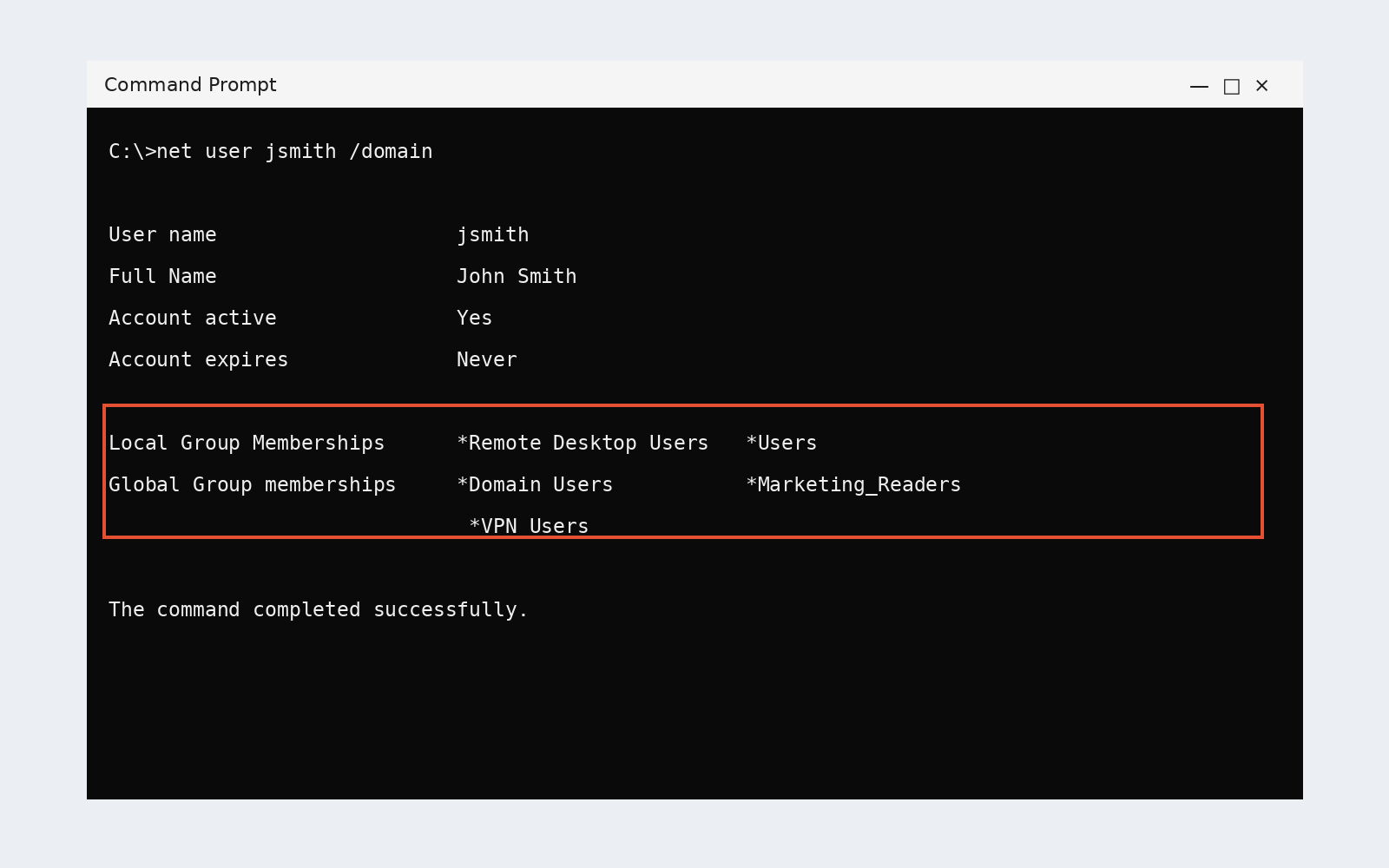
3. Read the Local Group Memberships and Global Group Memberships columns in the output.
Long names get chopped in that output. A Microsoft Q&A thread documents the truncation and confirms that resizing the console window doesn't help. The 20-character ceiling traces back to LAN Manager compatibility from decades before Active Directory existed.
In practice, this can produce a line like *GcoFieldServicesEdito*AnimalWelfare_Readers, where two group names run together with no delimiter, which is what sends admins looking for a workaround. If your naming convention produces anything longer than 20 characters, treat net user as a quick glance rather than a source of record, and don't parse it in a script. The output also shows direct memberships only; nested groups don't appear.
List a group's members with net localgroup and net group
- Run net localgroup with a group name to see who's in it, and the command reads the local computer's groups; add /domain to query the primary domain controller instead:
      net localgroup "Remote Desktop Users"
net localgroup "Administrators" /domain
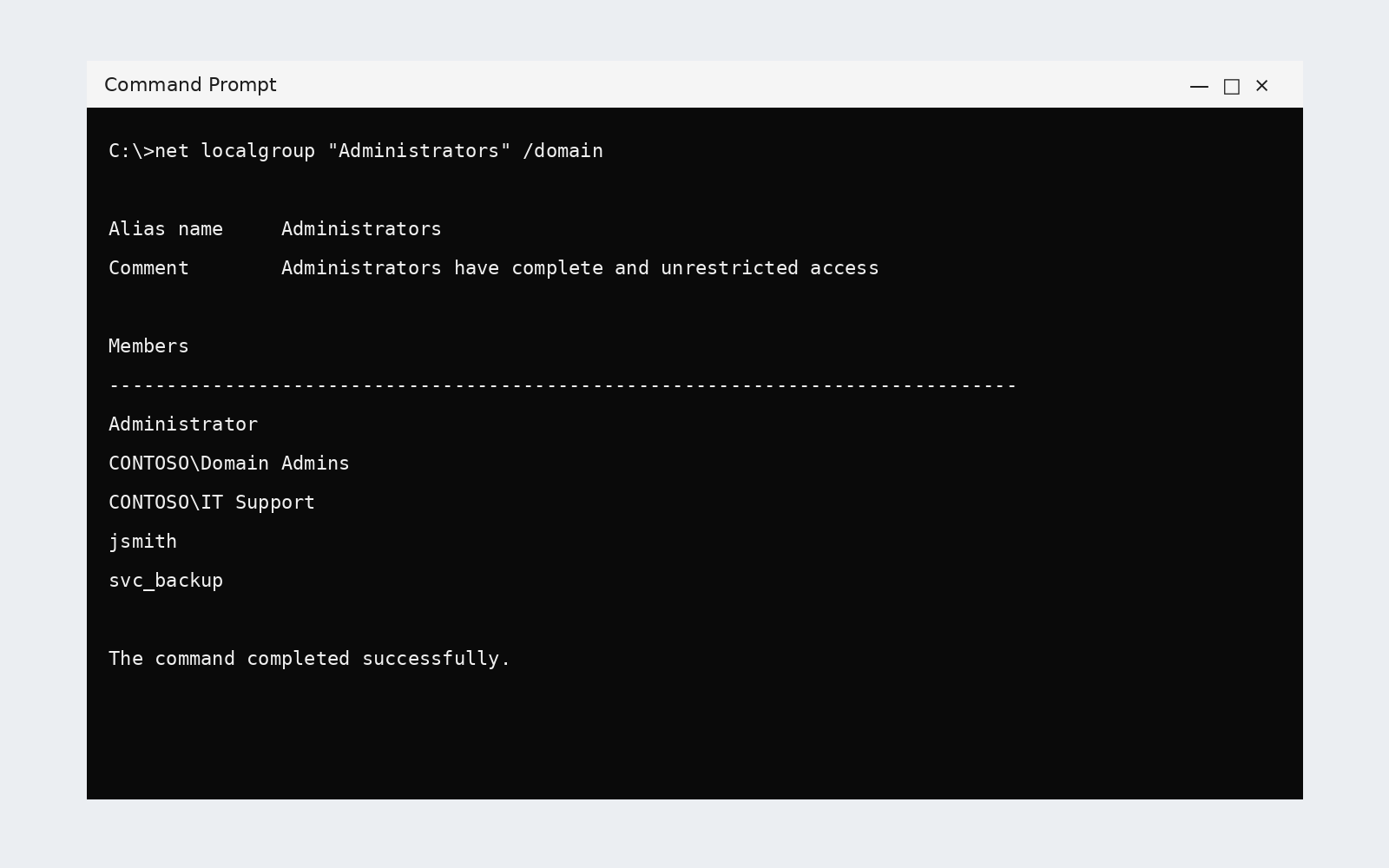
2. For a domain global group instead of a local one, run net group, which only resolves global groups, so domain local and universal groups return nothing useful:
net group "Domain Admins" /domain
Without /domain, net localgroup stays scoped to that machine, making it a fast way to check who holds local admin rights on a workstation. Microsoft's own description of the command's scope is blunt: "Workstation or non-domain controller servers are restricted to local groups defined on that system."
Netwrix Directory Manager automates joiner-mover-leaver workflows across hybrid Active Directory and Entra ID without code. Request a demo
Why manual group membership checks get hard at scale
Native commands work fine for checking one user or one group. They stop working once the question spans many users and many groups at once.
The math stops working past a handful of objects
Microsoft's own least-privilege guidance finds "dozens of nested groups that, when expanded, reveal hundreds, even thousands, of accounts with local Administrator privilege on the servers" when its engineers pull local Administrators membership on member servers.
That guidance warns that "any user who can modify the memberships of those groups in the domain can gain administrative control of all systems on which the group has been nested." The Netwrix 2025 Cybersecurity Trends Report found that 41% of organizations rank automating manual IT processes as a priority, up from 31% in 2024.
Deep nesting and circular references
Active Directory enforces no nesting-depth limit and doesn't block circular references. Group A can contain group B, which contains group A, since, per a Server Fault discussion, "there is nothing preventing this from happening in Active Directory." Microsoft recommends the opposite, advising admins to "limit the number of nested groups or don't use them at all if possible."
Missing ownership
Microsoft's own AD group cleanup guidance names "the proliferation of groups in their Active Directory Domain Services (AD DS) domains, particularly security groups" as a core concern, and treats a missing owner as the primary cleanup trigger.
Without an owner who can vouch for a membership, the person running the review has to reconstruct intent from a bare list of account names.
How to check group membership with Active Directory Users and Computers (ADUC)
ADUC gives you the point-and-click path when the console is already open, showing full, untruncated group names and letting you jump from a user to a group and back. The console (dsa.msc) ships with the Active Directory Domain Services component of RSAT, which you can install on Windows 11 Pro or Enterprise through Settings > System > Optional Features.
See which groups a user belongs to
- Open ADUC by running
dsa.msc, or go to Server Manager > Tools > Active Directory Users and Computers.
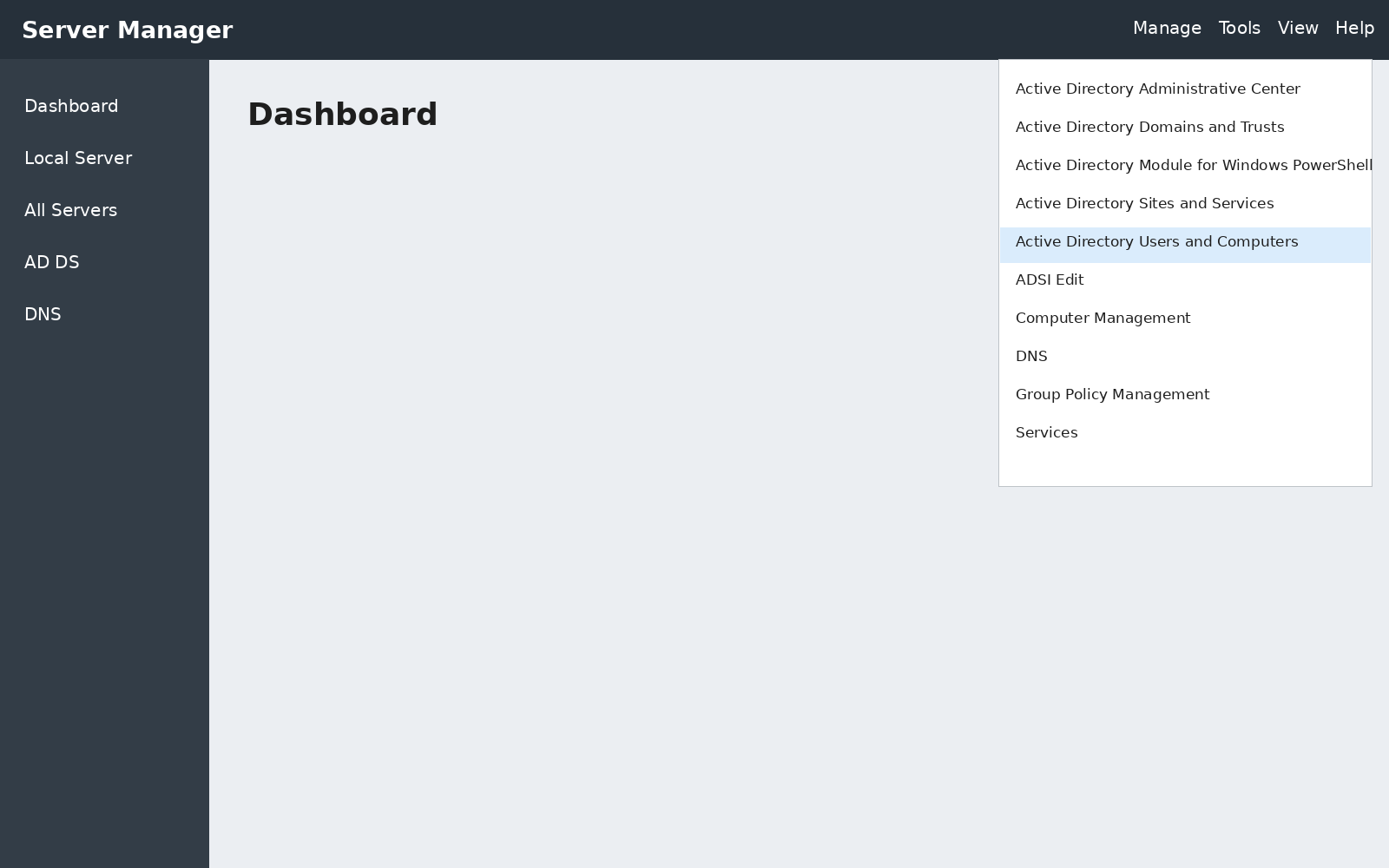
2. Find the user account in the appropriate organizational unit (OU), or use Find on the domain node.
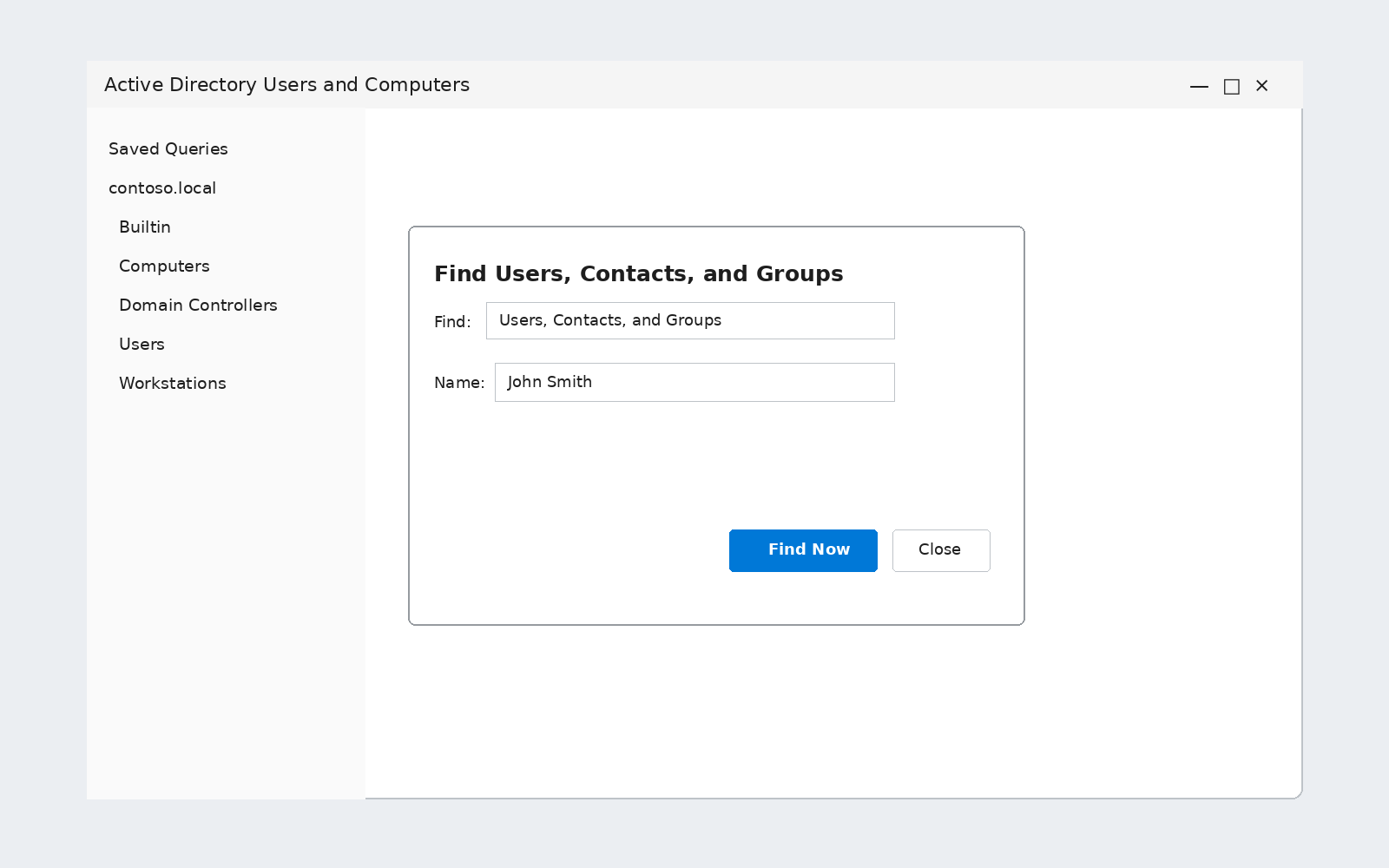
3. Right-click the account and choose Properties, then open the Member Of tab.
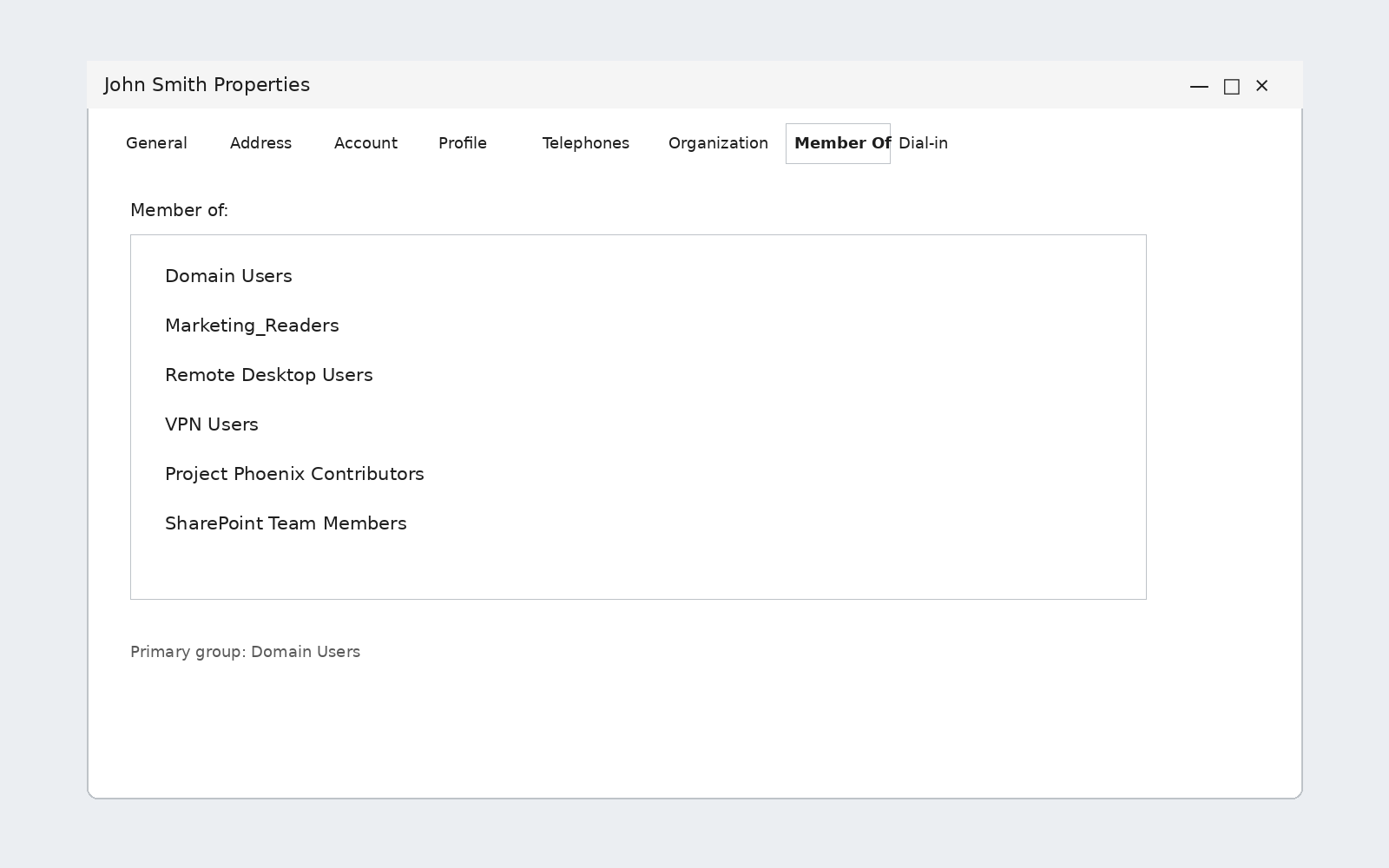
The Member Of tab reads the memberOf attribute directly. That attribute excludes the primary group, which primaryGroupId stores instead (Domain Users by default), and it holds only direct memberships. The constructed tokenGroups attribute contains the full transitive list, but the ADUC GUI never displays it.
See who's in a group
- Locate the group object, right-click it, and choose Properties.
- Open the Members tab.
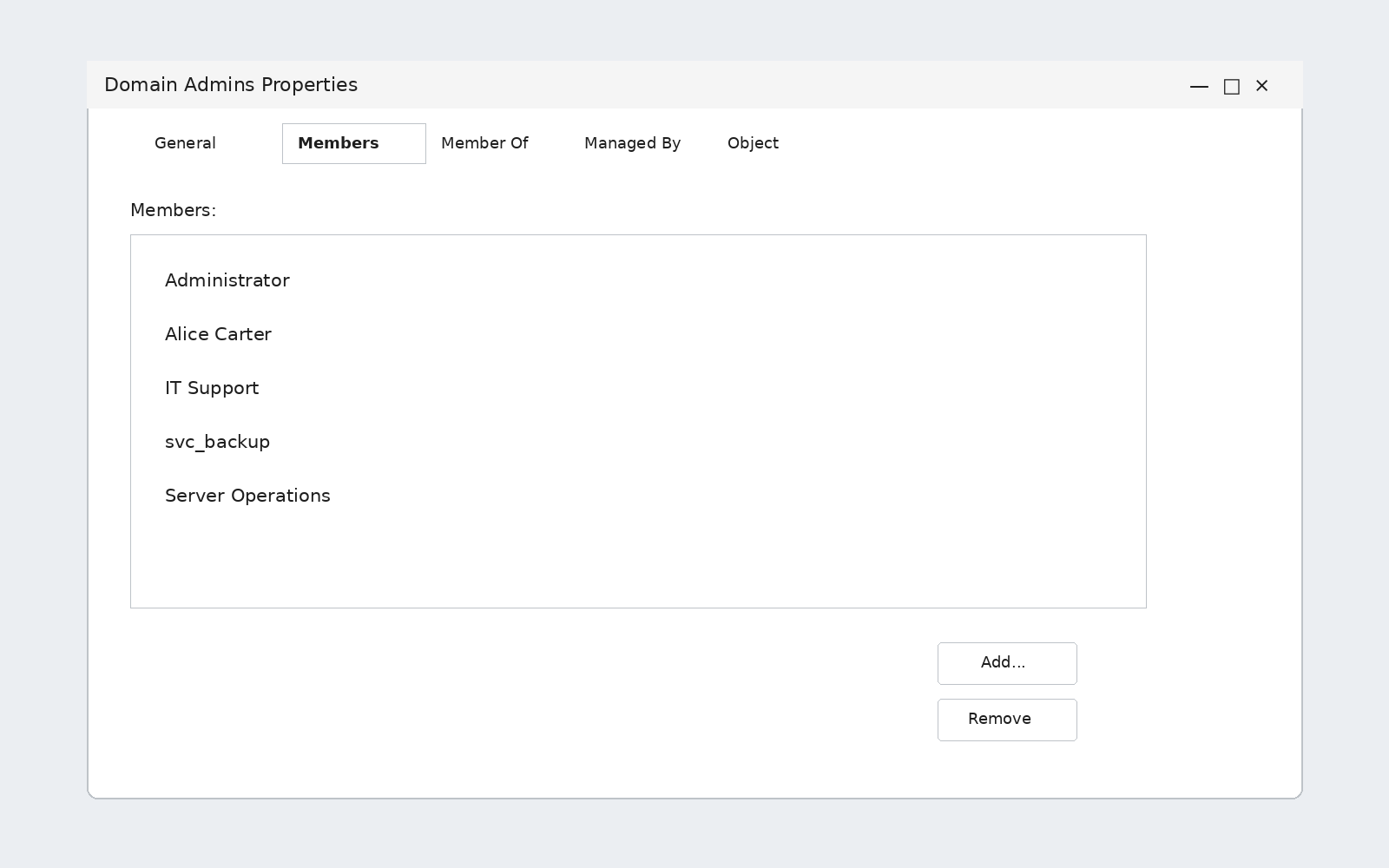
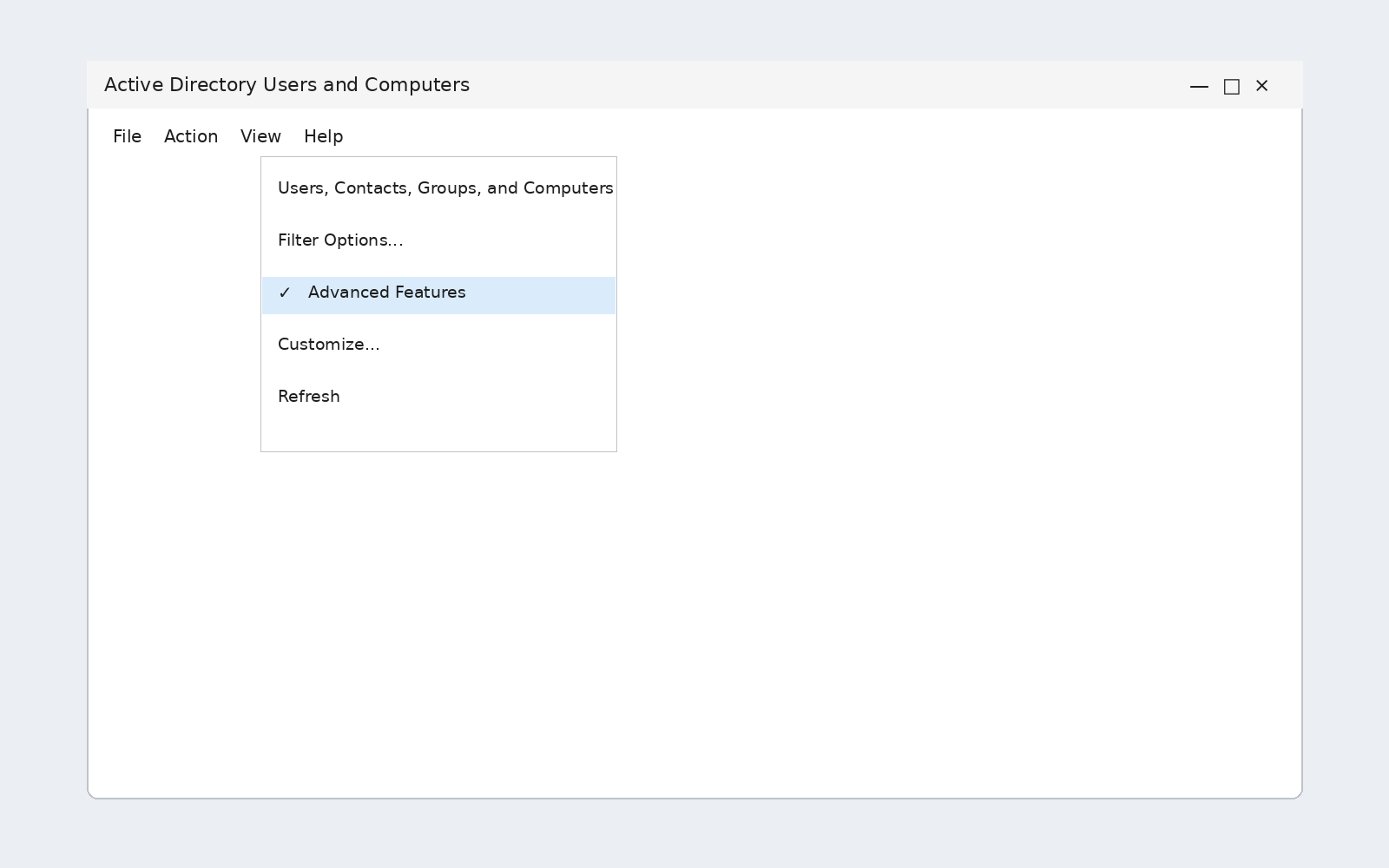
For built-in groups such as Administrators or Account Operators, enable the View menu option that displays additional objects, open the Builtin container, and check the Members tab there.
How to check group membership with dsget and dsquery
The ds* tools return complete names, one result per line; you can pipe the output straight into another command. They also come with two conditions attached.
A plain Windows 10 or 11 workstation only gets them after you install the RSAT capability above, and Microsoft requires you to run dsquery "from an elevated command prompt."
Dsget also needs the object's LDAP distinguished name (DN), which you enclose in quotation marks whenever it contains spaces.
1. Find the object with dsquery
Dsquery locates the object and hands its DN to the next command in the pipeline, which avoids typing out a full DN by hand:
dsquery user -samid "username" | dsget user -memberof -expand
The dsget syntax alone looks like this, with a manually entered DN for reference:
      dsget user <UserDN> [-memberof] [-expand]
dsget user "CN=Mike Danseglio,CN=users,dc=ms,dc=tld" -memberof -expand
2. Expand the membership with -memberof and -expand
The -memberof switch returns the immediate list of groups the user belongs to. Adding -expand recursively resolves each of those groups, producing what Microsoft calls "a complete closure set of the groups." That combination makes dsget useful for checks that need full transitive membership without writing a script.
3. Get clean account names for every result
Pipe the result through dsget group to convert raw entries into clean Security Account Manager (SAM) account names for every direct and nested group:
dsquery user -samid [username] | dsget user -memberof -expand | dsget group -samid
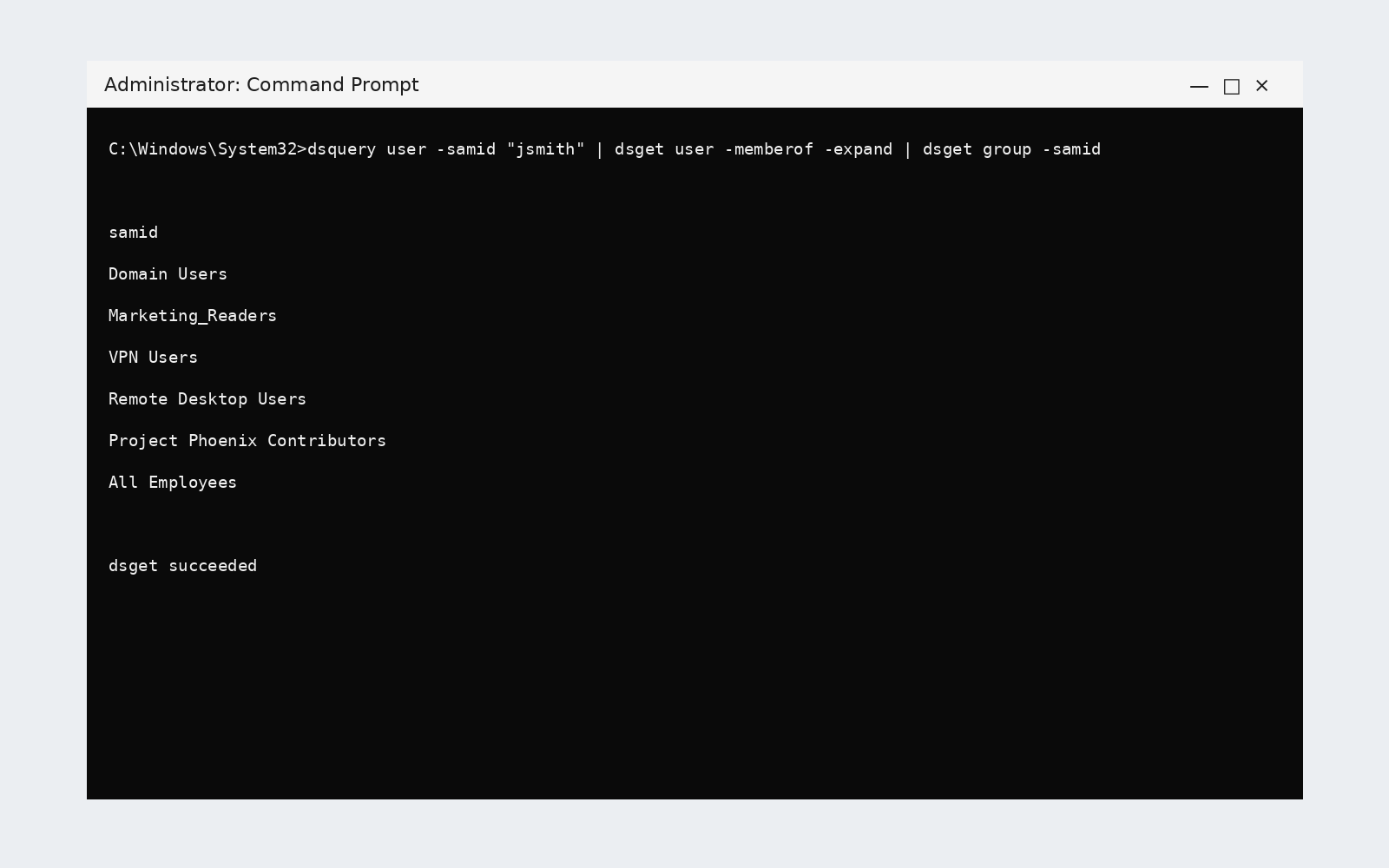
The same pattern runs in reverse for listing a group's members, with dsget group accepting -members and -expand instead:
dsquery group -samid "GroupName" | dsget group -members -expand
Dsquery returns only the first 100 results by default, so add -limit 0 when you need everything. Like ADUC's Member Of tab, -memberof skips the primary group, because the underlying memberOf attribute excludes it too.
How to check your own group membership with whoami
The whoami command answers a narrower question than the tools above. It shows which groups your current session belongs to. Standard users can run it on any domain-joined Windows 10, 11, or Server 2016 through 2025 machine, with no elevation needed.
Run whoami with the output format you need
      whoami /groups
whoami /groups /fo list
whoami /all
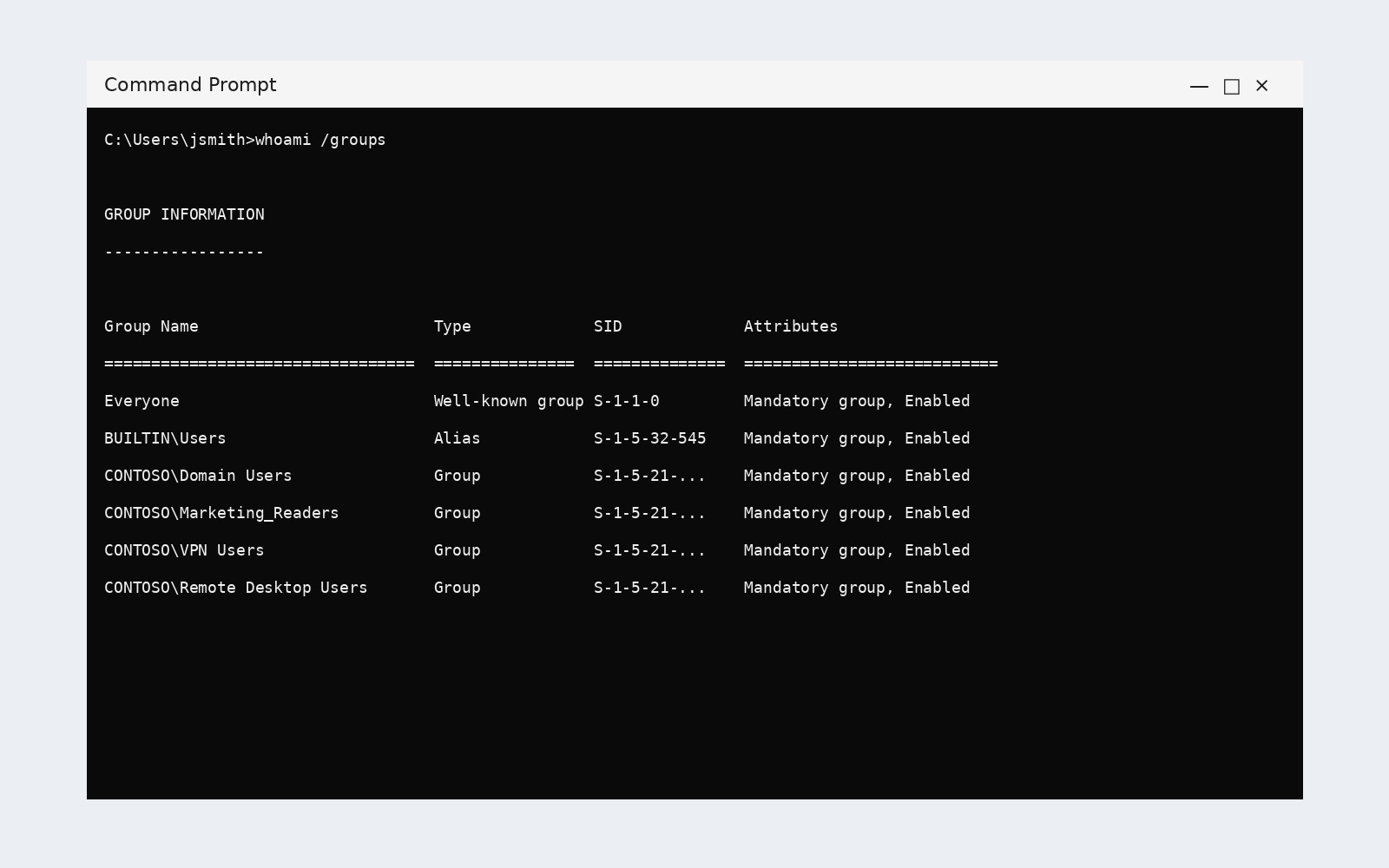
/groups lists the groups the current user belongs to, /all adds the user's security identifier (SID) and privileges, and /fo switches the output between table, list, and comma-separated values (CSV) formats. Use the list format when group names run long, and CSV when you want to redirect the output straight to a file.
whoami reads the Windows access token built at logon rather than querying the directory live. That token holds the SIDs of every global and universal security group the user belongs to, including nested ones, because AD flattens transitive membership into it at sign-in. That's why whoami surfaces implicit nested memberships that net user misses, with names displayed in full, never truncated.
That same token-based design is also its limit. You can't inspect another user or a remote machine, and the token stays frozen until the next sign-in. Windows documents this directly: "it does not update the context until the next time that the user signs in."
Distribution groups never appear either, since they lack security enablement, and neither do domain local groups from other domains. Under policies that block SID-to-name resolution, the command can time out with "unknown sid type" instead of returning results.
How to check group membership with PowerShell
The ActiveDirectory module scales past the one-object-at-a-time limit of every tool above. Get-ADGroupMember retrieves members of a group; Get-ADPrincipalGroupMembership retrieves groups for a user, computer, or service account.
Get every group a user belongs to
Get-ADPrincipalGroupMembership -Identity jsmith | Select-Object Name
This returns every group jsmith belongs to, resolved through the module's own directory queries rather than a static token or a truncated console column.
Get every member of a group, including nested ones
Get-ADGroupMember -Identity "Domain Admins" -Recursive | Select-Object Name
-Recursive resolves nested groups down to individual accounts, instead of stopping at the first-level group entries that net group and a plain dsget return without -expand.
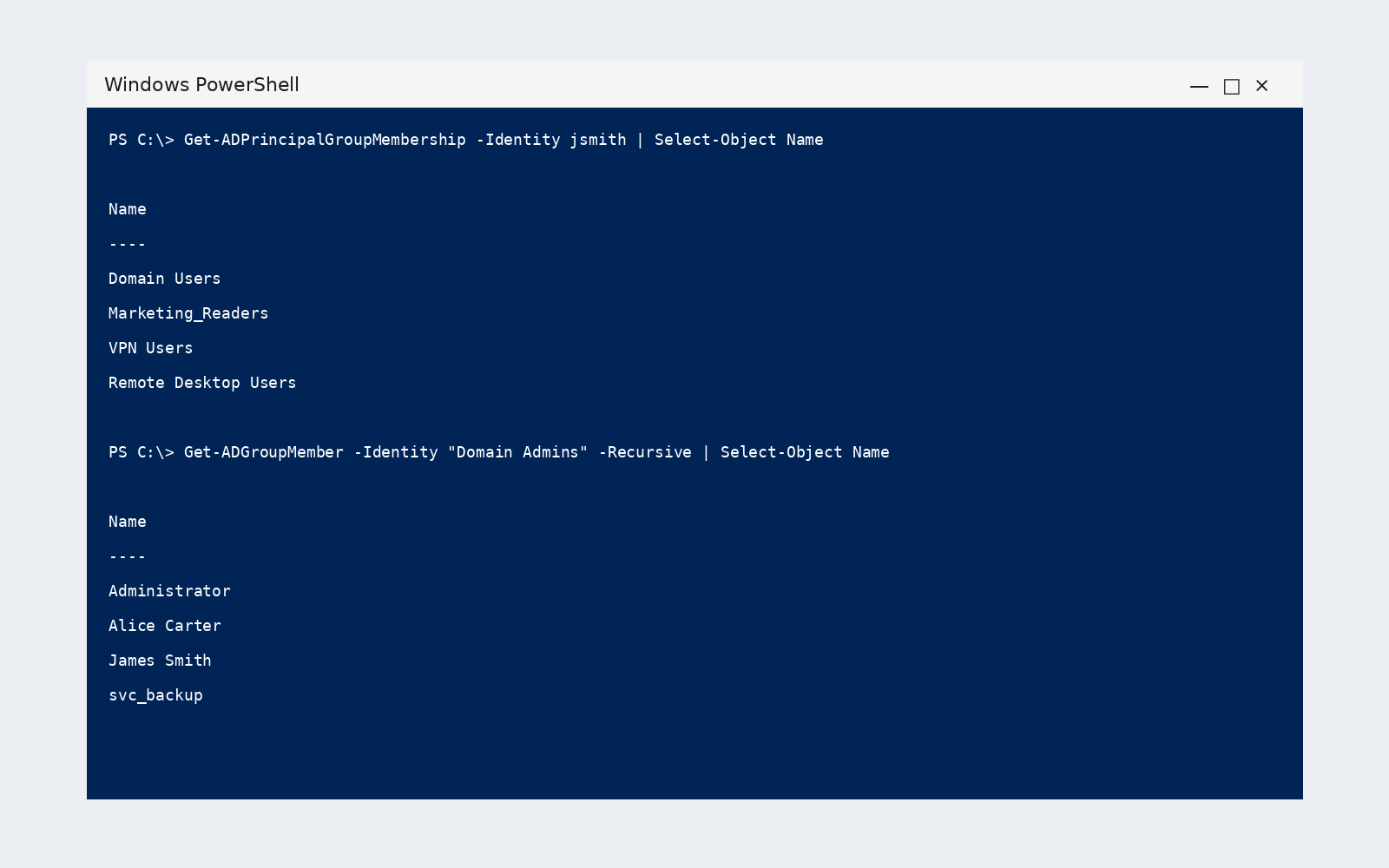
The same module also handles adding or removing group members programmatically. Add recursion and a CSV export to either command above, and the same two-line PowerShell check becomes a repeatable review that validates membership across every user and group in scope, not just one at a time.
Where native tools stop, and group management begins
Native tools fit troubleshooting and one-off validation. Proving review completion across many groups takes more: accountable owners, review records, and controlled changes.
Query-based smart groups adjust membership automatically from current user attributes, approval workflows route changes while native AD rights stay centrally controlled, and scheduled attestation assigns each review to the person who actually knows why the group exists.
Netwrix Directory Manager applies these controls so unnecessary groups expire and privileges don't quietly accumulate over time. More than 14,000 organizations, including approximately 25% of the Fortune 500, use Netwrix to manage and secure their Microsoft environments.
Request a demo to see how Netwrix Directory Manager turns AD group membership from a manual check into a governed, audited process.
Frequently asked questions about how to check AD group membership?
Share on