
Windows Server 向け Netwrix Auditor
- Netwrix Auditor を実行 →「Reports」に移動 →「Windows Server」セクションを展開 →「Windows Server – State-in-Time」を開く →「Windows Server Configuration Details」を選択 →「View」をクリックします。
- レポートを保存するには、「Export」ボタンをクリック → ドロップダウンメニューから形式を選択 → 「Save」をクリックします。
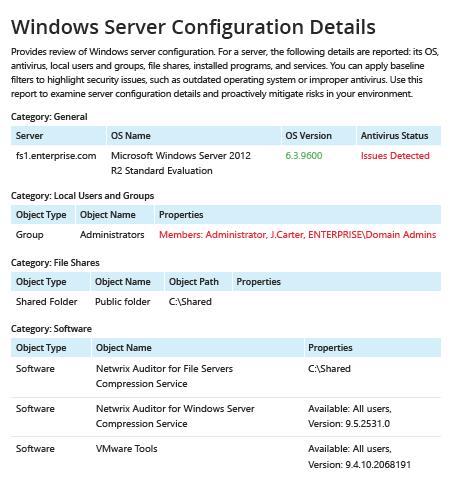
さらに詳しく:Netwrix Auditor for Windows Server
ネイティブ監査
- コンピューターの一覧を含むファイルを作成 → Powershell ISEを開く → 次のスクリプトを実行し、エクスポート用のパスを調整します:
      #Start PSRemoting.
Invoke-Command -ComputerName (Get-Content C:\data\computers.txt) -scriptblock {

#Run the commands concurrently for each server in the list
$CPUInfo = Get-WmiObject Win32_Processor #Get CPU Information
$OSInfo = Get-WmiObject Win32_OperatingSystem #Get OS Information

#Get Memory Information. The data will be shown in a table as GB, rounded to the nearest second decimal.
$PhysicalMemory = Get-WmiObject CIM_PhysicalMemory | Measure-Object -Property capacity -Sum | % {[math]::round(($_.sum / 1GB),2)}

#Get Network Configuration
$Network = Get-WmiObject Win32_NetworkAdapterConfiguration -Filter 'ipenabled = "true"'

#Get local admins.
$localadmins = Get-CimInstance -ClassName win32_group -Filter "name = 'administrators'" | Get-CimAssociatedInstance -Association win32_groupuser

#Get list of shares
$Shares = Get-WmiObject Win32_share | Where {$_.name -NotLike "*$"}
$infoObject = New-Object PSObject

#Add data to the infoObjects.
Add-Member -inputObject $infoObject -memberType NoteProperty -name "ServerName" -value $CPUInfo.SystemName

Add-Member -inputObject $infoObject -memberType NoteProperty -name "CPU_Name" -value $CPUInfo.Name

Add-Member -inputObject $infoObject -memberType NoteProperty -name "TotalMemory_GB" -value $PhysicalMemory

Add-Member -inputObject $infoObject -memberType NoteProperty -name "OS_Name" -value $OSInfo.Caption

Add-Member -inputObject $infoObject -memberType NoteProperty -name "OS_Version" -value $OSInfo.Version

Add-Member -inputObject $infoObject -memberType NoteProperty -name "IP Address" -value $Network.IPAddress

Add-Member -inputObject $infoObject -memberType NoteProperty -name "LocalAdmins" -value $localadmins.Caption

Add-Member -inputObject $infoObject -memberType NoteProperty -name "SharesName" -value $Shares.Name

Add-Member -inputObject $infoObject -memberType NoteProperty -name "SharesPath" -value $Shares.Path

$infoObject
} | Select-Object * -ExcludeProperty PSComputerName, RunspaceId, PSShowComputerName | Export-Csv -path C:\data\Server_Inventory_$((Get-Date).ToString('MM-dd-yyyy')).csv -NoTypeInformation
- スクリプトによって生成されたファイルを MS Excel で開きます。
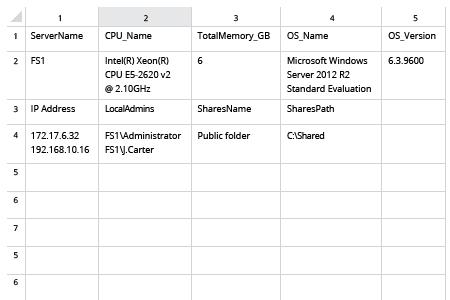
サーバー インベントリを収集して、既知の良好なベースラインからの逸脱を検出する
重要な資産を正確に把握するには、完全で最新のハードウェア インベントリと、徹底的なソフトウェア インベントリが必要です。これには、ドメイン内にどの Windows Server があるか、各サーバーで動作している OS のバージョン(例:Windows Server 2012 または Windows Server 2008)、および外部からの攻撃に対して適切に保護されているかどうかが含まれます。サーバー インベントリを収集する PowerShell スクリプトを用意すると、サーバーの一覧を取得できます。とはいえ、重要な情報をすべて集めて有用なレポートを作成するには、時間、労力、そして PowerShell に関する確かな知識が必要です。
Netwrix Auditor for Windows Server は、組織内のすべてのサーバーに関して必要な詳細情報を、包括的で読みやすい 1 つのレポートにまとめて提供します。このレポートは、CSV ファイルとして簡単にエクスポートして Excel で利用できるほか、PFD ファイルとしてエクスポートすることもできます。レポートには、各サーバーにインストールされている OS の名前とバージョン、アンチウイルスの状態など、豊富な情報が掲載されています。レポートにフィルターを適用するだけで、適切なベースラインからの逸脱を検出できるため、コンピューターとデータのセキュリティ強化にすぐに着手できます。
共有する