
ネイティブ ソリューション
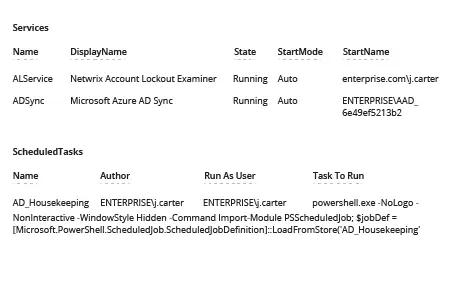
- PowerShell ISE を開き、以下の PowerShell スクリプトで新しいファイルを作成します。必ずコンピューター名と出力パスを入力してください:
      $cred = Get-Credential
$comp = "PDC"
$session = New-PSSession -ComputerName $comp -Credential $cred
$script = {
"Services:"
Get-WmiObject win32_service -ErrorAction Stop| where {$_.StartMode -like 'Auto' -and $_.Startname -notlike '*local*' -and $_.Startname -notlike '*NT AU*'}| Select-Object Name, DisplayName, State, StartMode, StartName | Format-Table -Property * -AutoSize| Out-String -Width 4096
# To output to CSV, add this string to the previous command: | Export-Csv c:\Out\filename.csv - NoTypeInformation

"ScheduledTasks"
schtasks.exe /query /V /FO CSV | ConvertFrom-Csv | Where { $_.TaskName -ne "TaskName" -and $_.TaskName -like "*powershell*"}|Select-Object @{ label='Name'; expression={split-path $_.taskname -Leaf} }, Author ,'run as user','task to run'| Format-Table -Property * -AutoSize| Out-String -Width 4096
# To export to CSV, add this string to the previous command: | Export-Csv c:\Out\filename.csv - NoTypeInformation
}
Invoke-Command -Session $session -ScriptBlock $script
- 対象のローカル コンピューターで管理者権限を持つアカウントの資格情報を使用して、スクリプトを実行します。
- 生成されたレポートを確認します:
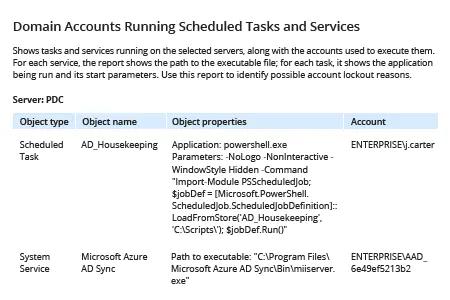
Netwrix Auditor for Windows Server
- Netwrix Auditor を実行します。「Reports」へ移動 -> 「Predefined」をクリック -> 「Windows Server」セクションを展開 -> 「Windows Server – State-in-Time」をクリック -> 「Domain Accounts Running Scheduled Tasks and Services」を選択 -> 「View」をクリックします。
- レポートを特定のサーバーまたはワークステーションに限定するには、フィルターの「Server name」フィールドにマシン名を入力 -> 「View Report」をクリックします。
共有する