
ネイティブ監査
- Powershell ISE を開きます。
- 次のスクリプトを実行し、“OutFile” および “RootPath” フィールドを調整します:
      $OutFile = "C:\Temp\Permissions.csv" # Insert folder path where you want to save your file and its name
$RootPath = "\\Pdc\Shared" # Insert your share directory path
$Header = "Folder Path,IdentityReference,AccessControlType,IsInherited,InheritanceFlags,PropagationFlags"
# $Header = "Folder Path,IdentityReference,AccessControlType,IsInherited,InheritanceFlags,PropagationFlags,FilesystemRights"
$FileExist = Test-Path $OutFile
If ($FileExist -eq $True) {Del $OutFile}
Add-Content -Value $Header -Path $OutFile
$Folders = dir $RootPath -recurse | where {$_.psiscontainer -eq $True}
foreach ($Folder in $Folders){
$ACLs = get-acl $Folder.fullname | ForEach-Object { $_.Access }
Foreach ($ACL in $ACLs){
$OutInfo = $Folder.Fullname + "," + $ACL.IdentityReference + "," + $ACL.AccessControlType + "," + $ACL.IsInherited + "," + $ACL.InheritanceFlags + "," + $ACL.PropagationFlags
# If you need detailed file system rights in your report, add the following at the end of previous line:
# + "," + ($ACL.FileSystemRights -replace ',','/' )
Add-Content -Value $OutInfo -Path $OutFile
}}
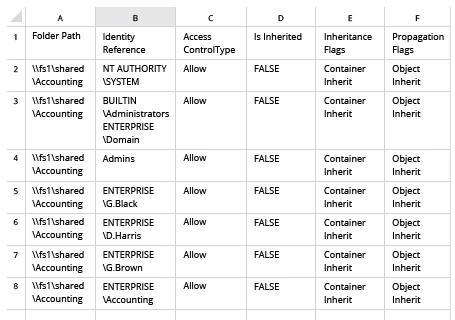
- Microsoft Excel で、スクリプトによって生成されたファイルを開きます:
Netwrix Auditor for Windows File Servers
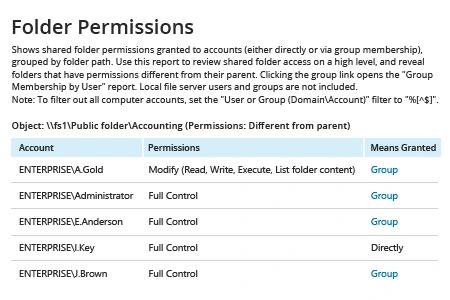
- Netwrix Auditor を実行 → 「Reports」へ移動 → 「File Servers」を開く → 「File Servers – State-in-Time」へ移動 → 「Folder Permissions」レポートを選択します。
- 「Object UNC Path」フィルターで、ファイル共有へのパスを指定します(例:「\\Myserver\Myshare」)。
- 「レポートを表示」をクリックします。
レポートをメールで定期的に受け取るには、「Subscribe」オプションをクリックして、スケジュールと受信者を指定するだけです。
共有する