
组织单位(OU)是在 Active Directory 中的一个容器,可用于存储用户、组和计算机,以及其他 OU。每个 AD 域 都可以拥有自己的组织单位层次结构。
在本文中,您将学习 OU 管理,以及如何使用 PowerShell 脚本在 AD 中创建、移动和删除组织单位;将 组策略 链接到 OU;并将计算机和用户帐户移动到另一个 OU。
PowerShell ISE 是处理 PowerShell 脚本的最佳工具。按下“Windows+R”,在“运行”窗口中输入“runas /profile /user:Administrator PowerShell_ISE”,即可用管理员权限启动 PowerShell ISE 工具。出现提示时输入管理员密码。或者,你也可以右键单击 PowerShell ISE 图标,然后选择“以管理员身份运行”选项。
要使用 AD 及其对象,你需要导入适用于 Windows PowerShell 的 Active Directory 模块。在 Microsoft Windows Server 2008 R2 中,你需要通过运行以下命令来启用该模块:
Import-Module ActiveDirectory
在 Microsoft Windows Server 2012 及更高版本中,该模块默认已启用。
使用 PowerShell 在 Active Directory 域中创建组织单位(OU)
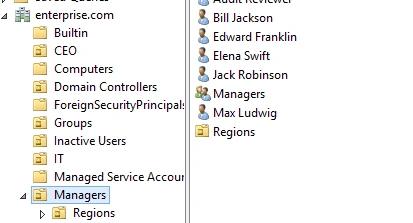
你可以使用 New-ADOrganizationalUnit cmdlet,并指定新的 OU 对象名称,在 Active Directory 中创建新的组织单位(OU)。默认情况下,PowerShell 会在域根中创建 OU。下面的命令将在 DC 上创建名为“Regions”的 OU:
New-ADOrganizationalUnit “Regions”
如果需要不同的 OU LDAP 路径,请使用 –Path cmdlet 参数指定其专有名称(distinguished name):
New-ADOrganizationalUnit “Regions” –Path “OU=Managers,DC=Enterprise,DC=com”
将 OU 移动到另一个 LDAP 地址
如果需要将 OU 移动到另一个位置,请使用 Move-ADObject cmdlet。请注意,目标 OU 必须不能受到防止意外删除的保护。如果启用了该保护,请使用此命令移除保护:
Set-ADOrganizationalUnit -Identity "OU=Regions,OU=Managers,DC=Enterprise,DC=Com" -ProtectedFromAccidentalDeletion $False
现在可以将 OU 移动到另一个位置:
Move-ADObject -Identity "OU=Regions,OU=Managers,DC=Enterprise,DC=Com" -TargetPath "OU=IT,DC=Enterprise,DC=Com"
重命名 OU
要重命名组织单元,请使用 Rename-ADObject cmdlet。-Identity 参数用于指定要重命名的 Active Directory 对象,并且需要该对象的专有名称(DN)或 GUID。
此命令将“Regions”组织单元(OU)重命名为“Districts”:
Rename-ADObject -Identity "OU=Regions,OU=IT,DC=enterprise,DC=COM" -NewName Districts
另外,您也可以使用带有 Get-ADOrganizationalUnit cmdlet 和 -Filter 参数;它不需要提供指向 OU 的完整 LDAP 路径。不过,该 cmdlet 会搜索整个 AD,并将操作应用到所有名称中包含该搜索词的 OU:
Get-ADOrganizationalUnit -Filter "Name -eq 'Regions'" | Rename-ADObject -NewName Countries
将组策略应用到 OU
要将组策略分配到 OU,请使用 New-GPLink 这个 cmdlet,它基本上会在指定的组策略对象(GPO)和 OU 之间创建链接。你可以为该链接指定以下任意属性:
- 已启用 — 如果启用该链接,则在为站点、域或 OU 处理“组策略”时应用 GPO 的设置。
- 已强制 — 如果启用“强制”,则无法在更低级别的容器中将其阻止。
- 顺序 — 顺序用于指定 GPO 设置的优先级。
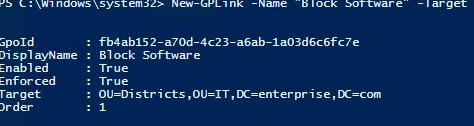
以下命令会将 “Block Software” GPO 链接到 “Districts” OU,并同时启用并强制该链接:
New-GPLink -Name "Block Software" -Target "OU=Districts,OU=IT,dc=enterprise,dc=com" -LinkEnabled Yes -Enforced Yes
将计算机和用户移动到新的 OU
创建了组织单位(OU)并可选地将其链接到组策略对象(GPO)之后,就该往里面填充用户和计算机了。PowerShell Move-ADObject cmdlet 会将任何对象或一组对象(例如用户、计算机、组或另一个 OU)移动到另一个 OU。-Identity 参数用于指定要移动的 Active Directory 对象或容器。请注意,你需要输入对象的完整 LDAP 路径或 SID;不能使用其 SamAccountName。下面的示例演示如何将用户(John Brown)移动到 “Districts” OU:
Move-ADObject -Identity "CN=John Brown,CN=Users,DC=enterprise,DC=com" -TargetPath "OU=Districts,OU=IT,DC=Enterprise,DC=Com"
移动计算机对象时使用相同的语法。以下命令将把计算机 “R07GF” 移动到 “Computers” 容器:
Move-ADObject -Identity "CN=R07GF,OU=CEO,DC=enterprise,DC=com" -TargetPath "CN=Computers,DC=Enterprise,DC=Com
使用 CSV 或 TXT 文件将 AD 计算机和用户移动到另一个 OU
如果你已有预定义的要移动对象列表,可以将其保存为 CSV 文件,然后将该文件导入到 Active Directory。CSV 列表应采用以下格式:
使用此 PowerShell 脚本移动 CSV 文件中列出的 AD 用户帐户:
      # Specify target OU. This is where users will be moved.
$TargetOU =  "OU=Districts,OU=IT,DC=enterprise,DC=com"
# Specify CSV path. Import CSV file and assign it to a variable.
$Imported_csv = Import-Csv -Path "C:tempMoveList.csv"

$Imported_csv | ForEach-Object {
     # Retrieve DN of user.
     $UserDN  = (Get-ADUser -Identity $_.Name).distinguishedName
     # Move user to target OU.
     Move-ADObject  -Identity $UserDN  -TargetPath $TargetOU

 }
要移动文本文件中列出的 AD 计算机帐户,请使用以下 PowerShell 脚本:
      # Specify path to the text file with the computer account names.
$computers = Get-Content C:TempComputers.txt

# Specify the path to the OU where computers will be moved.
$TargetOU   =  "OU=Districts,OU=IT,DC=enterprise,DC=com"
ForEach( $computer in $computers){
    Get-ADComputer $computer |
    Move-ADObject -TargetPath $TargetOU

}
从 AD 中移除一个 OU
Remove-ADOrganizationalUnit cmdlet 用于移除一个 OU。该 OU 不能受到防止意外删除的保护。您可以使用以下 Get-ADOrganizationalUnit 和 Set-ADOrganizationalUnit cmdlet,移除所有名称中包含“Continents”的 OU 的“意外删除”选项,如下所示:
Get-ADOrganizationalUnit -filter "Name -eq 'Continents'" | Set-ADOrganizationalUnit -ProtectedFromAccidentalDeletion $False
使用以下命令从 AD 中移除所有名称中包含“Continents”的 OU:
Get-ADOrganizationalUnit -filter "Name -eq 'Continents'" | Remove-ADOrganizationalUnit –Recursive
系统将提示您确认删除:
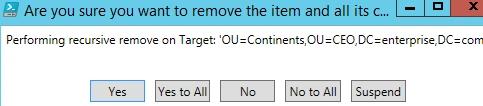
请注意该 -Recursive 参数会同时移除 OU 以及其所有子对象。即使对这些子对象启用了防删除保护,它们仍将被删除。
结论
既然你已经学会了如何使用 PowerShell 脚本在 Active Directory 中管理 OU,你就可以自动执行与 OU 管理相关的各种简单操作。在尝试这些命令之前,请务必启用 Active Directory Recycle Bin feature,以便你能够轻松回滚任何误删。谨慎跟踪组织单元的所有变更也是很明智的做法。
分享到
了解更多
关于作者

Jeff Melnick
系统工程总监
Jeff 是 Netwrix 的前 Global Solutions Engineering 总监。他是一位长期的 Netwrix 博主、演讲者和讲解员。在 Netwrix 博客中,Jeff 分享各种生活技巧,以及可以显著提升您系统管理体验的提示与技巧。